On Samsung Galaxy phones, different icons can be displayed in the status bar, each representing a specific function or notification. One such icon is a triangle with arrows . If you've seen this icon and aren't sure what it means, don't worry, this article will explain its significance.
If you've recently switched to a new Samsung Galaxy or installed a firmware update on your device, you might notice a new icon in the status bar that you're not yet familiar with. This symbol is a triangle with arrows in the middle and resembles the recycling symbol. But do you know what this symbol represents on your Samsung Galaxy smartphone?
That is exactly what we want to clarify in this article, the meaning of the triangle icon with arrows on Samsung.
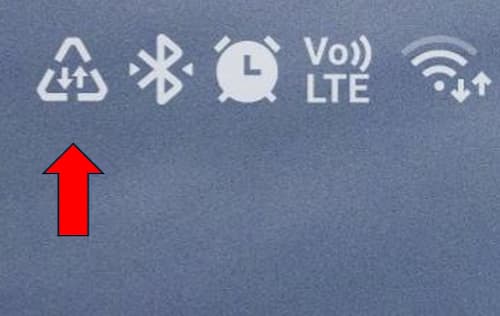
If you see this symbol, it means data saving mode is enabled . This feature is designed to help you save on mobile data usage. If the feature is activated, you'll see the triangle symbol appear in the status bar of your Samsung Galaxy smartphone.
What is data saver mode?
Data saver mode is a process that allows you to reduce the data consumed by apps and Android itself . The main advantage of this mode is that it can drastically reduce your monthly data costs.
Android phones have come a long way since their inception, incorporating features into their mobile devices that other competitors can only dream of. One such popular Android feature, now adopted by most of its competitors, is the ability to save mobile data with a single tap.
However, while this might seem like a great feature, it can also prevent apps from automatically updating and downloading large files, which could seriously impact your data plan usage if you see the triangle icon with arrows on your Samsung device. Therefore, you might want to consider disabling Data Saver in some cases, especially if the feature was automatically enabled rather than manually activated.
Common problems with data saver mode
If you see the triangle icon with arrows on your Samsung device, it means data saver is enabled. This can significantly reduce data usage if you primarily rely on mobile data for your internet connection. However, it can also mean that you might not receive notifications from some apps on time, or at all.
In addition, some apps may not load correctly or appear to function normally. For example, your emails might still download, but larger files like photos or images might not download without being touched. As the name suggests, this feature allows you to save data, but at the expense of convenience.
The good thing about Data Saver is that you can still use your device normally, but none of the apps will use any data without your permission.
How to turn off data saving
Usually the triangle with arrows icon on Samsung that represents that the data saving mode is activated can be seen in the taskbar. If you have manually activated this mode, you will not be surprised to see it there. However, sometimes the triangle with arrows icon on Samsung can appear after an update.
If you have seen the symbol and have noticed connection or application operation problems, you just need to follow the following steps to deactivate your smartphone mode:
- Open the application Configuration and touches Connections.
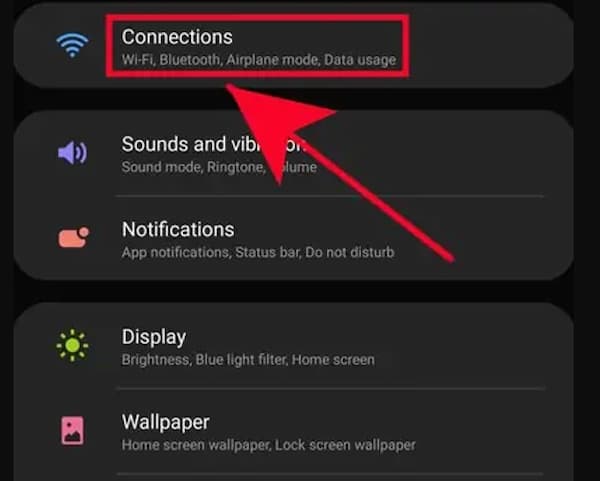
- Now play Use of data and choose Data saving to access the settings Data saving.
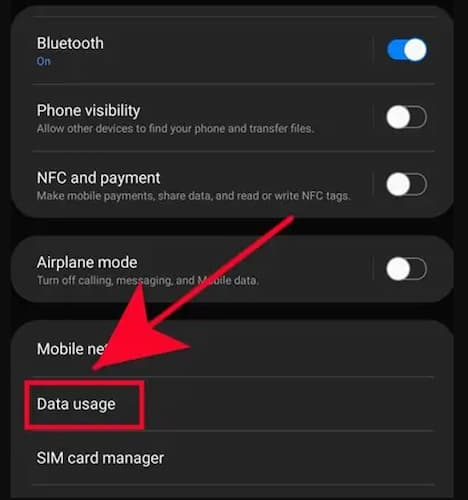
- Now you will see a switch at the top of the screen for Data Saver. turn off the switch to disable “Data Saver” on your device.
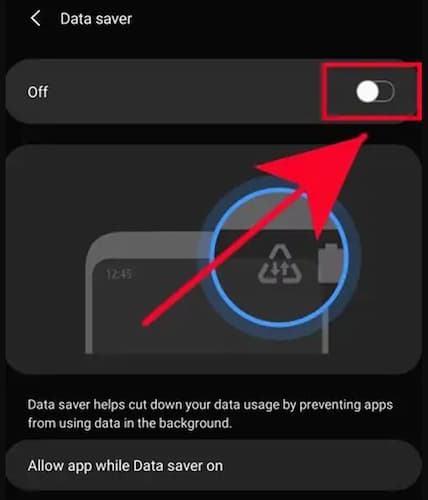
Data Saver should now be disabled on your mobile device and you should no longer see the triangle with arrows icon on Samsung.
How to activate data saving mode
If, on the other hand, you find that there are times when this data saving mode can be useful, we show you how to activate it. The sign you will see that the mode is activated is the triangle icon with arrows on Samsung's taskbar.
Enabling the data saver feature is easy. Just follow the steps below:
- Open the application Configuration.
- You can find the Settings app on the home screen or in the app tray.
- Toca Connections
- Select connections
- Toca Use of data
- Toca Data saving
- Check Data Saver.
You might be interested in: 10 Best Apps to Manage Your WiFi (Android and iOS)
How to allow exceptions for the data saver feature
One of the features of this mode is that you can select some apps to continue using data without restrictions even if the data saver feature is enabled. This means that you can nominate important apps that you cannot afford to miss notifications or alerts from while blocking the rest of your apps from consuming data.
This way, even if the mode is activated, those apps marked as exceptions will continue to function normally. Here's how you can include exceptions for data saving mode:
- Open the application Configuration.
- Toca Connections.
- Press Use of data.
- Press Data saving.
- Toca Allow application while data saver is on.
- To enable the exception, move the slider to the right of the application.
Final words
We've now explained what the triangle icon with arrows on Samsung phones means. It's important to understand that this data-saving mode isn't exclusive to Samsung phones; it's available on a wide range of Android smartphones from various brands and models.
Generally, the steps to activate or deactivate this mode on other devices are quite similar to the one we have described for Samsung since the mode can generally be found in the settings menu.
This is a feature that can be quite useful for those who rely exclusively on data plans and the option to make exceptions means you can manipulate it depending on your needs.

My name is Javier Chirinos and I am passionate about technology. Ever since I can remember, I have been interested in computers and video games, and that passion has turned into a job.
I have been publishing about technology and gadgets on the Internet for over 15 years, especially in mundobytes.com
I am also an expert in online marketing and communication and have knowledge in WordPress development.