
Your touch screen not working and it no longer responds to your finger pressures? Does it seem to have become completely insensitive to touch? DO NOT worry. Today we present you several troubleshooting solutions to repair a faulty screen without resorting to technical service. Each of these alternatives will help you. We invite you to continue reading our guide made for you.
What should you do when your touch screen is not working?
Since the arrival of all-touch, the touch screen has become the most important component of our smartphones. It is used all day long to enter messages, launch applications or simply play games.
And that's the problem. Because the touchscreen is more fragile than it seems. No brand or device is immune to this type of failure. And when the touchscreen doesn't work, the entire smartphone becomes unusable. Then you can't do anything anymore, not even access your personal data.
Here you can learn about: Touch Screen Not Working On Windows 10 – 6 Solutions
First of all, you should know that a malfunction in the touch screen part of a phone is not necessarily the result of a fault in hardware. Most of the time, one or two manipulations are enough to find a fully functional touch screen. Below we look at the most effective causes and solutions:
Cause and solution 1 when the touch screen does not work (Clean your smartphone screen)
Before using your phone, you should make sure that your hands and your phone screen are clean and dry.
- Cause: The touch part does not support moisture (sweat) or grease. In fact, the presence of dirt or liquid substance risks modifying the precision of the panel's contact detection system.
- A satisfactory solution: We recommend that you thoroughly clean your phone's screen with a microfiber cloth. The latter will not damage the glass surface of your phone.
NOTE: : On the other hand, be careful not to use chemicals. Acetone, ammonia or alcohol contained in certain solutions weaken the protective layer placed on the screens. You should also make sure that your hands are clean.
Finally, one last important point: most phones do not work with gloves on. So remember to remove them before using your smartphone.
Cause and solution 2 when the touch screen does not work (Restart your phone)
This tip may bring a smile to the faces of many readers. And yet, in many cases, a simple reboot is enough to correct the abnormal behavior of the touch screen of some smartphones.
A satisfactory solution:
- Step 1:: Press and hold the power button on your device until the boot menu appears
- Step 2:: Click the button Restart
- Step 3:: If the screen refuses to respond to your requests, press and hold the power button for several seconds
NOTE: : Wait a minute before pressing the power button again to restart it. If the touchscreen still doesn't work after restarting your phone, you'll need to continue with the next method.
Cause and solution 3 when the touch screen does not work (Enter Safe Mode)
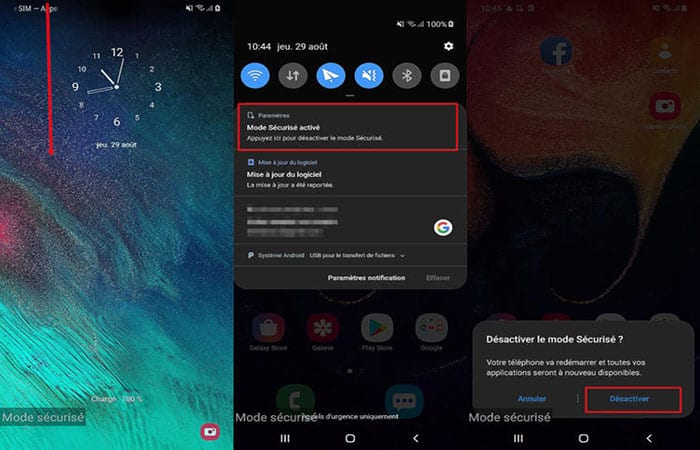
Before contacting after-sales service or starting to replace the screen of your mobile, we recommend that you start the safe mode de Android. This will allow you to ensure that it is a software issue and not a hardware failure.
Safe mode is a kind of diagnostic mode for Android smartphones. It will temporarily disable all third-party applications installed on your device. Only essential Android components will be loaded at startup.
If your touchscreen is not working and not responding while your phone is in safe mode, you will need to find the app that is causing the problem.
Example of repair when the touch screen does not work on models (Samsung)
Are you still feeling helpless when your touch screen is not working? If you want to fix this problem, here we will provide you with the solutions to fix your mobile touch screen stuck problem.
Touch screen technology is advancing day by day, allowing you to operate your smartphone without any problems. But now touch screen problems are becoming common like when the touch screen is not working on a Samsung and other brands. This problem will hamper the use of your phone and it will become very annoying when you are unable to perform any simple operation of the phone.
Reasons why the touch screen does not work
There are some common reasons that cause Samsung touch screen not working:
- Malicious apps: Malicious applications that corrupt applications and damage the operating system can cause the touch screen to become unresponsive.
- Damage to the screen: External factors such as damage to the screen, temperature, magnetic field can almost be the cause of the Samsung touch screen no longer responding to any touch.
- system error: Your Android device is likely to get bricked and not work while the system is being modified.
Now, let's see how to fix this fault:
How to fix Samsung touch screen not working
In this part of our guide, we will show you the solutions to 4 factors that cause the touch screen not to work:
- Force restart.
- Remove the memory card.
- Start the device.
- Repair Android system
Cause and solution 1 when the touch screen does not work. (Force restart)
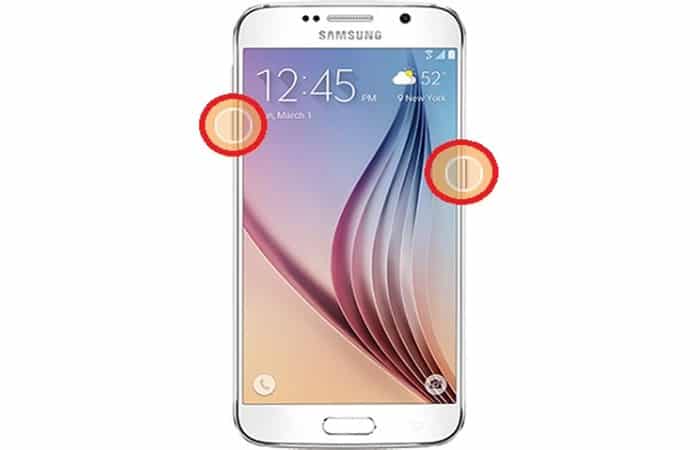
If you are having a problem with your Samsung touchscreen not working, one of the available options is to force restart it. Just follow these steps:
- A satisfactory solution: To do this, you need to press the volume down button and the power button at the same time for more than 20 seconds. This manipulation will make your device smoother and faster with proper touch screen response.
Cause and solution 2 when the touch screen does not work (Remove the memory card and SIM card)
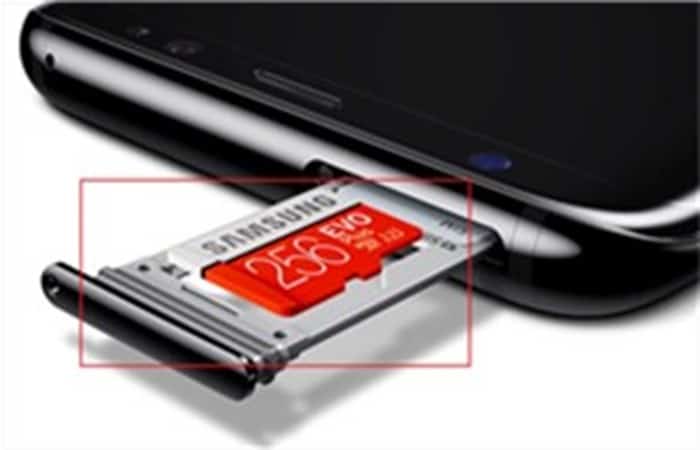
While performing various functions, the Smartphone heats up and this hampers its performance. It also influences the touch screen and makes it late to respond. Removing the memory card and SIM card can be a convenient way to solve this problem.
- NOTE:You must unmount your SIM card and memory card before removing them. Your data may be deleted.
Cause and solution 3 when the touch screen does not work (Start the device in safe mode)
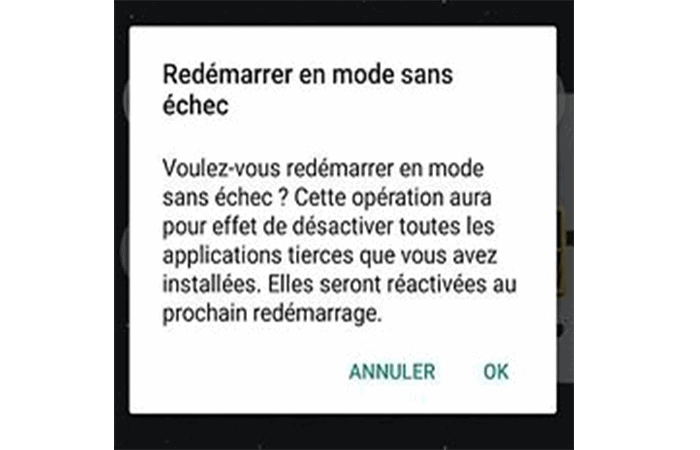
If the above methods don't fix your problem, try booting your device into Safe Mode (Safe Mode for other brands of Android phones). This procedure will help you check if recently installed apps are responsible for the problem. Here are the steps:
- Step 1: Press and hold the power button until you see the option Delete on the screen.
- Step 2: Hold down Delete to unlock the menu.
- Step 3: Toca Yes when a message appears on the screen asking you to confirm the reset.
NOTE: : If your device works normally after booting into safe mode, it is likely that the last installed app is causing the problem.
Cause and solution 4 when the touch screen does not work (Repair Android system with DroidKit)
If the above methods still can't help you fix the problem when the touch screen is not working, then the system may be damaged and the screen of your device is not working. Try using droidkit, is a professional Android rescue software. DroidKit can help you repair systems of many Smartphone brands. Among them (Samsung)
- First of all, DroidKit is suitable for all Samsung devices with Android 5-11, you don't need to worry about device matching.
- DroidKit can repair Android system quickly, just click the mouse and follow the instructions. Fix various problems caused by system damage, such as black screen, touch screen not working, etc.
- High success rate, simple operation, easily solve the problem of Samsung screen not working.
To fix errors on your smartphone when the touch screen is not working, just follow these steps:
- Step 1:: First, download DroidKit on your PC / Mac. from the following links:
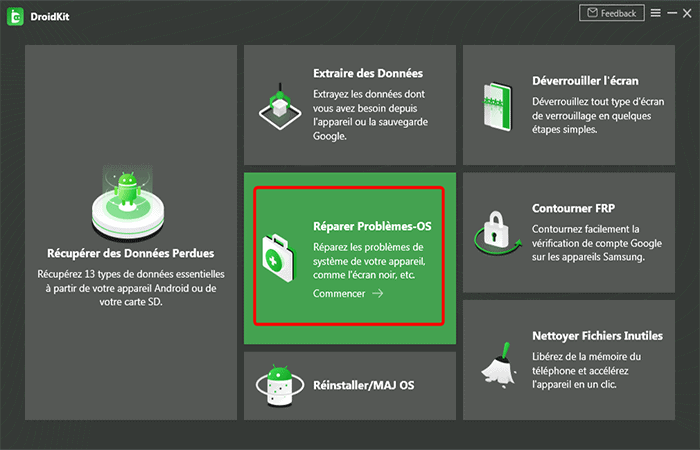
- Step 2: After the download is successful, you will see the following interface, select the option Fix OS Problems.
- Step 3: Connect your Samsung device to your computer with a cable USB.
- Step 4: Once your Android device is detected, click the button Home.
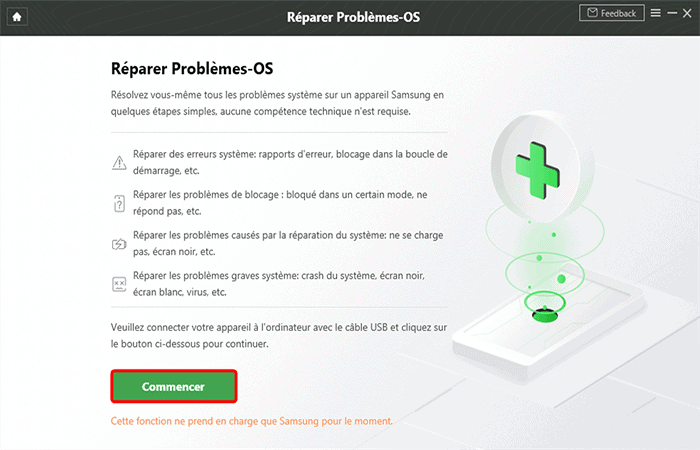
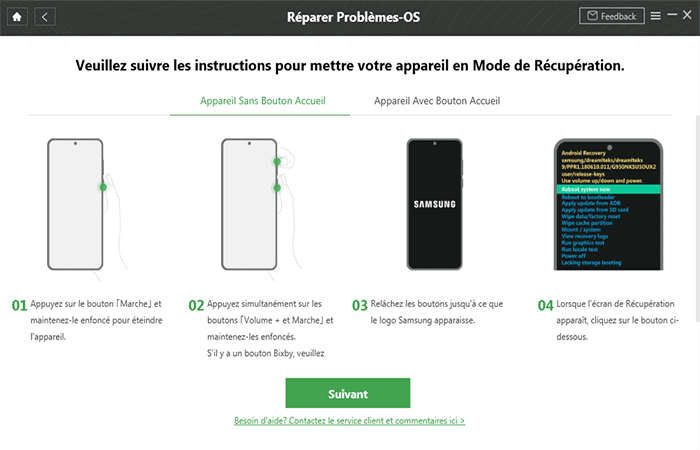
- Step 5:: Put your Samsung device into recovery mode.
- Step 6:: Find and enter the PDA code of your Samsung device.
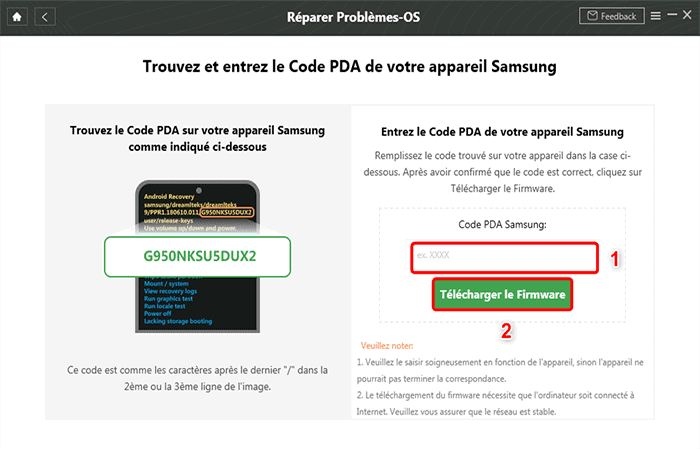
- Step 7:: The program will start downloading the firmware automatically. After downloading and verifying the firmware, it will automatically start repairing your Android system.
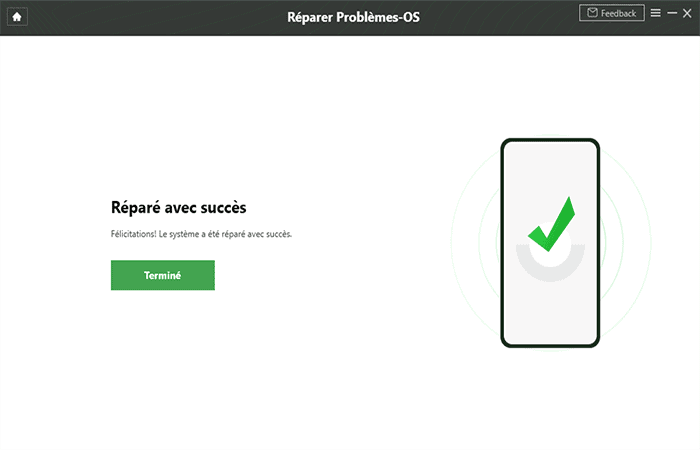
- Step 8:: After completing the repair process, you will see the interface below.
Tip to backup Samsung data when touch screen is not working
If you are still facing the touch screen not working issue and are considering resetting your phones, you need to be very careful because resetting might erase all your important data if not backed up.
There are several methods to back up your data, and AnyDroid It is undoubtedly the best option. Here are the reasons:
- AnyDroid enables you to backup all your Samsung data to your PC/Mac with 1 click, without any complex manipulations.
- You can select certain data to be saved according to your needs by previewing them in detail before transfer.
- This efficient manager can backup all types of Android data like contacts, messages, videos, apps, photos, etc.
- This professional tool also allows you to transfer data between two Samsung devices and add data from computer to your Samsung.
- AnyDroid is highly compatible with all Samsung devices and other brands of Android devices.
Let's see the steps to use this program:
- Step 1:: Launch AnyDroid on your PC> Connect your Samsung device to the computer with a USB cable > Click Content for PC/Mac. You can download this software from these links:
- Step 2:: Choose the data categories you want to back up. Then click Next.
NOTE: : Once all your data is backed up on your computer, you can easily reset your device and fix the touch screen not working issue.
Other Solutions When the Touch Screen Does Not Work
Touchscreen problems on Samsung devices can appear due to hardware wear or improper handling of the Android system. This blockage particularly prevents the use of the smartphone and requires repair at the hardware or software level. Below are some tips that can help you resolve the fault quickly.
Solution 1 when the touch screen does not work (Check your device screen)
The first step in an effective screen failure diagnosis is to check the overall condition of the element. Before evaluating your smartphone, you must be sure that it has no physical faults.
To do this, check if the screen does not have:
- Crack
- Deep scratching.
- It has dead pixels (small squares that always display a single color regardless of the background)
Next, check for any accidental elements that may be preventing the screen from responding to your manipulations by:
- Remove the protective film if there is any
- Take off your gloves
- Cleaning the touch part
Solution 2: Restart the device
The touch screen problem on Samsung and other smartphones can occur when the system is stuck due to memory saturation (ROM and RAM) and especially when countless processes are started simultaneously.
In this case, performing a simple reboot is enough to solve the problem.
Solution 3: Check for Android updates
Almost all Samsung smartphones run on the Android operating system. You should know that the developers of this software regularly offer new updates to optimize the overall operation of the device, whether in terms of fluidity or compatibility of new applications.
If your touch screen is not working and crashes unexpectedly without any physical damage to the device (drop, electrocution, short circuit, etc.), remember to check the Android system version and update it if necessary.
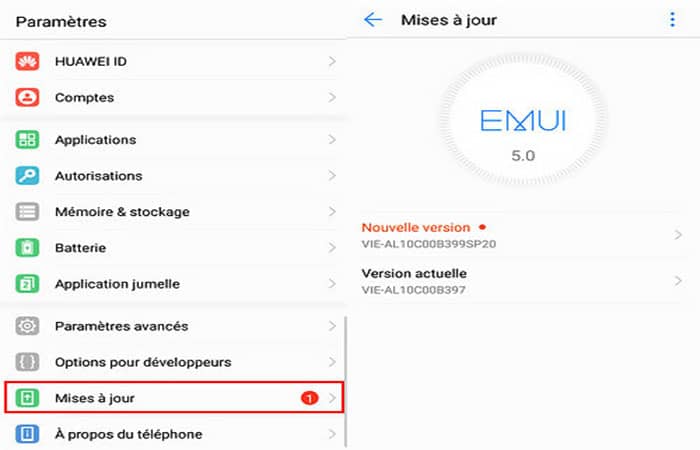
To check the current version follow these steps:
- Step 1:: Go to settings
- Step 2:: Scroll down the options to find “System«
- Step 3:: Tap «About of the phone» and then look «Android version«
To check if other versions are available
- Step 1:: Go back to “System”
- Step 2:: Touch Software update
- Step 3:: Download new updates and then install them.
Solution 4: Check storage space and free up space
As mentioned above, memory saturation and storage can freeze your device and prevent the screen from working properly. To avoid this problem, you should make sure that there is at least 200 MB of storage space left on your system, and if not, delete files or applications that you no longer need to free up memory.
To check the remaining memory available follow these steps:
- Step 1:: Go to settings
- Step 2:: Tap Storage
To delete unnecessary content that clutters up memory, you can uninstall applications:
- Step 1:: Go to settings
- Step 2:: Touch Applications
- Step 3:: Tap on the app to uninstall to open a list of options
- Step 4:: Touch Clear cache
- Step 5:: Press Delete data and then OK
- Step 6:: Tap Uninstall and then OK
You can also delete files from your app from «file manager» for images, music, videos, etc.
Solution 5: Use Safe Mode to find out which apps are causing the problem when the touch screen is not working
New applications can cause your system to crash when they are not compatible or contain malware which can completely block your touch screen.
However, there are operations that allow you to check if the installation of a recent application is the cause of the crash.
The "safe mode» is a program that allows you to run the system ignoring all possible application vulnerabilities (that's why it's called safe). If you reboot your device in this mode, and it works correctly, it will mean that a new program is the cause of the failure, in addition to any hardware problems. If this is not the case, the screen may have been damaged and the hardware may need to be repaired by a specialist.
To activate the Safe Mode You have two options:
- If your device is on:
- Hold down the button On and then Long press Power off. Safe mode will be displayed when the reboot process starts (automatically).
- If your device is off:
- Step 1:: Press and hold the power button
- Step 2:: When the first image appears, hold the volume down button until it starts
- Step 3:: Safe mode will be displayed.
NOTE: : Once you have started your smartphone in safe mode and no screen problems appear, you can deduce that an application has caused the crash. In this perspective, you can proceed to uninstall the last suspicious programs.
- Step 4:. To exit safe mode, reboot your device normally by pressing the power button and then «Restart«.
NOTE: : If the reset option is not displayed, perform the process manually by long pressing on/off (about 30 seconds).
Solution 6: Perform a hardware test when touchscreen not working on Samsung
There is a hardware diagnostic tool through the program "Samsung Members«. If your touchscreen is not working and refuses to respond to your input, use this tool to check if the element is not the source of the problem.
To do this you must follow these steps:
- Step 1:: Open «Samsung Members» in your app list (available for versions 7.0 Nougat and above)
- Step 2:: Tap Diagnostics from the main menu.
- Step 3:: Touch Smartphone Test
- Step 4:: Press the touch screen
- Step 5:: Perform the test by pressing the indicated areas to check the operating status of the screen.
Solution 7: Disable developer options when touch screen is not working
Enabling this option may interfere with the correct operation of the system in case of incorrect manipulation. To disable it:
- Step 1:: Go to settings
- Step 2:: Touch System and then Developer Options
- Step 3:: Choose the option Deactivate
Solution 8: Restore your phone or tablet to factory settings when the touch screen is not working
If after these diagnostics and solutions, your touch screen still does not work, we suggest you use the ultimate tool called "Tenorshare ReiBoot for Android"(You can download it here) which offers a panel of options to solve errors and other problems on your Android. This software will allow you to restore the factory function of the device so that it works like the first day.
Touchscreen equipment alternatives
If you find that none of these options helped you, you may want to consider looking for other equipment that is more durable. Here are 6 alternatives that may interest you:
iPad Pro 2021: The best tablet for iPadOS
El iPad The Pro 2021 is packed with new features and is ahead of its predecessor in many ways thanks to its M1 chip, Mini-LED display, 5G compatibility, and Thunderbolt port.
Samsung Galaxy Tab S7+: The Best Android Tablet
With a new keyboard, improved office tools, and 5G support, the Galaxy Tab S7+ becomes a good alternative to the iPad Pro or even a laptop as your primary machine.
iPad Air 2020: the best tablet for less than 700 euros
The new iPad Air is undoubtedly the best alternative to the 2020 iPad Pro. But its price, which depends on how you configure it and equip it with accessories, can vary greatly.
Samsung Galaxy Tab S5e: the best Android tablet for less than 400 euros
Positioned in the mid-range, the Samsung Galaxy Tab S5e offers excellent value for money. Thin and light, it offers optimal comfort of use. Its screen and sound section allow it to offer an immersive experience.
We can also count on its technical configuration articulated around the Snapdragon 670 to navigate in a clean and well thought-out interface without problems. To find a real fault, we must turn to its photo part, far from being accurate in low light.
iPad 10.2 inches (iPad 8): the best Apple tablet for less than 400 euros
Apple's most affordable iPad gets a more powerful chip and retains all its strengths. A winning formula for Apple, which could still have revised the age-old design of its tablet.
Amazon Fire HD 8 (2020): the benchmark for less than 100 euros
Amazon is updating its popular 8-inch Fire HD tablet with a faster processor, 2GB of RAM (up from 1,5GB in the current model), a USB-C port, and a XNUMXGB SSD. USB-C for charging and 32GB of storage in the base model instead of 16GB It enjoys better performance over Wi-Fi thanks to a second antenna and the new processor is supposed to MediaTek 8168 quad-core with 2GB RAM increases speed by 30% and makes multitasking easier.
Key points for buying quality equipment
The market for touchscreen tablets is changing very little, unlike the mobile phone market. The offer is far from bloated and the models worth buying can be counted on the fingers of one hand.
In the face of Apple and its iPad, few brands can compete. However, we find mobile cadets such as Samsung that are willing to take on the giant Apple.
Therefore, some Android tablets stand out even if the iPad Pro (2020) The Cupertino company's flagship tablet remains THE benchmark. Rest assured, it is not mandatory to put a fortune on the table to enjoy a good experience and this is where touch tablets running on the operating system of the company come into play. Google.
We do not recommend buying your tablet on a whim. First of all, carefully evaluate your needs. Even if the screens of our smartphones tend to become larger and larger, the tablet still allows you to take advantage of a larger display surface for watching movies, playing games or working.
You may also be interested in reading about: How to Fix a Wet Touch Screen on a Mobile Phone
Conclusion
These are the Tricks To fix the problem when the touch screen is not working, you can try these to make the stuck touch screen work. Download DroidKit and get a free trial to repair Android system in an easy and fast way. If you find this software useful, please share it with your friends.
In short, the problem of the touch screen no longer working can be inherent to many hardware or software factors. From these different solutions, you can quickly discover the origin of the problem without having to resort to professionals.

My name is Javier Chirinos and I am passionate about technology. Ever since I can remember, I have been interested in computers and video games, and that passion has turned into a job.
I have been publishing about technology and gadgets on the Internet for over 15 years, especially in mundobytes.com
I am also an expert in online marketing and communication and have knowledge in WordPress development.