Right here is how one can Wipe Information From iPhone With Damaged Display screen through the use of iTunes and iCloud on a Mac or Home windows laptop.

Wipe Information From iPhone With Damaged Display screen
Till Apple comes up with a self therapeutic iPhone, the one repair for an iPhone with damaged display screen is to change the damaged display screen.
In case you have Apple Care+ Plus plan, Apple will substitute your broken iPhone new one. Should you wouldn't have Apple Care plan, you should have take your iPhone to restore heart.
In each instances, you will discover the necessity to Wipe Information out of your iPhone, earlier than giving it away to Apple or leaving your gadget with a Restore Heart.
You will see that under the steps to Wipe Information From iPhone with Damaged Display screen, after making a backup of the information on your gadget.
1. Re-Up iPhone to PC
Before wiping the information out of your iPhone, you could wish to save a backup of your iPhone to Mac or PC utilizing steps supplied in these guides:
- Tips on how to Backup iPhone to Mac Using Finder
- Tips on how to Backup iPhone to Home windows Pc
After making a backup of iPhone, you'll be able to Wipe the Information on your iPhone using any of the following strategies.
2. Wipe Information From iPhone Using iCloud
If Discover iPhone service is enabled on your gadget, you'll be able to observe the steps below to Wipe information out of your iPhone using iCloud.
1. Using your laptop go to icloud.com and sign up to your iCloud Account.
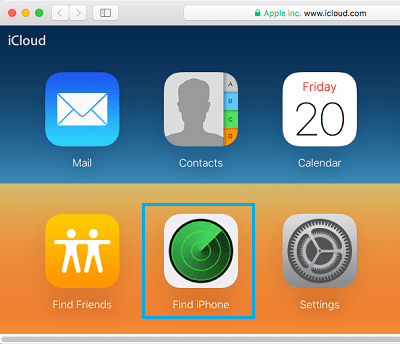
2. As soon as you might be on iCloud, click on Discover iPhone.
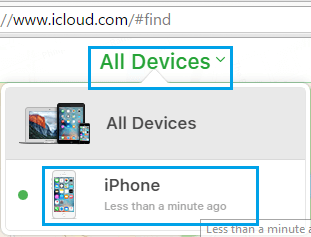
3. Subsequently, click on on All Units choice positioned on the top of display screen and click on on your gadget within the drop-down.
4. As soon as your gadget is chosen, click on the Erase iPhone choice.

5. On the affirmation pop-up, click on Erase to verify.
2. Erase Information From iPhone Using iTunes
Observe the steps below to Wipe Information From iPhone With Damaged Display screen using iTunes.
1. Join iPhone to Home windows laptop using its provided USB Cable.
2. Start iTunes on your laptop and click on on the Telephone Icon , every time it seems in iTunes

3. Subsequently, click on on the Abstract tab in left-pane. Within the right-pane, click on Restore iPhone… choice.

Word : It's good to Flip OFF Discover My iPhone so as use iTunes to Restore your iPhone.
4. On the affirmation pop-up, click on the Restore button to verify.

When you click on Restore, iTunes will start the method of fully wiping out all of the Information out of your iPhone.
As soon as the information is deleted, it is possible for you to securely give the iPhone away for repairs.
Every time the iPhone is repaired, you will get again all of the Information in your repaired or New iPhone by Restoring iPhone From Backup.
4. Erase Information From iPhone Using Restoration Mode
In case your cracked iPhone has turned out to be fully unresponsive, you need to be able to wipe its Information using the Restoration Mode.
For this you'll be able to check with this information: How To Put iPhone in Restoration Mode.
- Tips on how to Get better Deleted Contacts On iPhone or iPad
- Tips on how to Restore iPhone From Backup on Mac
Table of Contents
