- Test-Connection offers ping, traceroute, MTU, and TCP tests with structured output.
- En PowerShell 6/7 changes syntax, return types and adds parameters such as -Traceroute and -Detailed.
- Windows PowerShell 5.1 uses WMI and Win32_PingStatus with authentication and impersonation options.
- -Quiet returns booleans, -Repeat iterates continuously, and -MtuSize calculates the Path MTU.
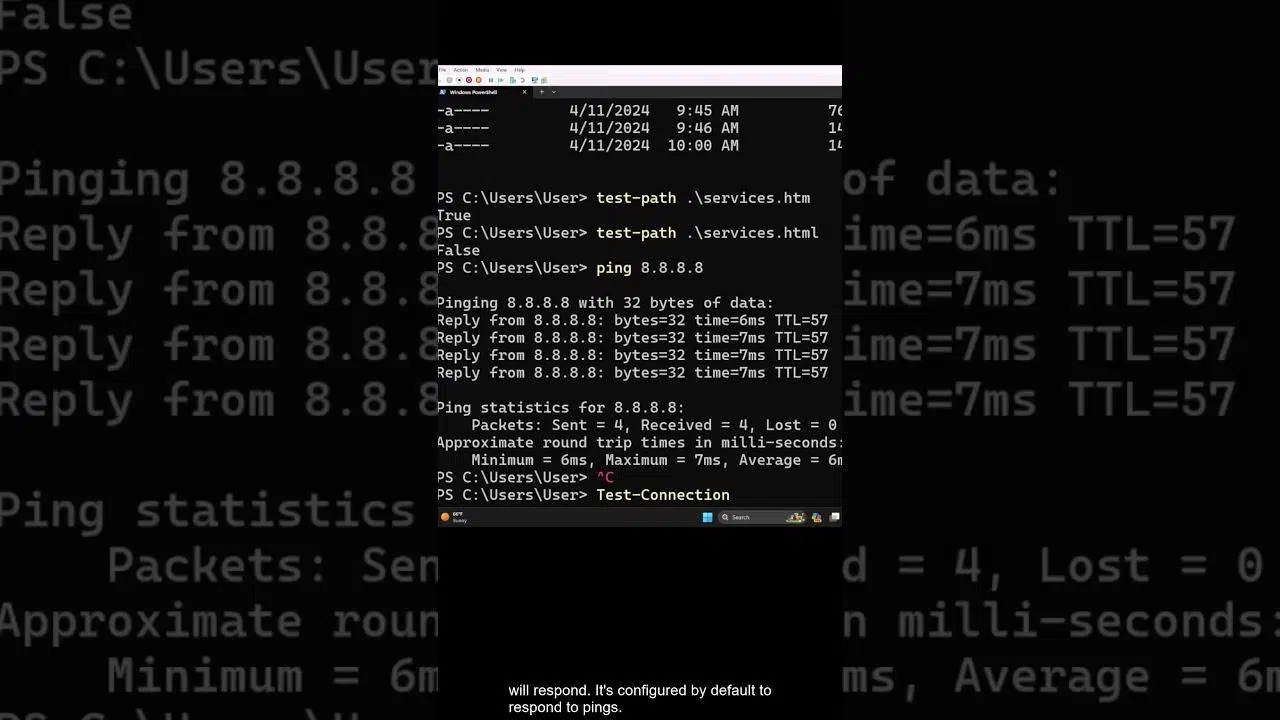
If you work with networks on Windows, Linux , or macOS, sooner or later you'll want to check if a host is responding and how healthy the connection path is. The Test-Connection cmdlet is the modern Swiss Army knife for ICMP pings, traceroute, MTU detection, and TCP testing from PowerShell , with structured output that can be filtered and processed.
Furthermore, the cmdlet's history has two sides: in classic Windows PowerShell (5.1), it relied on WMI and returned Win32_PingStatus , while in PowerShell 6 and later, the cmdlet was redesigned and expanded to be cross-platform and expose specific objects such as PingStatus, TraceStatus, and TcpPortStatus. Understanding both sets of parameters and outputs allows for thorough and accurate diagnosis.
What is Test-Connection and what does it solve?
Test-Connection sends ICMP echo requests (pings) to one or more destinations and returns the responses ; it can also trace the route, calculate the Path MTU, and test if a TCP port is reachable. Unlike the traditional ping executable, this cmdlet returns rich objects that you can pipe, filter, and convert into reports or dashboards.
In its modern version, the cmdlet adds parameters such as -Traceroute, -MtuSize, -TcpPort, -Repeat, -TimeoutSeconds, -IPv4/-IPv6, and -Detailed (the latter added in PowerShell 7.4 to break down TCP attempts). With -Quiet, you can limit the output to booleans per destination for quick decisions in scripts.
In environments where you previously combined ping, tracert, nslookup, or telnet, PowerShell provides native options to cover virtually all connectivity diagnostics from a single tool . And if you prefer a different approach, there's Test-NetConnection for combined network checks, but this article focuses on getting the most out of Test-Connection.
Key changes: Windows PowerShell 5.1 vs PowerShell 6/7
There are two clear stages in the evolution of the cmdlet. In Windows PowerShell 5.1 and earlier, the cmdlet uses WMI and returns Win32_PingStatus ; it exposes parameters such as -ComputerName, -AsJob, -DcomAuthentication, -Impersonation, -Protocol, -ThrottleLimit, -TimeToLive (TTL), and -WsmanAuthentication, among others.
With the jump to PowerShell 6+, the cmdlet was rewritten to be cross-platform and its API changed : it now uses -TargetName (instead of -ComputerName), the Ping/Repeat/Traceroute/MtuSize/TcpPort parameter sets appear, the outputs are specific types such as PingStatus, TraceStatus, PingMtuStatus or TcpPortStatus , and -TimeoutSeconds, -ResolveDestination and -Detailed (7.4) for TCP are included.
This means that if you write portable scripts, you must detect the version and adjust parameters and output processing accordingly. One option is to cover both worlds with conditional branches ($PSVersionTable.PSVersion.Major).
Modern Syntax and Parameter Sets (PowerShell 6+)
The cmdlet offers several sets of parameters that activate different modes . Here's an overview of its main options:
- Default Ping: Test-Connection
- Repeat Ping: Test-Connection -Repeat
- traceroute: Test-Connection -Traceroute
- MtuSizeDetect: Test-Connection -MtuSize
- TcpPort: Test-Connection -TcpPort
In all modes, -TargetName is required and accepts DNS names or IPv4/IPv6 addresses . The default output in ping is a sequence of PingStatus objects, one per echo.

Classic Syntax (Windows PowerShell 5.1)
In Windows PowerShell 5.1 environments, other signatures are used , with -ComputerName as the central parameter and several WMI authentication options:
- Default: Test-Connection
- Source: Test-Connection
- Quiet: Test-Connection
In this case, the default output is ManagementObject Win32_PingStatus , and with -AsJob a job object (System.Management.Automation.RemotingJob) is returned.
Modern parameters, explained one by one
-TargetName <string[]> : Targets to test, supports IPv4/IPv6 names and addresses; position 0 and required; accepts pipelining by value and by property name.
-Ping : forces ICMP ping mode; it is the default behavior, so it is usually omitted except for specific combinations.
-Repeat : sends pings continuously; if you provide multiple destinations, it only repeats over the first one and skips the rest ; incompatible with -Count in ping.
-Traceroute : Traces the route to the destination, returning TraceStatus objects per hop; from PowerShell 6 and compatible with -ResolveDestination for intermediate DNS names.
-MtuSize : detects the Path MTU to the destination, returning PingMtuStatus with the effective MTU size ; useful when combined with -DontFragment and -BufferSize.
-TcpPort <int> : attempts to open a TCP connection to the port specified in the destination; returns $true or $false (and with -Detailed in 7.4, TcpPortStatus objects with latencies and information per attempt).
-Count <int> : number of echo requests; default 4 in ping and also valid with TcpPort.
-Delay <int> : seconds between attempts; useful for congestion or sustained testing.
-BufferSize <int> : payload bytes; 32 by default ; adjusts in conjunction with -DontFragment for MTU testing.
-DontFragment : sets the no fragmentation flag on IP; key for Path MTU Discovery.
-IPv4 / -IPv6 : force the IP protocol to be used; useful in dual-stack hosts or when there are resolution problems.
-MaxHops <int> : maximum number of allowed hops; 128 by default in Windows 10+.
-ResolveDestination : attempts to resolve the destination DNS name and, along with -Traceroute, also intermediate hosts if possible.
-Source <string> : sending source (computer) when applicable; by default the local , useful in multi-source scenarios.
-Quiet : suppresses errors and returns booleans by destination; $true if at least one ping succeeds, $false if all fail.
-TimeoutSeconds <int> : maximum wait time per response; 5 seconds by default ; available from PowerShell 6.
-Detailed : In TCP tests (-TcpPort), returns TcpPortStatus with Id, address, latency, Connected and Status ; built into PowerShell 7.4.
Classic Parameters and Options (Windows PowerShell 5.1)
-ComputerName <string[]> : destinations to test; required and does not depend on PowerShell remoting.
-AsJob : runs the cmdlet in the background; returns a recoverable job object with Receive-Job so as not to block the session.
-DcomAuthentication <AuthenticationLevel> : COM authentication level used with WMI; accepted values Default, None, Connect, Call, Packet, PacketIntegrity, PacketPrivacy, Unchanged (default Packet).
-Impersonation <ImpersonationLevel> : WMI impersonation level; values Default, Anonymous, Identify, Impersonate, Delegate (default Impersonate).
-Protocol <string> : protocol for WMI; DCOM or WSMan depending on configuration.
-WsmanAuthentication <string> : authentication mechanism when using WSMan; supports Default, Basic, Negotiate, CredSSP, Digest, Kerberos.
-ThrottleLimit <int> : maximum number of simultaneous connections for the command; default 32.
-TimeToLive (TTL) <int> : maximum number of resends before discarding the packet; 128 by default on Windows (aka TTL).
-Source <string[]> and -Credential <PSCredential> : to send pings from other sources with appropriate credentials, especially useful for comparing latency from different locations.
Practical examples with PowerShell 6/7
Basic IPv4 ping to a specific server and analysis of the PingStatus output:
Test-Connection -TargetName Server01 -IPv4Ping multiple destinations in a single command with a name array:
Test-Connection -TargetName Server01, Server02, Server12Customize count, delay, hops, and buffer size when the network is loaded:
Test-Connection -TargetName Server01 -Count 3 -Delay 2 -MaxHops 255 -BufferSize 256Run as a background job , reading destinations from a file and waiting for results:
$job = Start-Job -ScriptBlock { Test-Connection -TargetName (Get-Content -Path 'Servers.txt') }
$results = Receive-Job $job -Wait
Create a PSSession only if there is connectivity at least in one echo:
if (Test-Connection -TargetName Server01 -Quiet) {
  New-PSSession -ComputerName Server01
}
Discover the route with traceroute and return TraceStatus per hop:
Test-Connection -TargetName www.google.com -TracerouteDetailed TCP test (PowerShell 7.4) for a typical TLS port:
Test-Connection bing.com -TcpPort 443 -Detailed -Count 4Practical examples with Windows PowerShell 5.1
Simple ping to a remote computer with Win32_PingStatus output:
Test-Connection -ComputerName Server01Ping multiple servers from the local machine:
Test-Connection -ComputerName Server01, Server02, Server12Ping a destination from multiple sources with credentials to compare latencies:
Test-Connection -Source Server02, Server12, localhost -ComputerName Server01 -Credential (Get-Credential)Customize attempts, TTL, buffer, and concurrency on large networks:
Test-Connection -ComputerName Server01 -Count 3 -Delay 2 -TTL 255 -BufferSize 256 -ThrottleLimit 32Run as a background job and collect results when it finishes:
$job = Test-Connection -ComputerName (Get-Content 'Servers.txt') -AsJob
if ($job.JobStateInfo.State -ne 'Running') {
  $results = Receive-Job $job
}
Ping with credentials and impersonation by adjusting the impersonation level:
Test-Connection Server55 -Credential (Get-Credential) -Impersonation IdentifyUse Boolean output for quick decisions in scripts:
if (Test-Connection -ComputerName Server01 -Quiet) { New-PSSession Server01 }Cmdlet inputs and outputs
Inputs : In the modern version, objects are not piped directly to the cmdlet; values are accepted by standard parameter (TargetName supports pipe-by-value or property-name).
PowerShell 6/7 Outputs :
- Microsoft.PowerShell.Commands.TestConnectionCommand+PingStatus: one object per ICMP response.
- Microsoft.PowerShell.Commands.TestConnectionCommand+TraceStatus: one object per hop with -Traceroute.
- Microsoft.PowerShell.Commands.TestConnectionCommand+PingMtuStatus: with -MtuSize for Path MTU.
- Boolean: with -Quiet or -TcpPort (arrays if there are multiple destinations).
- Microsoft.PowerShell.Commands.TestConnectionCommand+TcpPortStatus: with -Detailed for TCP in 7.4.
Outputs in Windows PowerShell 5.1 :
- ManagementObject (Win32_PingStatus): for each echo.
- Boolean: when using -Quiet.
- System.Management.Automation.RemotingJob: if run with -AsJob.
Cross-platform notes and features
Linux and permissions : When using -BufferSize other than 32 or combinations with -MtuSize that change the default size, sudo may be required . In that case, the cmdlet throws an exception indicating that privileges are needed.
Quiet and error handling : -Quiet returns booleans and suppresses errors ; remember that with multiple destinations the output is an array of values in order of evaluation.
Repeat vs. Count : Don't mix -Repeat with -Count in ping; -Repeat ignores additional destinations and only iterates over the first one . For multiple destinations with repetition, invoke the cmdlet for each one.
Resolve names : -ResolveDestination adds destination DNS resolution and, with -Traceroute, attempts to resolve each hop ; useful for mapping intermediate devices.
Compatibility : If your script needs to work in Windows PowerShell 5.1 and PowerShell 6/7, detect the version and use -ComputerName or -TargetName as appropriate , and adjust the output interpretation.
Test-Connection and its relationship with Test-NetConnection
Before Test-NetConnection, utilities like ping, tracert, nslookup, and telnet were combined to diagnose connectivity. PowerShell v4 introduced Test-NetConnection, which centralizes ICMP and TCP testing and even traces routes with a single cmdlet.
Even so, Test-Connection covers in-depth scenarios with more specific objects for ICMP, MTU, traceroute, and modern TCP testing. You can complement it with Test-NetConnection when you need a quick, all-in-one check.
Examples of Test-NetConnection to compare behaviors:
# Chequeo general con más detalle
Test-NetConnection -InformationLevel Detailed

# Comprobar resolución y ruta hacia un host
Test-NetConnection -ComputerName google.com
Test-NetConnection -ComputerName google.com -TraceRoute

# Verificar un puerto TCP conocido
Test-NetConnection -ComputerName google.com -CommonTCPPort HTTP

# Especificar un puerto concreto
Test-NetConnection -ComputerName google.com -Port 80
In scenarios where telnet is no longer present by default, these PowerShell cmdlets simplify the verification of TCP ports and ICMP connectivity , adding useful metadata such as outgoing interface or source address.


Passionate writer about the world of bytes and technology in general. I love sharing my knowledge through writing, and that's what I'll do on this blog, show you all the most interesting things about gadgets, software, hardware, tech trends, and more. My goal is to help you navigate the digital world in a simple and entertaining way.