
In this article, we are going to study the SQL view in Access. All the queries we created and modified were done in the Design view. This is an easy-to-use interface that allows you to easily create queries by visualizing the tables used in the query and having options available to you.
But every time you use Design view to build a query, behind the scenes, MS Access is building an SQL statement to make the query work. For every query you build, there is an SQL statement hiding in the background. Well, it is not completely hidden after all, you can see it whenever you want. To do this, you need to enter the SQL view in Access.
You might also be interested in: How to Create a Menu in Access – Complete Guide
Switch to SQL view in Access
To switch to SQL view in Access, simply click the SQL icon in the lower right corner of Access:

You can also choose SQL View from the View icon in the top left of the screen.
Where to write SQL statements in Microsoft Access
Follow the procedure below to the letter:
- Step 1: after start Microsoft Access, select open to open an existing database or select the new option to create a new database. If you are creating a database, you must generate and save a name for it.
- Step 2: After selecting or creating a database, click Consultations to the left and then press the button «New» located near the top of the screen.
- Step 3: Choose design view and click Accept (See the following image illustrating steps two and three.)
- Step 4: You will see a dialog box labeled Show table. Press the option CLOSE in this dialog box without selecting any tables (See the following image illustrating step four).
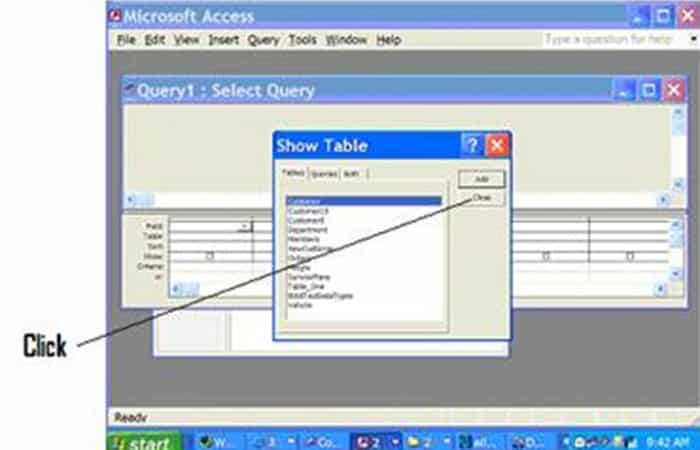
- Step 5: select the button View near the top of the screen.
Note: When you place the cursor over a button, the button's name is displayed.
- Step 6: use the button «View» to select the SQL View in Access. Click the down arrow located on the «View» to locate the SQL view (See the following image illustrating steps five and six).
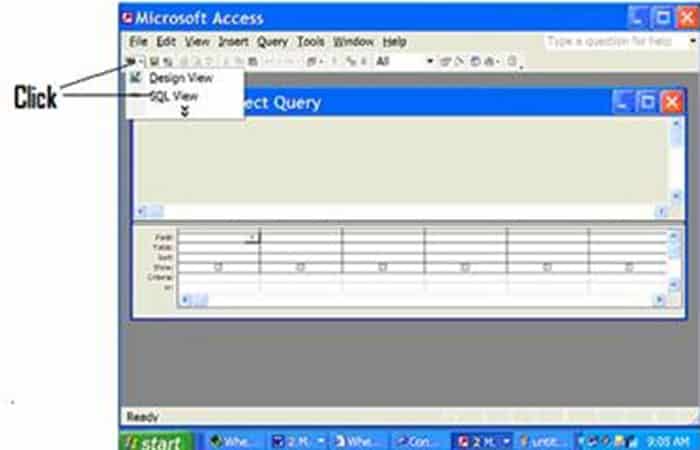
- Step 7: write your commands SQL in this view (SQL view) (See the following image illustrating step seven).
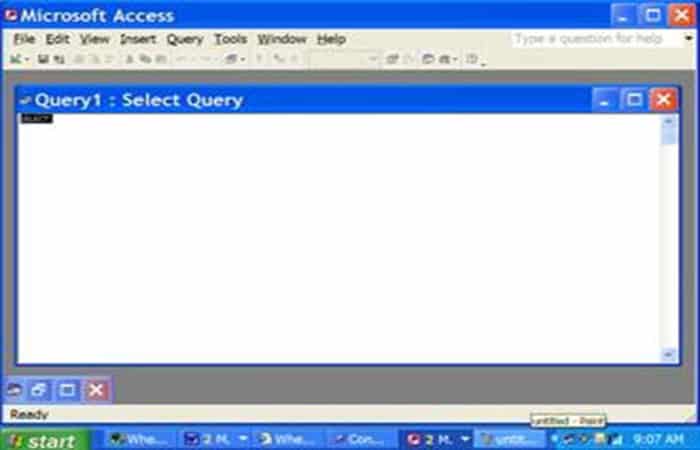
- Step 8: To execute a command, click the « buttonRun«.
Note: The run button is a red explanatory mark.
Where to write SQL statements in Microsoft Access 2007, 2010, 2013, or Access 2016
Follow this procedure:
- Step 1: after start Microsoft Access, Choose "traditional» to display an existing database or click where it says «blank database» so you can create a new database. If you are creating a database, put a name (whatever you want) for it in the box labeled "Filename«. Then press the « buttonCreate«.
Note: If you are selecting an existing database (i.e., the downloaded course database), locate where you saved the database on your computer after clicking " more ".
- Step 2: once it opens Access, click on «Create» in the menu located at the top of the screen.
- Step 3: Then click on the button «Check design«.
- Step 4: You will see a dialog box called “Show table«. Press the option CLOSE in this dialog box without selecting any tables.
- Step 5: Select the button «SQL View»Or«SQL» near the top left of the screen.
- Step 6: Use the “SQL View” or “SQL” button to select “SQL View in Access” (Click the down arrow on this button to locate “SQL View").
- Step 7: write SQL commands in this view (SQL view in Access).
- Step 5: To execute a command, click the « buttonRun«.
Check out: MS Office: How to Create an Access Table from A to Z
Final thoughts
Each time we add criteria to our query in Design view, those criteria are added to the SQL statement , allowing us to limit the results to only the exact records we're interested in. These are simple examples to demonstrate how SQL works. Feel free to modify the queries in Design view and switch to SQL view in Access to see how the SQL statement changes.

My name is Javier Chirinos and I am passionate about technology. Ever since I can remember, I have been interested in computers and video games, and that passion has turned into a job.
I have been publishing about technology and gadgets on the Internet for over 15 years, especially in mundobytes.com
I am also an expert in online marketing and communication and have knowledge in WordPress development.