
The functionality of the 'New Tab Search' add-on provided by Visicom Media can be explained by its name: it gives you a search toolbox in every new tab of your browser. At the same time, it automatically changes the default new tab interface as well as the default search engine. Once installed, all search results (usually displayed by Google , for example) requested through this search box will now be presented.
You might also be interested in: What is Google Chrome? Uses, Features, Reviews, Prices
New Tab Search
This is what it usually looks like:
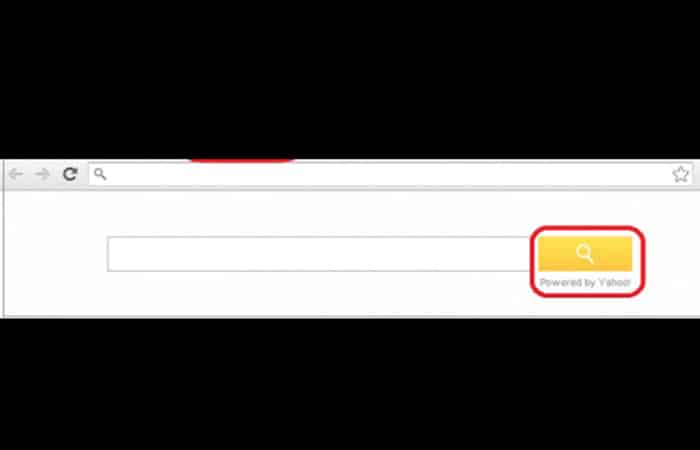
Add-ons are often distributed via pay-per-install bundles with free software, so New Tab Search can infiltrate your browser as a part of another installation. You can remove/disable it in your browser settings without removing any software it was installed with.
At the bottom of the Google Chrome browser window , there's a link to 'Disable this custom new tab page' . If you're removing the new tab search through Chrome's 'Extensions' settings, you'll see that it was "installed by a third party," which is already suspicious. Therefore, pay close attention to this note when choosing which add-ons to remove, and only keep those you trust.
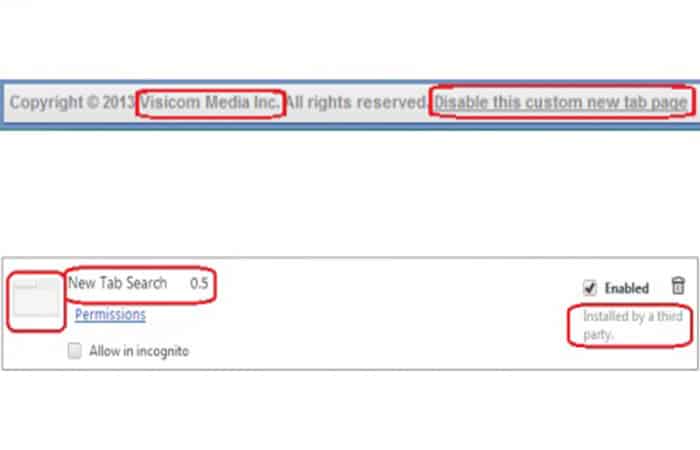
The following permissions are required on your PC (a lot of personal information is being monitored):
- Access your data.
- Access icons on the websites you visit.
- Read and modify your browsing history.
- Access your browsing activity and cards.
- Manage your apps, extensions and themes.
If you want to remove New Tab Search from your browsers, please see the uninstall steps below.
Note: This is a self-help guide. Use it at your own risk. This article is provided "as is" and should be used for informational purposes only.
Mozilla Firefox
These are the steps you should follow in this case:
- Step 1: press the option Menu which is located in the upper right corner of the Firefox window (older versions of the browser: click on the orange logo 'Firefox' in the upper left corner) -> look for the section Accessories -> Mark 'Extensions' and Eyelashes 'Accessories', and if you find the extension of new tab search Here, click on the button 'Delete'.
- Step 2: Click the button again Menu -> Options:
- Step 3: in the field 'Homepage' From the General tab, make sure there are no links http://mystart.com o http://us.yhs4.search.yahoo.com here. If you have one, highlight it and delete it using the right-click context menu. Once done, you can type a new address of your preferred homepage here in the format 'http://…';
- Step 4: tab Security, make sure that the 3 options 'Warn me when sites try to install plugins'‘, 'Block reported attack sites' and 'Blocking reported web fakes' are marked.
- Step 5: In the main Firefox window, click on a small triangle in the field 'Search Engines' (top right corner) and choose the option 'Manage search engines''. Highlight all unwanted search engines and click on the ' button.Delete'.
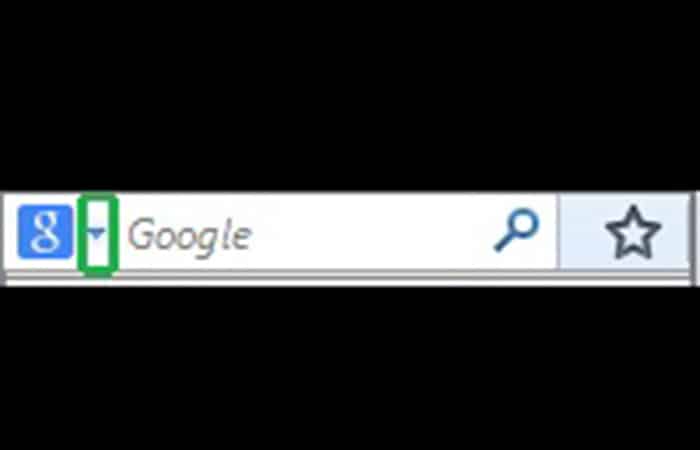
- Step 6: write about: config in the Firefox address bar -> click on 'I will be careful, I promise!' -> when a new window opens, type in the search field: newtab.url and press 'Enter' -> double click on this preference and type about: home.
- Step 7: restart Firefox.
You might also want to know: How to Download Videos in Firefox Without Programs
Google Chrome
For this browser, please follow the steps below:
- Step 1: write chrome: // settings in the Chrome address bar and press 'Enter' to open the Chrome settings menu.
- Step 2: in the ' tabExtensions', look for the option New Tab Search and click on a trashcan image. Also check for other suspicious extensions that you don't use or don't know where they come from, and remove them as well.
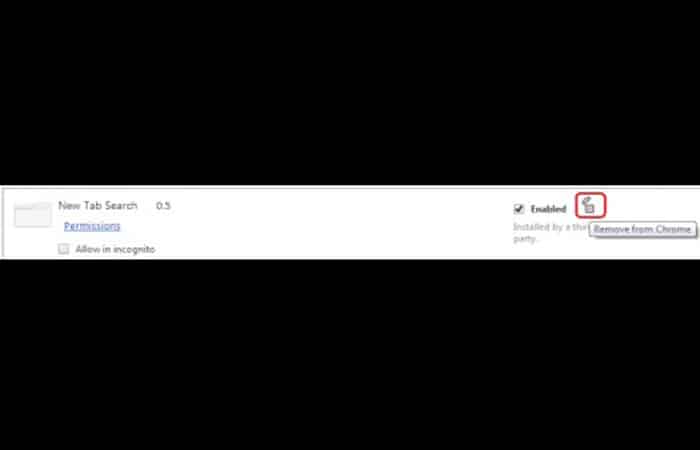
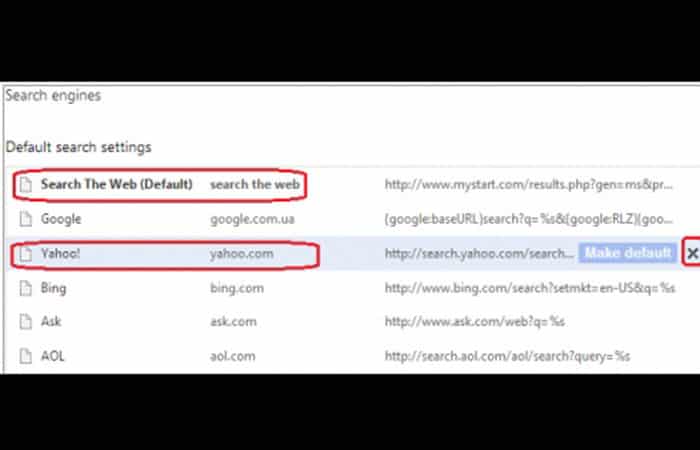
- Step 3: in the ' tabConfiguration', look for the section 'At startup' ->en 'Open a specific page or set of pages'. Click the link 'Set pages' -> if you find 'mystart.com…' o 'yahoo.com…' Here, hover over this line to bring up the option 'Delete' and click on 'x' to remove this page from the home page.
- Step 4: in the section 'Appearance', when the button 'Show home' is checked, if you see the link 'mystart.com…' o 'us.yhs4.search.yahoo.com', click on 'Change' and delete it from your browser.
- Step 5: in the section 'Search', click on 'Manage search engines'…' -> move the mouse cursor to any search engine to bring up the menu 'Set as default' and 'Delete'. You can remove all unnecessary search engines here and set your preferred settings as default:
- Step 6: click the link 'Show advanced settings…' to display a new configuration menu -> in the ' sectionPrivacy policy', check that the box is checked 'Enable phishing protection and malware' is marked.
- Step 7: restart Google Chrome.
Internet Explorer
Follow the procedure to the letter:
- Step 1: When you see the window IE, press the keys Alt+x on your keyboard to open the menu Tools. Then go to Manage add-ons. Later, in the section 'Toolbars and extensions' if you see the plugin 'New Tab Search', highlight and click the button 'Disable'/'Delete'.
- Step 2: reopen the menu Tools and go to Internet Options and then to Tab General. Afterwards, go to the section of the homepageIf you see that there is an unwanted link here, you can highlight it and remove it using the right-click context menu.
- Step 3: After this, type a new web address, the one you want to set as your home page and click on 'Apply'. You can also set other custom settings for your home page display in the 'Home' (to start with your last session, for example).
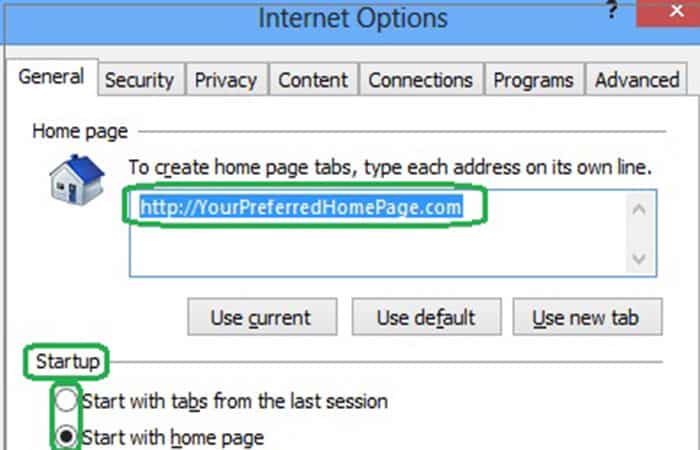
- Step 4: in the section Tabs, click on the ' buttonTabs' -> in a new window, in the section 'When a new tab is opened' , choose the option 'A blank page' o 'Your first home page' from the drop-down menu - list below.
- Step 5: restart Internet Explorer.
Just in case, install adaware antivirus to make sure you don't have any infections:
- Step 1: Click here to download adaware antivirus for free and follow the installation instructions
- Step 2: performs a complete scan of your PC.
- Step 3: restart your PC.
Check out: How to Increase Internet Speed on Windows
Final thoughts
There you go, you now know how to remove the new tab search option. We hope you found this tutorial useful. Finally, it is recommended to always keep your antivirus up to date with real-time protection enabled and perform weekly full scans to stay protected at all times. You can tell us how you got on with the procedure, do so through the comments section.

My name is Javier Chirinos and I am passionate about technology. Ever since I can remember, I have been interested in computers and video games, and that passion has turned into a job.
I have been publishing about technology and gadgets on the Internet for over 15 years, especially in mundobytes.com
I am also an expert in online marketing and communication and have knowledge in WordPress development.