
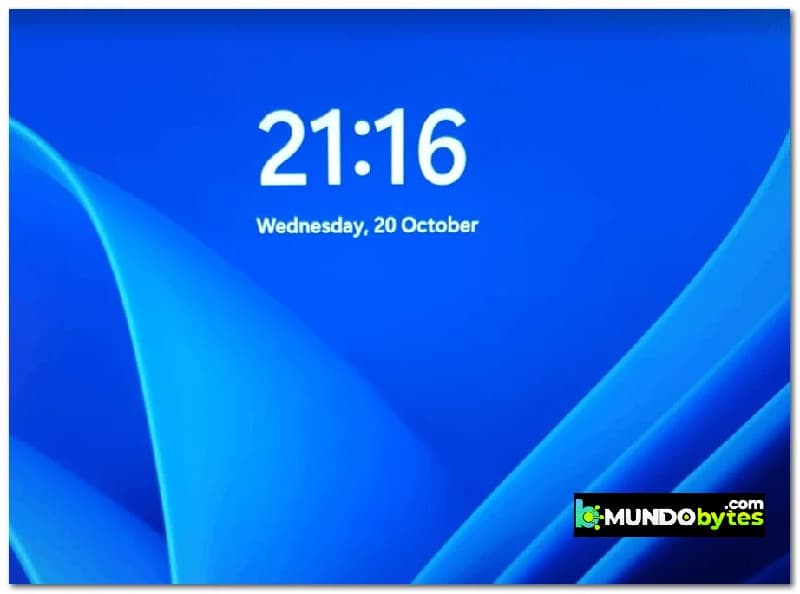
Some Windows 11 users have suddenly discovered that Windows Spotlight no longer changes images, and the fun facts no longer appear on the login screen.
Many affected users have reported previously experiencing the same issue on Windows 10 and assuming the Windows 11 upgrade would resolve it, but it didn't. If you're experiencing this and want to learn how to fix Spotlight not working on Windows 11, keep reading this guide.
What causes Spotlight not working in Windows 11?
We have investigated this issue thoroughly and found that there are several different solutions available to you if you are currently dealing with this problem.
But first, let’s take a look at all the possible causes that could be responsible for causing this Spotlight not working issue on Windows 11:
- Common Spotlight Inconsistency: Before moving on to more focused troubleshooting guides capable of fixing this Spotlight issue, you should start by running the System Maintenance Troubleshooter to see if your Windows installation is able to resolve this issue automatically.
- Corrupted Spotlight Cache: One of the most common causes that will end up breaking Spotlight on Windows 11 is a corrupted cache folder. If you find yourself in this scenario, you should first clear both cache folders that Spotlight uses, then register the app once again to prevent any temporary files from causing this problem.
- Third-party antivirus interference- While Windows Security is not known to interfere with Spotlight functionality, some third-party security suites do. For example, BitDefender is often blamed for this problem. Unfortunately, there is no way to fix this conflict other than uninstalling the problematic security suite.
- Dynamic theme is disabled: Depending on your current Spotlight settings, you can expect to deal with this issue if you do not have the active theme installed and enabled on your PC. After enabling the dynamic theme, you should see Spotlight start working once again.
- Inconsistent asset folder: Spotlight's weak point has always been the assets folder, and this is also true in Windows 11. If you want to customize your Spotlight to the brim, you risk breaking the assets folder. To fix this, you need to navigate to the assets folder location manually and clear its contents before restarting Spotlight.
- Required background applications are disabled: Please note that Spotlight has some application dependencies that need to be enabled to allow Spotlight to work properly. If you haven't already, please take a look at There to make sure that Microsoft Edge, Microsoft Store, and the Settings app are enabled as background apps.
- System file corruption: Under certain circumstances, you can expect to see this particular issue due to some kind of system corruption affecting the Spotlight component directly or some associated dependencies. To resolve this issue, you should take the time to deploy DISM and SFC in quick succession.
Steps to fix Spotlight not working on Windows 11
Now that you know all the potential scenarios that could break Spotlight functionality, start following these methods that we are going to describe here below to solve the Spotlight not working problem in Windows 11.
Run the system maintenance troubleshooter
Before moving on to more specific troubleshooting guides, you should start by checking if your current Windows 11 installation is not able to fix the problem automatically.
Windows 11 (as well as Windows 10) comes equipped with the System Maintenance Troubleshooter : this is a utility that allows you to apply with 1 click a series of automatic fixes related to common problems affecting the desktop, icons, login screen and other display-related inconsistencies.
In case you have not yet tried to fix this issue by running the System Maintenance Troubleshooter, make sure to follow these recommendations to run this tool and apply the recommended solution:
- Press the Windows key + R to open a dialog box Run. Then write 'control' inside the text box and press Log in to open the classic interface Control Panel.
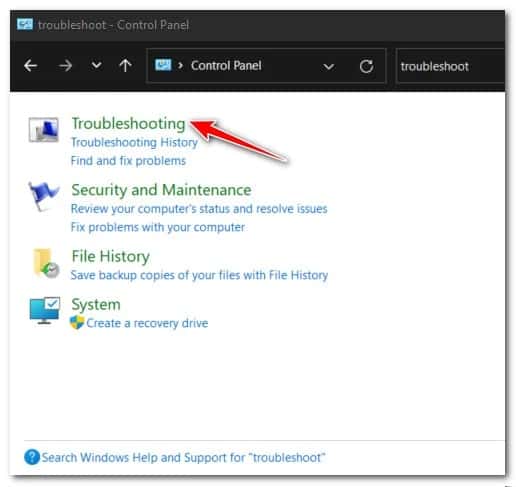
- Once you are inside the menu control Panel classic, use the search function at the top to search 'troubleshoot' and press Get in.
- From the list of results, click A satisfactory solution de problems.
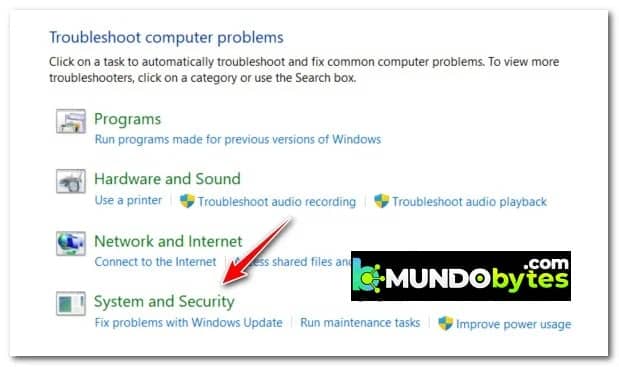
- Next, in the menu dedicated to the problem solving, Click on Security system.
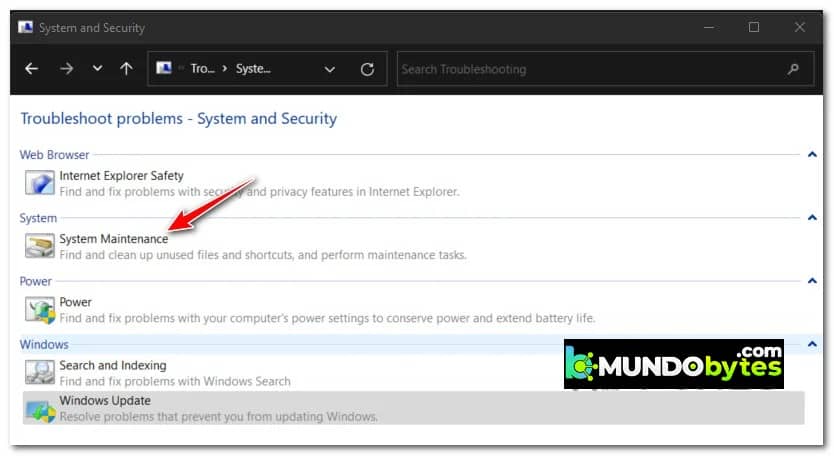
- From the dedicated menu Security system, Click on System maintenance (available in System).
- Once you are on the first screen of the tab Maintenance of the work, first click on the hyperlink Advanced, then check the box associated with Apply repairs automatically.
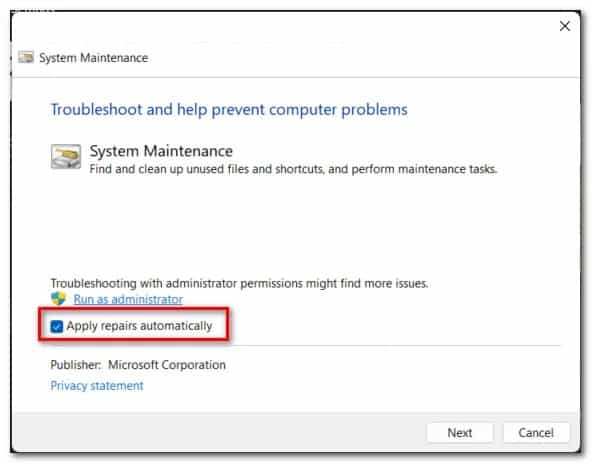
- Press Next, Then follow the remaining instructions to run the troubleshooter and apply the recommended solution automatically.
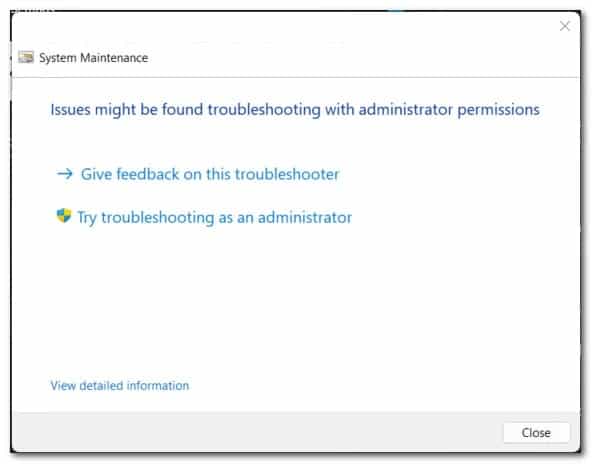
Note: If you are prompted to troubleshoot as an administrator, do so by clicking Attempt to troubleshoot as an administrator.
- Depending on the recommended solution, you may be asked to perform a series of manual steps.
- Once you have successfully run the System Maintenance troubleshooter and applied the recommended solution, restart your PC and check if Spotlight has started working.
If the same type of problem continues to occur, you can try the following solution that we will explain below.
Clear cache and reinstall
Let's assume that the above automatic fix was not effective in your case. In that case, the next thing you need to do is to troubleshoot a potential issue caused by corrupted data stored in one of the two Spotlight cache folders.
Other users dealing with the problem have confirmed that they fixed the issue by deleting both cache folders and registering the main Spotlight application (using a series of elevated CMD and Powershell commands ).
It is recommended that you follow these instructions so that you have a clear idea of how to clear the Spotlight cache and can reinstall the main application:
Note: To simplify things, we'll use the new Windows Terminal as the platform for entering the required commands. This will allow you to run CMD and PowerShell commands without needing to open two separate windows.
- Press the Windows key + R to open a dialog box Run. Then write 'wt' inside the text box and press Ctrl + Shift + Enter to open an interface Windows Terminal with administrator access.
- When the User Account window prompts you, click Yes to grant administrator access.
- Once you are inside the elevated Windows Terminal application, start by running both CMD commands in quick succession (press Log in after each command) to delete the two problematic SpotLight cache folders:
DEL / F / S / Q / A «% USER PROFILE% / AppData \ Local \ Packages \ Microsoft.Windows.ContentDeliveryManager_cw5n1h2txyewy \ LocalState \ Assets »
DEL / F / S / Q / A «% USER PROFILE% / AppData \ Local \ Packages \ Microsoft.Windows.ContentDeliveryManager_cw5n1h2txyewy \ Settings »
- After running both commands, run the following Powershell command from the same Windows Terminal window to register the Spotlight application once again:
Get-AppxPackage -allusers * ContentDeliveryManager * | foreach {Add-AppxPackage «$ ($_. InstallLocation)\appxmanifest.xml» -DisableDevelopmentMode -register}
- Restart your PC to allow your operating system to recreate the two deleted cache folders and see if Spotlight starts working again.
If you followed the instructions above and still have the same problem, you can try the following solution.
Uninstall BitDefender (if applicable)
Please note that BitDefender is often noted for interfering with some critical dependencies of the Windows service that Spotlight also uses. Several users we are also dealing with have confirmed that the Spotlight issue was only fixed after uninstalling the Bitdefender suite completely.
Note: Disabling real-time protection will not help, as other affected users have reported.
Update: If you're using BitDefender and suspect it might be interfering with Spotlight, try updating your third-party antivirus software to the latest version before uninstalling it. Some affected users have submitted support tickets about this Windows 11 issue, so BitDefender is likely to patch it soon.
If this scenario is applicable, be sure to try the following recommendations for specific instructions:
- Press the Windows key + R to open a dialog box Run. Then write 'appwiz.cpl' inside the text box and press Log in to open the menu Programs and Features.
Note: If user control prompts you, you will need to press the Yes option to grant the respective administrator access.
- Once you are inside the menu Programs and Features, scroll down the list of applications and locate the list of BitDefender Total Security.
- Right click on Bitdefender Total Security and select uninstall in the context menu.
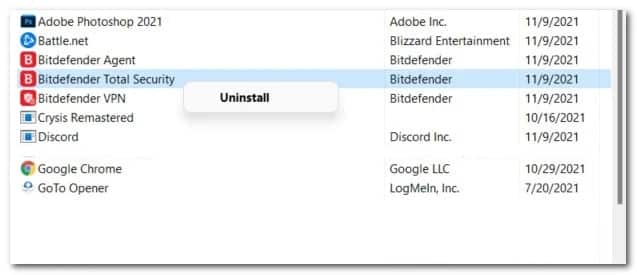
- Follow the uninstallation instructions to remove the BitDefender main application from your Windows 11 system.
- Next, proceed to uninstall the rest of the AV support installations (BitDefender VPN y BitDefender Agent)
- Once the BitDefender main application + all supporting software has been uninstalled, you should Delete any remnant files left by your AV.
- Finally, restart your PC and see if Spotlight functionality resumes once the next startup is complete.
- If this method does not solve your problem either, you should try the method we are going to describe now.
Clean the assets folder
Another potential scenario that could leave you stuck with a broken Spotlight component is a corrupted assets folder. This is usually reported when Spotlight is overly customized, or you just upgraded to Windows 11 from a previous Windows 11 where Spotlight was configured.
Fortunately, fixing a corrupted Assets folder is pretty simple. All you need to do is disable Spotlight first, then navigate to the Assets folder manually and delete the contents inside (not the folder) before restarting your PC.
This method has been confirmed to be effective by many affected Windows 11 users.
Follow the steps below to get instructions on how to delete the assets folder and fix Spotlight functionality in Windows 11:
- First things first, we need to disable Spotlight temporarily. To do this, press the tecla Windows + I to open the application Configuration on Windows 11.
- Then click Personalization. in the vertical menu on the left.
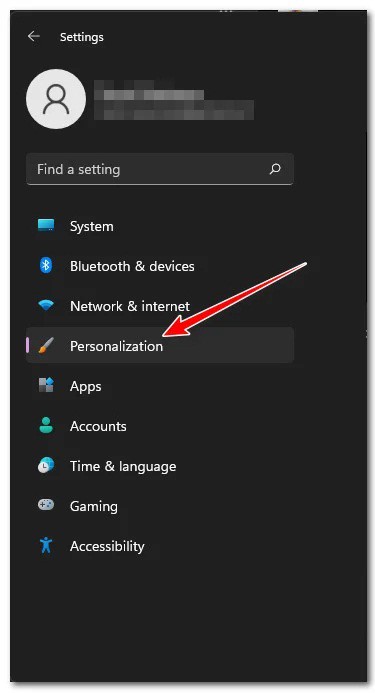
Note: If the vertical menu on the left is not visible by default, click the action icon at the top to make it visible.
- Once you are inside the tab Personalization., Click on Lock screen from the options at the bottom.
- Inside the tab Lock screen, changes the drop-down menu associated with Customize your lock screen de Windows Spotlight a Image o Slide presentation.
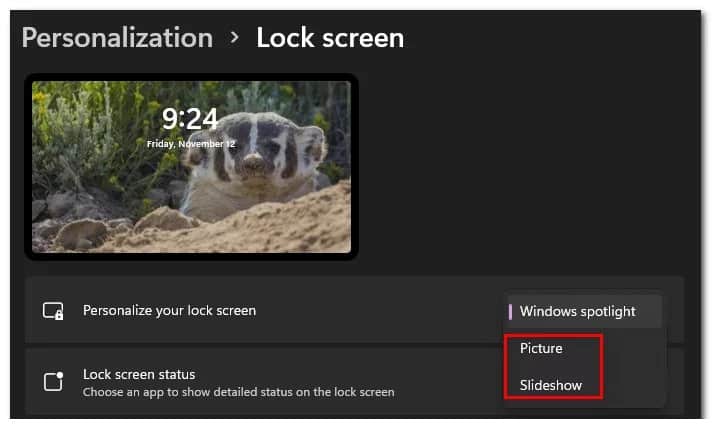
Note: This will effectively disable the Windows focus function.
- Once you have made sure that Spotlight is disabled, closes the screen Configuration and open File Explorer.
- Using File Explorer, navigate to the following location:
C:\Users\ \AppData\Local\Packages\Microsoft.Windows.ContentDeliveryManager_ \ LocalState \ Assets
Note: If your Windows drive is not C, replace the letter with the correct one in the path above. Also, <USERNAME> is just a placeholder. Replace it with your actual username for your active account.
- Once you get to the correct location, start by clicking on the tab View at the top, then make sure the box Hidden items is enabled.
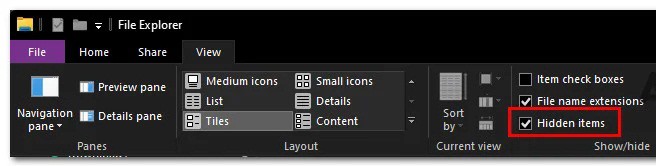
- After you've made sure that hidden items are visible, click inside the Assets folder, then press Ctrl + A to select everything inside.
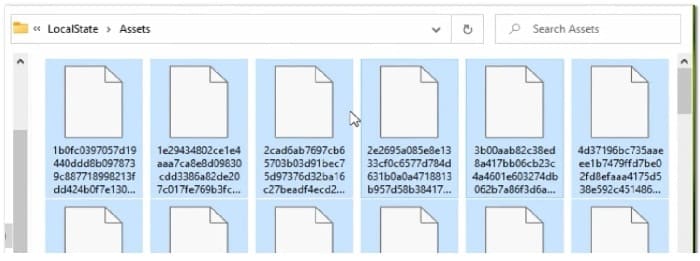
- Then press the key Delete or right-click on a selected item; once each item is selected, choose Delete in the context menu.
- Once you have deleted the assets folder, return to the Display tab of blocking (available in Personalization) in the tab Configuration and re-enable Spotlight by setting the drop-down menu Customize the lock screen en spotlight.
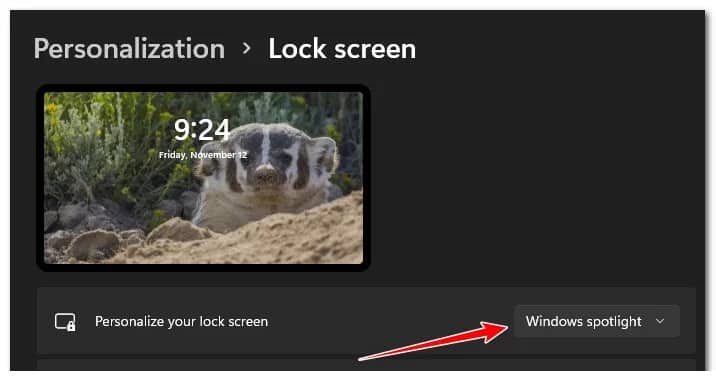
- Restart your PC to allow the changes to take effect, then check to see if Spotlight has resumed working the next time you start your Windows 11 PC.
If the same type of problem continues to occur, try the method that we are going to explain to you below.
restart your router
Although these are two unrelated things, the reason you might notice Spotlight stopping could be your router . Temporary data accumulated by your router's cache or an incorrect DNS range can be the culprits behind Spotlight's failure to update.
This is even more likely if you're dealing with similar network-related issues when using other Windows components like Windows Update.
If this scenario applies, you should start with a simple router reboot – this operation involves performing a simple network reset that will clear the currently cached data (both Internet Protocol and Transmission Control Protocol).
To perform a simple router reset, look for the power button on your router – it's usually located on the back.
Once you find it, press it once to cut the power, then physically unplug the power cord from the outlet to give the power capacitors enough time to clean themselves.
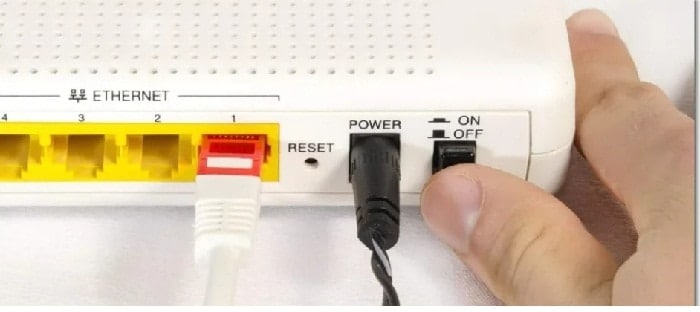
Once the router restarts, restart your PC and see if the Spotlight component is fixed.
If the same type of problem keeps occurring, there is still one more thing you need to do before you exclude your router from the list of possible culprits: restarting your router.
Note: Resetting your router will also reset all network settings to their factory defaults; this includes any previously forwarded ports, blocked items, and any other custom settings. Additionally, if you are using PPPoE, expect that any currently saved credentials will be lost at the end of this procedure.
To perform a router reset, press and hold the reset button on the back of your router for 10 seconds (or until you notice all the front LEDs flashing at the same time)
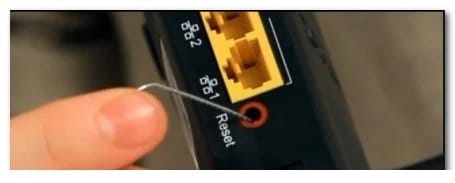
Once you manage to reset your router, reestablish your Internet connection and see if Windows Spotlight starts working again.
If the same type of problem still occurs, you will have no choice but to try the following method.
Re-register the Windows Spotlight app
Let's assume that none of the above methods have proven to be effective in your case. In that case, you should also start thinking about a possible inconsistency caused by some corruption affecting the main Spotlight application.
For example, it is a well-known fact that upgrading from Windows 10 to Windows 11 using a generic key could end up breaking Spotlight functionality.
If you find yourself in this scenario, you should be able to fix the problem by using an elevated Powershell window to re-register the main Windows Spotlight application.
Please pay attention to the following steps so that you know how to do this in Windows 11:
- Press the Windows key + R to open a dialog box Run. Then write 'powershell' inside the text box and press Ctrl + Shift + Enter to open an elevated Powershell window.
- When you see the window User account control, Click on Yes to grant administrator access.
- Once you are inside the elevated Powershell window, type or paste the following command to re-register Windows Spotlight:
Get-AppxPackage -allusers * ContentDeliveryManager * | foreach {Add-AppxPackage «$ ($_. InstallLocation)\appxmanifest.xml» -DisableDevelopmentMode -register}
- After the command is processed successfully, close the symbol of the system elevated and restart your PC.
- Once your Windows 11 PC boots up, keep an eye on the login screen to see if Windows Spotlight functionality has been fixed.
If the same type of problem continues to occur, you can try the method explained below.
Implement DISM and SFC scans
Let's assume that you've gotten this far without any tangible result. In that case, you can also assume that you might be dealing with some system file corruption that affects Spotlight directly or some associated dependencies.
Since there are many different components involved, the best course of action is to use one of the two built-in system file corruption tools that Windows 11 offers: DISM (Deployment Image Servicing and Deployment Management) and SFC (System File Checker).
Note: These two tools share some similarities, but we recommend running both in quick succession to improve your chances of resolving the issue. SFC is entirely local (it uses a locally stored cache). DISM, on the other hand, relies on a subcomponent of Windows Update to download healthy files that will be used to replace corrupted ones.
It is important that you follow the following recommendations to implement SFC and DISM scans on your Windows 11 computer (from the same elevated CMD prompt):
- Press the Windows key + R to open a dialog box Run. Then write 'cmd' inside the box Run and press Ctrl + Shift + Enter to open an elevated CMD prompt.
- When User Account Control tells you indicate (UAC), click Yes to grant administrator access.
- Once you are inside the elevated Command Prompt window, type the following command and press Enter to initiate an SFC scan:
sfc / scannow
Note: If this utility finds corrupted Windows files, you will use a locally stored folder to replace any corrupted files with healthy equivalents.
- After the SFC scan is complete, restart your PC and open another high CMD indicator (using step 1) once your Windows 11 computer restarts.
- Then, when you are back inside the CMD prompt, run the following command to perform a DISM scan:
DISM /Online /Cleanup-Image /RestoreHealth
Note: Before starting this analysis, make sure you have a reliable internet connection.
- Once the DISM scan is also complete, restart your PC one last time and see if the Spotlight component starts working again.
If the same issue persists even after implementing SFC and DISM scans, try the method explained below.
Enable background apps (Windows 10 only)
If you didn't know, Windows Spotlight has specific dependencies that could effectively break Spotlight's functionality when they are not set to work as default apps: Microsoft Edge, Microsoft Store , and the main Settings app.
Several users we're also dealing with have confirmed that they were able to fix the problem by accessing the Background apps tab in the Settings menu and ensuring that Microsoft Edge, Microsoft Store, and the main Settings app have permission to run as background apps.
To do this, you need to follow these simple steps:
Note: This method only applies to Windows 10 installations.
- Press the Windows key + R to open a dialog box Run. Then write 'ms-settings:privacy-backgroundapps' inside the text box that just appeared, then press Log in to open the tab Background applications from the menu Configuration.
- Once you are inside the menu Background apps, start by enabling the switch associated with the Background applications.
- Next, scroll down and make sure that the app is setting main, Microsoft Store and the switches of Microsoft Edge are enabled.
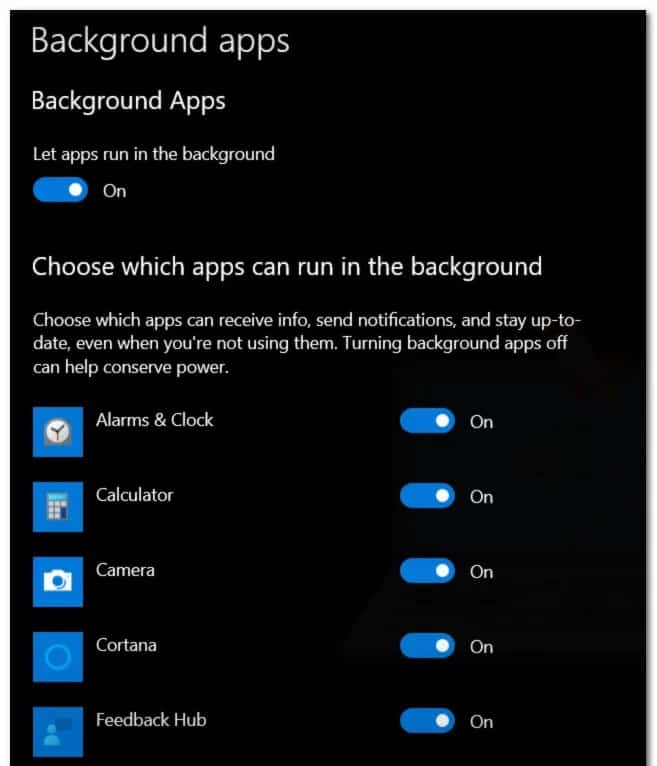
- Restart your PC and check if Spotlight starts running the next time it starts.
Use a dynamic theme
If you've exhausted all the available solutions mentioned above, there's little else you can do (besides repairing the installation ) to fix Windows Spotlight.
However, as other affected users have reported, you should be able to circumvent the problem entirely while still getting the same functionality by installing a Windows Store personalization app called Dynamic Theme.
Think of Dynamic Themes as a type of wrapper that lets you display the same lock screen image powered by Bing and Windows Spotlight, but without using the built-in Spotlight component.
It works perfectly and there is no compromise.
Update : Even though the app is officially a Windows 10 app, we've tested it on Windows 11 and it seems to work fine.
I hope that each of the recommendations presented in this guide will be of great help to you and that you manage to solve the Spotlight not working error in Windows 11. Thank you for your visit, see you in another post.

My name is Javier Chirinos and I am passionate about technology. Ever since I can remember, I have been interested in computers and video games, and that passion has turned into a job.
I have been publishing about technology and gadgets on the Internet for over 15 years, especially in mundobytes.com
I am also an expert in online marketing and communication and have knowledge in WordPress development.