- Error 45 indicates that Windows fails to recognize a device USB previously connected.
- Causes can be physical, driver errors, power settings, or system problems.
- There are multiple solutions, from restarting your computer to modifying registry settings.
- It is always advisable to test the USB on different computers to rule out a device failure.

Connecting a USB device and seeing Windows display the dreaded error code 45 can be frustrating, especially if the device was working perfectly just a few hours ago. This message usually indicates that the operating system isn't correctly detecting the connected hardware , whether due to a physical, software, driver, or power configuration issue. For a more specific solution, you can also consult how to fix the "USB device not recognized" error.
If you're experiencing this problem, you're not alone. It's a more common error than it seems, and the good news is that it can be solved in most cases. Below, we'll guide you step by step through all the possible solutions to get your USB device working again as soon as possible.
What does error 45 mean in Windows?
Error 45 in Windows Device Manager typically presents with the message: “This hardware device is currently not connected to the computer (Code 45) .” This means that Windows detected a connected device at some point , but can no longer locate it, suggesting a communication problem between the system and the USB device.
The most common causes of this message include:
- Damaged, outdated, or improperly installed drivers.
- Physical problems with USB ports or the device.
- Error in the operating system or in the registry settings.
- Power settings that suspend the device wrongly.
- USB hardware damage that prevent their recognition.
Getting Started: Check Connections and Restart
Before jumping into more complex solutions, start with the basics:
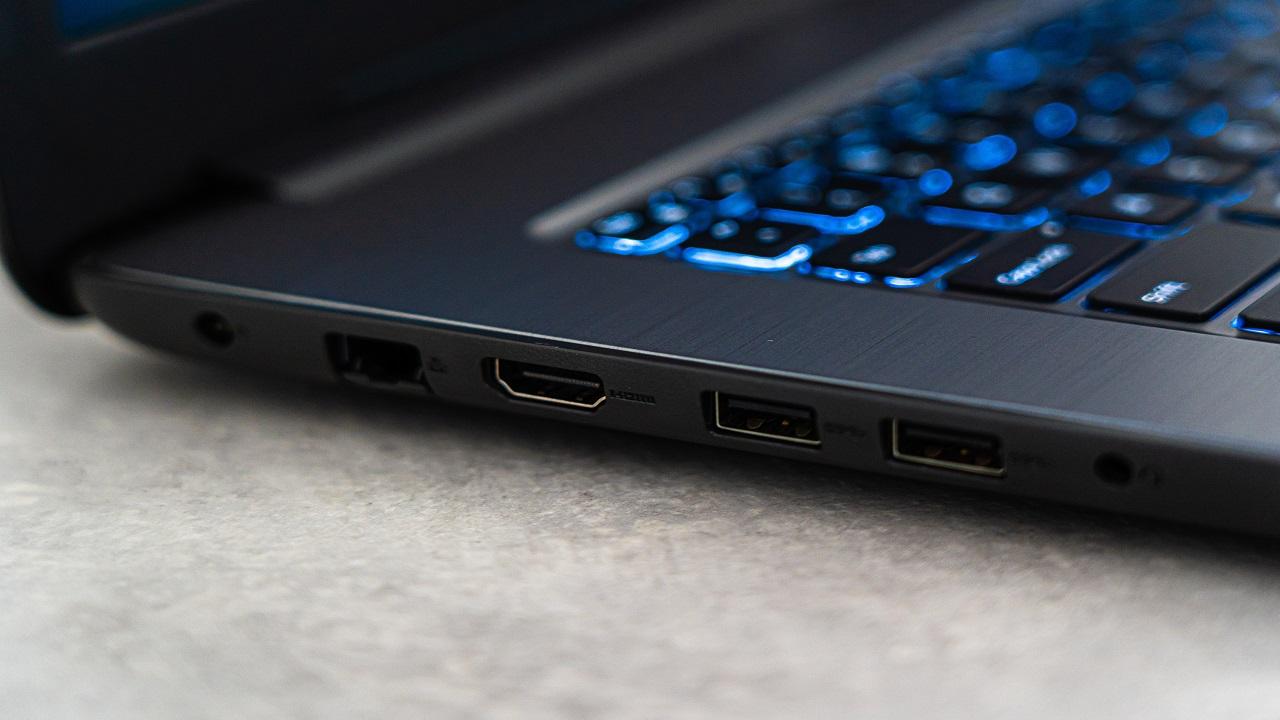
- Disconnect and reconnect the USB to another port from the same PC.
- Discipline that same device on another computerIf it doesn't recognize it either, the problem is with the USB, not your system.
- Restart your computerMany temporary errors are fixed simply by restarting.
You can also physically clean the USB connector and the computer port, as dirt or lint can interfere with the connection.
Scan for hardware changes in Device Manager
Once you've ruled out physical problems, go into Device Manager to see if Windows detects the USB device again:
- Press Windows + R, writes devmgmt.msc and hit Enter.
- Click on the name of your PC (top of the tree).
- Go to menu "Action" and select “Check for hardware changes”.
This will force Windows to attempt to detect the connected devices again. If the USB device appears without errors, you've solved the problem.
Update USB drivers
One of the most common causes of error 45 is a fault or corruption in the USB drivers. To update or reinstall them:
- Open the Device administrator (as we explained before).
- Go to section “Universal Serial Bus Controllers”.
- Right click on the problem device and select "Update driver".
- Choose the option to have Windows automatically search for the latest software.
If this doesn't work, right-click again and select "Uninstall device ." Then restart your computer and let Windows reinstall the driver automatically. It's also recommended to update your USB drivers when necessary.
Using the Windows Troubleshooter
Windows includes a tool to automatically detect hardware problems and offer fixes:
- Press Windows + I to open the settings.
- Accede to “Update & Security” → “Troubleshoot”.
- Choose “Additional solvers” and then “Hardware and Devices”.
- Click on Run the troubleshooter.
You can also directly access this tool by running the command:
msdt.exe -id DeviceDiagnosticWindows will try to detect problems related to your devices and let you know if it can fix them automatically.
Check hard drive status
If there are errors on the hard drive where the drivers are stored or in key sectors of the operating system, errors such as 45 may occur. To check the hard drive status:
- In the Start menu, search CMD and run it as administrator.
- Type the following command and press Enter:
chkdsk C: /fImportant: Replace “C:” if you have Windows installed on a different drive. The /f parameter automatically corrects any errors found.
Check and repair system files
System files may be corrupted due to interrupted updates, malware , or forced shutdowns. Running the following utilities may help:
- From CMD with administrator rights, type:
sfc /scannowAfter finishing, you can also use:
DISM /Online /Cleanup-Image /RestoreHealthThis process may take more than 15 minutes, but it is very effective at repairing errors in the system image. If you encounter ongoing problems, you can check for solutions related to the " USB accessories disabled" error.
Try another USB port or device
It's quite common for not all USB ports on a computer to work the same way . Sometimes, one might be damaged or have insufficient power. Therefore, connect your device to different ports and also try other peripherals in the same port to rule out physical problems. Try it on another computer as well to make sure the problem isn't with the device itself.
If you have a laptop with USB-C , you can also use a USB-A adapter to test the connection.
Power Check and Selective Suspend
Windows, especially on laptops , may cut power to certain USB devices to save battery. This can literally disconnect the USB device. To disable this option:
- Writes "Edit power plan” in the start menu.
- Click on "Change advanced power settings".
- Deploy “USB configuration" and later "USB Selective Suspend Settings".
- Set both options to “Disabled".
Restore the system to a previous point
If the error occurred after an update or new software installation, you can return your system to its previous state. Do this:
- Seeks "Recovery” in the start menu.
- Choose "System Restore".
- Choose a point before error 45 began.
This process does not affect your personal files, but it may remove programs installed after the restore point.
Modify the Windows Registry (advanced)
Caution: This solution should only be applied if you have already tried everything else and if you have some technical experience. To modify the registry:
- Press Windows + R, writes regedit and press Enter.
- Navigate to:
HKEY_LOCAL_MACHINE\SYSTEM\CurrentControlSet\Services\USB- If there is no entry called DisableSelectiveSuspend, create it as 32-bit DWORD.
- Assign the value 1 and restart the computer.
Check if the problem is the USB device
The computer isn't always the culprit. Sometimes, the USB drive, mouse, or external hard drive might be damaged . How can you check?
- Test the device on another computer.
- Connect the device with another cable if possible.
- Scan the device with your antivirus if the system partially recognizes it.
If after all it still doesn't work, it might be best to replace it.
What if nothing works? Latest resources
- Use older restore point or reinstall all of Windows.
- Install USB adapters PCIe if you have a desktop. Sometimes a new driver fixes hardware issues.
- Use recovery software like Disk Drill in case the computer detects the USB but does not access the content.
Error 45 on USB devices has a wide range of possible causes and solutions. From the most basic, such as changing ports or updating the system, to editing the registry or performing scans with special tools. The best way to do this is to start with the simplest and proceed step by step. With patience and trying each solution, you'll most likely get your USB flash drive back to life.

Passionate writer about the world of bytes and technology in general. I love sharing my knowledge through writing, and that's what I'll do on this blog, show you all the most interesting things about gadgets, software, hardware, tech trends, and more. My goal is to help you navigate the digital world in a simple and entertaining way.