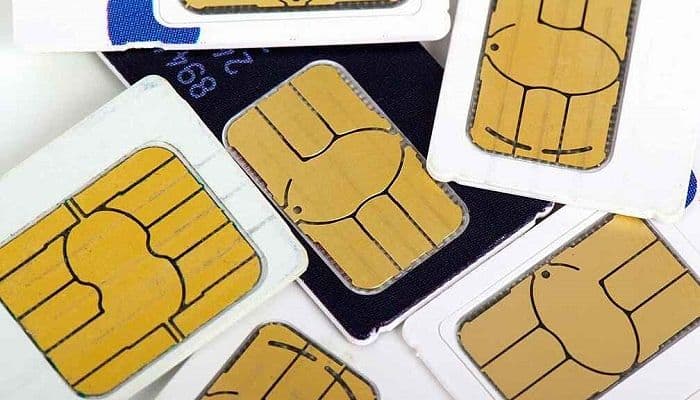
One of the most commonly reported problems with Android devices is when the SIM card isn't working . This problem can be quite frustrating since you can't make calls, send text messages, or even access the internet when it's in that state.
The phone becomes completely unusable, and often users don't know what to do. Here we'll show you a series of methods you can use to restore your SIM card's functionality and be able to use your phone normally again.
SIM Card Not Working. Causes
This can happen for several reasons:
- There may be Connection issues between your device and your preferred carrier's cell towers. To find out if this is the case, turn on Airplane mode, restart your device, clear cache data, or turn off your device for a few minutes.
- Your SIM card could get out of positionTo resolve the issue, turn off your device, remove the SIM card, and then slide it back in.
- The SIM card tray could be clogged with dirt and grime. Try cleaning it with a soft microfiber cloth or alcohol.
- There is a possibility that Your device is not configured with the correct network operator. You must ensure that you have set the correct operator in Settings.
- Could be due to physical damage to your SIM card. A new chip from your carrier should solve the problem.
Sim Card Not Working. Solutions
You may have tried restarting your phone and looking for clues in the settings menu, but nothing works. An error message appears, which can be due to several different causes, but unfortunately, there's no single solution that will fix it in every case.
However, we've compiled the following methods that you can try, saving you a trip to a repair shop. If you try one method and the problem persists, try the next.
1. Reboot your device
The first step to try and fix the problem is to restart your phone. Android systems are designed to attempt repairs and resolve software issues every time they start up. To restart your phone, follow these steps:
- Press the power button.
- Then select «Restart»From the pop-up menu.
- Confirm your choice on the pop-up screen.
Give your device time to turn back on.
When it starts, your phone will attempt to establish a connection with your network provider , and this will initiate a new search for your SIM card.
After the reboot, you should also keep an eye out for any messages from your carrier that may have instructions for troubleshooting the problem. It's not uncommon for carriers to experience technical glitches that culminate in network failures.
If the reset fails, try the following.
2. Turn off the phone
In most cases, restarting your device resolves the issue. However, this may not be the case for you. Some Android users have reported that the " No SIM card " error message persists even after restarting their device.
If this happens to you, don't worry. Turning off your device and waiting at least 30 seconds before turning it back on may solve the problem. To turn off your device:
- Press the power button.
- Then select «Delete»From the pop-up menu.
- Confirm your choice on the pop-up screen.
You should also disconnect your device from any power source. If you want to be even more thorough, you should remove the battery as soon as you turn off your device.
When you turn off your phone, it terminates all connections to cell towers and its radios turn off. When you turn it back on, its system starts the connection sequences again. In the process, temporary glitches or network errors may be resolved.
3. Change the SIM card adapter
Adapters are commonly used with smartphones, and the older the model, the more frequently they are used. This is due to the size of the SIM card, which can vary between micro and nano SIM.
In fact, they're so common that if you go to a carrier today and buy a SIM card, you'll probably get a " triple-cut " card, with a nano SIM surrounded by two plastic frames to fit smartphones that use other formats.
Since they are simply thin pieces of plastic, the adapters can wear out or become deformed over time , causing the card to become misaligned with the device's internal contacts, which will then be unable to recognize it.
In this case, the solution is simple: replace the adapter . This is usually enough.
You might also be interested in My SD Card Isn't Working: Causes, Solutions, and Alternatives
4. Set the SIM card
Your phone can only read the SIM card if it's firmly seated in its slot and in the correct position. If the card comes loose or is misaligned, it won't be able to connect to your provider.
This can happen after you accidentally drop your phone. Or, if your device is new, you may not have inserted the SIM card correctly. Therefore, the next troubleshooting step should be to remove the SIM card and reinsert it.
While doing this, make sure the SIM card fits securely into its slot. You must double-check its position, as it only fits one way.
If it seems loose, you can try placing a piece of tape, cardboard, or paper in the tray to achieve a tighter fit. While it may seem like an unconventional solution, adjusting the SIM card this way works for many Android users.
As a general rule, you should avoid applying too much pressure when handling the inside of your phone. Excessive force can damage your device's hardware and create new problems.
5. Remove, clean and reinsert your SIM card
Adjusting your SIM card won't solve the problem if the SIM tray is clogged with dirt or grime. For best results, here's how to clean your SIM card and its tray:
- Turn off the device.
- Locate the SIM card tray inside your device.
- Open the SIM card tray and remove the SIM card. Be careful not to use excessive force while doing so.
Additionally, the SIM card tray may not be accessible on some devices. If you are unsure how your device's tray works, please refer to the user manual that came with your phone when you purchased it.
You should clean the SIM card slot with a small brush or cotton swab. If you are unsure of what type of brush to use, choose a very small, soft microfiber cloth.
You can also use an airbrush cleaner if you have one available. The cleaner works best after the first round of gentle scrubbing to remove any dirt and grime that may still be stuck in the SIM card tray.
Also, make sure that nothing insertable (such as a toothpick or paper clip) is blocking the SIM card assembly area.
Clean your SIM card with a soft microfiber cloth . You can dampen the cloth with isopropyl alcohol or another non-conductive cleaning spray. Once all the dirt and grime has been removed, be sure to dry any excess liquid before sliding the SIM card back in.
After cleaning and reinserting the SIM card, you should turn your device back on and check if the problem is resolved.
6. Clear cache data
While clearing cache data is generally recommended when there is an app that is malfunctioning, it can also resolve SIM card errors.
Sometimes cache data gets corrupted, a situation that can cause all sorts of performance issues for your device.
Clearing your cached data can fix network failure errors or force your device to reallocate memory resources, leading to a reconnection with your carrier.
Here's how to clear cache data on Android devices:
- Enter the application "Configuration".
- Then go to «Storage«.
- There, open «Internal storage«.
- Touch «Cached data«.
- A pop-up window will appear where you must confirm that you want to delete the stored data.
- Done, cache is cleared, exit settings and reboot the device.
- Check that the SIM card is now working properly.
7. Activate airplane mode
There is always the possibility that the problem with your SIM card has nothing to do with the card itself, but with the system. To find out if the SIM card works, you should try inserting it into a different phone.
If you're getting a signal on your new phone, the signal problem could be due to a lack of communication between nearby cell towers and your original device. In this situation, Airplane Mode might solve the problem.
When you turn on Airplane Mode , you disable all wireless radios on your device, including cellular radio, Wi-Fi, and Bluetooth. Communication with cell towers is immediately interrupted. Your device is forced to re-establish a connection when you exit Airplane Mode.
To activate Airplane mode on your device, proceed as follows:
- Swipe down to open the notification screen. On some models you have to slide up, the important thing is that you activate the notifications screen.
- Touch «Airplane mode«.
- Confirm what you want activate Airplane mode in the dialog box that appears.
- Wait about five minutes, and turn off airplane mode.
- Then check if the SIM card is activated and working normally.
8. Choose the network operator
An undetectable SIM card can be extremely frustrating. You could miss business meetings, appointments, and be left incommunicado for hours. Before you get a new SIM card, you should try to choose your network manually.
If your device is set to a different network operator than the one you've chosen, your SIM card will inevitably not work. Here's how to make sure you have the correct network settings:
- Enter the application "Configuration".
- Go to «Mobile networks«.
- Then tap «Network Search«. It will take a few moments for your device to scan for all available networks and then display the results.
- Tap the carrier you are currently with. Your device will set it as the preferred network.
- Exit settings and restart your device.
- Then check that the SIM card is working properly.
9. Replace your SIM card
If none of the above solutions have worked to reactivate your SIM card, it appears to be physically damaged . In this case, you'll need to get a new SIM card from your mobile carrier. You'll still be able to keep your phone number, but you'll lose all the data stored on the card.
10. Reset the device to factory settings
Consider resetting your device to factory settings only as a last resort. A factory reset will erase all data you've accumulated over time, and you'll also lose any custom settings.
Therefore, you should back up your data before starting the reset. Being a desperate operation that involves the risk of losing all your data, it also does not guarantee that it will solve the SIM card problem.
However, resetting will remove many bugs and errors found on your phone, and may unblock your SIM card.
To close
You might also be interested in: Phone Companies That Offer MultiSIM: Find Out Here
Your phone may be experiencing SIM card issues for several reasons. In this article, we outline some troubleshooting steps to help you get back on track.
We know how frustrating it is to have a SIM card that doesn't work, as you are completely cut off from communication. We hope that this series of methods will help you when you apply them and you can solve the problem.

My name is Javier Chirinos and I am passionate about technology. Ever since I can remember, I have been interested in computers and video games, and that passion has turned into a job.
I have been publishing about technology and gadgets on the Internet for over 15 years, especially in mundobytes.com
I am also an expert in online marketing and communication and have knowledge in WordPress development.