- Macrium Reflect allows you to create full, incremental, and differential images with advanced features such as Incremental Forever and fast consolidation.
- It is possible to mount the copies as virtual drives to verify their contents, recover individual files, or use them as the source for migrations to another computer.
- Version 7 introduces key improvements such as Macrium Image Guardian, Rapid Delta Restore, and an advanced scheduler for automating backups.
- The various editions and license models cover everything from home use to critical servers, balancing cost, performance, and security.
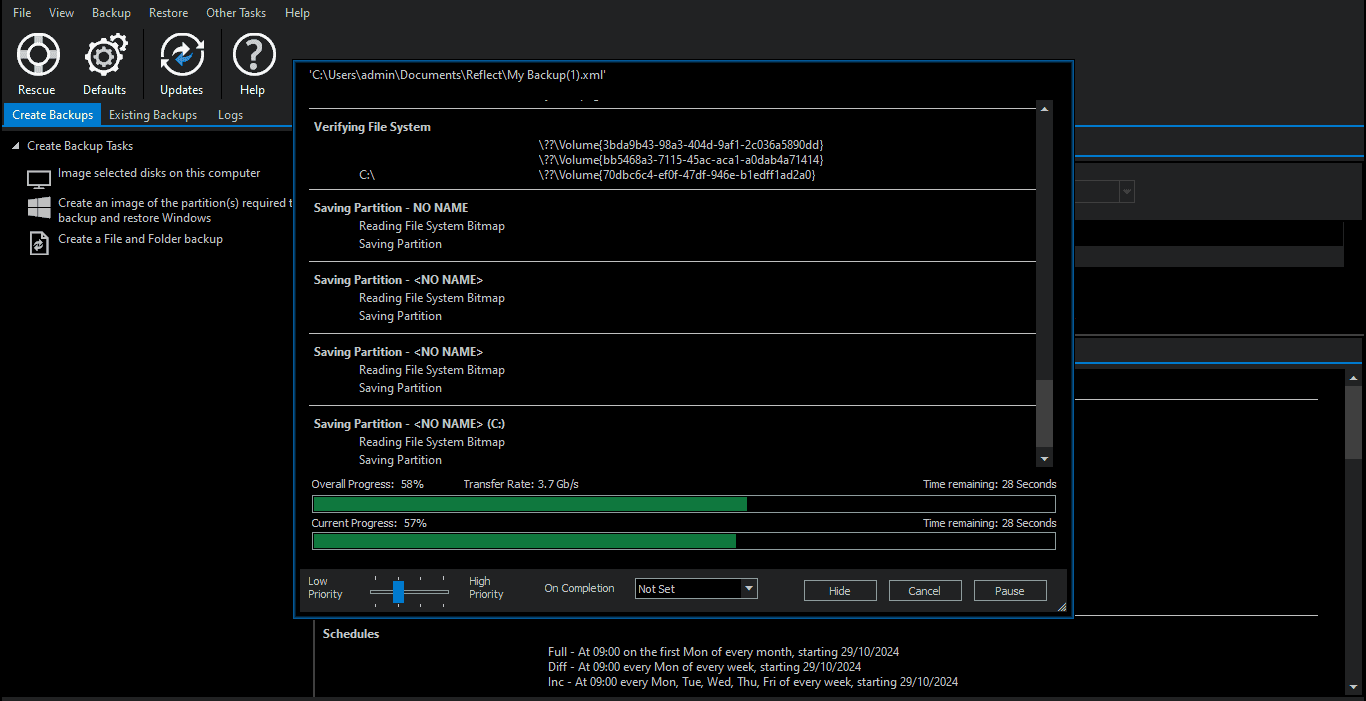
Protect your system with reliable backups It has become indispensable, whether you use your computer for work or just at home. Macrium Reflect has earned its place as one of the most powerful solutions for creating disk images, incremental backups, and full restores, whether on the same computer or a different one.
When we talk about advanced backups with Macrium Reflect We're not just talking about pressing a button and forgetting about it, but about taking advantage of features like Incremental Forever, fast consolidation, bare-metal restore, and anti-ransomware protection. Furthermore, common questions arise: how to schedule a backup to update a full copy without duplicating space, how to mount an image to review files, or how to restore everything (including programs) to a different computer.
What is Macrium Reflect and why is it so widely used for advanced backups?
Macrium Reflect is a solution for backup and disk image Developed by Paramount Software UK, a British company specializing in data protection and disaster recovery, it is designed for home users who want to protect their PCs with Windows as well as for companies that need to keep critical systems running.
The tool allows you to create complete system images (including the operating system, applications, settings, and data), as well as incremental and differential backups. This makes it possible to recover the entire system in case of disk failure, attack, or malware or any serious disaster, minimizing There of inactivity.
In the corporate environment, Macrium Reflect fits in very well. In sectors where continuity is key: finance, healthcare, education, public administration, manufacturing, and, in general, any organization that cannot afford to lose data or interrupt its services. It offers on-premises deployment as well as integrated cloud options, providing ample flexibility to adapt to each infrastructure and alternatives for cloud backups.
Among its most outstanding capabilities are the creation of full disk images, copies of specific files and folders, server replication, bare-metal restoration in hardware new and conversion of backups to Virtual machinesIn addition, it includes encryption, compression, and deduplication features to optimize space and enhance security.
Technical support from Paramount Software UK It ranges from basic online help to telephone support and 24/7 service for business customers, which is crucial when the backup cannot fail under any circumstances.
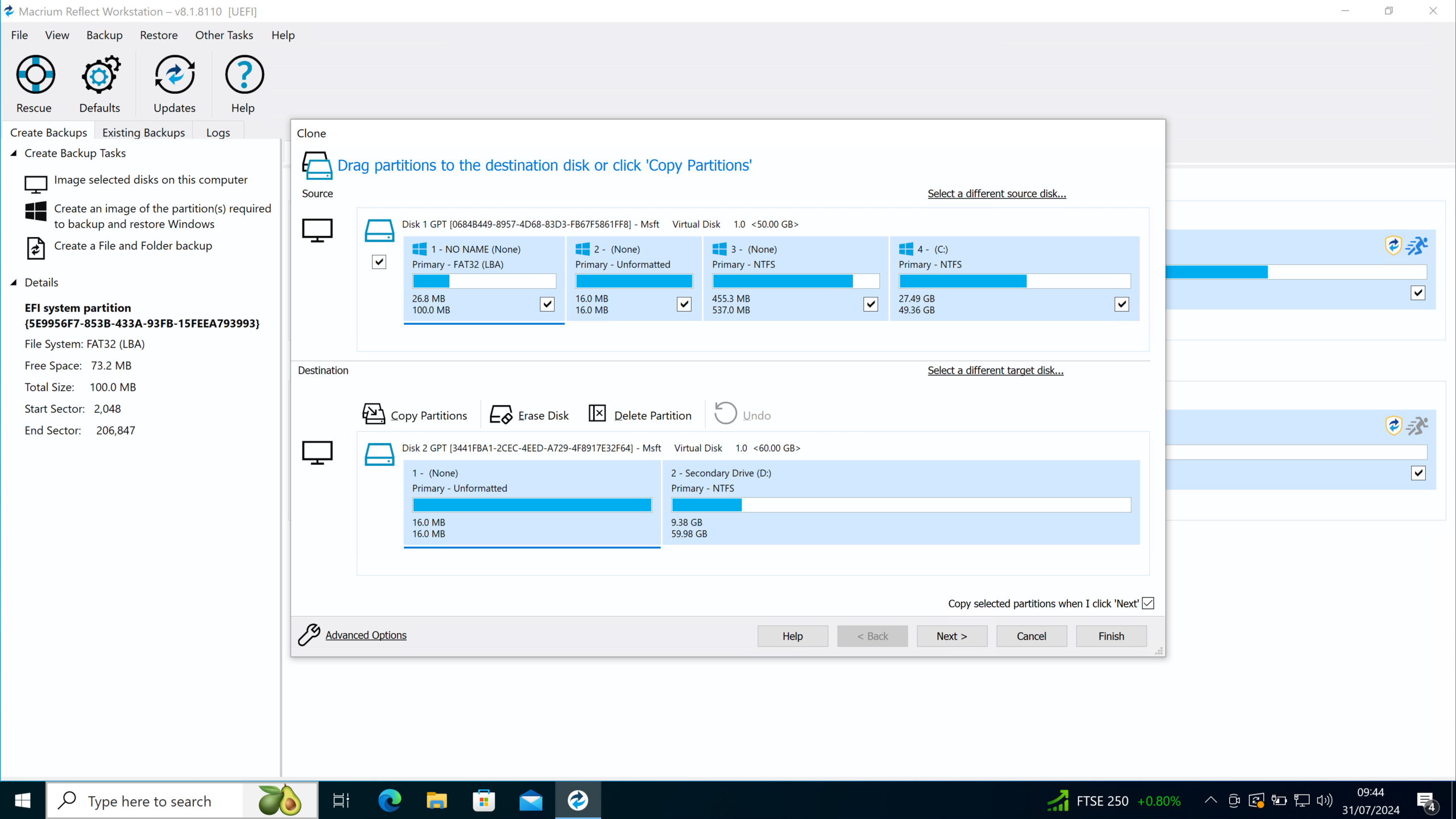
Advanced backups: full, incremental, differential, and Incremental Forever
The foundation of advanced backups with Macrium Reflect It's about understanding what types of backups are available and how to combine them to save time and space without compromising security. The key features are full, incremental, and differential backups, as well as the Incremental Forever feature with fast consolidation. To better understand the differences between methods, you can review the types of backups.
A full image backup It captures all the contents of one or more partitions: operating system, programs, settings, documents, and other data. It's the ideal starting point because it allows you to restore the system as a whole to that specific state. However, it takes up more space and takes longer than an incremental or differential backup.
Incremental backups save only the changes produced since the last backup (whether full or incremental). This minimizes execution time and the amount of data written, making them perfect for frequent backups (e.g., daily or multiple times a day) without overloading the storage.
Differential copies, for their partThey record everything that has changed since the last full backup, ignoring intermediate incremental backups. They take up more space than a typical incremental backup but simplify the restore chain, since you only need the initial full backup and the corresponding latest differential backup.
The “Incremental Forever” function introduced by Macrium Reflect 7 It takes this approach a step further: you make a single initial full backup and, from then on, only generate incremental backups. With quick consolidation, the program itself combines older incremental backups according to retention rules, maintaining a manageable history and optimizing space without forcing you to create periodic full backups.
How to schedule advanced backups without duplicating full copies
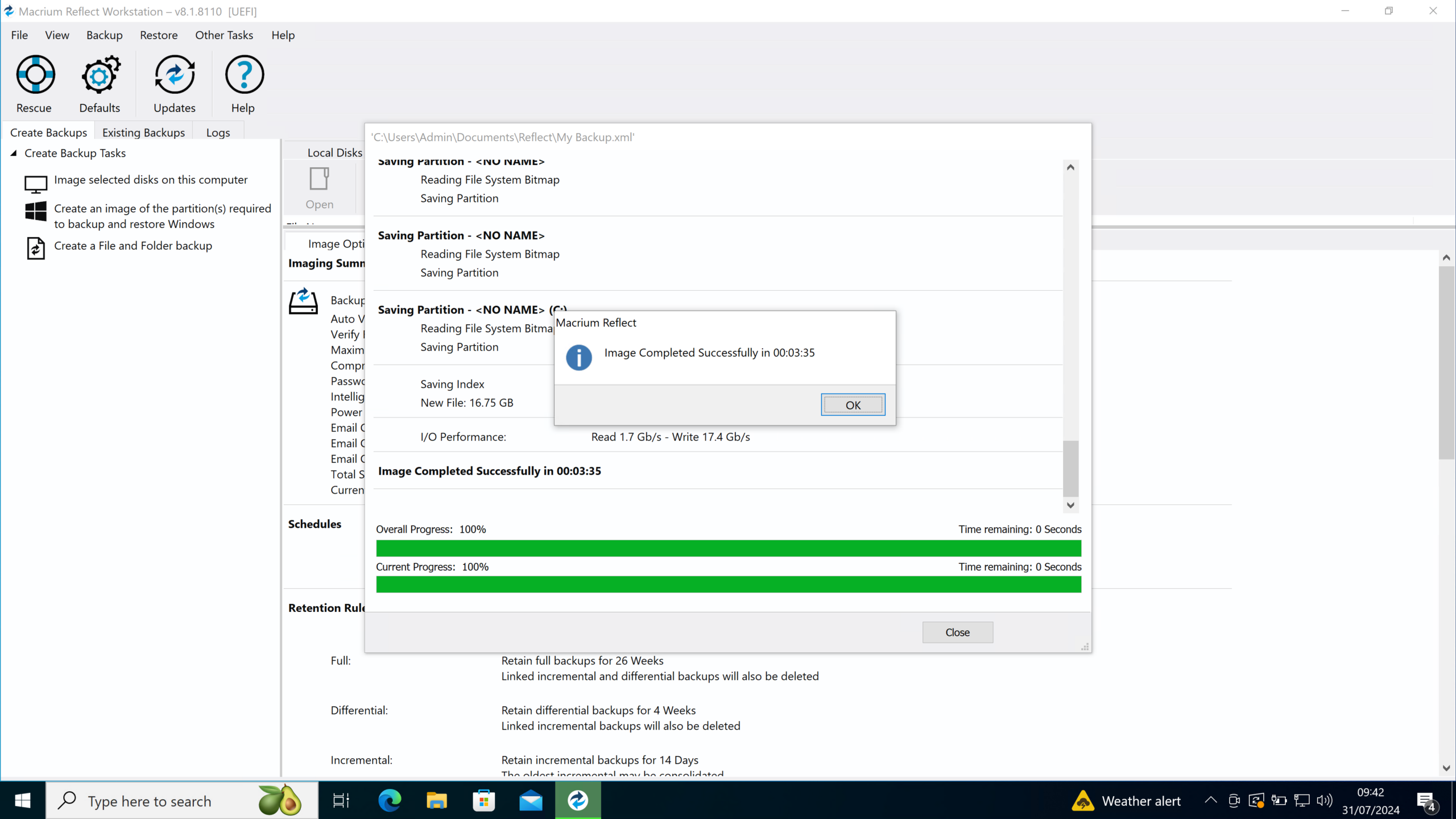
A very common question about Macrium Reflect This is how to configure the backup plan so that, for example, a complete backup is updated every two weeks without needing two full images taking up twice the space. It's a typical scenario: you want Macrium to scan the current image and only overwrite what has changed.
It is worth clarifying that Macrium does not "rewrite" the entire existing image This isn't done directly, because that would break the integrity of the backup history. Instead, it relies on incremental backup chains or consolidation to maintain a single, consistent backup line, combining older copies to free up space according to your defined policy.
If your goal is to avoid storing two complete copies simultaneously Due to space limitations, the most practical strategy is usually to use Incremental Forever with fast consolidation. You create an initial full snapshot, schedule frequent incrementals (e.g., daily), and configure retention rules so that Macrium itself consolidates and purges older incrementals, keeping only the history you need (e.g., two weeks).
In practice, this translates to Macrium consolidates the oldest incrementals within the chain, so the space used remains reasonable. You won't have two identical full images at the same time; your base image and its incrementals will simply be "compacted" to represent the current state and recent restore points.
Another option is to use classic schemes with scheduled full backups. (for example, monthly) and differential or incremental backups in between, but adjusting the retention of full images so that only the most recent one is kept. That way, when a new full backup is created, the previous copy will be deleted (or consolidated) according to the defined policy, avoiding prolonged duplicates.
Mounting and exploring a Macrium Reflect backup
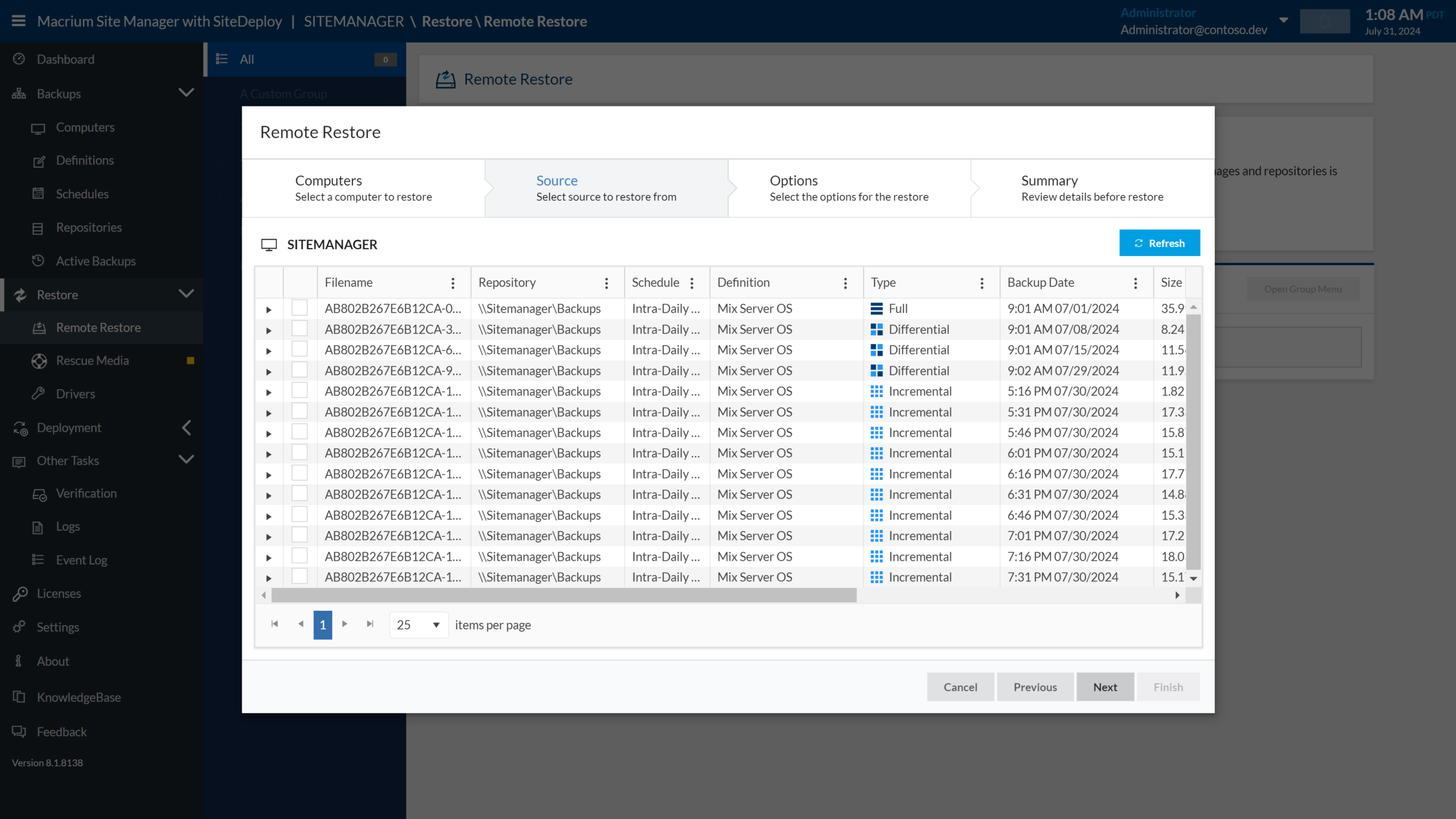
One of the most useful features of Macrium Reflect It's the ability to "mount" a backup image in Windows Explorer as if it were another drive. This allows you to check the contents, recover specific files, and even use that image as a source for migrating to another computer.
The assembly process is quite simpleFirst, you need to have Macrium Reflect installed on the computer where you will access the backup. Once the program is open, go to the "Restore" tab and choose the option to open a backup image or file in Windows Explorer.
When selecting the option to open an imageNavigating to the folder where you saved the backup, Macrium will display the partitions contained in that file, such as the classic C: drive. Simply confirm with OK to begin mounting the image as a virtual drive.
In a matter of seconds, you'll see the new unit mounted. In Windows Explorer, with its own assigned drive letter, you can browse files and folders, copy them to your new computer, or compare data structures. This is the perfect way to verify that the backup contains everything you expected before performing a full restore.
This setup is also key when you want to restore on a different computer. using additional migration tools, since these usually work on the mounted image as if it were a physical hard drive connected to the computer.
Restoring a copy of Macrium Reflect on a new computer
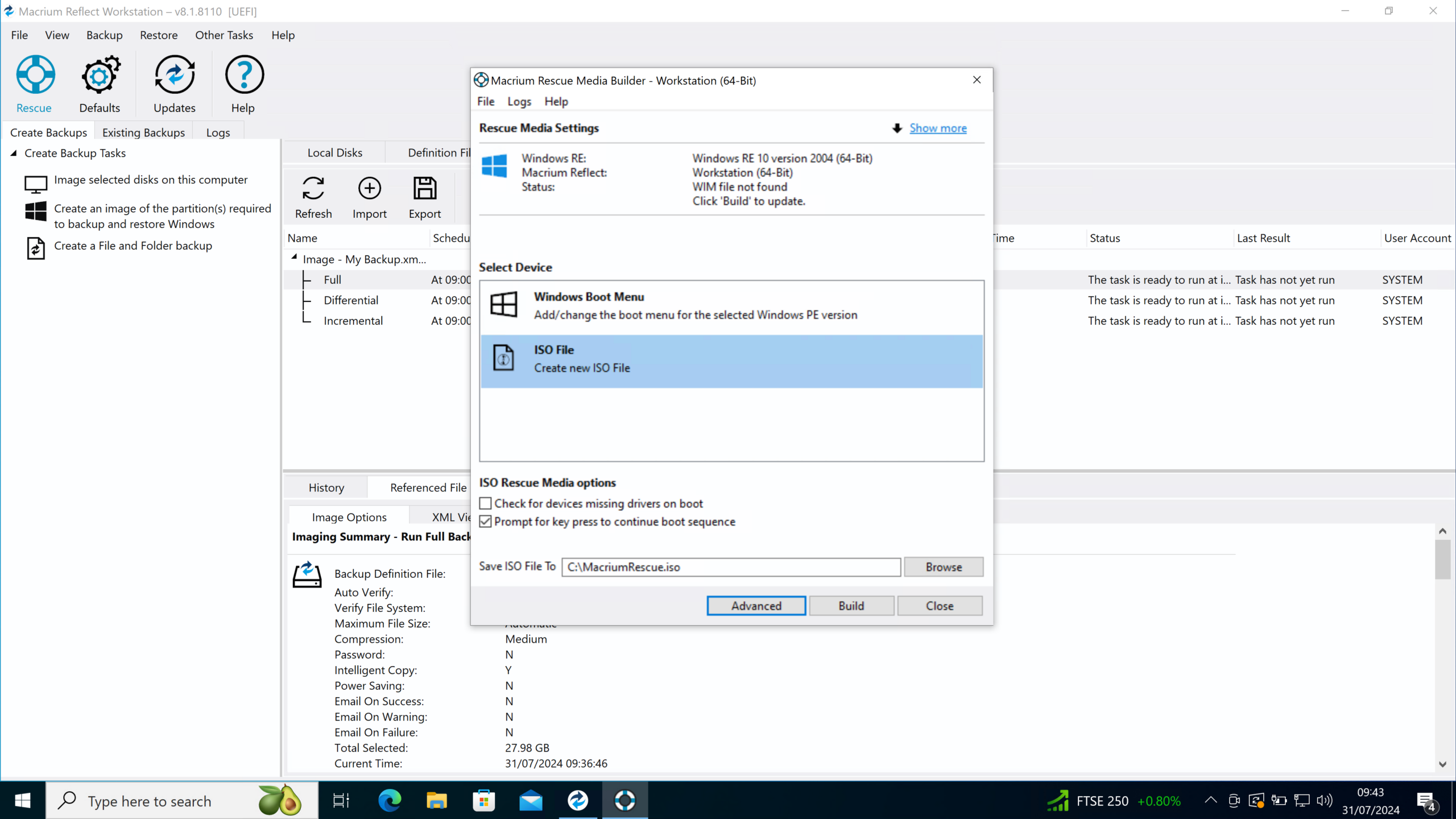
When you change your computer or replace hardwareSimply copying individual documents isn't always enough: often you need to bring back programs, profiles, settings, emails, and accounts exactly as you had them. Using an image created with Macrium Reflect, this is possible with the right approach.
The first step, as we have seen, is to set up the backup on the new computer to have direct access to the content. After installing Macrium Reflect and mounting the image, you will see your old drives (for example, C:) as a virtual drive from which you can extract data.
If you only want to recover some specific files You can copy them manually from the mounted drive. However, this won't include programs, user profiles, or complex configurations, so for a complete migration, specialized software that reads that image as the source is usually used.
Migration tools are used in professional environments. They are capable of treating that virtual drive (the mounted Macrium image) as "another hard drive" and transferring programs, configurations, documents, and customizations from there to the new system. The process is largely automated, eliminating the need to manually search for configuration folders one by one.
Once the restoration or migration process beginsThe tool reconstructs the environment on the new machine, preserving, as much as possible, the profile structure, installed software, and user settings. It's a highly efficient way to leverage the Macrium Reflect image backup beyond simply recovering individual files.
Check if your Macrium Reflect backup is complete
It's very common to feel uneasy when you see that the image file takes up less space. than the space used on the original disk. Imagine this scenario: your C: drive shows about 391 GB in use, you create an image with Macrium Reflect (using the “Backup Windows” option), and the resulting .mrimgx file weighs approximately 241 GB. At first glance, it seems like “something is missing,” but that doesn't necessarily have to be the case.
The size difference is mainly due to compression Macrium applies this method because it doesn't copy empty sectors. Even though Windows says the partition is 391 GB occupied, this includes highly compressible files, redundant data, temporary files, and even space marked as used that actually contains irrelevant information.
To make sure you chose the correct option when making the backupThe first thing to do is confirm that you used the "Backup Windows" or disk image wizard with all the necessary partitions selected (usually the system partition, the system reserved/EFI partition, and the C: drive). This wizard is specifically designed to create complete copies of the Windows environment.
If you want to check the contents of the copyMount the image from the Restore tab as discussed earlier and, if necessary, Check file access and modificationsOnce mounted, check that you see all the usual folders: Users, Program Files, Windows, etc. If everything is present, the copy was successful, even if the resulting file size is significantly smaller than the usage reported by the system.
It is also recommended to use Macrium's verification features After creating the copy: the program itself can check the integrity of the image file to ensure that it has not been corrupted during the backup process or due to problems with the destination disk.
Key features of Macrium Reflect for professional and personal use
In addition to the creation of complete imagesMacrium Reflect integrates a series of modules that make it a very complete solution. These include backups of individual files and folders, replication of entire servers, bare-metal restoration, and conversion of backups to virtual machines.
Backing up specific files and folders This is useful when you only need to protect certain critical paths (for example, a project folder or a specific database) without having to create an entire system image. This reduces the size of the backups and speeds up the recovery of documents on demand.
Server replication allows you to keep a copy in another locationThis is vital for business continuity and disaster recovery strategies. If a primary server fails, the replica can take over with very short downtimes and is especially useful when you need a full backup on Windows Server.
Bare-metal restoration is another of its strengthsYou can restore a complete system on new hardware or on a computer where the hard drive or main components have been replaced. The idea is to return to a functional state without having to reinstall the operating system or software from scratch.
Converting backups to virtual machines It opens the door to testing scenarios, rapid recovery, or virtualization of legacy systems. From an image created with Macrium Reflect, you can generate a virtual machine that replicates that environment, facilitating compatibility testing or providing occasional access to legacy systems.
Macrium Reflect 7: Incremental Forever, MIG and Rapid Delta Restore
Macrium Reflect version 7 represented a significant leap forward In terms of performance, security, and backup flexibility, it integrated several technologies that are now key to implementing modern advanced backups, both in demanding home environments and in businesses.
The Incremental Forever function, already discussed, is one of the major new features.It allows you to always work with a single initial full copy and a chain of incremental copies, optimizing storage by quickly consolidating the oldest copies. This greatly simplifies the management of the rotation policy.
Macrium Image Guardian (MIG) is another strategic piece MIG focuses on protecting backup files from ransomware attacks and unauthorized access. It monitors image files and prevents illegitimate modifications, reducing the risk of malware encrypting or corrupting your backups.
Version 7 also reinforced the engine of programming of tasksThis allows you to schedule backups daily, weekly, or according to custom calendars. This way, backups can be run during periods of lower system usage, fully automating protection without you having to remember to manually initiate the backup.
Rapid Delta Restore (RDR) is another differentiating technologyInstead of overwriting the entire disk on each restore, RDR applies only the necessary changes between the current state and the target image. This greatly speeds up recovery times, a huge advantage when a critical system cannot be down for too long.
Finally, support for Windows PE environments and servers It expands the range of scenarios where you can perform restores, launch backups, or prepare rescue media, both on personal PCs and professional server infrastructures.
Advantages and disadvantages of using Macrium Reflect
Among the clearest advantages of Macrium Reflect There's the speed of its incremental backups and the efficiency of its compression algorithms. The ability to schedule frequent backups without them taking up too much time or space makes it easier to adopt a more aggressive and secure backup policy.
The flexibility of recovery is another point in its favor.You can restore specific files, entire folders, or even the whole system, including applications, settings, and profiles. This minimizes productivity loss after an incident, as you can resume work almost exactly where you left off.
Broad compatibility with various OS and environments (from older versions of Windows to current environments and servers) makes it a versatile solution. Although the main focus is on Windows, it integrates into many heterogeneous infrastructures without too much trouble.
On the less favorable side, Macrium Reflect has a bit of a learning curve.Especially when you want to go beyond "next, next, finish" and configure advanced retention, consolidation, or replication schemes. To get the most out of the tool, it's worth dedicating some time to it and, if possible, testing it in a non-critical environment beforehand.
The cost of licenses can also be a factor to consider.especially for individual users or small businesses with very tight budgets. Although there are free editions with limited features, the most advanced features are usually reserved for the paid versions.
Another aspect to consider is the integration with some cloud services. It's not as comprehensive as that of solutions born directly "cloud-first". If your absolute priority is native backup across multiple cloud providers, you may need to supplement it with other tools or carefully review the available options.
Macrium Reflect Editions, Pricing and Licensing
Macrium Reflect is offered in several editions to cover different profiles: home users, office workstations, standard servers and servers with advanced needs as backup for databases Exchange or SQL.
The Home Edition is geared towards individual users. for those who want to protect one or more personal PCs. It includes the necessary functions for image backups, quick restoration, and the use of technologies like Rapid Delta Restore, with a relatively user-friendly interface.
The Workstation and Server editions They are designed for small and medium-sized businesses that need to protect critical workstations and servers. They add centralized management options, more flexible policies, and specific compatibility with server systems.
The Server Plus Edition takes it a step further Integrating advanced capabilities to support enterprise databases such as Exchange and SQL Server, it's an option designed for environments where email and database services are at the heart of the business.
The licensing model is normally based on the number of computers (servers or workstations) that you want to protect. Added to this is the cost of the storage needed for backups and, in some cases, additional support contracts, which together make up the total cost of ownership (TCO) in the medium and long term.
In addition to the purchase of perpetual licensesThere are usually annual subscription and renewal options with access to updates and support. In professional settings, the most sensible approach is to speak directly with the sales team to ensure the edition and contract type are tailored to the organization's specific needs.
As a general idea, Macrium Reflect helps to cut indirect costs These are linked to downtime and slow or incomplete recoveries. If a good backup prevents hours of downtime or the loss of key data, the investment usually pays for itself in a short time.
On a practical level, Macrium Reflect combines speed, flexibility and safety. This covers everything from the typical backup before sending a laptop for repair to advanced disaster recovery strategies with replicated servers and bare-metal restores. Learning to effectively manage its full image options, incremental images, Incremental Forever, mounting backups, and restoring to new hardware puts you in a very strong position to prevent a hard drive problem or ransomware attack from becoming a catastrophe.


Passionate writer about the world of bytes and technology in general. I love sharing my knowledge through writing, and that's what I'll do on this blog, show you all the most interesting things about gadgets, software, hardware, tech trends, and more. My goal is to help you navigate the digital world in a simple and entertaining way.