- Reset-WindowsUpdate.ps1 is a script advanced troubleshooting Windows Update and restore its components to their original state.
- It allows you to automate complex system maintenance processes, eliminating Temporary files, repairing the registry and restoring essential services.
- Its use requires administrator privileges and knowledge of the options it offers, making it ideal for technicians and advanced users.
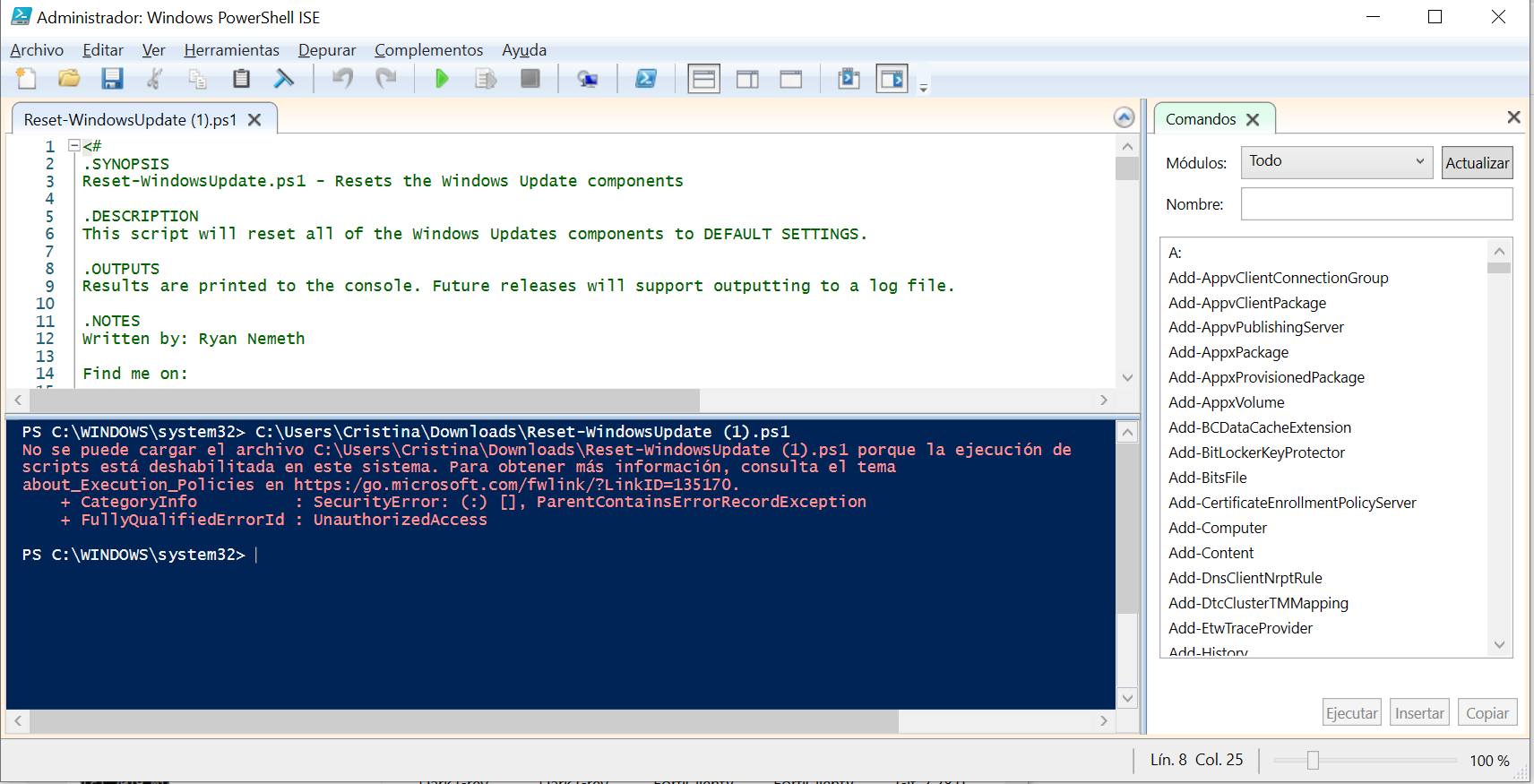
Is your Windows not updating correctly, or are you getting errors from the update services? Millions of users experience this problem every year, and while dozens of solutions are scattered across the internet, few are as effective and automated as the Reset-WindowsUpdate.ps1 script. On Microsoft's support forums and official channels, this script is already a classic for anyone looking to restore Windows updates to working properly in just a few minutes.
In this article, you'll find a comprehensive explanation of exactly what Reset-WindowsUpdate.ps1 is, how and when you should use it, details about its technical operation, what it does "under the hood," and how to run it safely. If you've ever been frustrated by Windows Update not working, here's the definitive solution, explained in Spanish with a practical approach tailored to different user profiles.
What is Reset-WindowsUpdate.ps1?
Reset-WindowsUpdate.ps1 is a PowerShell script developed primarily by Ryan Nemeth , designed to automate the restoration of Windows Update-related components to their original factory state. This includes stopping services, deleting temporary files associated with Windows Update, resetting the registry, repairing DLL libraries, clearing configuration values, and, if necessary, reinstalling the update agent itself. You can also learn how to troubleshoot permission issues in Windows to facilitate the execution of this type of script.
This script has become a reference in the technical community thanks to its effectiveness and ease of use, since it brings together in a single automatic process what previously had to be done step by step and manually using commands in the command prompt or PowerShell.
What is it really for?
The primary purpose of Reset-WindowsUpdate.ps1 is to resolve most issues related to Windows automatic updates. These can include download errors, failed installations, system file corruption messages, services that won't start, or simply the inability to search for or install new updates.
It is especially useful when:
- Windows Update keeps giving errors despite trying the usual troubleshooting methods.
- Corruption has been detected in the Windows image after running other tools such as SFC or DISM.
- Update-related services (BITS, wuauserv, etc.) fail to start or stop unexpectedly.
- You need to completely clear your Windows Update history and files to start from scratch.
Why choose Reset-WindowsUpdate.ps1 over other tools?
Compared to other automatic utilities or more basic scripts, Reset-WindowsUpdate.ps1 stands out for its depth and precision. It not only restarts services and deletes temporary folders, but also:
- Rename critical directories such as SoftwareDistribution and Catroot2, which forces Windows to regenerate these components when restarting services.
- Removes old or corrupt registry entries related to the update, thus avoiding configuration conflicts.
- Re-registers more than 30 DLL libraries involved in the update system, ensuring that no essential files are damaged or dereferenced.
- Delete pending BITS jobs that could block downloads future.
- Reset network settings (Winsock), which is key when facing connection problems with Microsoft servers.
- Provides the option to reinstall the update agent, if it detects that it is damaged.
How does Reset-WindowsUpdate.ps1 work internally?
The script follows a well-structured sequence of steps that it performs automatically upon execution. Most of these steps can be summarized as follows:
- Detects system architecture (32 or 64 bits) to apply correct settings.
- Stops essential update services (BITS, wuauserv, appidsvc, cryptsvc).
- Delete temporary files using Remove-Item, such as QMGR*.dat involved in downloading updates.
- Rename key folders (SoftwareDistribution, Catroot2) to force Windows to regenerate them cleanly when restarting services.
- Delete the old update log (WindowsUpdate.log).
- Reset permissions and service settings using sc.exe sdset commands.
- Re-registers associated DLL libraries using regsvr32.exe in silent mode.
- Deletes specific values from the registry, such as SusClientID and others related to WSUS clients.
- Reset Winsock network and WinHTTP proxy settings.
- Delete pending BITS tasks using Get-BitsTransfer and Remove-BitsTransfer.
- Offers reinstallation of the Windows Update Agent according to the architecture.
- Restart all stopped services.
- Forces immediate detection of new updates with wuauclt /resetauthorization /detectnow.
- Indicates the need to restart the computer to finish the process.
Each of these steps is designed to clean, restore, and force rebuild all elements involved in Windows Update, ensuring that any previous conflicts disappear.
How to Use Reset-WindowsUpdate.ps1: Step by Step
Before running the script, it's essential to work with administrator privileges . Windows, since Vista and especially in modern editions like Windows 10 and 11, protects access to critical parts of the system using User Account Control (UAC), so keep the following in mind:
- Right-click the Reset-WindowsUpdate.ps1 file and select “Run as administrator.”
- If this option doesn't appear, check the properties, go to the compatibility tab, and enable "Run this program as an administrator."
- You can also start PowerShell as an administrator and launch the script manually.
On modern versions of Windows, you may see security warnings preventing the script from running.This is due to script execution policies to prevent malicious code. You can temporarily change the policy with the command Set-ExecutionPolicy -Scope Process -ExecutionPolicy Bypass before launching it.
Script options and parameters
Reset-WindowsUpdate.ps1, and its graphical variant ( Reset Windows Update Tool), allow you to customize actions using optional command-line parameters. This lets you decide whether you want to simply clean temporary files, reset Winsock settings, check for updates, or perform all available tasks. Common parameters (and their abbreviations) include:
| Parameter | Description | Abbreviation | Example |
|---|---|---|---|
| reset | Reset Windows Update components. | -reset | /reset |
| search | Check for new updates. | -search | /search |
| clean | Cleanup options (files, registry, Winsock). | -clean:temp, -clean:regs, -clean:sock | /clean:temp |
| sfc | Scan protected system files with SFC. | -sfc | /sfc |
| Dism | Run DISM to scan, repair, or clean the image. | -dism:scan, -dism:check | /dism:scan:repair |
| help | Displays help and available commands. | -h, -? | / help |
| version | Indicates the version of the tool. | -v | /version |
You don't have to use all the parameters, but if you have a specific case (for example, you only want to clean temporary files and not the entire system), you can do so with the appropriate option.
Recommended use and good practices
Although the script is designed to be safe and non-damaging, it's always recommended to back up your system before running it on production machines or systems with critical data . You can create a restore point before starting. The script itself, in some versions, does not do this automatically.
The most common execution sequence for troubleshooting Windows Update issues includes the following steps:
- Run the registry and temporary files cleanup with the parameters
cleanyreset. - Launch the scan for protected files (
sfc) and image verification (dism). - Reset Winsock settings if there are network problems.
- Restart your computer once the process is complete.
Many technicians recommend following this order: deleting temporary files, repairing with SFC and DISM, restarting services, and only then checking for updates . The process can take several minutes, especially the file scans and image repair, which will depend on the computer's processing power and the system's condition.
Requirements, compatibility and important warnings
Reset-WindowsUpdate.ps1 and its variants are compatible with all modern versions of Windows, including Windows 10 and 11. On older systems, the tool may not work fully, as it utilizes features and services not present in versions prior to Windows Vista. For more details, you can also refer to how to reset Windows 11.
If the operating system is not supported, the tool usually detects this and displays an error message before making changes.
It is essential to always run the script as administrator . Otherwise, many of the commands will fail due to insufficient permissions, and the process will not complete.
Practical cases and examples of use
Imagine that Windows Update throws an error and fails to download or apply new updates, even using the system's built-in troubleshooter . In this case, it would be ideal to run:
powershell -ExecutionPolicy Bypass -File .\Reset-WindowsUpdate.ps1 -resetIf your computer also shows signs of corruption in system files or the Windows image, you can add:
powershell -ExecutionPolicy Bypass -File .\Reset-WindowsUpdate.ps1 -reset -sfc -dism:scanFor connection or network related issues, it is recommended to add:
powershell -ExecutionPolicy Bypass -File .\Reset-WindowsUpdate.ps1 -clean:sockCommon errors and how to solve them
On some systems, especially Windows 10/11, PowerShell script execution may be blocked by the Restricted execution policy . This message is common and can be resolved by adjusting the execution policy to apply only to the current session.
Set-ExecutionPolicy -Scope Process -ExecutionPolicy BypassAfter applying the process, it is essential to restart the computer, as many changes do not take effect until Windows reloads all services and files.
In extreme cases, the repair process can take a considerable amount of time (DISM and CHKDSK), depending on the amount of data and the disk's condition . If the script finds that it cannot perform certain actions, it will display specific error messages and usually indicate where the problems are so that the technician can take manual action if necessary.


Table of Contents
- 1 What is Reset-WindowsUpdate.ps1?
- 2 What is it really for?
- 3 Why choose Reset-WindowsUpdate.ps1 over other tools?
- 4 How does Reset-WindowsUpdate.ps1 work internally?
- 5 How to Use Reset-WindowsUpdate.ps1: Step by Step
- 6 Script options and parameters
- 7 Recommended use and good practices
- 8 Requirements, compatibility and important warnings
- 9 Practical cases and examples of use
- 10 Common errors and how to solve them