- Resetting Windows 11 allows you to resolve serious system errors without the need for a full format.
- It is possible to restore Windows 11 from the configuration or using unused commands USB or disk.
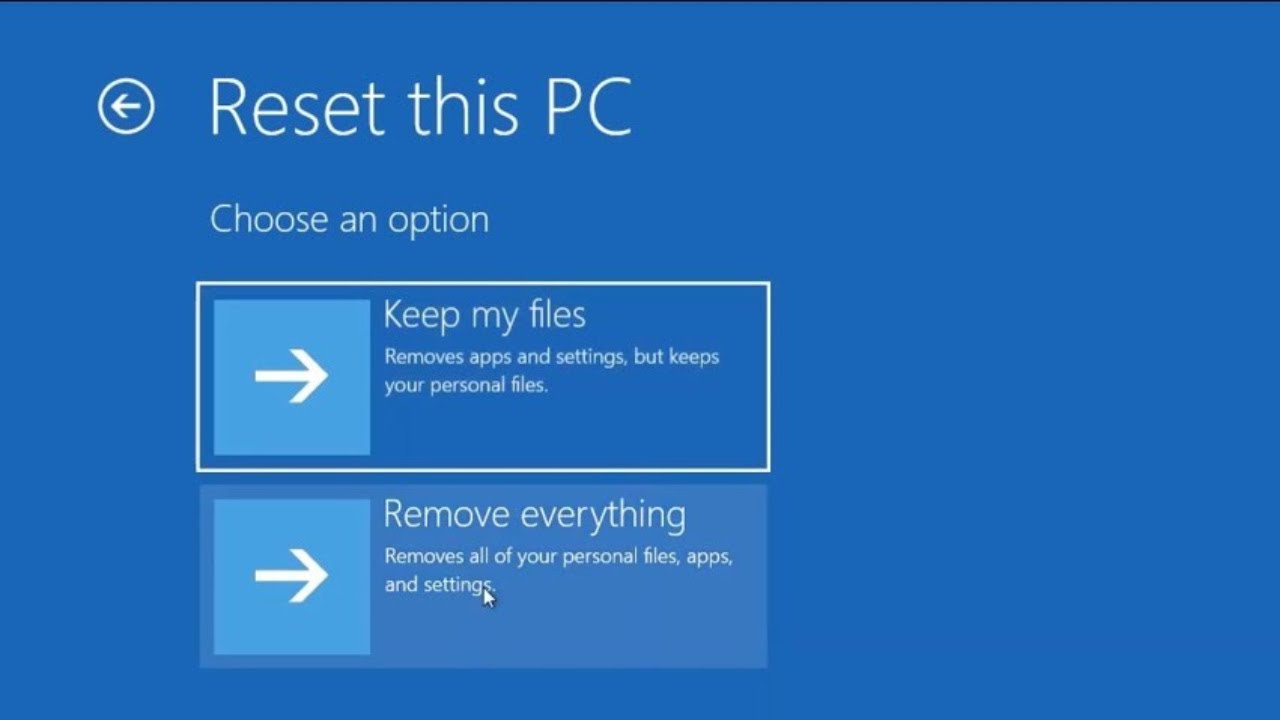
- The reset feature offers options to keep personal files or delete everything.
- Reinstalling from the cloud ensures a clean and up-to-date version of the operating system.

Is your Windows 11 computer malfunctioning, running slower than usual, or experiencing errors you don't know how to fix? It might be time for a clean install. Fortunately, you don't need an installation USB drive or external hard drive to do this. Windows 11 lets you restore your system to its original state directly from Settings or with a simple command , allowing you to choose whether to keep your personal files or start fresh.
This feature is very useful both for users seeking a thorough system cleanup and for those experiencing serious problems they can't resolve otherwise. Furthermore, Microsoft has significantly improved the process since previous versions, including the ability to reinstall the system from the cloud , guaranteeing a clean copy of the operating system without the need for physical media.
Why reset Windows 11?
Resetting your system can be an effective solution if you're experiencing persistent crashes, slow performance, random freezes, or other unusual behavior that isn't resolved with standard troubleshooting methods. Some common reasons include:
- Accumulation of unnecessary files and remnants of previously installed software.
- Some update failed of Windows that has left the system unstable.
- Presence of malware or viruses that compromise performance.
- Configuration errors or changes that you cannot easily reverse.
In all these cases, resetting Windows 11 returns the system to its 'factory' state , without needing to manually reinstall it with a USB drive or a downloaded ISO.
What you should keep in mind before starting
Before clicking the "Reset" button, it's important to take a few minutes to ensure certain things are safe. Although the system offers options to keep your personal files, all programs and custom settings will be erased , so proceed with caution.
Here are some essential recommendations:
- Save all your important files on an external hard drive, cloud, or other secure medium.
- Make sure you have your passwords handy and installed software licenses (Office, Photoshop, etc.).
- Back up files that belong to specific applications, such as templates, configurations or graphic resources.
- Disconnect external drives if you don't want the process to try to include them.
Even if you decide to use the “Keep my files” option, it’s best to prevent possible errors or accidental losses during the process.
How to reset from Windows 11 settings
This is the most direct and accessible method for any user. Through the configuration section, you can start the process in just a few clicks:
- Open the start menu and go to Configuration.
- In the left bar, select System and then click Recovery.
- Within this section, you will see the option Reset the computer. Click on it.
At this point, the system will ask you if you want to:
- Maintain your personal files (removes apps and settings, but keeps documents and images, for example).
- Remove all (delete all your files, programs and settings).
The next screen offers you two reinstallation methods:
- Download from the cloud: Install the latest version of Windows 11.
- Local reinstallation: Use the copy stored on your computer.
The cloud option is highly recommended if you suspect system files may be corrupted, although it will require an internet connection and may take longer.
Before starting the process, you'll see a summary of your chosen options . You can still modify things like cleaning secondary drives or downloading drivers. If everything looks correct, click "Next" and then "Reset."

Reinstall from the cloud without physical media
The cloud-based reinstallation feature is one of the biggest improvements in Windows 11. It not only eliminates the need to download ISO images or create USB drives, but also ensures a cleaner and more up-to-date operating system installation . You can find instructions on how to adjust other settings in Windows 11 to simplify the process and ensure everything works correctly.
Clear advantages of this option:
- You do not need to create an installation USB stick nor search for ISO manually.
- You install the latest version of Windows 11 available.
- Avoid errors caused by corrupted system files or damaged files present on your PC.
The only requirement is to have a stable Internet connection throughout the entire process.
After reset: initial setup and updates
At the end of the process, your computer will start up as if it were new and you will need to go through the initial system setup: language, region, user account, etc.
Don't forget to do the following:
- Connect to the Internet and run Windows Update to install all security updates and drivers.
- Reinstall your favorite programs from scratch, preferably downloading them from official sources.
- Reconfigure your custom settings (resolution, network profiles, wallpapers…).
It's also a good idea to establish a regular backup system and keep unnecessary software clean to avoid future slowdowns.

Passionate writer about the world of bytes and technology in general. I love sharing my knowledge through writing, and that's what I'll do on this blog, show you all the most interesting things about gadgets, software, hardware, tech trends, and more. My goal is to help you navigate the digital world in a simple and entertaining way.