- ASIO and WASAPI allow bypassing the mixer Windows to reduce latency and improve audio fidelity.
- ASIO is geared towards recording and musical production, with direct control of buffers, inputs, outputs and high-resolution formats.
- WASAPI's exclusive functionality is ideal for audiophile playback on PCs, offering bit-perfect routing without the need for drivers additional.
- The choice of driver system and sampling parameters should be adapted to the use: critical listening, recording, or real-time monitoring.
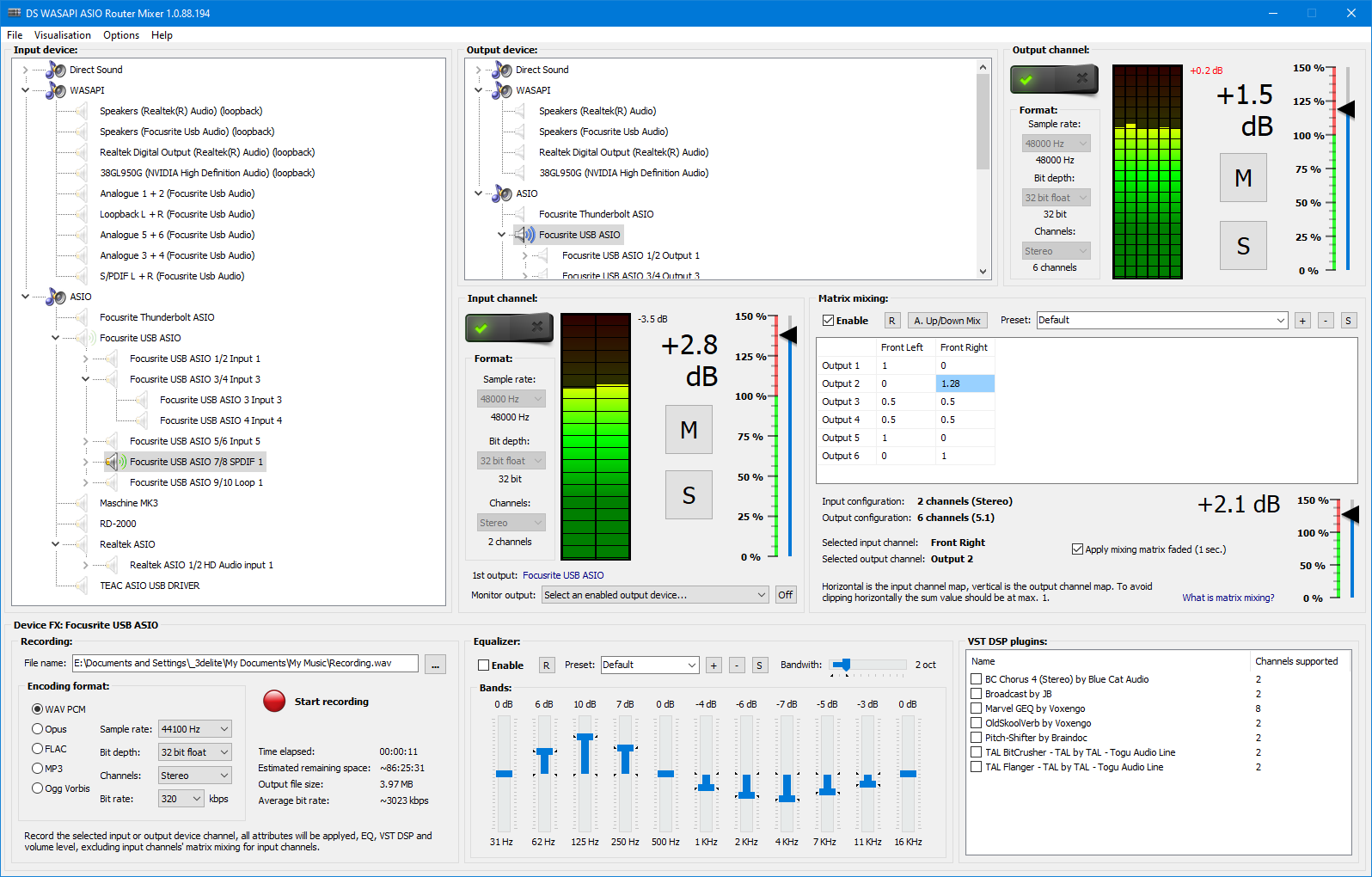
If you've just bought a mid-range/high-end DAC or headphone amplifier and you've read somewhere that Windows isn't exactly the best friend of high-fidelity audio.It's normal that you've come across two key terms: ASIO and WASAPI. And, of course, questions arise: Do you have to download them? Do they come with the DAC? Do they really improve sound quality? What about that dreaded latency?
Furthermore, if you use players like Foobar2000, DAWs like Samplitude, or dedicated sound cards like Xonar or interfaces like a Focusrite, you'll see that everyone is talking about “Skipping Windows mix” to achieve bit-perfect audio and avoid having to change the sampling rate in three different places. Let's organize all these ideas, explain it calmly, and make it clear when you should use ASIO, when WASAPI, and what you can expect in practice.
What are ASIO and WASAPI and why all the fuss?
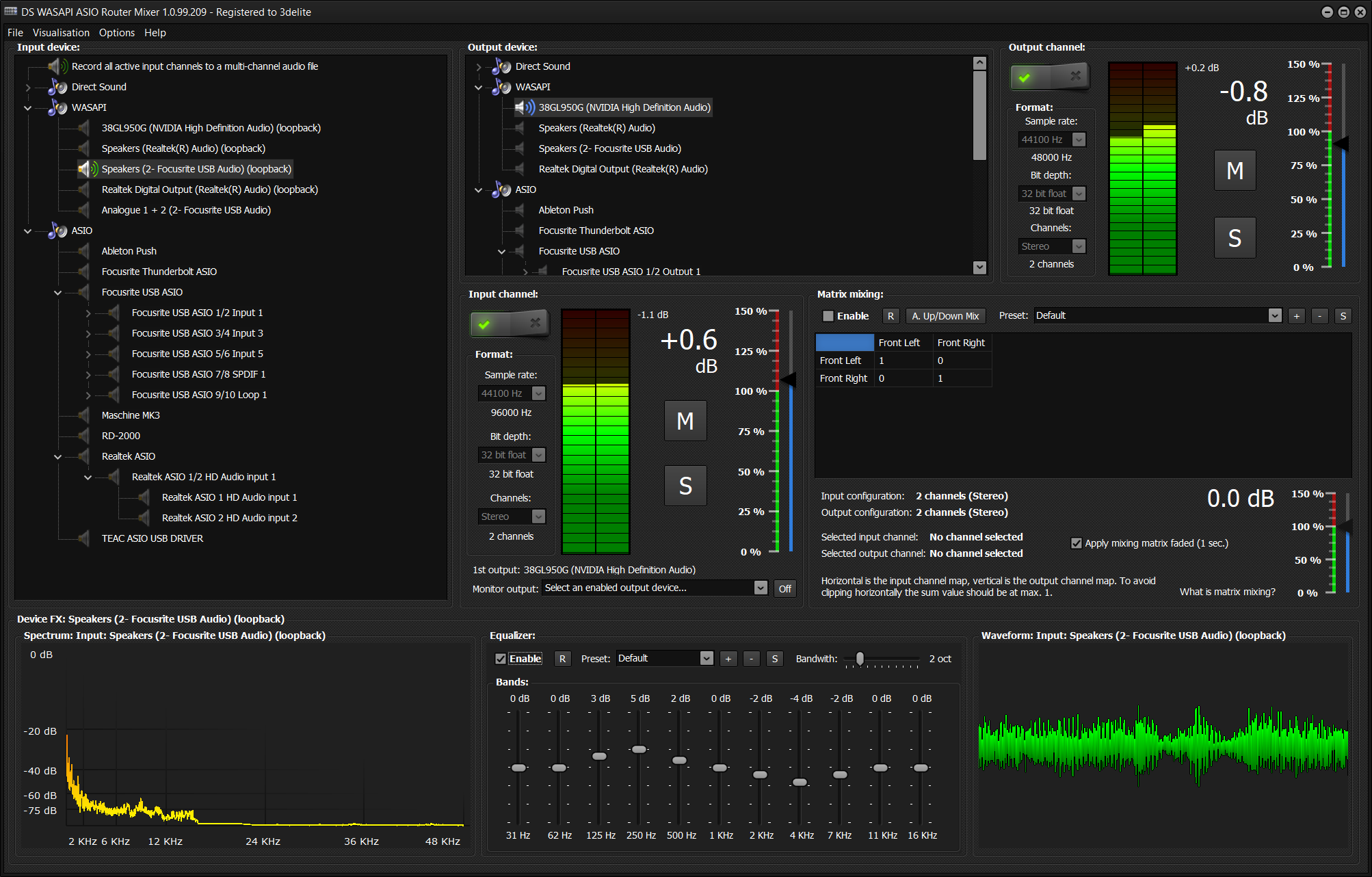
On a Windows PC, sound typically passes through a series of system layers and mixers before reaching the speakers or headphones, which means that Windows acts as an intermediary between the application and the sound card.ASIO and WASAPI are two ways to reduce or even skip part of that "path" to gain quality, control and, above all, less latency.
ASIO (Audio Stream Input/Output) It's a standard created by Steinberg to allow professional audio software (DAWs, recorders, virtual instruments, etc.) to communicate almost directly with the audio interface. It was designed for studio and recording use, prioritizing minimal latency and very fine control of inputs and outputs.
WASAPI (Windows Audio Session API) It's the modern Windows audio API. It allows two modes of operation: the traditional shared mode, in which Windows still mixes everything, and the exclusive mode, which is the one we're interested in for high-quality audio, since It allows an application to take exclusive control of the audio device. and bypass the system mixer.
In everyday conversation, when people talk about improving sound quality in Windows, they usually mean using ASIO or WASAPI in exclusive mode to prevent the system from changing the sampling rate, touching the volume, or applying unwanted processing between the program and the DAC or interface.
How audio works in Windows without ASIO or exclusive WASAPI
Most computers come with an integrated graphics card (Realtek and similar) designed for video gamesmovies, video calls, and system soundsThese cards are not suitable for professional recording or audiophile audio. They typically use drivers such as MME, DirectSound, DirectX, or generic drivers, and operate in shared mode through the Windows mixer.
In that mode, the system establishes a sampling frequency and “global” bit depth (for example, 48 kHz / 16-bit) in the Windows sound panel. All application audio passes through this mixer, which upscales and converts as needed to match this setting. If you play a 44,1 kHz file and Windows is set to 48 kHz, it gets resampled.
This functionality is very convenient for the average user, because You can have a game at the same time, SpotifyYouTube and system notifications It sounds great without you having to worry about anything. But it has two drawbacks for those looking for quality or serious audio work: there's more latency and, moreover, it's almost impossible to maintain a truly "bit-perfect" audio path.
That's why many users, when getting a new dedicated DAC like an SMSL SH6/SU6, or an external interface, look for Ways to bypass the Windows mixerAnd that's where ASIO and WASAPI come into play in exclusive mode.
What ASIO offers: low latency and direct access
ASIO was designed with one idea in mind: minimize latency and allow programs to access the audio interface directlywithout going through extra layers of the operating system. This is critical when you want to record an instrument, sing with real-time monitoring, or play a MIDI keyboard with virtual instruments.
Latency is, basically, the delay between what you do and what you hearIf you speak into a microphone and the signal takes too long to return to your headphones, it's annoying and can even be unusable for playing or singing. This delay is measured in milliseconds (ms), and the lower the value, the more natural the monitoring feels. A delay of 1.000 ms is equivalent to a full second, which is completely unacceptable in a musical context.
With ASIO, the program communicates almost directly with the interface and can adjust the size of the audio buffers. The smaller the buffer, the lower the latency.However, this also puts more strain on the processor and increases the risk of clicks or dropouts if the hardware isn't up to the task. This is controlled through the ASIO driver's control panel, which is included with the interface.
A major advantage of ASIO on dedicated interfaces is that it usually allows 24-bit depths and high sampling rates (96 kHz, 192 kHz, etc.), making the most of the capabilities of hardwareThis translates into greater dynamic range, less background noise, and better response when working at low volumes, which is important for both recording and critical listening.
Furthermore, a well-integrated ASIO driver allows manage multiple inputs and outputs consistentlyIn other words, you select the interface as an ASIO device in your DAW and you automatically have all its microphone inputs, lines, monitor outputs, etc., accessible in the software without having to go device by device in Windows.
ASIO Drivers: Proprietary and ASIO4ALL
ASIO is not a native part of Windows: You need a specific ASIO driver.Most studio audio interfaces (Focusrite, Motu, RME, etc.) include their own ASIO driver, along with a control panel and latency options. These drivers are usually the best option when available, as they are optimized for that specific hardware.
Instead, many integrated sound cards or consumer devices (standard motherboard cards, some DACs) USB Simple programs) do not come with their own ASIO driver. In these cases, ASIO4ALL comes into play, a generic driver that acts as an ASIO "layer" on top of other Windows drivers, allowing programs that only understand ASIO to work with hardware that does not have a native ASIO driver.
It's important to understand that ASIO, as a Steinberg technology, it is not free softwareand its implementation is subject to licensing. Programs like Audacity, for example, cannot include ASIO support by default in their official version, although a custom version of the program with ASIO support can be compiled by the user.
The main commercial DAWs (Pro Tools, Ableton Live, Cubase, Samplitude, etc.) Yes, they offer native ASIO support.In your audio settings you can select ASIO as the driver system, choose the specific device and then fine-tune the latency from the driver's own panel.
Key audio parameters with ASIO: bit depth and sample rate
When working with an ASIO driver for recording or production, one of the first steps is choosing bit depth and sampling frequency appropriate. This impacts both the quality and the load on the system and the perceived latency.
La bit depth This indicates how much information is stored in each sample. A higher bit depth provides more space to accurately represent level differences and a greater dynamic range. The CD standard is 16 bits, while many modern interfaces, such as a second-generation Focusrite Solo, allow up to 24 bits, resulting in lower quantization noise and more headroom for signal processing.
La sampling rate This determines how many samples per second are taken from the signal. A standard audio CD operates at 44.100 Hz (or 44,1 kHz), but many interfaces support 48 kHz, 88,2 kHz, 96 kHz, 176,4 kHz, or even 192 kHz. The more samples per second, the more temporal "detail" of the signal is captured.
The practical problem is that The higher the frequency and bit depth, the more data needs to be handled.This means larger files if you're recording, but also more load on the processor and data bus, and potentially more latency if you don't adjust the buffer size properly. Finding the right balance is key: values like 24-bit/44,1kHz or 48kHz are usually a good compromise for many scenarios.
In situations where you need real time monitoring (like playing guitar through an amp simulator or following along while singing), reducing latency is crucial, even if it means not maxing out all the quality settings. Applications like the game Rocksmith, for example, recommend using 16 bits and 48 kHz precisely because that setting helps keep latency low without putting too much strain on the system.
What is WASAPI and how does it help with audio playback?
WASAPI is the modern Windows audio interface and the foundation upon which many current applications communicate with the sound system. Unlike older methods, WASAPI allows for finer control of audio sessions and, most interestingly, a dedicated mode that closely resembles ASIO's approach in bypassing the Windows mixer.
In shared mode, WASAPI behaves similarly to DirectSound: Multiple apps can be running at the same time Windows then mixes everything at the frequency and bit depth configured on the device. This is the standard mode for the average user who doesn't want to complicate things.
In exclusive mode, a program can open the audio device so that no other application can use it while that session lastsThis prevents Windows from having to mix anything, reduces the possibility of unintentional resampling, and allows the application to deliver the audio data at the file's original sampling rate (44,1 kHz, 96 kHz, etc.), resulting in a much "cleaner" playback.
In the context of audiophile playback, many music players, such as Foobar2000, JRiver, or similar, offer plugins or specific outputs for WASAPIBy enabling them, you can achieve a bit-perfect path to your DAC, provided the hardware supports those sampling rates and the system does not force conversions.
Unlike ASIO, WASAPI is part of Windows, so you don't need to install a specific extra driver to use it, beyond have the audio device drivers properly installed (USB DAC, internal sound card, etc.). This makes it very practical when you don't have an official ASIO driver or don't want to resort to solutions like ASIO4ALL.
ASIO vs WASAPI: practical differences
In a home music listening scenario with a USB DAC, you might wonder if using ASIO makes sense versus using exclusive WASAPI. From a practical standpoint, both methods are valid. They manage to bypass the Windows general mixer and offer a more direct audio path, but there are important nuances in its philosophy and typical use.
ASIO focuses more on professional work and recording environmentswhere the absolute priority is minimizing latency at both input (microphone, instruments) and output (monitors, headphones). It is usually the natural choice in DAWs and home or professional studios.
WASAPI, especially in exclusive mode, fits very well into high-quality audio playbackThis is where there's less need for real-time signal processing, and more emphasis on preserving file integrity and avoiding intermediate processing. It's ideal for players like Foobar2000 when you just want to listen without dealing with additional drivers.
It should be mentioned that some users, with certain combinations of Windows and hardware, find that other outputs such as Kernel Streaming (KS) They still offer better results or greater stability. In audio forums, it's common to read about people who, after trying ASIO, WASAPI, and KS, stick with the one that performs best with their specific DAC and Windows version, although there's no universal rule.
If your main goal is to listen to high-quality music with a DAC like an SMSL, it's very possible that WASAPI exclusive is more than enoughIf, on the other hand, you are going to record vocals or instruments in real time and need to monitor yourself without noticeable delay, then the logical thing to do is to use ASIO (preferably the official driver of your interface) and adjust its latency parameters.
How to use Foobar2000 to bypass the Windows mixer
One of the most popular audio players among PC enthusiasts is Foobar2000. It's lightweight, highly configurable, and above all, allows you to use advanced outputs such as WASAPI or ASIO to send audio directly to the device, bypassing the standard Windows mixer.
The general process usually involves downloading from the official website the corresponding output components (for example, the WASAPI or ASIO component for Foobar2000), install them on the player, and then choose that type of output in the program's audio settings.
Once the components are installed, when you connect your DAC or interface and have its drivers up to date, Foobar2000 will show the device as available. Under the WASAPI (exclusive), ASIO, or KS output section, depending on the modules you have installed, simply select it to send the audio directly to that device, bypassing the Windows mix.
This way you get exactly what many users want: not having to keep changing the sampling frequency in three places (Windows mixer, sound card control and player). Foobar itself can offer you the possibility of working in bit-perfect, sending the file to the DAC exactly as it is, without additional conversions from the operating system.
Interaction with dedicated sound cards and external DACs
If you use a dedicated sound card like a Xonar, or a USB DAC like the SMSL, the typical question is whether you will need to touch both the Windows settings and the device itself to ensure everything is at the correct sampling rate. It's easy to get lost among control panels.
The simplest way to avoid conflicts is to leave Windows with a more or less neutral configuration, and for serious playback, Use applications that directly control the device via ASIO or exclusive WASAPIThus, the player takes care of adjusting the audio session to the file's frequency, and Windows doesn't interfere along the way.
In many DACs and dedicated sound cards, the device itself automatically adapts to the frequency sent by the application through the driver. That is, if you play a 44,1 kHz file using dedicated WASAPI, the DAC switches to 44,1 kHz; if you then play a 96 kHz file, it readjusts. You don't need to go changing manually in the Windows sound panel every time.
If you combine that with a well-configured player, the user experience is much cleaner: you can switch between songs with different resolutions without worrying about anything and maintain a faithful audio path, practically free of unnecessary resampling.
For users who also play games or watch videos on the same PC, the usual approach is Reserve the exclusive output (ASIO/WASAPI) for dedicated listening and leave Windows sharing mode for the rest of the applications, which will continue to use DirectSound or shared WASAPI without interfering when the device is in exclusive use by the player.
Use of ASIO/WASAPI in DAWs and real-time monitoring
In music production programs such as Samplitude Music Studio, Cubase, Ableton or similar, it is very common to find messages like: “For real-time monitoring of software instruments, you must activate the ASIO/WASAPI driver system, software monitoring, and input monitoring…”This occurs because the program needs to access an audio system that guarantees low latency and control over the signal path.
On a computer running Windows 8 or later, the standard procedure is usually to open the DAW's audio preferences and Choose ASIO or WASAPI as your driver systemIf your interface has its own ASIO driver, you should normally select it; otherwise, you can try WASAPI or a generic driver like ASIO4ALL.
Once you have selected the audio system, you will need to activate the options within your DAW. software monitoring or FX monitoringand input monitoring (REC M or similar) on the tracks you're going to record. This tells the program to listen to the incoming signal and send it back processed to the headphones or monitors in real time.
If any of these elements are not configured (for example, you are still using MME/DirectSound instead of ASIO/WASAPI, or you do not have input monitoring enabled), the program will not be able to provide you with that real-time monitoring and It will display warnings like the one in the Samplitude example..
The key is that, for all of this to work well, You need an audio path designed for low latency.And that's what ASIO and, to a lesser extent, WASAPI provide, not older drivers like MME or DirectSound, which are designed for more general uses.
Latency, quality, and parameter selection according to use
Choosing between prioritizing latency or maximum quality is a context-dependent decision. If you're recording but You don't need to listen to the real-time feedback. (For example, if you record a guitar while following a pre-made track without monitoring yourself through the speakers), a little more latency isn't dramatic, because you can then align the take in the DAW by moving it a few milliseconds.
However, when the situation requires that what you do and what you hear happen practically at the same time, such as when playing a virtual instrument or singing with effects, High latency can make the experience very uncomfortable.In that case, it is usually preferable to lower the buffer size and use more moderate sampling parameters rather than pushing the theoretical quality to the maximum.
A common compromise is to work in 24 bits, but maintain the sampling rate at 44,1 kHz or 48 kHz during recording, because these values offer Excellent quality and a reasonable load on the systemThen, if the project requires it, upsampling or a final bounce to another frequency can be done, although in many cases it does not provide audible benefits.
For playing music without real-time processing, such as on an audiophile living room system, Latency ceases to be a relevant problemThe important thing is that the path is as clean as possible and respects the original file. In that scenario, choosing exclusive WASAPI or ASIO with the file's native sample rate makes perfect sense.
In this way, you can enjoy an experience very close to what dedicated players offer, with the advantage of PC flexibilityprovided that the user understands and properly configures the available driver and format options.
Everything we've seen makes it clear that ASIO and WASAPI are not "magic programs" that you install to improve sound quality like a filter, but Different ways to communicate your applications with the audio hardwarewith clear implications for latency, fidelity, and control. Used wisely, they allow a Windows PC to become a very serious tool for both listening to high-quality music and for recording and producing, without having to constantly struggle with the system mixer or change the sample rate in three different menus.

Passionate writer about the world of bytes and technology in general. I love sharing my knowledge through writing, and that's what I'll do on this blog, show you all the most interesting things about gadgets, software, hardware, tech trends, and more. My goal is to help you navigate the digital world in a simple and entertaining way.