- The key to PowerPoint storyboarding is to start with a solid storyline that sets the logical flow of the presentation.
- Combining response-first or response-last approaches with the Pyramid Principle reinforces message clarity.
- Storyboards in PowerPoint allow you to plan content, visuals, and transitions before investing time in design.
- The use of templates, shapes, integrations, and animations makes the storyboard a practical tool for teams and decisions.

If you've ever found yourself in front of PowerPoint with a bunch of loose ideas and without a clear story connecting themWhat you need isn't more slides, but a good storyboard. Working with a pre-established visual structure makes all the difference between a boring presentation and one that captivates from the very first minute.
El PowerPoint storyboarding It blends the best of filmmaking, consulting, and presentation design: you plan the narrative, define each "scene" (slide), and review the whole thing before you start the actual layout. Let's see, step by step, how this technique works, what storyline approaches exist, how it relates to the famous Pyramid Principle, and how you can apply it in practice with PowerPoint, both from scratch and using templates and specific tools.
What is a storyline and why is it key in a PowerPoint storyboard?
Before drawing a single panel, you need to have a clear understanding of the storyline of your presentationIn other words, the storyline is the logical thread that connects the situation, analysis, findings, and conclusions. It's the backbone that gives coherence to your slides.
A good storyline is the mental journey you would take if you explained your message without slides: What do you count first, what data do you use to justify it?What are the implications of the decision you want to convey to the audience? The storyboard is simply the visual translation of that sequence.
The importance of this structure is enormous in business environments: project teams, managers and clients They need to see clear conclusions and quickly understand the reasons behind them. A presentation can be full of impeccable data and, without a solid storyline, still be confusing.
Working with the storyline forces you to choose: what's in, what's out, and in what orderThis discipline makes the storyboard in PowerPoint not just a pretty drawing, but a strategic tool for effective communication.
How to develop a powerful story before designing the slides
Before opening PowerPoint, it's worth going through four very simple steps that will help you build a a well-rounded and focused storyThink of them as the script phase before filming.
The first step is almost therapeutic: Forget the slides you already haveIf you start from a previous file or individual slides, your creativity will be tied to what already exists. Close the file and focus solely on the message.
Then clearly define the purpose of the presentation: what would constitute a successful outcome When you finish speaking, do you want a budget approved? Does the client validate a proposal? Does your team understand a new process? That "definition of victory" guides the entire storyboard.
Next, write the story as if you were telling it to someone without visual support: Use a text document (Word(Use a notepad or whatever you prefer) and write out the logical argument: context, problem, analysis, conclusions, and next steps. Don't think about charts or templates yet, just the sequence.
The final step in this phase is to translate that script into slides: decide which slide you need for each key ideaThe slide titles (taglines) and the type of content that accompanies them—table, graph, diagram, photo, etc.—should emerge almost naturally from that text.
Storyline approaches: answer first or answer last
When structuring your PowerPoint storyboard, you can follow two main approaches: present the answer from the beginning or guide the audience to it step by step. Both methods are valid and widely used in consulting and executive presentations.
The first-response approach is based on inductive logic: You launch the entry conclusion And then you justify it with data and analysis. For example: “We are losing customers to the competition because their prices are lower,” and then you explain why price is the key criterion and how the competition can offer lower prices thanks to their lower costs.
This format is ideal when your audience has little time and needs See the headline from minute oneThe storyboard in this case usually begins with a key message slide, followed by blocks that provide evidence: market analysis, cost comparisons, impact on sales, etc.
The approach to answering the question ultimately follows a deductive logic: You build the reasoning step by step until the conclusion is inevitable. You would start by showing that price is the main purchasing criterion, then that the competitor produces more cheaply, then that this allows them to charge less, and finally, that this is why you are losing customers.
This second style works very well when the audience is skeptical or needs to be accompanied by the thought process: The storyboard almost becomes a guided investigationwhere each block of slides answers a question that the audience might ask.
Which one should you use? It depends on the context: level of public trust, available time, and political sensitivity of the topic. Sometimes you can even mix: you open with a preliminary vision and, later, you refine or reveal the detail.
Hypothesis, focus, and pyramidal logic in storyboarding
A typical tool in analytical projects is working with hypotheses: You propose a possible explanation or solution and you focus your work on confirming or discarding it. This way of thinking is also very useful for defining your storyboard.
Without a hypothesis, you risk collecting data without direction. With one, You define the problem from the beginning and you prioritize what evidence you need. However, the hypothesis can't come from nowhere: it must stem from your experience, previous data, or a solid conceptual framework.
To check if a hypothesis is a good candidate, you can use a short mental checklist: Is it relevant to the decision?Can it be proven with reasonable information? Does it not contradict known facts? Does it lead to concrete actions? Only when it passes these filters does it make sense to build part of the storyboard around it.
In addition to hypotheses, it is advisable to rely on the so-called Pyramid PrincipleA very common way to structure documents and presentations. The idea is simple: you organize your message in the shape of a pyramid, with a main idea at the top and groups of supporting arguments below.
In practice, your slides are grouped into blocks: each block answers a key question and is made up of several related sub-ideas. Vertical relationships They ensure that each set of arguments effectively supports the main message; horizontal relationships ensure that points at the same level are ordered with a clear logic.
Basic elements of a pyramid document applied to PowerPoint
When you apply the pyramid structure to a presentation, you can think of three main parts: the introduction, the vertical relationship between ideas and the horizontal consistency between points at the same level. Each one directly influences how you will draw your storyboard.
The introduction usually follows the pattern situation – complication – question: first you describe the current context, then you present the problem or tension and, finally, you formulate the question to be solved. This Boot It engages the audience better. than directly releasing data or definitions.
Following that opening, the main slides occupy the top part of the pyramid: Each key slide answers a specific question. And this, in turn, opens up other sub-questions. The storyboard helps you visualize how these logical "blocks" fall into place throughout the presentation.
At a vertical level, the rule is that child ideas should explain or justify the parent idea. If the main message of a section is “We must reposition ourselves on price,” the following slides should support this. Clear evidence: price sensitivity, margin comparison, impact on quota, etc.
On the horizontal plane you have two main ways of ordering information: the deductive chain (if A, then B, therefore C) or the inductive grouping (three reasons that, together, support the main idea). A well-crafted storyboard makes that logic visible. and avoid abrupt jumps that might confuse the audience.
What is a storyboard and how did this technique originate?
A storyboard is, essentially, a visual scheme composed of vignettes (simple drawings or charts) in which each box represents a scene, a step in the process, or a slide. It is usually accompanied by brief notes with the key action, dialogue, or message.
Its origin lies in animated film: in the 30s, Walt's teams Disney they started to draw scenes on separate sheets of paper and stick them on a wall to see how the story flowed from beginning to end. That global view allowed them to rearrange, delete, or add sequences before spending money on production.
Today, the idea has spread to many areas: video, advertising, UX, training, and of course, business and educational presentationsIn a PowerPoint storyboard, each frame can be equivalent to a slide or a small group of slides that form a mini-scene.
You don't need to be an artist: many professionals use Stick figures, simple icons, or boxes with textWhat matters is not that it looks pretty, but that the story's progression is understood and the whole can be quickly evaluated.
Why your next presentation is worth storyboarding
Designing a presentation is not just a technical task of arranging slides; it's a creative process where you want the story to be... clear, convincing, and visually appealingThe storyboard gives you a preliminary mockup to test the story without yet investing hours in design.
One of its great advantages is that it allows you visualize the presentation before building itYou can see at a glance if context is missing, if conclusions are drawn too soon or too late, or if you are repeating ideas without realizing it.
Furthermore, thinking in terms of storyboards encourages you to communicate more visually: transform blocks of text into scenes with images, graphics, or metaphors. This combination of visuals and notes is usually much more memorable than a flat bulleted list.
It also forces you to plan precisely: you define the approximate number of slides, the type of content that will go on each one, what resources you need (graphics, product screenshots, icons, etc.) and what narrative transitions you will use between blocks.
Finally, the storyboard functions as a visual contract with your team or stakeholders: Everyone sees the same roadmap and they can give their opinions long before the design is finalized, saving time and avoiding costly misunderstandings.
Advantages of storyboarding for teams and decision-making
When a presentation involves several people (sales team, product, design, management…), the storyboard acts as a common language understandable to alleven for those who are not proficient in PowerPoint or the technical details of the project.
Having the story drawn in scenes makes it easier to detect focus problems early on: contradictory messages, information gaps or an order that doesn't help defend the desired decision. Correcting it at this point costs very little.
It also simplifies editing rounds. Instead of fighting over slide by slide, the team reviews the overall structure and transitions between blocks: what is retained, what is merged, and what is eliminatedThis greatly speeds up subsequent work in PowerPoint.
From a business perspective, a well-designed storyboard helps decision-makers make better-informed decisions: They see the logical progression of the argumentThey understand the options and their implications, and can request adjustments with a global perspective.
All of this translates into more coherent presentations, fewer chaotic iterations, and, typically, projects approved with less back and forthSomething any team appreciates.
Tools for creating a storyboard: from the wall to PowerPoint
To storyboard a presentation, you can use anything from the most analog methods to very sophisticated online tools. The essential thing is to have a medium on which you can create frames, move them, and make quick annotations.
Many people start with the same old thing: whiteboard, sticky notes or paper cardsEach note represents a possible slide; moving them around allows you to try out sequences until everything fits together.
Others prefer a notebook or text document with boxes drawn on it, where they write the slide title, the main message, and some notes about the visuals. It's a very lightweight option for working anywhere. without needing to open complex tools.
There are also dedicated storyboarding platforms that allow you to create scene boards, collaborate in real time, and then export the final product. Some, like those focused on video, are especially useful if you're going to combine presentations, screen recordings and voice-over.
Whatever the tool, the goal is the same: See the whole story at a glance, easily reorganize it and set up a candidate version before starting to polish the final slides.
How to storyboard a presentation directly in PowerPoint
If you prefer to work directly from PowerPoint, you can turn the program itself into your storyboard canvas, as long as you initially use it in a very simple way, without obsessing over the final design or the format.
The first step is to create a blank presentation and add a series of simple slides, all with a basic layout. Each slide represents a moment in historynot a finished design. Think of them as rough sketches.
On each slide, write a short title that summarizes the main message of that point. Below it, add brief notes or bullet points with the key idea, but without developing the final text yet. The focus is on the content, not on fancy writing..
Next, sketch out the visual composition using shapes and placeholders: boxes for graphics, areas reserved for images, potential icons, etc. It's fine to use generic rectangles; the goal is See the approximate visual structure.
Finally, review the journey from beginning to end using Slide Sorter view: this allows you to drag and drop slides to reorder them, group them into blocks, and check if the narrative sequence flows naturally or there are strange jumps.
Use advanced storyboarding with PowerPoint and Visual Studio
In software and digital product development environments, there is a classic integration of PowerPoint Storyboarding with Visual Studio which allows you to create rapid prototypes of interfaces and link them to requirements or user stories.
The typical workflow involves having PowerPoint (2007 or later) and a compatible edition of Visual Studio installed. From the Start menu, you open the PowerPoint Storyboarding option, which loads a dedicated tab on the ribbon. interface shapes and templates ready to use.
Once there, a new slide is created with the appropriate layout and the so-called Storyboard Shapes are displayed: collections of application controls, dialog boxes, buttons, mobile screensetc. Simply drag and drop to build screen mockups.
These mockups can be directly linked to TFS or Azure DevOps work items (user stories, requirements, backlog items), so the storyboard is associated with the corresponding project artifact and it's easy to share it with the rest of the team.
The tool also allows you to create custom shape libraries (MyShapes), import and export them so that other colleagues can reuse them, and take advantage of PowerPoint's design and Slide Master features to define recurring backgrounds and layouts without having to edit them over and over again.
Create visual storyboards in PowerPoint using shapes and text
If you want a more visual storyboard (like a comic or scene sequence) within PowerPoint, you can easily create it by combining shapes, images, and text boxes without relying on external tools.
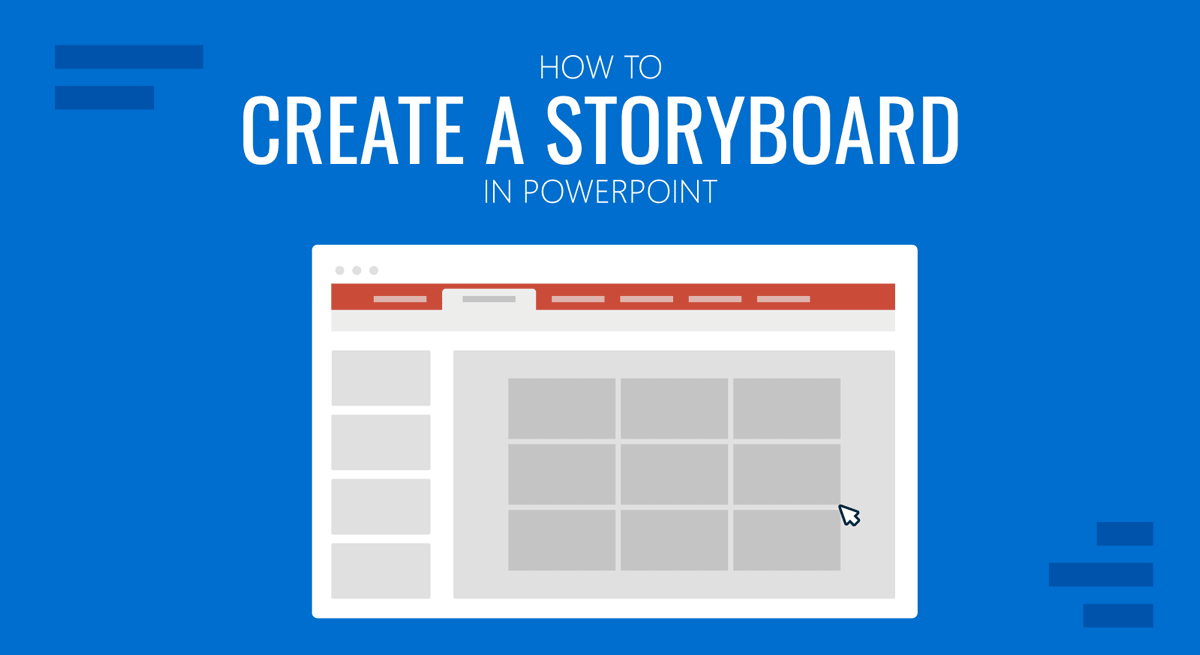
A simple option is to insert a series of rectangles that function as "scene frames" on the slide. You can duplicate them to create a grid of three or six scenes, and so on. to represent various moments in history in a single slide.
In each frame you can place characters, backgrounds, or icons that represent the action. You can upload images from your computer, use stock photos, online content, or Use Adobe Firefly to create visuals. The important thing is that each picture clearly conveys a situation. distinct within the narrative.
Below or next to each rectangle, add a small text box with a description of what's happening, the key message, or even a voiceover idea if you're going to turn this into a video or presentation recording later. There's no need to write a long paragraphDirect phrases are enough.
Later, you can use PowerPoint Designer and its shape and text formatting options to refine the result: change colors, add soft shadows, apply consistent styles… This way, your storyboard It goes from being a quick sketch to a fairly polished visual resource..
Storyboards from PowerPoint templates
If you don't feel like starting from scratch, you can always use... specific templates designed for storyboards. There are paid template providers that offer pre-structured slides with scene boxes, notes, and spaces for time or audio.
In many cases, it is enough to replace the sample content: change the reference images for your own graphics or screenshots, adjust the text in each box, and configure the number of scenes you need on each slide. The advantage is the time saved in basic layout..
PowerPoint also includes its own templates: from the home screen, you can go to File > New and search for "storyboard" to see options. They usually come with several layouts with frames, numbering, and text fields already aligned and ready to be filled in.
These types of templates can be used for both classic presentations and planning. short videos, animations or guided demossince each vignette can then be associated with a scene in the final montage when exporting the presentation as a video.
In projects with tight deadlines, combining a well-designed template with a good pre-existing storyline allows you to to quickly arrive at a functional and understandable storyboard for the whole team, without sacrificing clarity.
Storyboard for video and multimedia resources from PowerPoint
Storyboarding in PowerPoint isn't limited to in-person presentations; it's also very useful if your ultimate goal is create an explainer video, an online course, or a recorded demoIn these cases, each frame of the storyboard can correspond to a keyframe of the video.
Working this way allows you to decide in advance what will be shown on screen, what will be said in voice-over, which elements will be animated, and how the scenes will be linked togetherOnce the storyboard is approved, you can use the presentation itself as a basis for exporting to video.
For this purpose, PowerPoint offers the option to save as a video file and define the duration of each slide, in addition to record narration and clicks. If your storyboard is well put together, The transition from script to video becomes very direct and without any last-minute surprises.
Even if you're going to use a professional editor later, the PowerPoint storyboard serves as a guide for the production team: they'll clearly see what happens in each segment, what text should appear on screen, and what overall rhythm should the piece have?.
The same logic applies to simple animations: while PowerPoint doesn't replace advanced animation software, it does allow you to create basic animated storyboards where certain elements enter, exit, or change to simulate user interaction or the evolution of a process.

Passionate writer about the world of bytes and technology in general. I love sharing my knowledge through writing, and that's what I'll do on this blog, show you all the most interesting things about gadgets, software, hardware, tech trends, and more. My goal is to help you navigate the digital world in a simple and entertaining way.