- Ideal ambient range: 20–24 °C and 45–55% RH; avoid exceeding 30 °C and RH outside of 30–70%.
- Key limits per component: CPU ≤ 80–90 °C, GPU ~85 °C, SSD M.2 ≤ 80°C, PSU ~40–50°C.
- Airflow and sensors: hot/cold containment, gap sealing, and measurement by aisle and height.

If you're worried about how hot or cold your room needs to be for your PC, laptop, or server to run smoothly, you've come to the right place. Ambient temperature and relative humidity (RH) directly impact the stability, performance, and lifespan of any computing equipment, from a gaming PC to a high-density data center.
Beyond the typical "add more fans," the environment is key: a suitable temperature and humidity range reduces crashes, prevents corrosion or electrostatic discharge , and avoids unexpected shutdowns . Below you'll find recommended ranges, limits per component, how to measure and monitor the climate, and the cooling and airflow techniques that truly make a difference.
Ambient temperature and RH: what they are and why they matter
When we talk about climate control for computer equipment, we're referring to two key variables: room air temperature and relative humidity . Temperature determines the thermal "cushion" under which heatsinks and fans will operate, while relative humidity influences the risk of condensation (if it's high) and electrostatic discharge (ESD) (if it's low).
These variables do not replace proper cooling of the equipment, but they do facilitate it. If the environment is favorable, thermal protection systems are used much less , signal integrity is maintained, and components operate within their design range without compromising their lifespan.
Recommended ambient temperature ranges (home, office and data centers)
For computer rooms and communications rooms, the widely accepted industry standard is to maintain 20–24 °C (68–75 °F) as the optimal range . This margin provides a safety margin in case of air conditioning failure and also helps maintain safe humidity levels.
In practice, equipment should not be operated in rooms exceeding 30°C (85°F) . Above this threshold , reliability drops, fans operate at their limits, chips approach throttling, and the risk of unexpected shutdowns increases.
In data centers, the reference is the ASHRAE thermal guidelines for server inlets: 18–27 °C as recommended and 15–32 °C as permissible . In high-density environments (e.g., blade servers), the recommended temperature narrows to 18–22 °C and the permissible temperature to 5–25 °C, because the heat concentration is higher and the practical tolerance is tighter.
Important: Ambient temperature does not always reflect the server's operating temperature . Depending on design and density, the air in the aisle can be several degrees warmer than the room average. Measuring at the equipment entry height and at different heights along the aisle provides a more accurate assessment of the potential risks.
Ideal relative humidity and alert thresholds
Relative humidity (RH) measures the amount of moisture in the air relative to the maximum it could hold at that temperature. Maintaining between 45% and 55% is the sweet spot for reliability and performance. Above this range, the risk is condensation and corrosion ; below it, electrostatic discharge increases , which can damage chips and memory.
For proactive monitoring, early warnings are recommended at 40% and 60% RH , and critical warnings at 30% and 70% . Monitoring temperature and humidity together is vital because RH depends on temperature ; if the room heats up, the effective RH changes and may move out of range.
Thermal limits per component: CPU, GPU, disks, PSU, RAM and motherboard
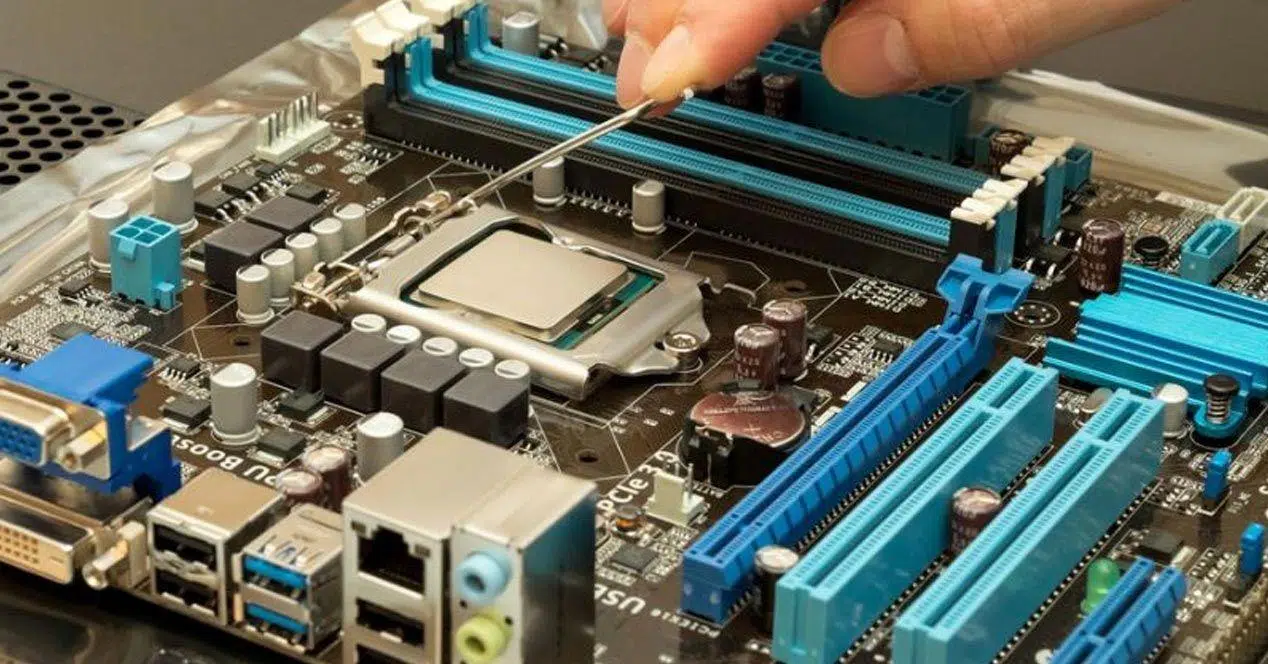
Beyond the ambient temperature, each piece has its thermal ceiling. Exceeding these thresholds triggers throttling or protective shutdowns , not because the material disintegrates at that point, but to prevent progressive damage.
CPU (Intel and AMD processors)
In modern processors, Intel sets the limit around 100°C , while AMD typically sets the maximum at ~95°C . For demanding use, it's wise to stay below these limits, ideally ≤ 80°C for Intel and ≤ 70°C for AMD under sustained conditions. Keep in mind that AMD's boost algorithms increase frequency and voltage if there's thermal headroom, which can bring you back down to ~70°C with improved performance.
As an additional quick rule: for typical use , 30–40 °C at idle and 60–70 °C under full load are considered normal; for gaming and heavy editing, 70–80 °C is normal and safe. Avoid spikes above 90 °C and take action if sustained.
GPU (graphics cards)
Graphics cards run hotter than CPUs. Temperatures of 80–85 °C during gameplay are common . As a safety measure, try not to exceed ~100 °C on internal sensors , although some AMD models can tolerate slightly more than NVIDIA . The backplate can reach 60–70 °C , hot enough to burn your hands without posing a real problem.
Storage (HDD and SSD)
- 3,5″ HDD: target ≤ 60 °C
- 2,5″ HDD: target ≤ 70 °C
- 2,5″ SSD: target ≤ 70 °C
- mSATA SSD: target ≤ 70 °C
- SSD M.2: target ≤ 80 °C
SSDs, despite having no moving parts, generate a lot of heat and often benefit from a heatsink. In desktop and laptop cases , pay particular attention to M.2 drives near the GPU or VRM.
Power Supply (PSU)
A power supply unit's efficiency decreases with temperature. Operating around 40°C is optimal , with 50°C being the maximum target . Higher-quality power supplies dissipate heat better and tend to activate protection circuits more accurately.
RAM and motherboard (chipset and VRM)
RAM starts to malfunction above approximately 50°C (crashes, errors), and around 81°C it can be damaged . Regarding the motherboard, chipsets can become unstable above 70°C , with a typical maximum limit of approximately 95°C . The VRM design is more tolerant: nominal temperatures of approximately 130°C with peaks up to 160°C , although it's best to stay as far away from these temperatures as possible.
“Very hot” is not always “overheated”
It's normal for fans to speed up and make noise under load; that's what PWM is for. A heatsink that feels hot to the touch isn't dangerous ; it's controlled by internal sensors and the manufacturer's thresholds. If the limit is exceeded, the system reduces performance or shuts down to protect itself.
Portable: realistic ranges and alarm signals
In laptops, the compact chassis tends to trap heat. It's common to see temperatures of 50–70 °C during light use (browsing, video) and 70–80 °C during gaming or editing. As long as the temperature doesn't exceed ~80 °C for extended periods, the situation is normal; above that, it's advisable to take action.
Signs of overheating in a laptop include sudden shutdowns, noticeable performance drops , and fans running at full speed constantly. Dust in the vents, dried-out thermal paste , or placing the laptop on soft surfaces are common causes.
How to measure and monitor: tools, sensors and best practices
For PCs and laptops, classics like HWMonitor, Core Temp, or MSI Afterburner offer reliable readings of CPU, GPU, and disk temperatures. The BIOS/UEFI also displays temperatures, although it's not suitable for recording spikes under real load . Make sure your monitor is lightweight to avoid adding to the heat load.
An infrared thermometer or thermal camera allows you to see hot spots without touching them. The advantage is that it measures without CPU usage, records trends, and identifies areas of stagnation in the case or rack. It's useful for verifying that the airflow is functioning correctly.
In data centers and computer rooms, the approach changes: PoE temperature sensors are placed every ~7–8 m (25 ft) in each aisle and also at varying heights to detect thermal stratification. Sensors at the top of each rack provide early warning before rising heat compromises critical equipment.
Configure thresholds and notifications. Early warnings prevent falling into dangerous zones . For RH, remember the 40/60% (warning) and 30/70% (critical) thresholds; for ambient temperature, design tiered alerts before reaching 27–30 °C.
Airflow: design in the case and in the data center
Without proper airflow, cooling will be severely hampered. In a tower case, the ideal setup is front/bottom air intake and rear/top exhaust . Organize cables to clear the way, clean the filters, and align the fans so they all blow in the same direction.
In data centers, hot/cold aisle containment separates airflows and prevents mixing that can ruin efficiency. It seals gaps in racks, forces air from the raised floor into cold aisles, and uses exhaust vents above hot aisles to direct return air.
Furthermore, it reduces air bypass using bulkhead fittings and washers in the raised floor. Keeping it free of leaks and obstructions maximizes available cooling capacity and reduces energy consumption.
Location matters too. Avoid enclosing the tower in a desk niche, don't place it next to radiators or in direct sunlight, and let it "breathe" with clear sides . In small or hot rooms, air conditioning makes all the difference.
Cooling methods: from air to liquid (and beyond)
For home PCs, upgrading the CPU cooler, reapplying quality thermal paste, and adding well-placed fans usually solves most problems. For graphics cards, clean the dust regularly; if your case allows it, consider adding fans that blow cool air directly onto the GPU.
For laptops, use cooling pads , raise the back to improve airflow, and maintain the vents. If you have experience, replacing thermal paste on the CPU/GPU of an older laptop can raise the temperature by several degrees.
In data centers, there is a wide range of options: free cooling (using cold air/water from outside), evaporative humidification to control RH and provide cooling capacity, and adiabatic cooling that cools the air by evaporating water with high water efficiency.
When air isn't enough, liquid cooling comes into play. From rack solutions to immersion in dielectric liquids or direct-to-chip cooling , liquid can be tens or thousands of times more effective at transferring heat than air. For high-density racks, in addition to being reliable, it increases sustainability and density per rack.
Energy efficiency and operational risk
In a data center, up to approximately 50% of total energy consumption can go towards cooling . Optimizing climate control and airflow reduces energy bills and footprint. The PUE (Power Usage Effectiveness) metric relates the total energy consumption of the site to the energy used for IT: the closer to 1, the better the efficiency and the less energy wasted on losses and cooling.
The environment is a crucial factor: it's estimated that nearly a third of unplanned outages are linked to environmental issues. Maintaining recommended operating ranges and continuous monitoring saves downtime and costs for both small and medium-sized businesses and large facilities.
Maintenance and adjustments to lower temperatures
There are high-impact, low-cost actions you can take: clean dust every 3–6 months (fans, heatsinks, filters, grilles), tidy up cables, and check that all fans are spinning properly. On CPUs and GPUs, reapply thermal paste if it's been years or if you notice unusual temperatures.
If you use very demanding programs, limit simultaneous peak loads (gaming, streaming , and encoding at the same time) or consider undervolting your CPU/GPU to maintain performance with less heat. Sometimes, a slight adjustment to the fan curve stabilizes temperatures without increasing noise.
In hot rooms, help the machine from the outside: lower the ambient temperature with air conditioning or cross-ventilation . Remember that in a better environment, the hardware doesn't have to work at its limit and ages more slowly.
Smart alert and sensor plan
Design a tiered alarm system. For temperature, trigger an alert before the room reaches 27–30 °C; for relative humidity, use the 40/60% (warning) and 30/70% (critical) thresholds. This allows for a buffer and prevents the system from becoming overloaded.
Distribute sensors strategically: every ~25 feet per aisle, at various heights , and in the upper rack areas where heat accumulates first. Supplement this with regular thermal mapping to identify heat pockets and inefficient airflow paths.
Frequently asked questions: Gaming PCs, drafts, and extreme cold
In a drafty room, the important thing is that the air isn't heavy with dust or moisture. A gentle, constant airflow helps with heat exchange ; just avoid directing streams of air that stir up dust towards the vents on the power box.
How hot is too hot for a gaming PC? If the room temperature exceeds ~30°C , you'll struggle to keep your CPU/GPU within acceptable operating ranges without excessive noise. Aim for 20–24°C . When cooling down, don't lower the relative humidity so much that you risk ESD (excessive smoke); maintaining 45–55% is safe even in winter.
If you notice sudden drops in performance under load, fans whining loudly, or if the GPU backplate feels hot to the touch, check internal sensors before you panic . If the CPU consistently exceeds 80–90°C or the GPU is nearing manufacturer limits, you need to improve airflow, clean the CPU, and apply thermal paste , and, if necessary, lower the ambient temperature.
A note about drives and VRMs: HDDs don't like sustained heat, and M.2 drives can experience performance bottlenecks when they get hot. A small heatsink on the M.2 drive and ensuring proper airflow around the CPU VRMs on modern motherboards reduces temperature spikes and stabilizes the system.
With an ambient temperature of 20–24 °C and RH 45–55% , plus consistent airflow and well-placed alarm sensors, you'll have consistent performance, fewer downtimes, and components that last longer, both on your desktop and in a data center.


Passionate writer about the world of bytes and technology in general. I love sharing my knowledge through writing, and that's what I'll do on this blog, show you all the most interesting things about gadgets, software, hardware, tech trends, and more. My goal is to help you navigate the digital world in a simple and entertaining way.