- Restoring ownership to TrustedInstaller and redoing inheritance fixes most problems after messing with WindowsApps.
- Repairing the system with SFC/DISM, clearing the cache (wsreset), and re-registering UWP repairs the Microsoft Store and its apps.
- If the blocking persists, adjusting UAC policies, removing Read-only, and using takeown/icacls helps resolve corrupt ACLs.
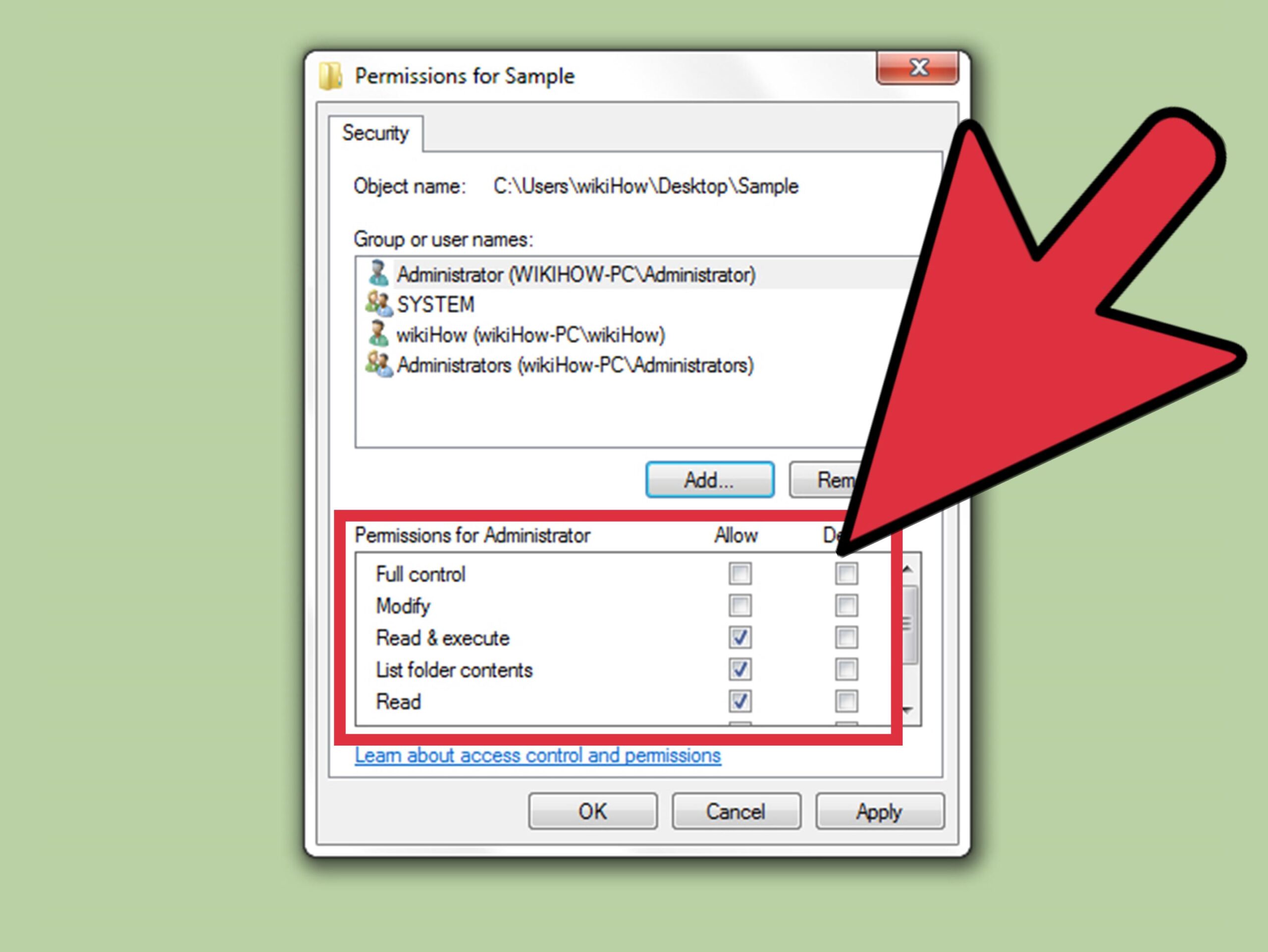
If you have tried to back up your games or You have changed the permissions of the WindowsApps folderIt's very likely you've hit a wall: some UWP apps (including the Microsoft Store) no longer open, crash instantly, or display strange errors. This situation usually starts when we change the owner of C:\Program Files\WindowsApps (for example, snatching it from him) TrustedInstaller) to view or move files, and then we can't restore everything to its original state.
The goal here is to revert to default security settings and repair the Windows app ecosystem so everything works as it did before. You'll see how to restore ownership, redo legacy permissions, run integrity checks, clear the Store cache, and re-register apps. We've also included several workarounds if you keep getting messages like " Could not enumerate objects in container, " and as a bonus, how to make Windows remember windows and apps after a restart.
Why do apps break after changing permissions in WindowsApps?
The WindowsApps folder is a protected area of the system where modern (UWP) apps and many Microsoft Store components reside. Changing the owner to your user, granting you full control, or altering its permission inheritance can cause apps to fail integrity verification , fail to find manifests, experience dependency issues, or crash due to security concerns.
Many users report that after taking ownership of WindowsApps and its subfolders, when trying to revert it, errors arise such as " Failed to apply security " or "Could not enumerate the container objects," and although the dialog box appears to return the owner to TrustedInstaller, in reality the permissions remain inconsistent at a deep level.
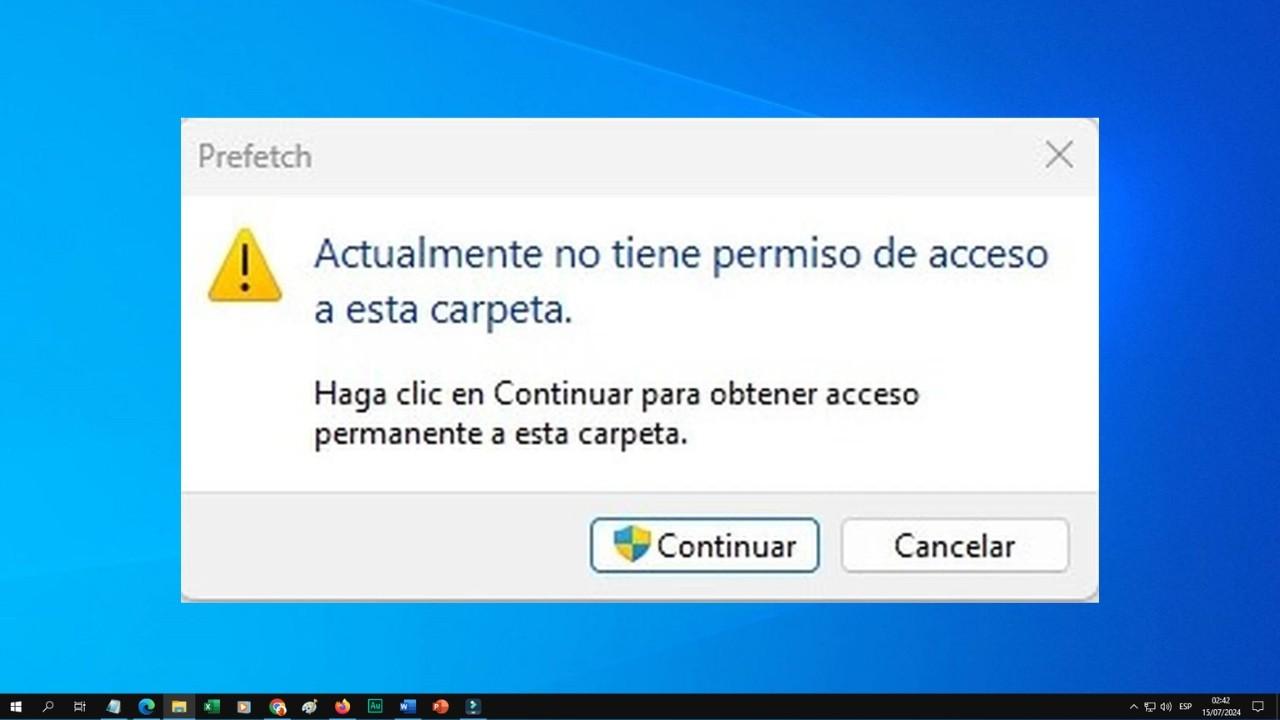
Additionally, system factors can trigger warnings such as " You do not currently have permission to access this folder ." This often occurs after major Windows updates or User Account Control changes, where a conflict between permissions and sharing can arise.
The most common causes behind that warning include: your account was accidentally removed from the administrators group ; access was explicitly denied to a user or group; or the permission inheritance changed during a migration (for example, from Windows 7 to Windows 10/11), resulting in a mix of incompatible ACLs.
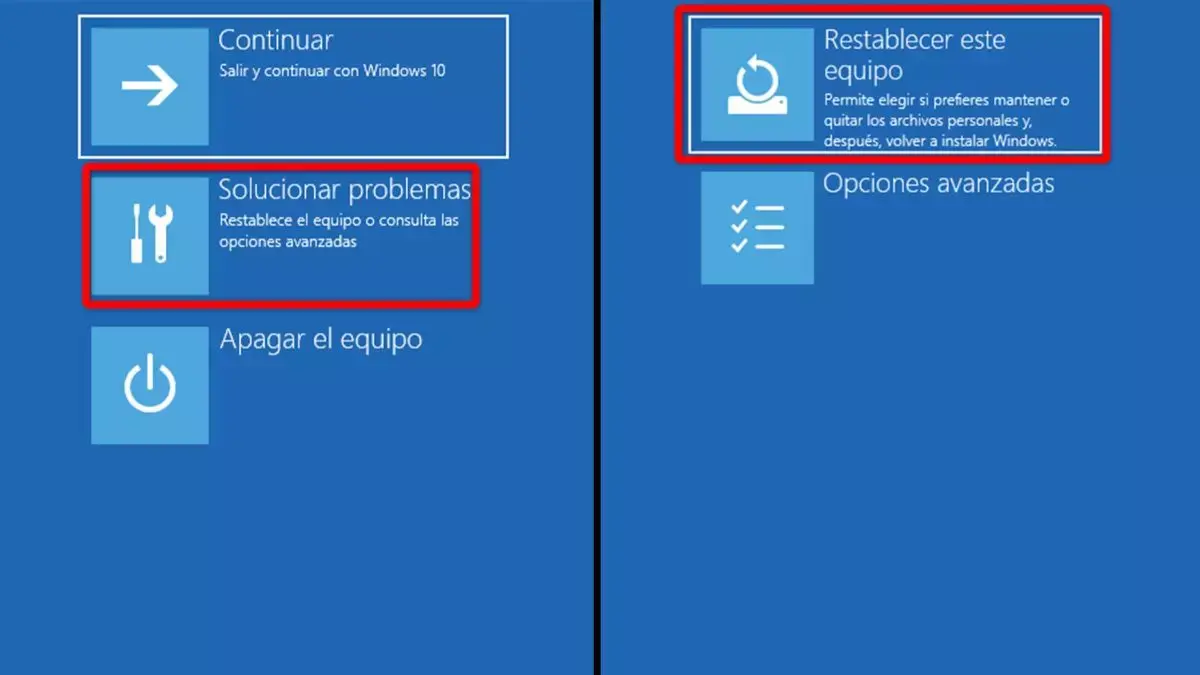
Given this context, the solution involves restoring ownership to NT SERVICE\TrustedInstaller , re-establishing permission inheritance for all elements, and repairing system files and Store components. For more extreme cases, see restoring default settings and resetting Windows 11. If you perform these steps in the correct order, the apps will open normally again without requiring a Windows reinstallation.
Restore original owner and permissions of WindowsApps (and repair the Store)
First of all, make sure you see what you need: in File Explorer, activate Hidden items to be able to enter C:\Program Files and locate WindowsApps. If you don't see the folder, don't force anything yet; the goal is to restore security to its origin and then test the applications.
The key step is to restore the owner to TrustedInstaller and propagate that change to every subfolder and file. Right-click on C:\Program Files\WindowsApps > Properties > Security > AdvancedClick on Change (next to Owner) and type NT SERVICE\TrustedInstaller. Check the box “Replace owner on subcontainers and objects” and applies the changes. This process may take some time, but it's the method supported by Windows to rebuild the heritage.
If the graphical interface refuses (for example, it displays “The items in the container could not be listed.”), you can try elevating privileges in the console. Open Symbol of the system As administrator, try regaining control first to fix: takeown /F "C:\\Program Files\\WindowsApps" /A /R /D YThen, from a window of PowerShell With administrator privileges, return ownership to TrustedInstaller with: icacls "C:\\Program Files\\WindowsApps" /setowner "NT SERVICE\\TrustedInstaller" /T /CDo it carefully because Any error propagates to the entire tree.
It's advisable to perform a system integrity check and, if necessary, consider system restore options . Open Command Prompt as an administrator (Win+X > Terminal/Console with administrator privileges) and run these commands one by one to repair damaged components and the component store:
sfc /scannow
DISM.exe /Online /Cleanup-image /Scanhealth
Dism.exe /Online /Cleanup-Image /CheckHealth
DISM.exe /Online /Cleanup-image /Restorehealth
Dism.exe /Online /Cleanup-Image /StartComponentCleanup
When SFC and DISM finish, proceed to the Microsoft Store. Run wsreset (Win+R, type wsreset and press Enter) to clear your cache. This step is quick and usually resolve store closures linked to permissions or corrupt cache.
Finally, re-register the UWP applications to all users. Opens PowerShell as administrator and launch the next block (if you prefer, you can precede it with PowerShell -ExecutionPolicy Unrestricted to avoid execution blocking):
Get-AppXPackage -AllUsers | Foreach { Add-AppxPackage -DisableDevelopmentMode -Register "$($_.InstallLocation)\AppXManifest.xml" }If they're still not open: alternatives and specific permission solutions

First, confirm whether your account has administrator privileges . If you're using a standard user account, either elevate your session or log in with an account that has administrator privileges. Without administrator permissions, you won't be able to change the owner or propagate changes to WindowsApps.
If you continue to receive the access denied message, try removing the Read-only status from the affected root directory: right-click > Properties and uncheck “Read-only”. This may not always work, but it can unlock necessary changes .
For cases where you can't open or list content, use the quick command-line route. Run CMD as administrator and type: takeown /F "RUTA_COMPLETA" /A /R /D Y. This command regains ownership of everything that hangs from “COMPLETE_PATH”, which will allow you to revert it later to TrustedInstaller using the technique explained earlier.
Some guides recommend granting " Everyone " access to the problematic folder, and while this can sometimes unlock content in extreme situations, use it only as a temporary measure and with caution, as it excessively expands read/write permissions. After repairing the issue, revoke this permission, leaving only the system-inherited permissions.
In environments where the UAC policy has been modified, you can review the policy of “administrator approval"for the built-in administrator account. Open the Local Policy Editor (Win+R, gpedit.msc), navigate to Computer Configuration > Windows Settings > Security Settings > Local Policies > Security Options and locate the policy related to the administrator approval mode For the integrated account, change its status as needed (many users report that temporarily disabling it makes fixing ACLs easier) and apply the changes. Remember to revert if necessary once the permissions structure is fixed.
If you encounter the error “ Could not enumerate objects in container ” when returning ownership to TrustedInstaller, return to Advanced Security Options, check “ Replace all child object permissions with entries inheritable from this object,” and apply again from the root folder. This setting forces correct inheritance down the folder, resolving ACL discrepancies in subfolders that prevent enumeration.
Another useful resource if the Explorer crashes with security errors is to operate from PowerShell with icaclsExamples: restoring legacy permissions with icacls "C:\\Program Files\\WindowsApps" /inheritance:e /T /C and eliminate erroneous explicit rules with icacls "C:\\Program Files\\WindowsApps" /reset /T /CUse them only if you understand their scope, because affect the entire tree of WindowsApps.
Once you've finished adjusting security, remember to repeat the SFC, DISM, wsreset, and app re-registration sequence . This process repairs files and puts manifests back where they belong, which is what ultimately allows UWP apps to launch without crashing.
If the file system is corrupted and how to recover the workflow after restarts
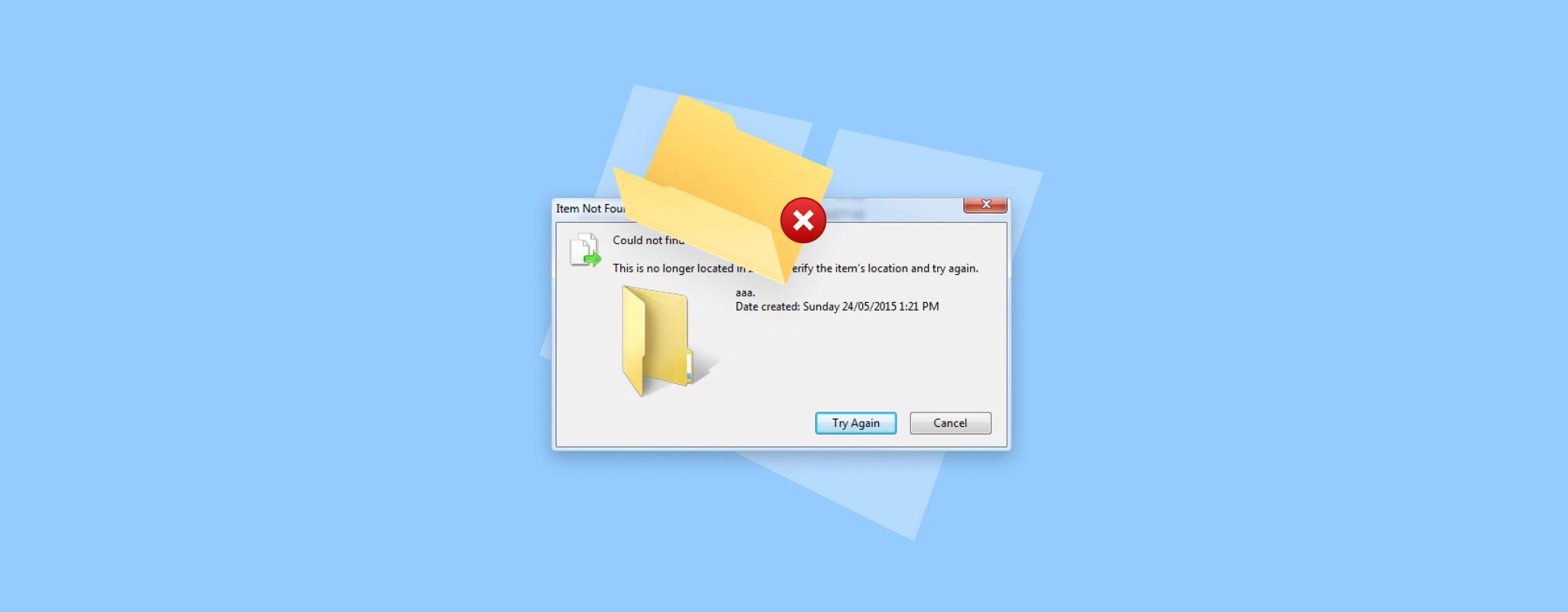
When nothing seems to work, file system corruption is a possibility . This scenario can be caused by sudden shutdowns, power outages, malware , hardware failures (impacts, humidity, or defects), or even software installations that left the system in an unstable state . In such cases, adjusting permissions isn't always enough: the priority is to recover data.
A popular approach is to use a professional recovery solution that allows you to extract files from inaccessible locations. Among the options on the market, many users rely on tools like Wondershare Recoverit, which is designed for all types of data loss scenarios and supports various file systems.
- Admits more than 1000 file types and multiple file systems, covering everything from documents to multimedia content.
- It works with almost any medium: internal/external drives, USBSD cards, smartphones and more than 2000 devices.
- Boast of high success rates It's currently in recovery and offers a 7-day money-back guarantee for a risk-free trial.
- It is a software verified and safewith 24/7 technical support and a clear, user-friendly interface for starters.
Typical usage follows three simple steps: First, you select the location to scan (for example, a folder that no longer opens). Second, you click Start to scan and preview what can be recovered. Third, you choose the items and click Recover to save them to a safe location. With millions of users and impressive download numbers , it's a viable alternative when formatting or restoring Windows 11 to factory settings would be a last resort.
On the other hand, it's common to lose your work context when you restart your PC: the desktop appears completely blank , without your Explorer windows or open apps that you had before the restart. Windows includes options to restore the environment to almost exactly where you left it.
To have File Explorer display the same folder windows after logging in, open File Explorer, go to Options > View tab, and select the option that allows you to "restore folder windows prior to login." From then on, when you restart your computer, you'll see those windows again upon startup without having to open everything manually.
If you also want certain apps to automatically reopen after a restart or update, go to Settings > Accounts > Sign-in options and, in the Privacy section, enable the option to use your sign-in information to complete device setup. This allows Windows to reopen previously active apps after the update is complete. Keep in mind that this may add a few seconds to boot time on less resource-intensive devices.
With all of the above, you should be able to restore WindowsApps to a healthy state, recover the behavior of the Microsoft Store and the rest of UWP, and configure the system to maintain your workflow after restarts. If you've gotten this far and some apps are still failing, review the following steps: TrustedInstaller owner, correct inheritance, SFC/DISM without errors, wsreset applied, and package re-registration ; and, if system services are corrupted, see how to restore deleted or corrupted services , as these are the pillars that most consistently restore normality.


Passionate writer about the world of bytes and technology in general. I love sharing my knowledge through writing, and that's what I'll do on this blog, show you all the most interesting things about gadgets, software, hardware, tech trends, and more. My goal is to help you navigate the digital world in a simple and entertaining way.