
The Opera browser is one of the few browsers with built-in VPN features . It can enhance online protection in two ways: by masking your IP address and by not leaving any trace of your browsing history.
These features are invaluable for keeping your data protected from prying eyes lurking in the dark corners of the web. In some situations, they can even allow you to access geographically blocked websites, notably Netflix . With all their help, it's quite frustrating when they don't work. So, what can you do if Opera VPN isn't working?
Reasons why VPN does not work
There are many reasons why Opera's free VPN is not working. It's important to know the cause so you can find the right solution. The most likely problems include:
Opera VPN not connecting
Opera VPN won't work if your PC doesn't have internet access. To make sure it's not an ISP-related issue, try connecting with a different browser . If you can establish a connection, the problem is limited to the Opera browser. If you can't, you'll first need to troubleshoot your internet connection. If you're unsure how to do this, contact your ISP's technical support.
Server is unavailable/offline (Opera VPN Down)
When you move to a different country, the server you were previously connected to may no longer be available . You may need to manually change the location in your Opera VPN settings. Currently, you can only select from these three locations: Europe, Asia, and the Americas.
Please note that Opera's free VPN only works in five countries: Canada, Germany, Netherlands, Singapore, and the US. If you are located outside of these territories, this may be the reason why Opera VPN is not working.
Opera VPN not connecting
Some software may block your connection to the VPN server due to compatibility issues. If your VPN isn't working properly and suddenly stops after installing an app, that app might be the culprit.
Windows antivirus and firewall can also interfere with your VPN connection. Identifying what might be blocking your data traffic can give you a clearer picture of the problem.
You might be interested in: 6 Most Popular Types of Browsers in 2021
Opera VPN not working. Solutions
Once you have successfully identified the root cause, you can begin troubleshooting. Here are the most common issues why opera vpn not working and how to fix them:
How to fix the “No connection to the server” issue
If the reason why Opera VPN is not working is a connection issue, you can try the following solutions
1. Check your ISP
Getting access to the Internet is an indicator of whether your problem is a VPN or ISP issue.
Open another browser and access the internet . If you can establish a connection, proceed to step two. Otherwise, follow the necessary troubleshooting steps to avoid internet connection problems. If nothing works, call your ISP.
2. Enable/Disable VPN
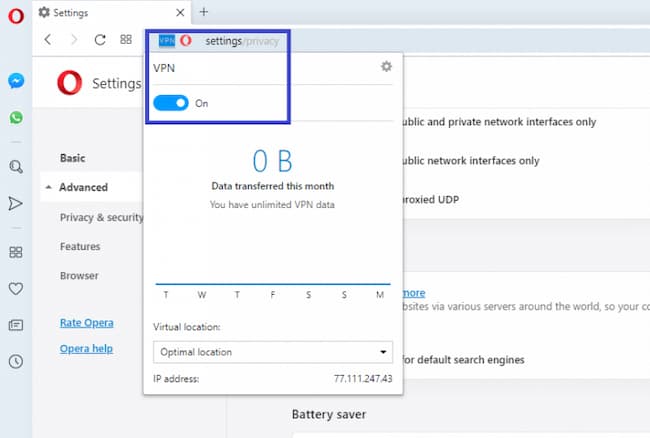
Turn the VPN on and off using the icon in the address bar . Doing this may get the connection working. This basic troubleshooting step works in many cases.
How to fix the “Server is unavailable” issue
If the reason why Opera VPN is not working is caused by the server, try the following:
1. Change Opera to a different location
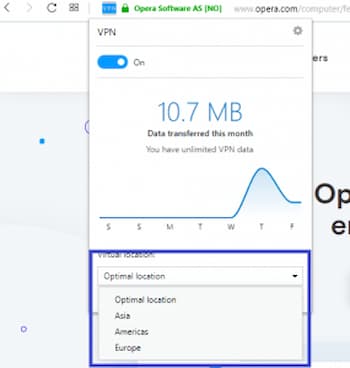
Click on the Opera VPN dropbox and choose the location that best describes your position. If you move to a different area, doing this can be very helpful. Select from three different available locations . Or choose Optimal Location to automatically connect the VPN to the nearest server.
2. Update the Opera browser
Opera's VPN updates automatically when a new version is available. To check if your browser is up to date: Click Opera Menu > Help > About Opera. It should tell you that your browser is up to date.
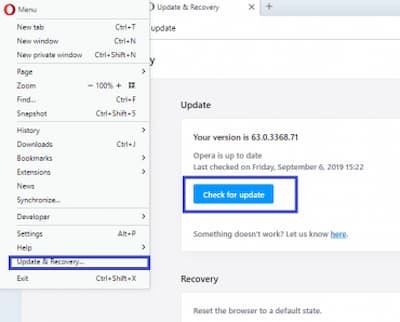
To ensure it's up to date, go to Opera Menu > Update & Security > Check for updates . Restart the browser after the update is complete.
3. Reset the browser to a default state
A default reset can help to establish the connection. The reset will take you back to the time when your VPN browser was working properly. You can do a soft reset where you can preserve your personal data or perform a complete reinstallation.
To reset your connection, click Opera Menu > Update & Recovery > Restore. Restart your browser after the update is complete.
How to fix crash issues
If the reason why your VPN is not working is because it has been blocked in some way, you can try the following solutions.
1. Clear Opera browser cache
Clearing your browser cache can help resolve numerous issues, including your VPN not working. To clear the cache, follow these steps: Menu > History > Clear browsing data > Check the boxes for cached images and files (or select all boxes) > Click Clear data. Restart your browser.
2. Disable Opera extensions
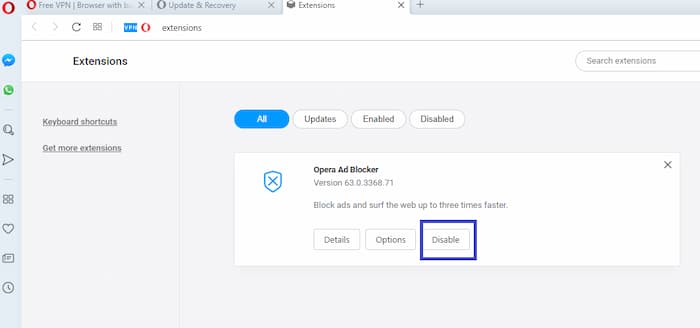
Opera extensions can disrupt your VPN connection. To prevent this, disable them all. To do so: Click Opera Menu > Extensions > Enabled > Disable all, including the pop-up blocker.
3. Turn off the antivirus
When you encounter the error "The VPN is temporarily unavailable ," it's usually due to third-party antivirus software. Disabling the antivirus utility may resolve the issue of your VPN not working.
Generally, you can disable most antivirus software by right-clicking on the system tray, choosing the antivirus icon, and clicking the shutdown option there. If it's not available, you should disable it from the antivirus interface itself.
4. Add Opera to the antivirus utility exception lists
If you don't want to disable your antivirus, adding Opera VPN to your antivirus exception list can work well. Many antivirus software includes a URL exception list to prevent them from being intercepted by the shields.
Adding Opera VPN to your antivirus's exception list varies. Generally, you can find the Exclusions tab in your antivirus settings. Once you find it, add the URL https://www.operavpn.com to the list.
5. Turn off Windows Firewall
These steps apply from Windows 7 to the latest version:
- Go to Control panel.
- Choose Security system.
- Click on Windows firewall o Firewall Windows Defender.
- Click Windows Firewall on or off.
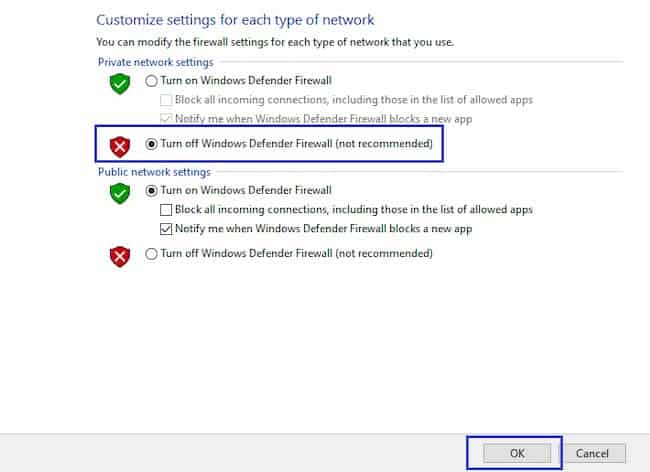
- Mark the bubble that says «Disable Windows Firewall (not recommended)».
- Click on "To accept".
- Restart the browser and check if Opera VPN is now working.
What to do if none of these solutions solve your VPN not working issue?
Usually, one or two of those resolutions can get Opera's free VPN working again. If not, don't worry. The truth is that Opera VPN is not a real VPN, but rather a proxy server that hides your IP address. It's not strong enough to withstand the constant bombardment of other VPNs or streaming companies to stop their service.
In this case, you may need to switch to other, better performing VPNs. If you need online protection but are on a tight budget, Windscribe’s free VPN is a great option. For maximum security with reliable speed and coverage, look into standalone VPN packages.
Final words
If your Opera VPN isn't working on your computer, the most important thing is to try to understand the main reason why this is happening. Once you know the cause, it will be easier to fix. However, if you don't know the exact reason why your Opera VPN isn't working, you can try each of these solutions until you find one that works.

My name is Javier Chirinos and I am passionate about technology. Ever since I can remember, I have been interested in computers and video games, and that passion has turned into a job.
I have been publishing about technology and gadgets on the Internet for over 15 years, especially in mundobytes.com
I am also an expert in online marketing and communication and have knowledge in WordPress development.