
You might encounter the error “ One or more network protocols are missing on this computer ” when trying to connect to the internet. You may have even been online, and suddenly web pages stop loading. You've probably already run the built-in Windows Network Troubleshooter , and this error appeared. It can be very frustrating trying to determine the cause of this error and fix it, especially without an internet connection. However, there are several methods to resolve the issue.
You might also be interested in: How to Fix Network Errors When Downloading with Chrome
What causes the “One or more network protocols are missing” error?
Typically, you'll see this error when there are missing Windows Socket entries. In some cases, this can happen after an update. Since these entries are necessary registry entries that allow your computer to connect to the Internet, the error appears. If more than one device is having trouble connecting to the same ISP, the problem is likely due to your Internet provider.
Windows Automatic Repair Tool
If your machine is currently running Windows 7, Restoro is compatible with your operating system. Recommended: To repair Windows 10 errors, use this software package: Restoro System Repair. This repair tool has proven to identify and fix these and other Windows errors with high efficiency.
Restoro System Repair
- 100% safe as confirmed by Norton.
- Only your system is evaluated and hardware.
If you're only having trouble connecting one device and you haven't yet run the Windows 10 Network Troubleshooter on that device, you should run it to confirm that missing protocols are the cause.
How to fix “One or more network protocols are missing on this computer” error
Below we will show you the most effective solutions to solve this annoying problem:
Fix 1: Run the Windows 10 troubleshooter
If you've already done that, feel free to move on to the error solution. If you haven't run the Troubleshooter, it should be your first step in resolving your Internet connection issues.
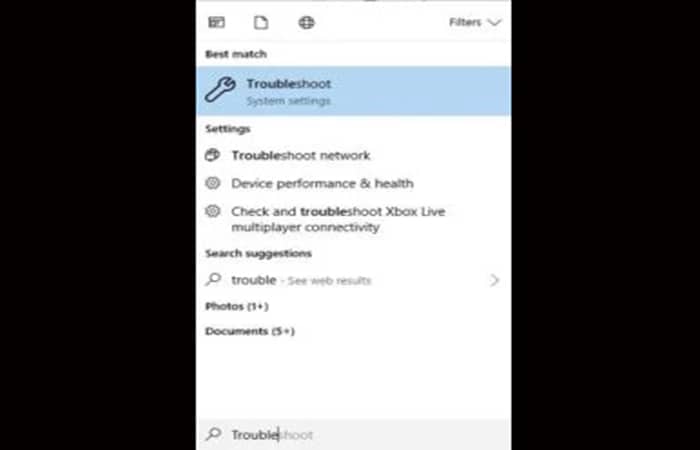
Follow the procedure below:
- Step 1: Type “Troubleshoot” into the Start menu without the quotes and choose “Troubleshoot system settings.”
- Step 2: click on «internet connections» and then choose «Run the troubleshooter«.
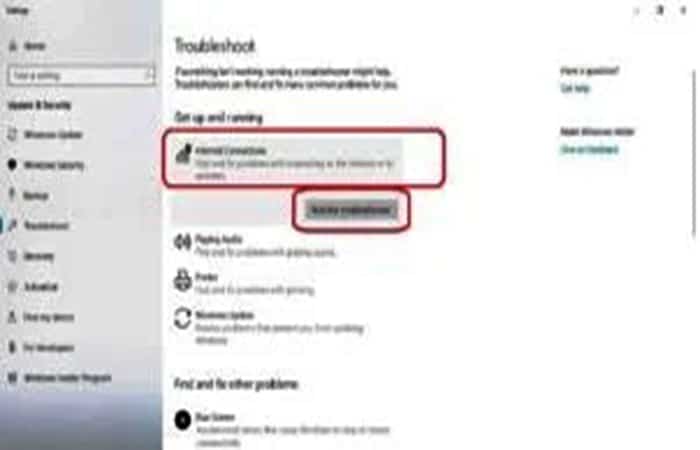
When the troubleshooter finishes, check if you receive the "missing protocols " message . If so, continue reading to resolve it.
Fix 2: Restart the router
This is the simplest and least invasive way to fix the problem. However, it will only work if the router itself is causing the error. Follow these steps:
- Step 1: Turn off your computer by clicking on the icon On, which is in the menu Home, while holding down the [ keyShift] while selecting «Delete«. Then turn off your router.
- Step 2: Unplug your router and wait two minutes before plugging it back into the power outlet. Wait another two minutes after plugging the router back into the power outlet. Turn the router back on.
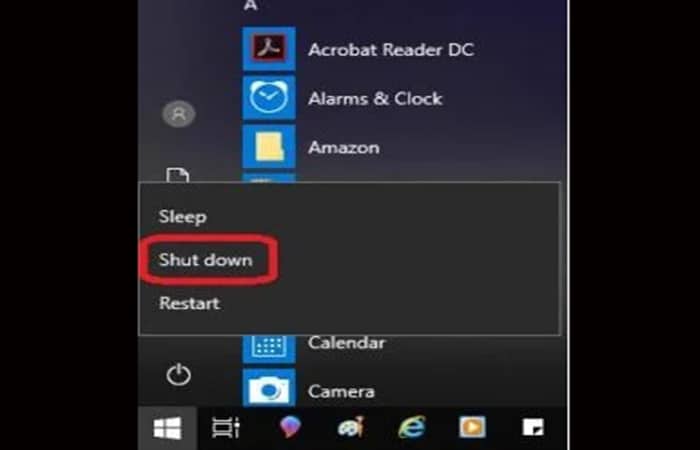
- Step 3: Once your router is back on, turn on your computer. If the problem is resolved but it keeps reoccurring several times in the future and resetting the router temporarily fixes it, you should consider getting a new router.
If you're using a Powerline network, you'll need to consult the owner's manual that came with it and follow the instructions there to reset it when you unplug your router in step #2 above.
Fix 3: Make sure Windows is up to date
Another quick way to deal with this problem is to make sure your Windows 10 operating system is up to date. While a faulty update can cause the problem, in some cases the update has failed to load properly.
In other cases, Microsoft has issued a fix, but your connectivity issues may be playing a role in the ongoing error. To update Windows 10 manually, follow the steps below:
- Step 1: Press the icon «Configuration» from the Start menu.
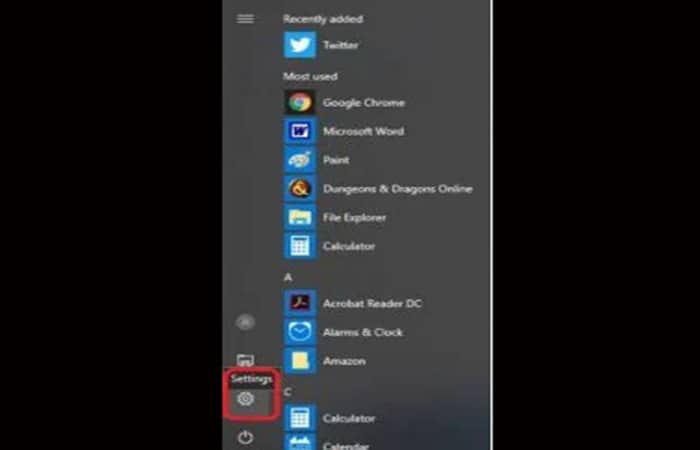
- Step 2: in the window Configuration, Choose "Updates and security«.
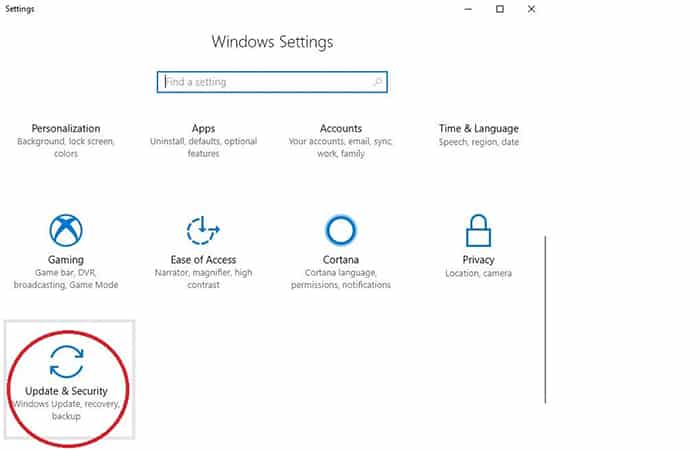
- Step 3: choose “Windows update” from the list that appears on the right. On the left, click on the button that says “Search for updates«. You can find it at «update status«.
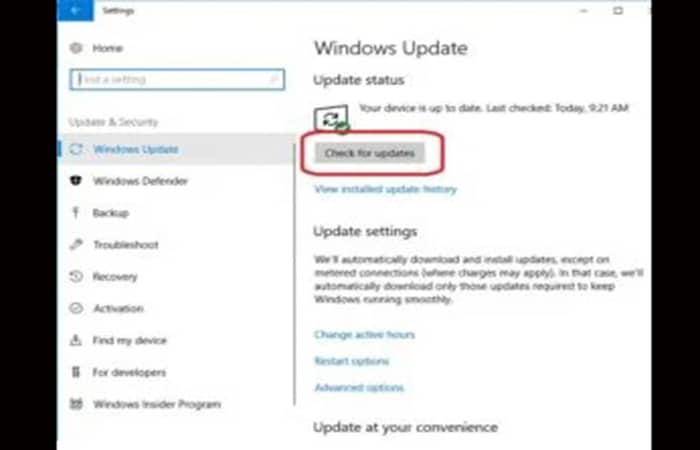
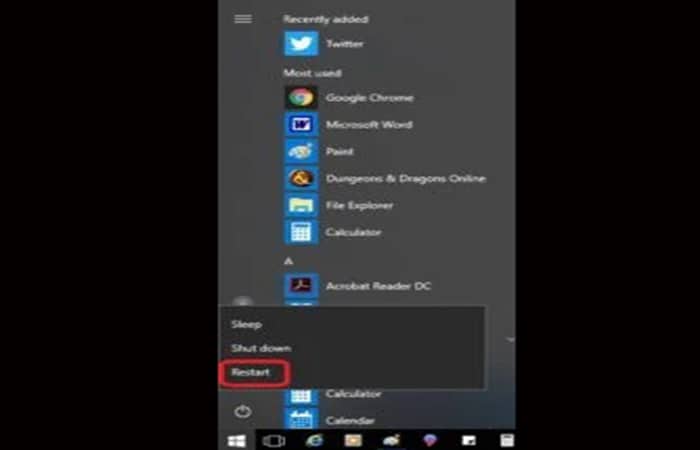
- Step 4: If there are any updates installed, you must restart your computer before they take effect. To do this, click on the “On»From the menu Home and select «Restart«.
Continue if there is still no connection.
Fix 4: Disable Bluetooth
Your Bluetooth feature is sometimes set to use the same band as Wi-Fi. If both are active, it can cause a conflict leading to the error message “One or more network protocols are missing on this computer.” In this case, follow the procedure below:
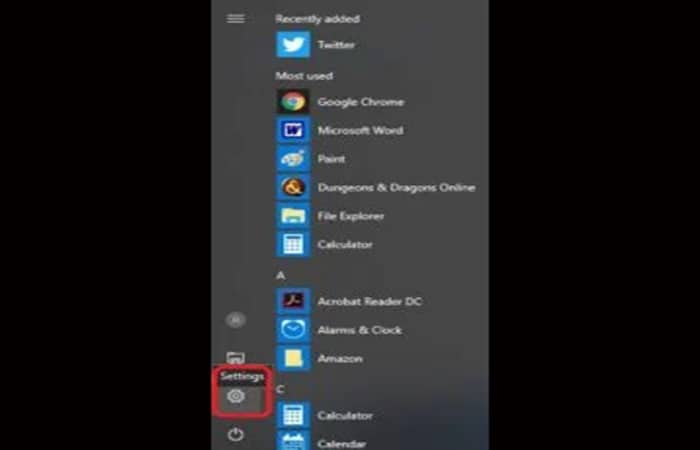
- Step 1: Click on the icon «Configuration»From the menu Home.
- Step 2: choose "Devices«.
- Step 3: click on «Bluetooth and other devices» and then slide the Bluetooth to the « positionOff«.
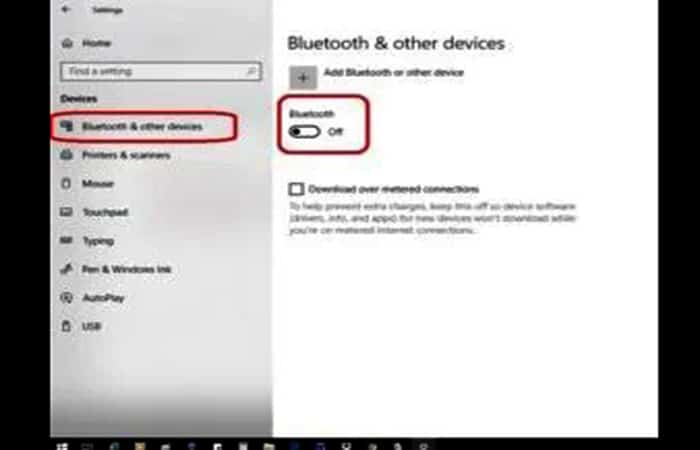
Check if your connectivity issue has been resolved.
Fix 5: Disable the proxy server
Sometimes proxy servers are set up that interfere with protocols. Disabling them will solve the problem. To do this, follow the steps below:
- Step 1: Click on the icon «Configuration»From the menu Home.
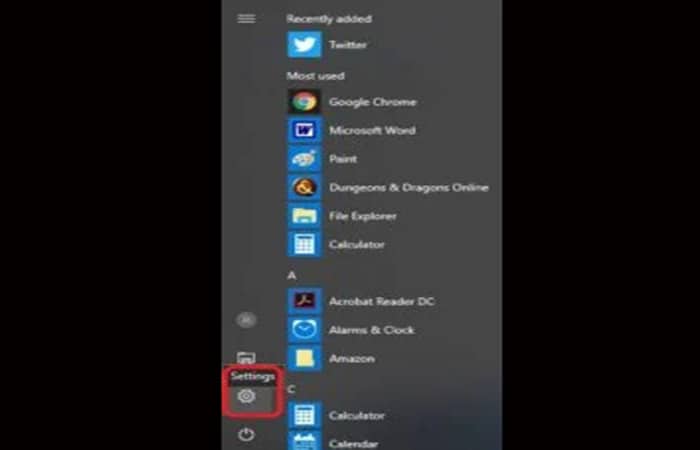
- Step 2: choose "Updates and security«.
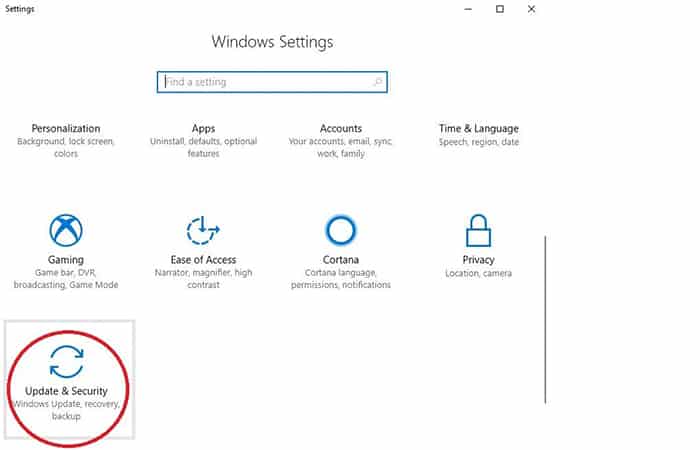
- Step 3: click on «proxy» and then slide the manual proxy settings «Use a proxy server»To position«Off«.
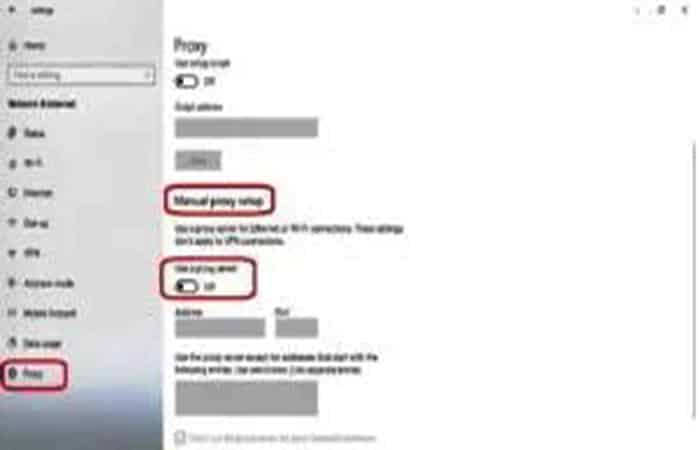
Check if this has resolved your missing protocols issue.
Fix 6: Reset network adapters
Sometimes, resetting the network adapters allows the computer to fix the problem. Then you should do the following:
- Step 1: Press the icon «Configuration»From the menu Home.
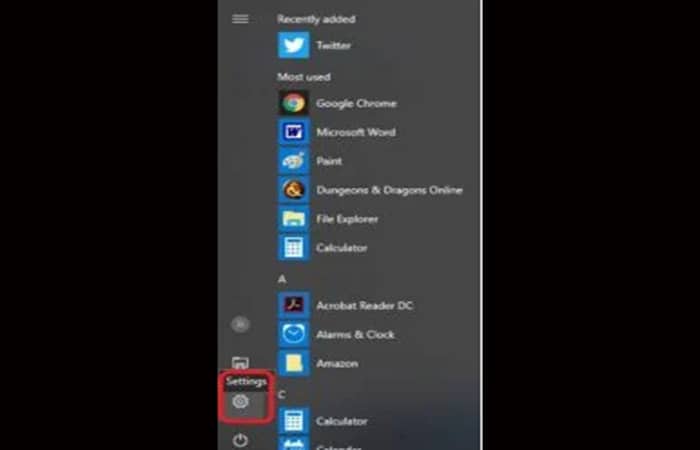
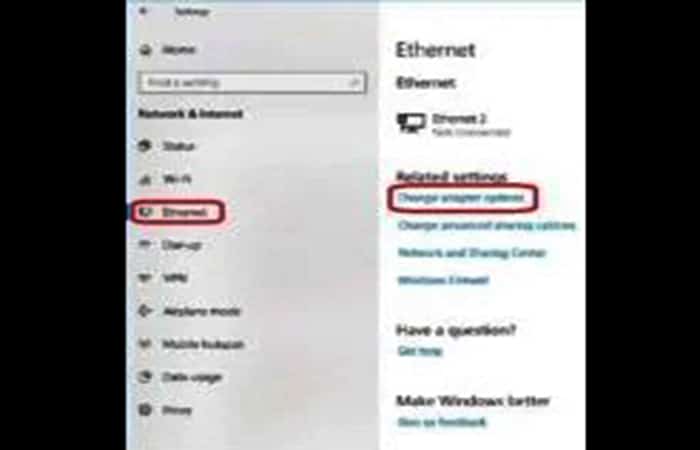
- Step 2: choose "Network and Internet«. Then select «Ethernet» on the left and «Change adapter settings" on the right.
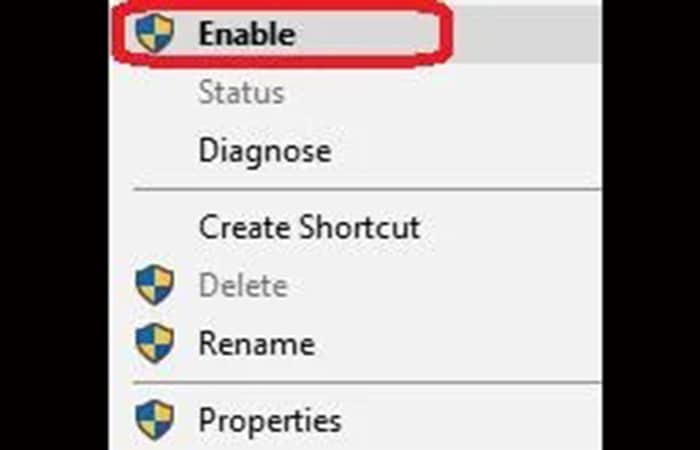
- Step 3: Choose the network that is giving you problems and right click on it. Choose “Deactivate» in the drop-down menu that appears.
- Step 4: Right click on the same network. This time, choose “Activate» from the drop-down menu. You can always repeat the Step 3: and the Step 4: with all the options if you are not sure which is the culprit.
Fix 7: Return network components to their original state
Sometimes resetting the network components will fix the problem.
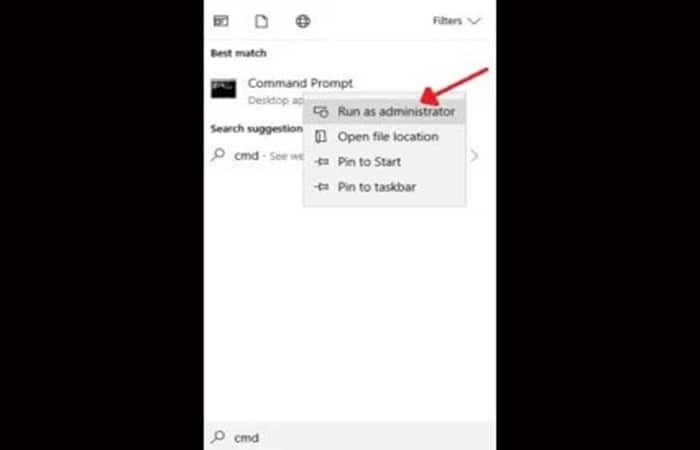
- Step 1: writes "Symbol of the system" on the menu Home. Right click on the option «Symbol of the system»And select«Run as administrator«. You will need to click on «Yes» to continue to the command prompt window.
- Step 2: At the command prompt, enter «ipconfig / release» without quotes. Press [Enter].
- Step 3: At the command prompt, enter «ipconfig / flushdns» without quotes. Press [Enter].
- Step 4: At the command prompt, enter «ipconfig / renew» without quotes. Press [Enter].
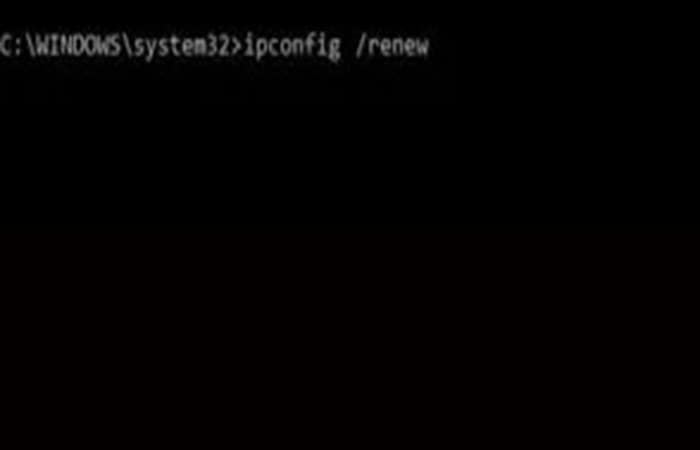
- Step 5: atime writes «salir» without quotes. Press [Enter].
Now, restart your computer and see if you can connect. If you still have problems, continue with the next method.
Fix 8: Run a system scan in safe mode
If you scan for corrupted files in safe mode , your computer can repair them automatically. Here are the steps to run the scan:
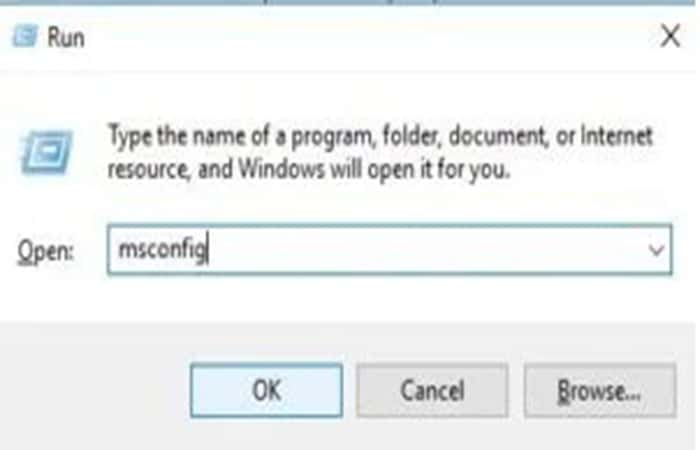
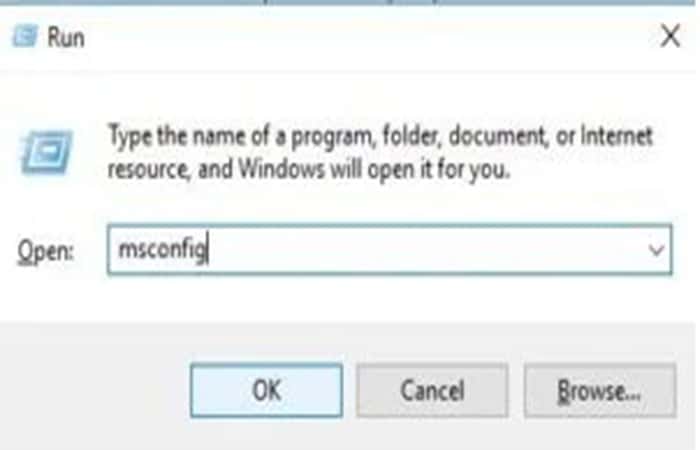
- Step 1: Press the [ keyR] and the [ keyWindows] together to open the box Run. Writes "msconfig» without quotes and press the option «Accept«.
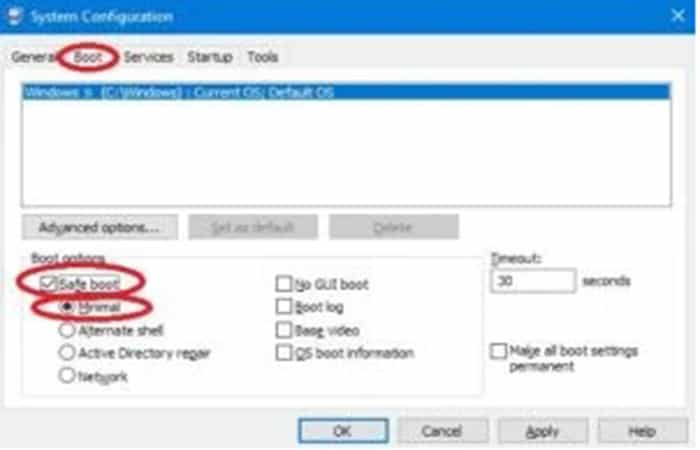
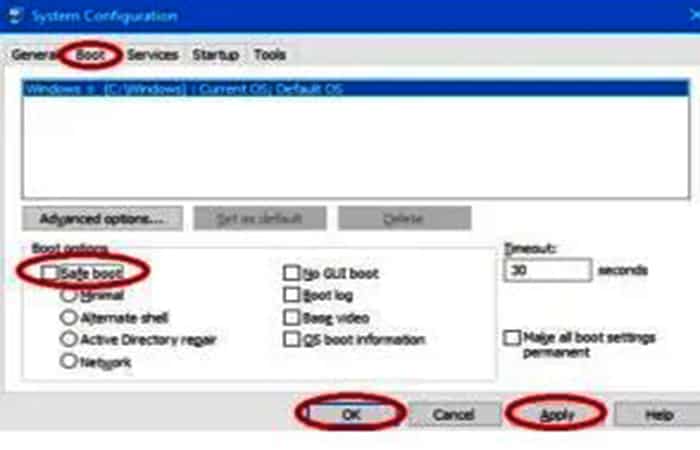
- Step 2: the window will open System settings. Go to the « tabstart«. Check the box next to «Safe start»And select«Minimum» below. Now click on «Apply»And then«Accept«.
- Step 3: Windows should ask you if you want to restart your computer now. Click “Restart«.
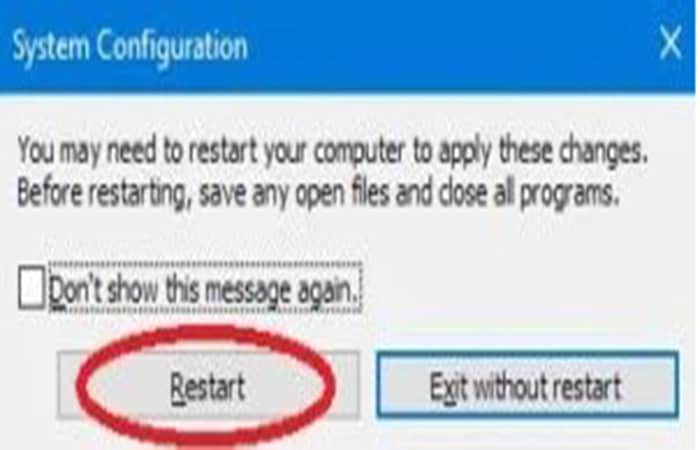
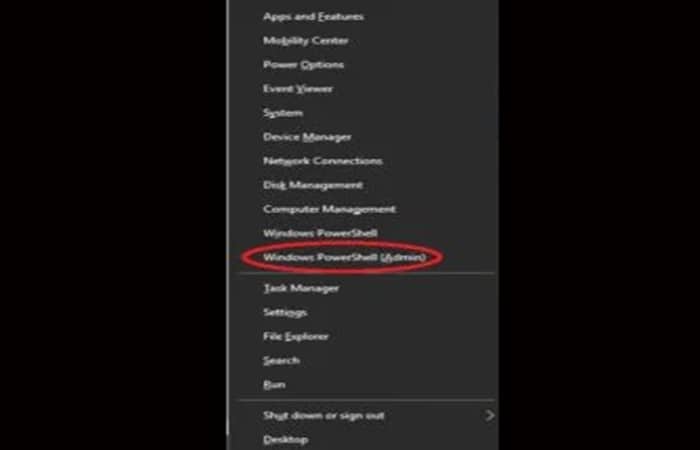
- Step 4: Once you have rebooted into safe mode, press the [ keyX] and the [ keyWindows] together. In the menu that appears, select «Windows PowerShell (Administrator)«.
- Step 5: When PowerShell opens, type «sfc / scannow» or cut and paste the command. Then press [Enter].
- Step 6: The scan may take a while. When it is finished, close the window. PowerShell and press the key [R] and the [ keyWindows] together again to open the box Run. As before, write «msconfig»And click«Accept«.
- Step 7: return to the « tabstart» and uncheck the box next to «Safe start«. Press the « optionApply» and then click «Accept«.
Restart your computer using the Power icon in the Start menu.
You might also want to know: How to Fix the “Network Path Not Found” Error
Fix 9: Reset TCP/IP
If the Internet Protocol settings on your computer are incorrectly configured or corrupted, it could cause the error "One or more network protocols are missing on this computer." This is another quick fix, but you should try some of the other methods first. Be sure to create a system restore point before trying this method. Follow these steps:
- Step 1: Open the command prompt again by typing «Symbol of the system» without quotes in the menu Home. Right click on «Symbol of the system» and choose «Run as administrator«. Press the « optionYes» to allow the application to make changes to your computer.
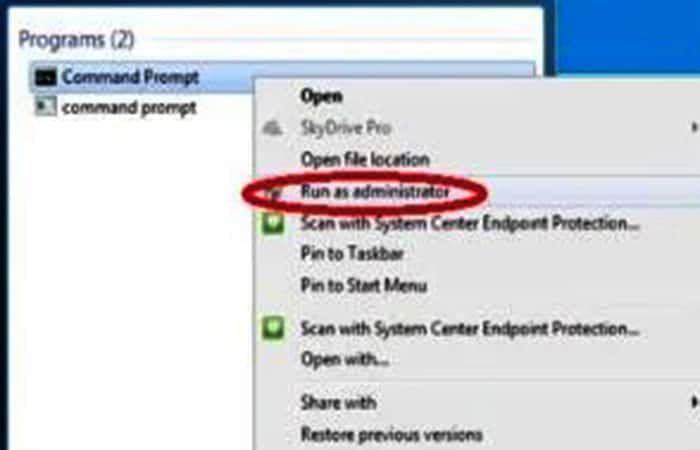
- Step 2: writes "netsh winsock reset catalog» without quotes in the notice. Press [Enter].
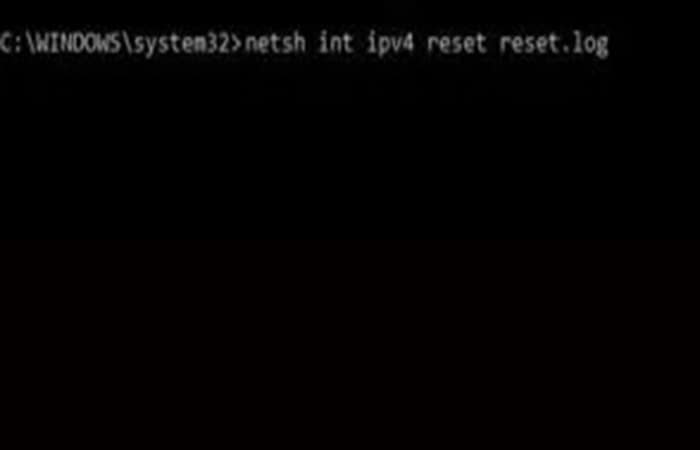
- Step 3: you should see confirmation that the catalog of Winsock was reset and you need to restart your computer. Ignore it for now and type «netsh int ipv4 reset reset. log» without quotes. Press [Enter].
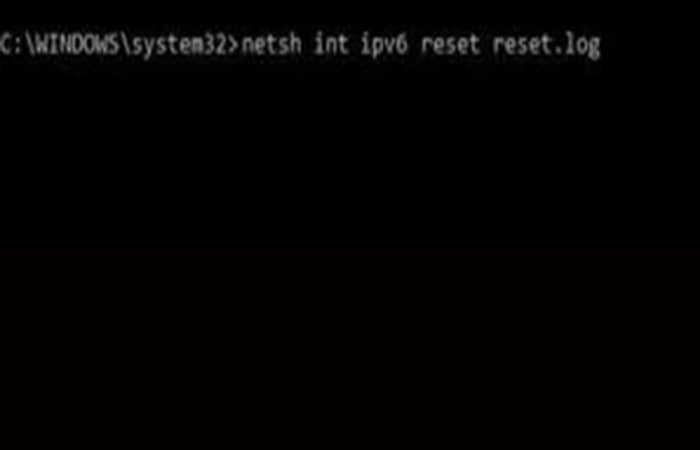
- Step 4: Finally, he writes «netsh int ipv6 reset reset. log» without the quotes and press [Enter]. Another list will be completed.
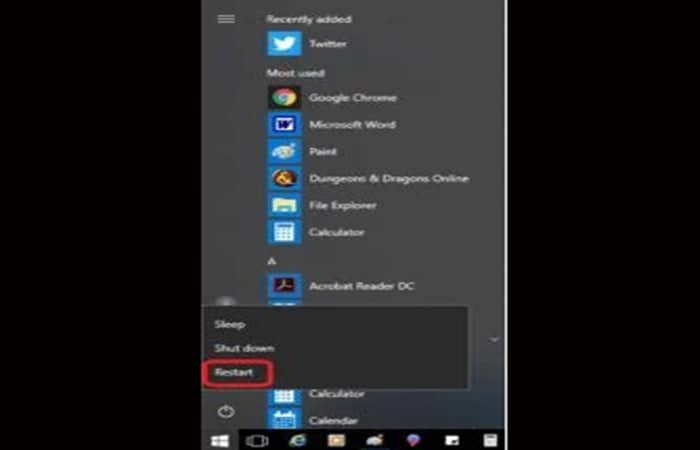
- Step 5: Close the command prompt and restart your computer using the power icon in the menu Home.
Check if you can connect to the Internet. If you still have problems, continue reading.
Fix 10: Uninstall a third-party antivirus
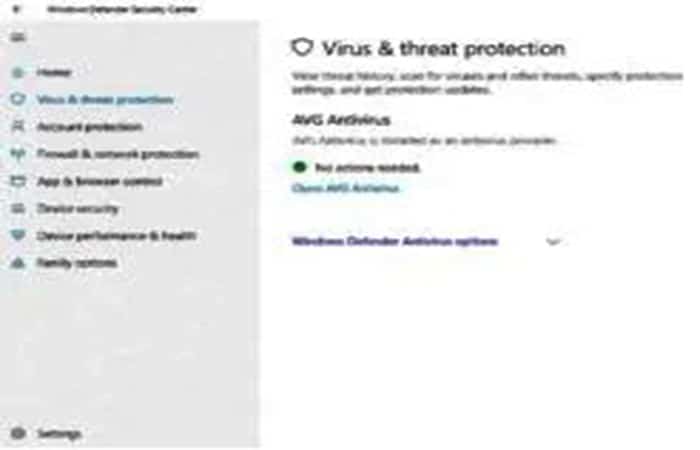
If you're using a third-party antivirus, it might be interfering with some Windows components, including protocols. Since Windows 10 comes with Windows Defender , first make sure Windows Defender is disabled if you're running a third-party antivirus.
Running two antivirus programs at the same time can cause problems because the programs interfere with each other. Since every antivirus is different, the instructions below are general and not specific to any antivirus program.
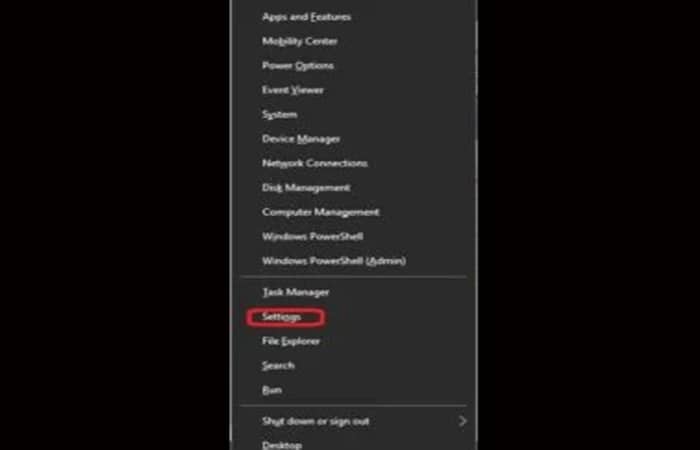
- Step 1: after disabling Windows Defender, if you still see the critical error message, you should uninstall your antivirus software. Press the keys [X] and [Windows] at the same time. Choose » Settings » from the list.
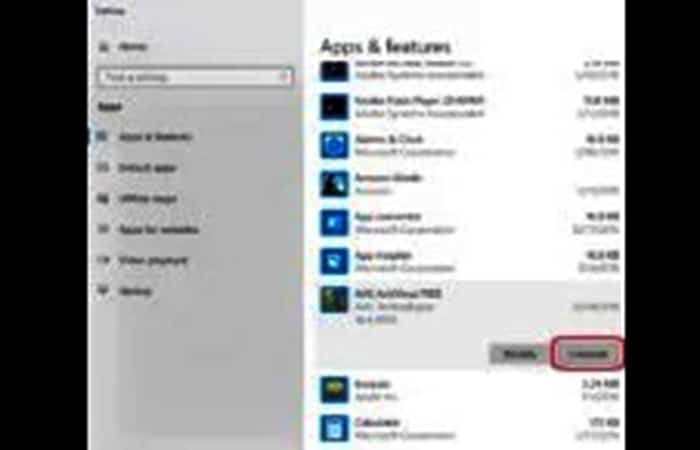
- Step 2: click on «Applications" in the window Configuration. In the submenu «Applications and features«, scroll down until you find your antivirus program. Click on it and then press « buttonuninstall«.
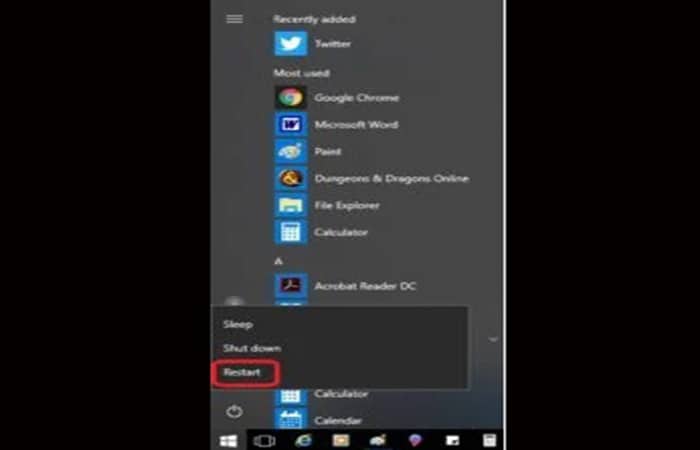
- Step 3: press the icon On of menu Home and restart your computer.
- Step 4: If the problem is not resolved, reinstall your antivirus and move on to the next method. If the problem is resolved, you can try reinstalling your third-party antivirus in case a Windows update corrupted it.
If the “One or more network protocols are missing” message appears again when you reinstall your antivirus, you will need to uninstall it and install a recommended antivirus, or enable Windows Defender and use it.
Fix 11: Install network protocols
Yes, the network protocols should already be installed since you once had access to the Internet. However, if you follow these steps, you will ensure that the protocols are there and the error exists somewhere else. Follow the procedure below:
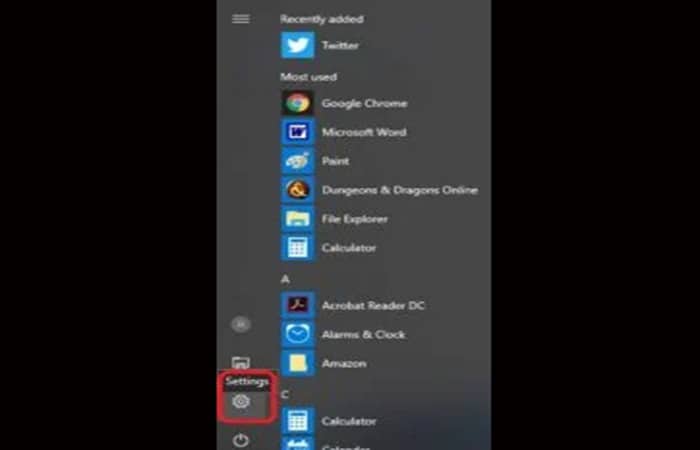
- Step 1: Press the icon «Configuration" on the menu Home.
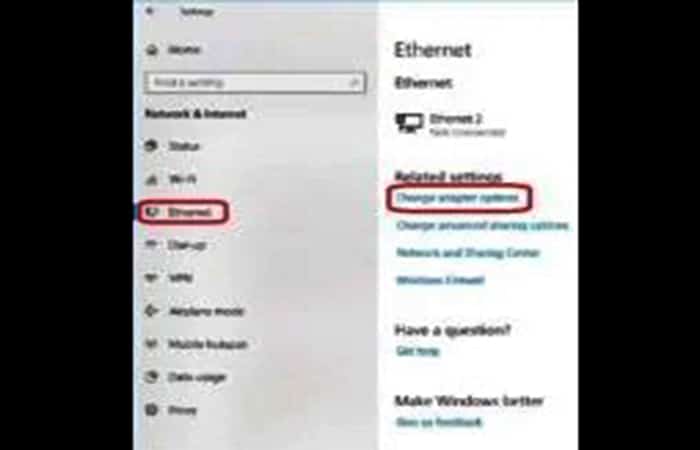
- Step 2: choose "Network and Internet" on the menu Configuration. Then select Ethernet. On the right, choose «Change adapter settings«.
- Step 3: Choose the network that is giving you problems and right click on it. Choose “Properties» in the drop-down menu that appears.

- Step 4: in the window Properties, press the button «Install«.
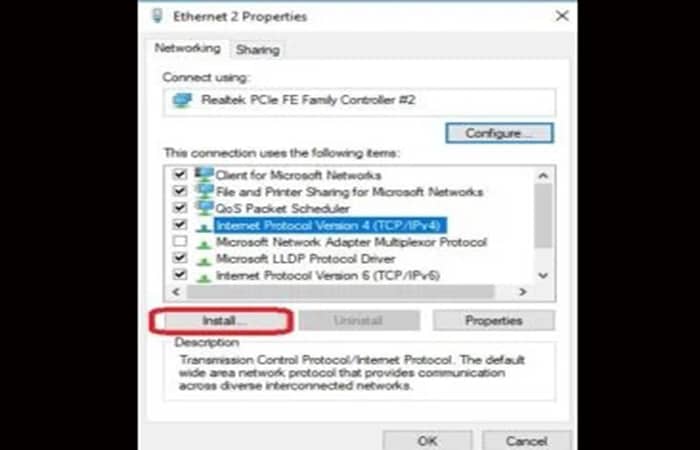
- Step 5: Press the option «Dance» and then press the button «Add«.
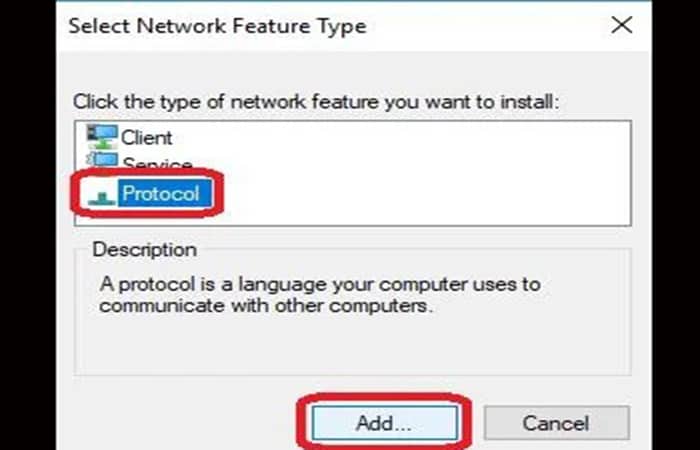
- Step 6: Choose the protocol to install and press the “Accept«.
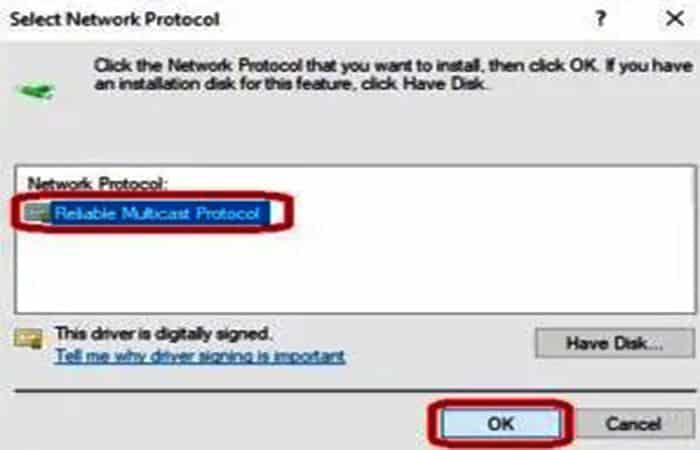
You should restart your computer after installing any new software. If this did not resolve your issue, continue reading to resolve the “One or more network protocols are missing on this computer” error.
Fix 12: Reinstall the network adapter
This method will solve the problem if the network adapter is the source of the corruption. Follow these steps:
- Step 1: Press the [ keyR] and the [ keyWindows] at the same time.
- Step 2: in the frame Run that opens, writes «msc» without the quotes and press [Enter].
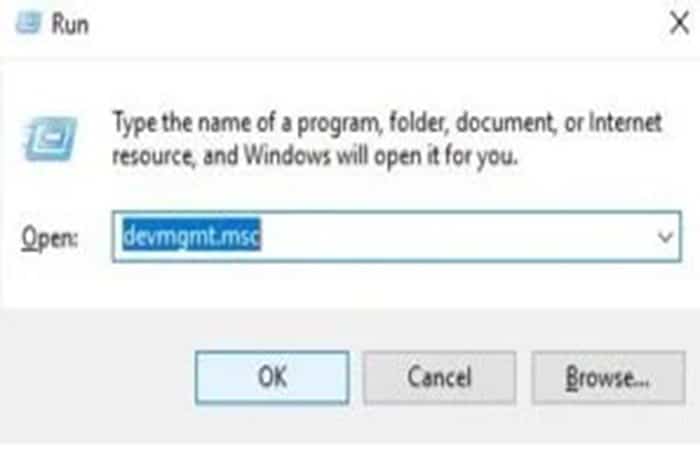
- Step 3: When the window opens device administrator, press the option «Network adapters» to expand it. Right click on the first device that appears in «Network adapters» and first select «Properties«.
- Step 4: In the tab “General”, write down the name of the device and the ManufacturerIf you have an Internet connection, you can download the drivers for the device from the manufacturer's website and store them on a flash drive. USBIf you don't have an Internet connection, you can use a different computer to do this.
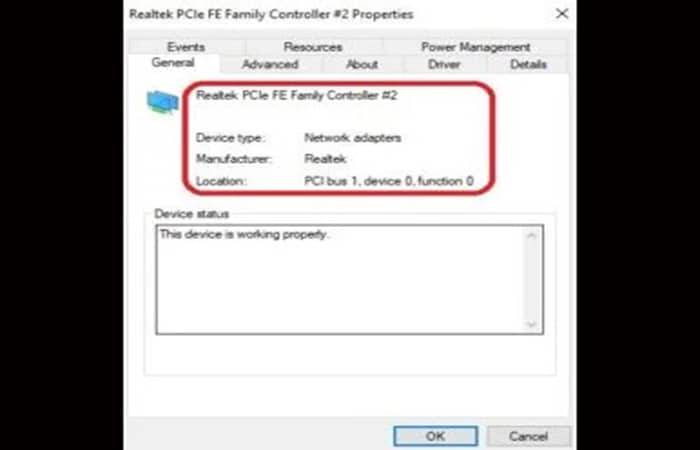
- Step 4: Close that window and right-click on the same network adapter again. This time, choose “Uninstall device»From the drop-down menu.
Imagen47
- Step 5: the device uninstall warning box will appear. Make sure that “Remove the driver software for this device» have a check mark in the box and press the « buttonuninstall«.
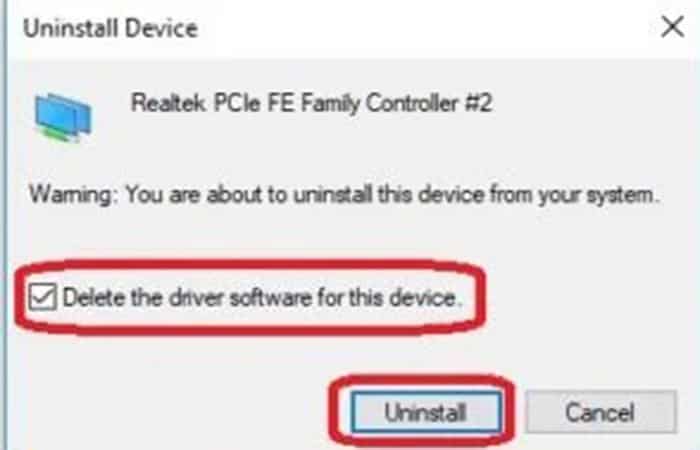
- Step 6: Now, restart your computer. The device should automatically reinstall. If not, install the drivers from the USB you created.
Repeat the steps above until you have reinstalled all your network adapters or until the Missing Network Protocols error disappears.
Fix 13: Disable Ipv6 protocol
Some networks have issues with the IPv6 protocol. If this is the reason for the error “One or more network protocols are missing on this computer”, disabling the IPv6 protocol will resolve the issue you are experiencing. Here are the steps to follow to do so:
- Step 1: Start by clicking on the icon «Configuration" on the menu Home. Choose "Network and Internet" on the menu Configuration and select «Ethernet» on the left. Then press the option «Change adapter settings" on the right.
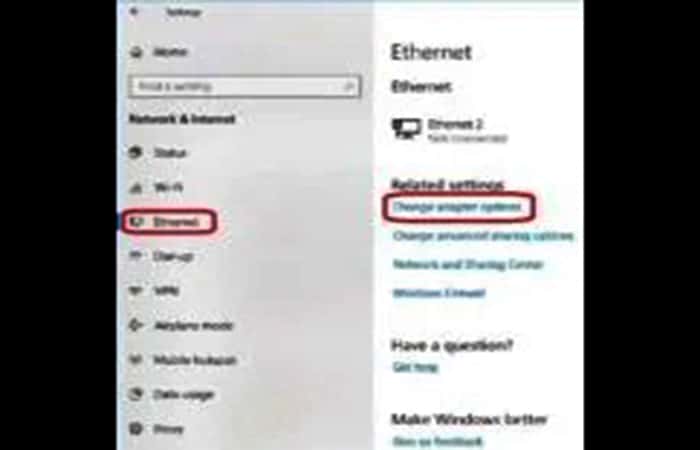

- Step 2: Choose the network that is giving you problems and right click on it. When the drop down menu appears, select “Properties«.
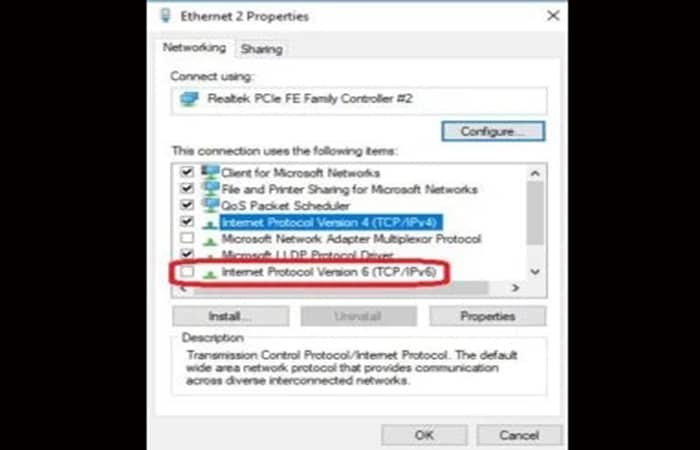
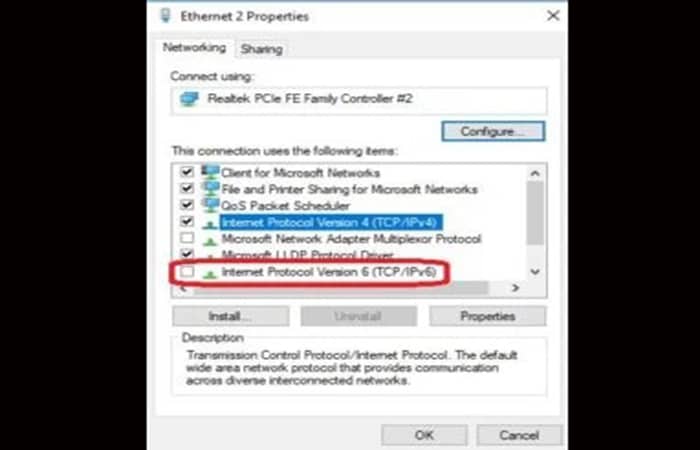
- Step 3: in the window Properties, make sure the Internet protocol version 6 (TCP/IPv6) does not have a check mark next to it. Click on «Accept«.
- Step 4: Finally, shut down the system completely by opening the menu Home, by clicking on the icon On and holding down the [ buttonShift] on your keyboard while clicking on the « optionDelete«. Release the [ keyShift] and your computer should shut down. Wait two minutes before restarting your computer.
Fix 14: Disable NetBIOS
NetBIOS allows multiple applications on separate computers to communicate on the same network. Disabling this capability will prevent outside conversations that may be interfering with your connection. You should do the following:
- Step 1: Press the icon «Configuration", which is found in the menu Home.
- Step 2: choose "Network and Internet" on the menu Configuration. Then select «Change adapter settings" on the right.
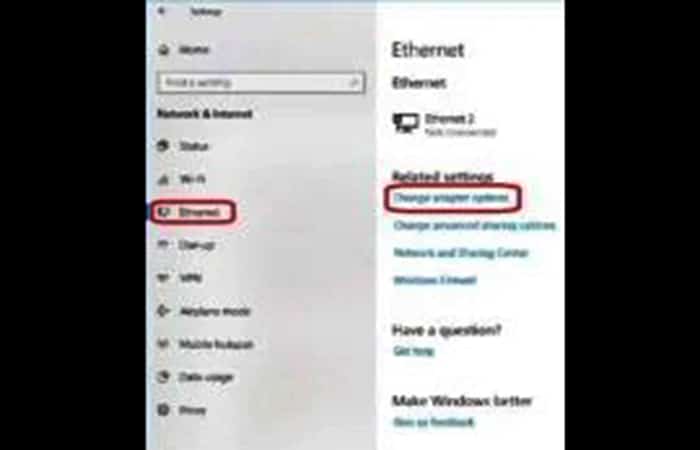
- Step 3: Choose the network that is giving you problems and right click on it. Choose “Properties» in the drop-down menu that appears.
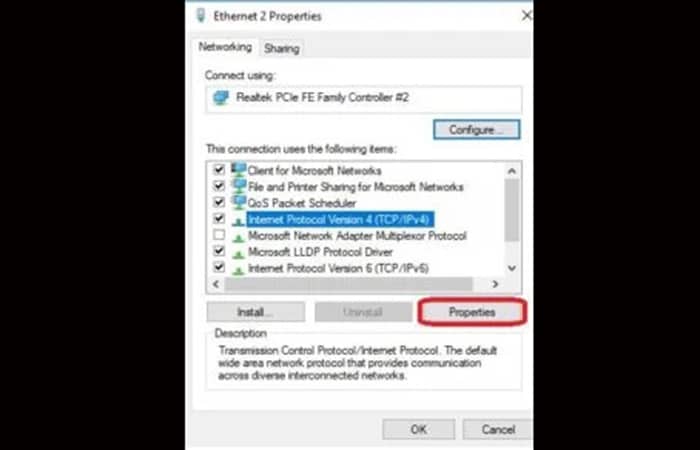
- Step 4: in the window Properties, Select Internet Protocol version 4 (TCP/IPv4) and press the button «Properties«.
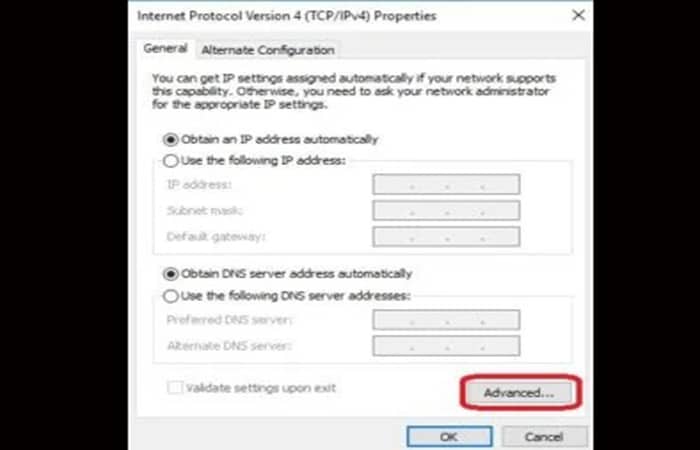
- Step 5: when the window opens Properties, press the option «Advanced» which is located near the bottom right corner.
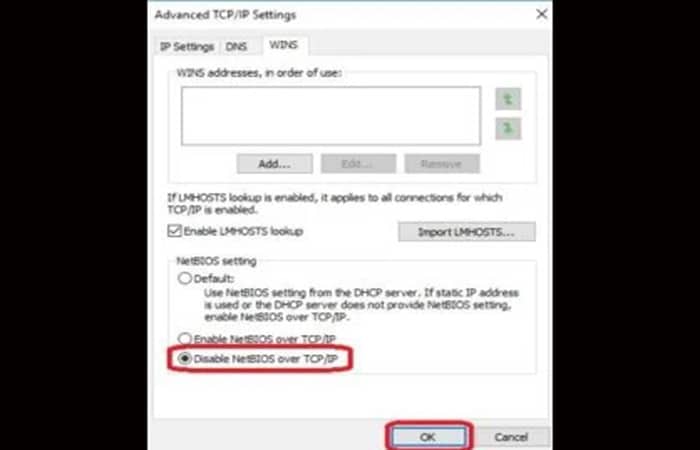
- Step 6: choose the tab WINS in the advanced settings window of TCP / IP. Choose "Disable NetBIOS over TCP/IP« Now, click on «Accept» and see if you still have connection issues.
Fix 15: Perform a system restore
You would have to have manually created a system restore point before you started having connection issues in order to do this method. This method will cause you to lose some of your data, but it should fix the “One or more network protocols are missing on this computer” error. Follow the steps below:
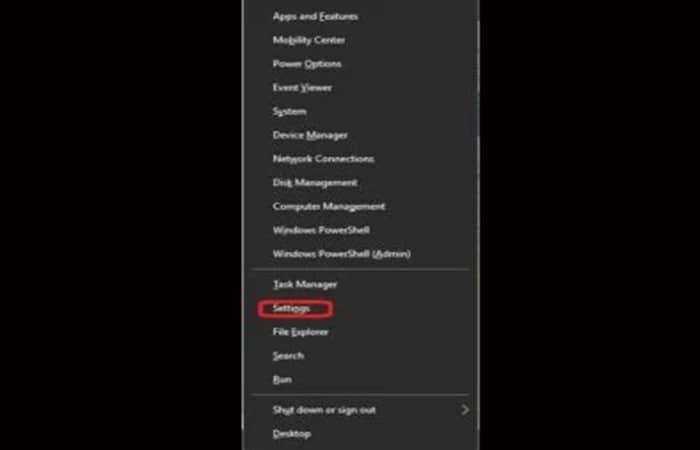
- Step 1: Press the [ keysX] Y [Windows] at the same time. Choose «Configuration»In the menu that appears.
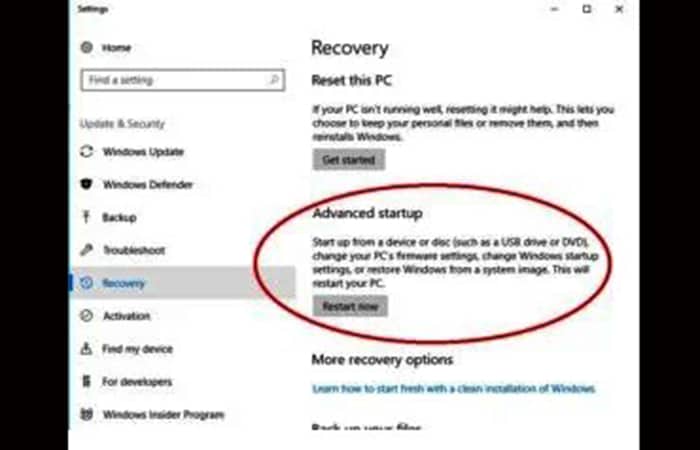
- Step 2: Press the option «Update and security«. When the window opens Update and security, click on «Recovery» in the left side menu. You should see «Advanced start» on the right. Click on «Restart now» below that.
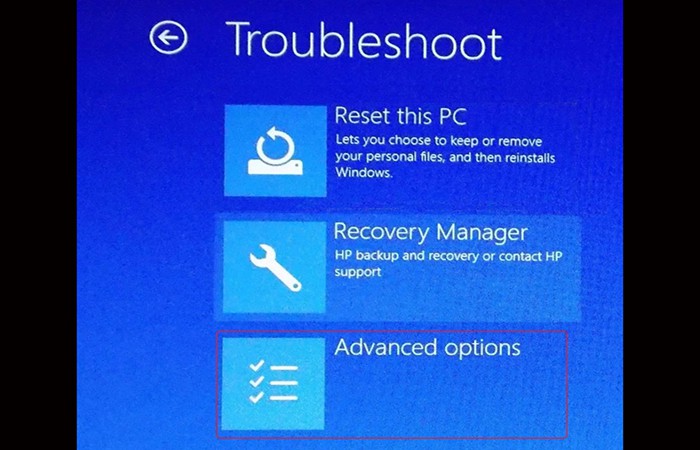
- Step 3: Windows will now reboot and display the “Choose an option«. Choose "Solve problems" and later "Advanced«.
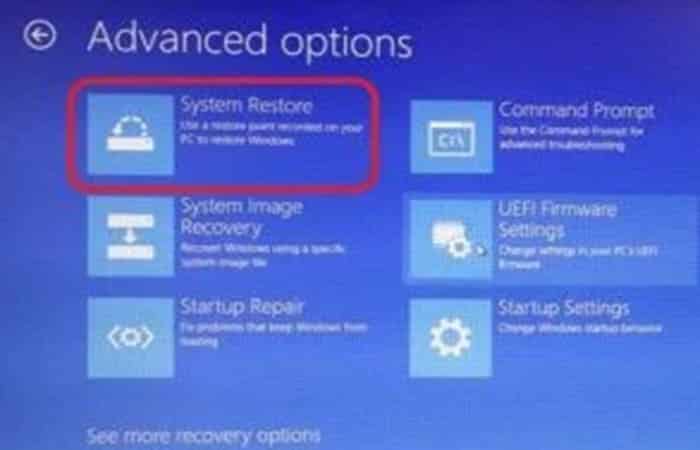
- Step 4: Press the option «System Restore«.
That's it, your computer should return to the same settings it had before the problem occurred. Sometimes, the computer may try to reinstall updates that have been applied. Make sure you don't interrupt these updates, as that could cause the error to occur again.
Check out: The Internet Keeps Disconnecting. Causes and Solutions
Final thoughts
Users may experience a frustrating problem in Windows 10/11 where they are unable to share files between computers on the network, and some may even be unable to connect to the internet. When they run Windows network diagnostics, they receive the error " One or more network protocols are missing on this computer ." The system shows that it has connected to the internet, but there are no signs of connectivity, and they cannot browse the web.
However, we have dug deeper into the troubleshooting report, and we have seen that the error occurs due to missing Windows Sockets registry entries that are required for network connectivity. That sounds serious, but you need not worry anymore; the series of working solutions we have listed will help you resolve the issue.

My name is Javier Chirinos and I am passionate about technology. Ever since I can remember, I have been interested in computers and video games, and that passion has turned into a job.
I have been publishing about technology and gadgets on the Internet for over 15 years, especially in mundobytes.com
I am also an expert in online marketing and communication and have knowledge in WordPress development.