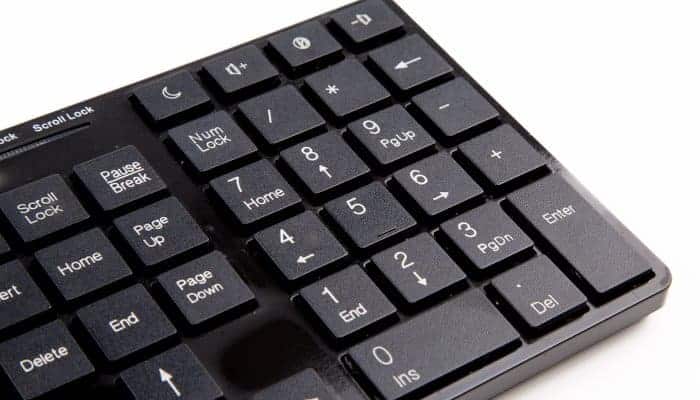
It's very difficult to type on your computer when the keys aren't working properly, or stop working altogether. Imagine the difficulty you'll face when an entire section of the keyboard isn't working? Here's what to do when the numeric keypad isn't working on your PC.
If the numeric keypad isn't working , you won't be able to use that section when you need to type numbers or perform simple math operations. It might seem like a minor problem, but that's really where you'll realize how much you use it.
What Can I Do When The Numeric Keypad Is Not Working?
There is no definite reason why this problem arises. But it is not known when this problem will affect your keyboard. We have some methods that you can put into practice, whenever this problem occurs on your PC.
1. Check out the Num Lock key enablement
It seems obvious, but we often disable the numeric keypad using this key without really realizing what's happened. That's why it's one of the first things you should do.
The Num Lock key must be on for the numeric keypad to function. You may have a small indicator LED that lights up when Num Lock is enabled.
There is a chance that you may have pressed the num lock key when it was enabled and when you try to use it, you will not see any numbers when you press the keys.
2. Physically check the Num Lock key
The Num Lock key may have something lodged underneath it. You can press it to check if it moves normally, or if it reaches its limit.
If you have a membrane keyboard, you can shake it sideways a bit and try to get it out. If this problem is with a semi-membrane or mechanical keyboard, you can remove the keys and clean them.
You should keep your keyboard clean and avoid eating on it. This tip is not only for the numeric keypad section, but for the entire keyboard itself.
You may also be interested in: Your Windows computer has been locked | Solutions
3. Check for hardware issues
Thoroughly inspect the keyboard for any defects that might cause it to malfunction. The keyboard itself may be damaged. This could be the cable connecting it to the PC, the USB connector , or the keys themselves.
For some keyboard models, you can replace the keys, but for others, you must replace the entire keyboard. You should also test your computer's ports to verify that the slots are free of problems.
Try connecting the keyboard to another computer to verify that it works properly. Alternatively, find a new keyboard and connect it to your computer to see if your PC is having problems.
If your keyboard works correctly on another computer, you should check your PC's ports. If the new keyboard works on your computer, the problem is likely with your keyboard's hardware .
Often, poor contact occurs in the connection ports due to excessive dust . This can affect the numeric keypad on your keyboard. Therefore, it's recommended to clean all the hardware periodically, including the ports. Many people use a small blower for this purpose.
4. Start the PC in safe mode
Booting a PC in safe mode is a feature that allows the computer to start with a minimal set of essential functions. This isn't a solution for a malfunctioning numeric keypad, but rather a way to troubleshoot the problem on your Windows 10 computer.
If your keyboard works when you are operating your computer in safe mode, it means that this problem is caused by a corrupted keyboard driver. If a driver issue is responsible for the number keys not responding when pressed, you should update your PC drivers.
5. Enable the numeric keypad in Windows 10
Another possibility that can cause this problem is the Windows 10 operating system itself. Sometimes, the keyboard can be disabled in the operating system for no apparent reason and without any action from the user.
You need to check and turn it back on to resolve this issue. Here are the steps to re-enable the numeric keypad:
- Enter the start menu of Windows 10.
- Find and click on the folder “Windows Systems".
- Several options will appear, click on “Control panel".
- Now, click on “Accessibility center".
- There, click on “Make the keyboard easier to use".
- In the section "Controlling the mouse with the keyboard”, uncheck the “Enable mouse keys".
- Then click on the checkbox that says “Activate toggle keys by holding the NUM LOCK key for 5 seconds", in the section "Make typing easier on the keyboard".
- Choose "Apply" and later "Accept".
- Restart your computer to retain these settings.
- After restart, turn off the function bloq NUM pressing the key bloq NUM if it is active.
- Press the key bloq NUM and hold it for about 5 seconds to activate the dedicated numeric keypad.
6. Update your keyboard driver
An outdated or corrupted driver can cause many problems. This could be the reason your numeric keypad isn't working. The only solutions are to update the outdated keypad driver or uninstall and reinstall it.
Here are the steps to update the keyboard driver on Windows 10.
- Enter the start menu of Windows 10.
- Find and click on the folder “Windows Systems".
- Several options will appear, click on “Control panel".
- Now, click on “Device administrator".
- At "Device administrator”, find and click on “Keyboards”, to expand a list of keyboard controllers.
- You will be able to see a list of drivers or just one. Identify and right-click the one for your keyboard.
- Then select "Update Driver".
- The update wizard window will open. Click “Search for drivers automatically".
- The system will connect to the internet and automatically download the best driver for your keyboard.
- You can also install the driver with this wizard.
You can also remove the corrupted driver, and then install a new driver using the wizard.
- Enter the start menu of Windows 10.
- Find and click on the folder “Windows Systems".
- Several options will appear, click on “Control panel".
- Now, click on “Device administrator".
- At "Device administrator”, find and click on “Keyboards”, to expand a list of keyboard controllers.
- You may see a list of drivers or just one. Identify and double-click the one for your keyboard.
- In the driver properties window, click the “Controller".
- Choose "Uninstall device".
- Then confirm the request.
- Once the uninstallation is complete, you can download the latest version of the computer keyboard driver available for your keyboard from the manufacturer's website.
7. Disable the mouse keys function
The Mouse Keys feature is a Windows feature that allows users to control the pointer on your screen using the dedicated numeric keypad on the right side of your keyboard.
If this feature is enabled, it may cause problems when using the numeric keypad and therefore it is best to disable it.
It is not possible to pinpoint that this feature is causing this issue. Only when this solution is implemented and a positive response is noticed, you will be able to know that this issue is caused by the mouse key.
Here's how you can disable mouse keys on your PC:
- Enter the start menu of Windows 10.
- Find and click on the folder “Windows Systems".
- Several options will appear, click on “Control panel".
- In “Control Panel,” click “Accessibility Center.”
- Now, click on “Make mouse use easier".
- In the section "Controlling the mouse with the keyboard”, uncheck the box “Enable Mouse Keys".
- Click on “Apply”Y luego a“Accept".
- Close Windows Settings and restart your computer to save the changes.
Done, the problem should be resolved after these steps.
8. Switch to a new keyboard
If you have a keyboard with damaged numeric keys, it is best to replace it. This should only be done after thoroughly checking the keyboard and performing all the steps above.
A new keyboard is generally inexpensive; it's one of the few PC accessories that remain affordable. Get one that's good quality and, if possible, repairable.
9. Use the on-screen keyboard
In the meantime, if you've already determined that the problem is with your keyboard, and you still can't afford to buy a new one, you can use the on-screen keyboard.
The on-screen keyboard is a very useful tool that allows users to utilize the features of a " virtual " keyboard with the help of the mouse. This program can be a great help if your laptop keyboard stops working or if you don't have a spare keyboard.
This is not a solution for the malfunctioning numeric keypad, but an alternative.
You can search for "on-screen keyboard" in the search bar and click on the first results to bring up the small keyboard on your screen. You'll need to use your mouse pointer to access the buttons on your virtual keyboard.
To activate the numeric keypad on the on-screen keyboard, click the Options menu and select the " Enable numeric keypad " checkbox . It's that easy.
Conclusion
You might also be interested in The 5 Best MIDI Keyboard Programs
It is very important that every piece of hardware works properly to use a computer without any problems. The keyboard is an integral part of easy computer use.
It can be really difficult for people who enter a lot of numbers when the number keys are not working. Try each of the solutions given until you can solve it, and if not, buy a quality one.

My name is Javier Chirinos and I am passionate about technology. Ever since I can remember, I have been interested in computers and video games, and that passion has turned into a job.
I have been publishing about technology and gadgets on the Internet for over 15 years, especially in mundobytes.com
I am also an expert in online marketing and communication and have knowledge in WordPress development.