- Combing Mode: Not in Skin reduces visible marks by preventing movement across the outer surface.
- This option covers the interior of the model whenever possible, prioritizing the quality of the finish.
- In PrusaSlicer, the combination of avoiding perimeter crossings and using well-fitted seams and retractions achieves a similar effect.
- Properly configuring perimeters, retractions, and seams is key to avoiding threads and marks on visible pieces.
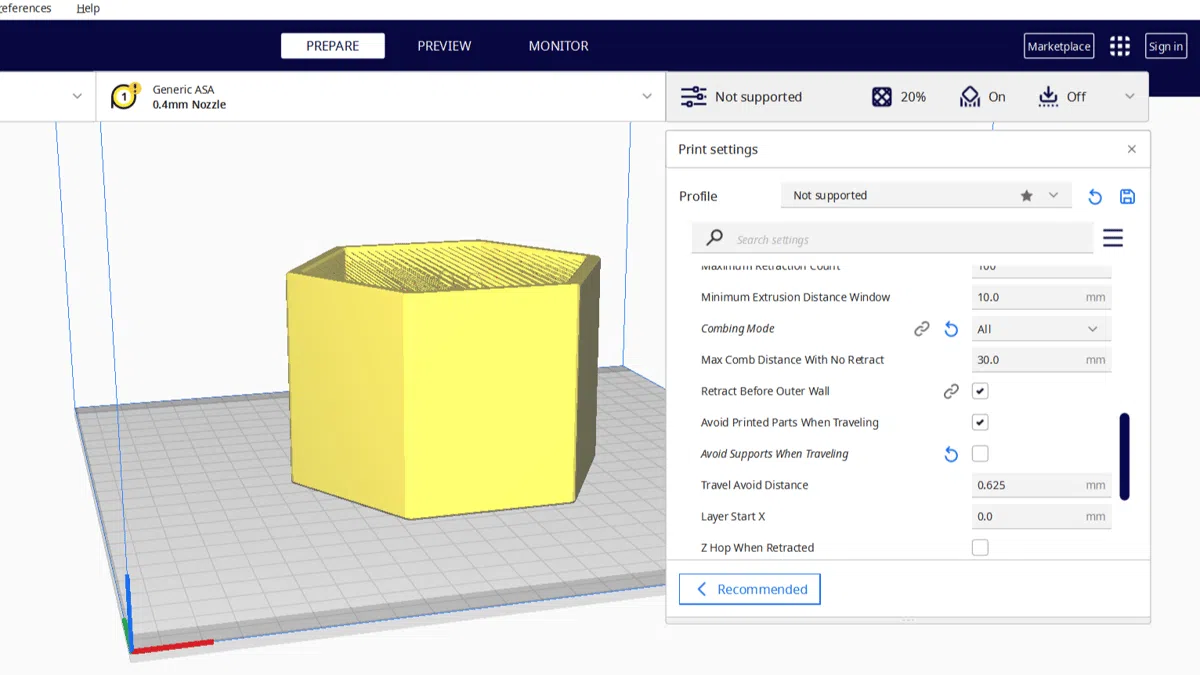
When you start struggling with surface quality in your 3D prints, sooner or later you'll come across Cura's famous setting called "Combing Mode: Not in Skin" . It's one of those options that, at first glance, seems like a minor detail, but it can make the difference between a piece full of blemishes on the visible side and a much cleaner, more uniform surface.
The typical problem is quite recognizable: you've activated parameters like "avoid crossing perimeters" (or similar) to prevent the print head from leaving strands outside the workpiece, but the result is that the nozzle moves close to the outer wall, following the contour, and leaves an unsightly trail on the visible surface. In Cura, the "Not in Skin" combing option helps to avoid this behavior. And of course, once you try something like this and it works, if you then use another slicer like PrusaSlicer, the natural question is: "Now how do I do this here?"
What exactly is Combining Mode in Cura?
To understand exactly what “Not in Skin” does, the first thing to understand is what Combing Mode is in Cura . This parameter controls where the print head moves when it moves without extruding, that is, when it goes from one point to another without depositing plastic.
Instead of allowing the nozzle to move in a straight line through gaps or around the outside of the printed part, the combing mode attempts to keep the movement within the already printed volume . This way, any threads, microdroplets, or small marks left by the hotend remain hidden inside, rather than on the visible outer surface.
Within this global combing adjustment, there are several modes that change Cura's behavior. Some allow the print head to move freely, others restrict its path to the interior of the object, and still others, like the one we're interested in, intentionally avoid passing over the "skin" of the print —that is, those outer finishing layers that you see and touch when you pick up the print.
The essence of Combing Mode is, therefore, to decide whether you prioritize shorter movements (direct paths) or whether you prefer slightly longer but safe paths that do not drag material along visible walls and reduce the risk of threads in the external area.
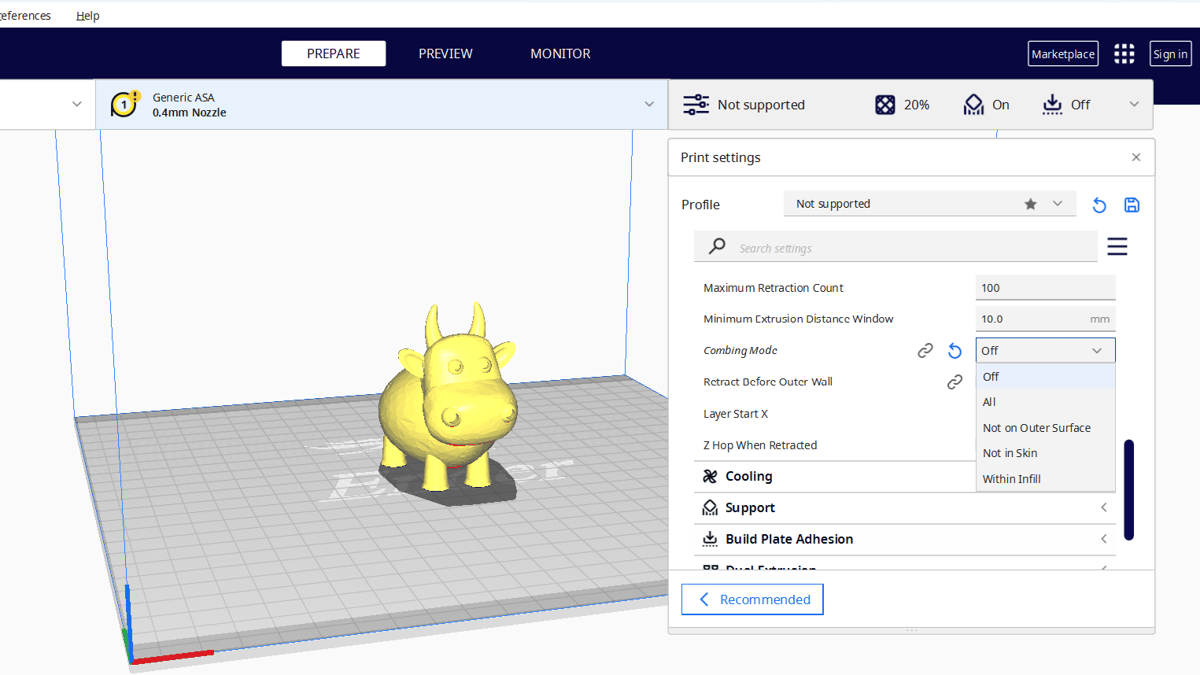
What does "Not in Skin" mean and why does it improve the finish?
Among the variations of Cura's Combing Mode, the one we're interested in is "Combing Mode: Not in Skin" . The word "Skin" in Cura refers to the outer layers of the part , both top surfaces and visible side faces that form the "skin" of the model.
By enabling this option, Cura attempts to prevent the slicer from crossing through these skin layers . In practice, this means that when the slicer head needs to move from point A to point B without extruding, it will find an alternative path that passes through the interior of the part (infill, internal areas, hidden spaces) and will avoid, as much as possible, "walking" over the surface that will be visible.
This behavior is especially useful if you experience what many users have reported: when combining options like "avoid crossing perimeters" or equivalent, the extruder traces a path right up against the outer perimeter, as if it were "drawing" the wall without extruding it. The result is usually a trail or mark on the outer wall , which significantly detracts from the print, especially on parts with smooth or highly visible surfaces.
With “Not in Skin” activated, Cura finds a path that keeps the nozzle away from delicate skin . This way, if any streaks, small droplets, or smears are created, they remain hidden inside the model or in areas that are not visible, instead of ending up where it bothers most: on the outer surface.
It's important to keep in mind that this method isn't magic: in certain extremely compact geometries or those with very little internal space, Cura won't always find a perfect path, and sometimes it will still be necessary to combine it with good retractions and appropriate temperatures . But, as a concept, its function is clear: to do everything possible to avoid scratching, scuffing, or staining the surface of the part with empty movements.
Advantages of using "Not in Skin" compared to other styling methods
When you compare "Not in Skin" with other variations of Cura's Combing Mode, its benefits become clearer. More basic modes allow the print head to move inside the model without extending the nozzle, but they don't distinguish as clearly which areas are visible surface (skin) and which are internal structure.
The main advantage of "Not in Skin" is that it introduces a clear priority: the quality of the surface finish takes precedence over absolute optimization of the trajectory. This means that movements can be slightly longer, but with the reward of fewer marks, fewer scratches, and fewer unwanted lines on the outer skin.
Another benefit is that if you're already using settings like "avoid crossing perimeters" to limit visible overlaps, this styling option reduces the side effect of the nozzle sticking to the outer edges . It's a fairly simple way to maintain that philosophy of protecting the outside of the piece, without making the problem worse.
It should also be remembered that, when the empty movements are concentrated inside the piece, it is easier for any small thread to end up integrating into the filling or getting trapped between layers, where you will not see it and it will not affect you dimensionally in most cases.
On the other hand, you might notice a slight increase in printing time , especially with complex models that have many islands or widely separated areas, because the extruder will take less direct paths. However, in return, you'll get an improved appearance that more than compensates for the extra time on most "showpiece" parts.
How "Not in Skin" helps with the problem of marks when following the perimeter
In the scenario described by many users, the conflict arises when the option to avoid crossing perimeters (or equivalent settings in the slicer) is activated. The intention is good: the slicer head shouldn't cross the outer wall to move from one point to another, because this crossing often leaves small marks or lines on the surface.
The problem is that, in some parts, this strategy forces the slicer to follow the outer wall very closely , almost "stuck" to the perimeter, even though it's not actually extruding. In practice, this hot nozzle rubbing against the surface creates marks, uneven gloss, drag, and even minor deformations in sensitive materials.
Activating “Combing Mode: Not in Skin” changes Cura's approach: instead of traversing the skin to respect the perimeter, the algorithm attempts to reorganize the route through internal areas . This way, the nozzle stops “rubbing” the external surface and moves through the interior, where any small imperfections go unnoticed.
This is especially noticeable in cylindrical models, pieces with very long, smooth walls, or large visible surfaces, where any touch of the nozzle is immediately apparent. In these types of projects, a setting like "Not in Skin" makes all the difference between a finish that looks sanded and polished and one full of smear marks.
Therefore, if your main complaint is that using configurations to avoid perimeter crossings causes the head movement to ruin the final look, this styling mode is one of the first things you should try in Cura before modifying more advanced parameters.
Limitations and considerations of "Not in Skin" in Cura
Although “Combing Mode: Not in Skin” is a powerful tool for improving the finish, it's important to be aware of its limitations and side effects to avoid surprises. It's not simply a matter of turning it on and forgetting about the rest of the settings.
First, the algorithm is highly dependent on the model's geometry . In very compact parts, with very thick walls and little interior space, there may not be convenient internal paths for all movements. In such cases, Cura will do what it can, but there will be trajectories where it inevitably gets closer to the surface than desired.
Secondly, by forcing the slicer to find alternative paths, the chances of slightly increased retractions or internal changes in direction are raised. This isn't usually a serious problem, but on printers that are very sensitive to stringing, or with particularly "rubbery" filaments, you might need to tweak the retraction parameters to keep everything under control.
Another point to consider is that if your machine isn't properly calibrated in terms of temperature, ventilation, and airflow , no styling mode will completely eliminate stringing and microdroplets. "Not in Skin" helps hide imperfections where they're least visible, but it should be combined with a solid foundation of extruder calibration, retraction tests, and the correct temperature selection for each material.
Finally, keep in mind that while combing reduces the appearance of displacement marks, the seam line and other factors, such as the order in which perimeters are printed, will still affect the finish. Combing is just one piece of the puzzle, not a one-size-fits-all solution to surface defects.

Passionate writer about the world of bytes and technology in general. I love sharing my knowledge through writing, and that's what I'll do on this blog, show you all the most interesting things about gadgets, software, hardware, tech trends, and more. My goal is to help you navigate the digital world in a simple and entertaining way.