- NotebookLM combines Gemini 3, Veo 3 and Nano Banana Pro to create Cinematic Video Overviews, immersive videos generated from your own documents.
- Video Overviews can be customized by format, language, visual style and instructions, and are managed from the Studio panel with editing, download and sharing options.
- NotebookLM acts as a research assistant focused on your sources, with features such as Audio Overview, presentation editing, and exporting to PowerPoint.
- Gemini 3.1 Flash-Lite strengthens the ecosystem by offering fast, low-cost AI to efficiently handle large volumes of information.
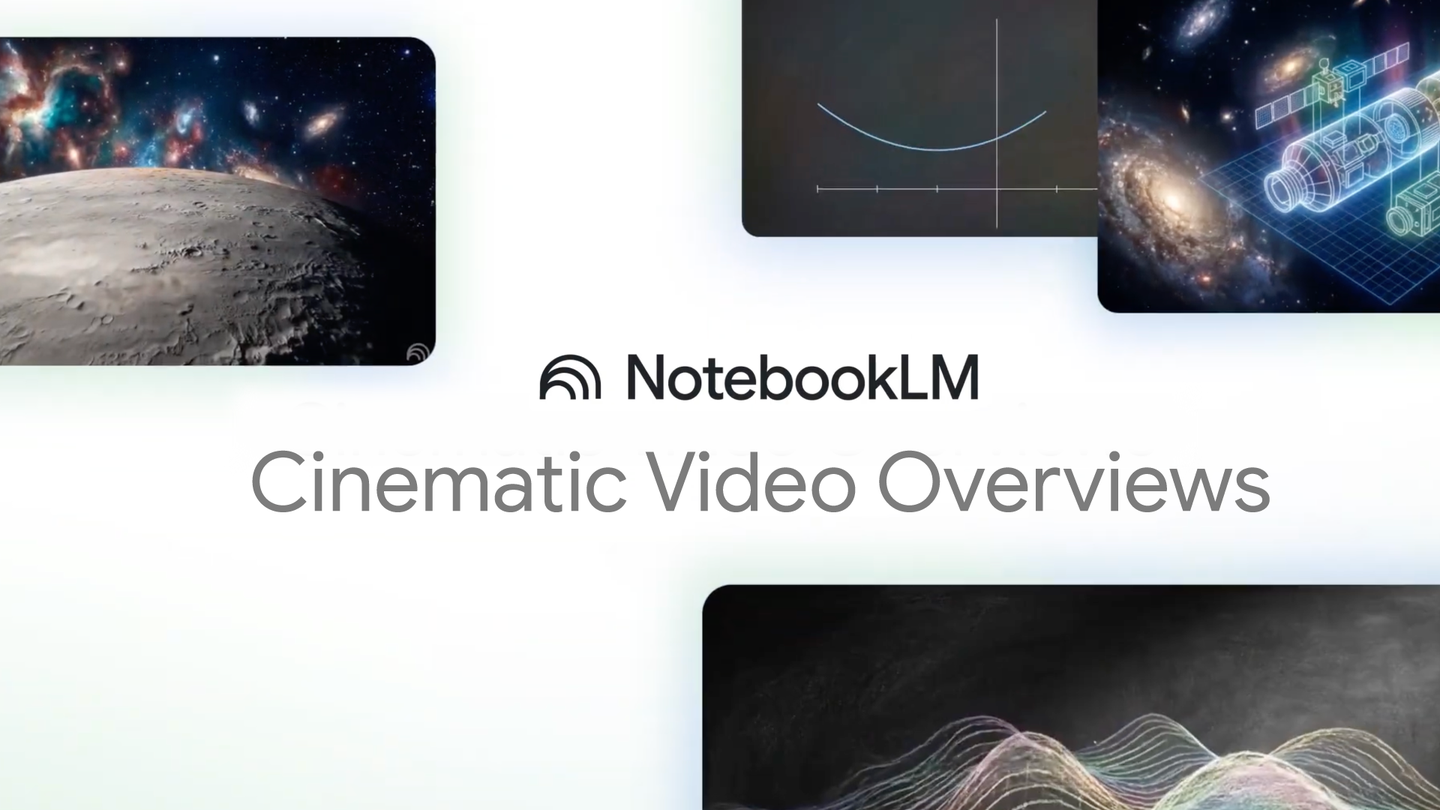
NotebookLM has just taken a huge leap and is now fully entering the field of AI-generated videoGoogle has given its research assistant a twist so that it can not only summarize documents or create scripts, but also assemble full videos, with animations and careful narration, practically with one click.
The new feature is called Cinematic Video Overviews And it takes the idea of NotebookLM video presentations far beyond simple narrated slides. We're talking about immersive audiovisual explanationswhich blend the best of several Google AI models to turn notes, PDFs, links, or even YouTube videos into visual pieces that can be understood in one sitting.
What is Cinematic Video Overviews in NotebookLM and why does it matter?
With Cinematic Video Overviews, NotebookLM moves from generating presentation-style videos to producing more dynamic cinematic piecesDesigned to explain complex topics in a visual and engaging way. AI no longer simply reads slides: now it acts like a human. creative director who decides the pace, style, and structure from the video based on your sources.
Google combines several of its most advanced models —Gemini 3Veo 3 and Nano Banana Pro— so that they can collaborate with each other within NotebookLM. This orchestra of AIs is responsible for analyze documents, generate scripts, design animations, and integrate visual resources in a matter of minutes, without needing to know how to edit video or use a professional editor.
The new feature is called Cinematic Video Overviews And it takes the idea of NotebookLM video presentations far beyond simple narrated slides. We're talking about immersive audiovisual explanationswhich blend the best of several Google AI models to turn notes, PDFs, links, or even YouTube videos into visual pieces that can be understood in one sitting.
In practice, this means that both students and professionals can transform reports, classwork, or technical notes into explanatory videos High-level. It is especially useful for those who need to present ideas in class, meetings, or internal networks without time to prepare slides by hand.
Currently, the Cinematic Video Overviews are Available only in English and for Google AI Ultra subscribers over 18 years of ageThis applies to both the web and mobile versions (with some limitations in the app). Google has already hinted that the idea is to expand support to more languages—including Spanish—and less powerful versions of its AI later on.
How the combination of Gemini 3, Veo 3 and Nano Banana Pro works
The key to Cinematic Video Overviews lies in how Google's different models divide the work. Each one focuses on a part of the process so that the final result is... a coherent, engaging, and relatively quick-to-generate video.
On one hand, Gemini 3 acts as the brains and screenwriterThis model analyzes all the sources you've uploaded to your NotebookLM notebook (PDFs, Google Docs, pasted text, websites, YouTube videos, audio, etc.) and takes care of understand the context, organize the information, and propose a clear narrativeIt is the one who decides what is explained first, what is omitted, and how the ideas are linked.
Based on that script, the following comes into play I see 3, who is in charge of the visual partThis model deals with generating the animations, illustrations, transitions and multimedia resources that shape the video. Its goal is that you don't just see a voice reading text on screen, but a series of scenes that help you "see" what's happening in your sources.
Finally, Nano Banana Pro focuses on optimizationTheir role is to ensure that the video is generated correctly. Agile, compatible with different devices and without endless waiting timesAdjust the content so that the process is efficient and the resulting file can be played well on both web and mobile.
This entire process is orchestrated by Gemini, which functions as a virtual film directorIt makes hundreds of structural and stylistic decisions about length, tone, storytelling, and visual consistency, and can even correct oneself if it detects that something doesn't fit with the rest of the video.
How to create a video overview in NotebookLM step by step
Beyond the cinematic aspect, NotebookLM maintains the basic idea of the Video Overviews as visual summariesUsing your sources, create a video that condenses the content into an easy-to-view format, ideal for reviewing before an exam or preparing for a meeting.
The process always starts with a notebook. First you need Open an existing notebook or create a new one.and upload all the sources you want to use: documents, PDFs, links, transcripts, or raw footage. To create or delete a Video Overview, you must have editing permission on that notebook.
Once you have uploaded the material, in the panel called “Studio” you will see the option “Video Overview”When you select it, NotebookLM starts the creation process. Before clicking the create button, you can decide whether you want to leave everything with the default settings or customize video (format, language, visual style, additional instructions, etc.).
When you've finished adjusting the settings, just tap on “Generate” Let the magic begin. The video is generated in the background: you can continue working on other devices, switch screens, or even close the tab and return to the notebook later to see the result.
However, it's important to keep two things in mind: the Video Overviews, both the voices and the images, are AI-generated content and they may have errors or minor audio glitches; and, in addition, sometimes the process can It takes quite a while, even more than 30 minutesespecially in notebooks with many fonts or very complex topics.
Customization: format, language, visual style, and instructions
One of NotebookLM's strongest points is its ability to Adjust the video type to suit your needs at any given moment. You're not always interested in a "cinematic" production; sometimes a short summary is enough to review the key concepts.
Regarding the format, you have several options. The most advanced is the [mode name missing]. “Cinematic”This format is reserved for Ultra users over 18 years of age and, for the moment, only available in English. rich and immersive experience which relies on narrative and visual staging to break down complex ideas.
If you don't need so much visual paraphernalia, you can choose the format “Explainer”The focus here is on offering a a structured explanation that connects the dots well among your sources. It's ideal for more formal presentations, classes, technical reports, or content where clarity is paramount.
And when you're short on time, there's always the option “Brief”, which generates a short video, almost like a trailer of the document. It helps you grasp the essentials of the text without spending too much time looking at it, very useful for deciding whether or not you are interested in delving deeper into a material.
In addition to the format, NotebookLM lets you choose the language of the narrationYou can generate Video Overviews in more than 80 languages, and the platform defaults to your preferred Google account language as the output, although you can always change it in the "Output Language" settings or when generating a specific video.
Visually, for most adult users (with the exception of Cinematic Video Overviews) there are several predefined aestheticsFrom more understated styles like Classic or Whiteboard to creative options like Watercolor, Retro Print, Heritage, Papercraft, Kawaii, or Anime. You can also Let NotebookLM choose automatically or define a “Custom” style, writing a description so that the AI generates the look according to your tastes.
Finally, you have the so-called “Steering Prompt”It's a kind of direction note where you tell NotebookLM what to focus on: specific topics, particular sources, a target audience, a more formal or informal tone, etc. This helps the video run smoothly. Straight to what really matters to you instead of trying to cover everything in a generic way.
Playback controls, management, and ways to share the video
Once the Video Overview is ready, you can play it directly from the Studio panel in your notebookSimply choose the title of the video you generated earlier, open the player, and press the play button, just as you would with any other multimedia content.
During viewing, NotebookLM lets you adjust playback speed to go faster or slower as you wish. You can also move forward or backward using the progress bar or with "rewind" and "skip forward" shortcuts to jump to other parts of the video without having to watch the whole thing again.
If you prefer to watch it on a big screen, the player includes the option to full screen modeThis makes it easier to follow explanations with many visual details, especially when the video has a lot of graphics or animations generated by Veo 3.
NotebookLM also incorporates a system of Quick feedback on video qualityWithin the player itself, you'll see "good video" or "bad video" buttons to indicate whether you found the result helpful or if there's room for improvement. This feedback helps Google refine the behavior of its models.
Regarding sharing, there are three main paths. The first is Send a direct link to the videoTo create the video overview, click "Share" within the player, ensure the notebook is shared (public or accessible to the recipient), and copy the URL. It's important that the recipient has access to the full notebook, not just the chat-only version.
The second option is to share the entire NotebookLM notebookBy doing so, anyone with access will be able to view the Video Overview from the Studio panel, along with the other generated artifacts (summaries, scripts, timelines, etc.). This way, you share not only the video, but also the entire resource ecosystem associated with those sources.
The third way involves Download the video as a file and send it wherever you want: by email, messaging, corporate environments, or internal social networks. Just click "Download" and then share the file saved on your device.
There is an important nuance: the Public sharing is only available for consumer accountsIn Workspace Enterprise or Education environments, this feature is currently disabled, so in those cases you'll have to either share the notebook internally or download the video as a file. Additionally, if you delete a Video Overview, any public links that were generated will automatically stop working.
NotebookLM as a research assistant without “hallucinations”
Beyond the visual aspect, NotebookLM remains first and foremost a personalized research assistantIts philosophy is very clear: it feeds exclusively on the sources you provide, which drastically reduces the risk of the AI "making up" information that does not exist in your documents.
When you create a notebook, you can upload dozens of different sources per projectFrom PDFs and Google Docs to copied and pasted text, web pages, YouTube videos, or even audio files. From there, the AI processes all that material and becomes a kind of a highly specialized expert in your own notes.
This allows you to do complex and very specific questions about your documents, request summaries, ask for comparisons between sources or cross-reference data between multiple files, all in a matter of seconds. NotebookLM also always shows the quote and exact page where to get each answer, something key for academic and professional work.
Once your sources are loaded, you don't just ask: you can ask the AI to generate essays, outlines, timelines, glossaries or even turn a technical manual into a FAQ guide for a support team. All that information can then also be transformed into videos, closing the circle between text and audiovisual content.
Among the most striking features is the “Audio Overview”a way in which NotebookLM takes dense documents and turns them into a kind of impromptu podcast between two virtual presentersThey comment, joke, and explain the content in a natural, conversational tone, perfect for reviewing topics while doing something else.
Editing presentations and exporting to PowerPoint
NotebookLM not only creates new content; it also allows to retouch what has already been generatedIn the case of presentations, you can edit an existing one by selecting the specific slide and typing the changes you want to make, without having to redo the entire presentation from scratch.
This editing capability fits perfectly with the typical workflow of students and professionals: you generate a first version with the AI, review what doesn't fit, and you adjust the key points or the tone until the presentation is exactly how you want it. In this way, AI acts as a starting point, not a complete replacement.
In addition, the platform includes a very practical option: the export to PPX format, compatible with PowerPoint. This makes it easy to create your content in NotebookLM, take advantage of its automatic summaries and structures, and then polish the details in PowerPoint if your academic or professional environment requires it.
For those who work in companies or organizations where PowerPoint is still the standard, this export capability eliminates a lot of friction. You can prepare complex materials in NotebookLM and then share them seamlessly in meetings, virtual classrooms, or internal platforms without having to redo anything by hand.
Gemini 3.1 Flash-Lite: Fast and inexpensive AI for high volumes
Alongside the new features of NotebookLM, Google has presented Gemini 3.1 Flash-Litea variant of their AI model designed for those who need speed and cost adjusted without sacrificing reasonable response quality. This version is still in preview, but it aims to become a key tool for developers.
Flash-Lite is designed to handle large amounts of data with very low response timesAccording to Google, it can be up to 2,5 times faster than the previous version 2.5 Flash, and in many cases maintains—or even improves—the quality of responses, despite being designed to be lightweight.
One of its distinguishing features is that it allows developers regulate the level of computational effort depending on the difficulty of each task. In other words, you can fine-tune how much computing power is dedicated to a specific request, thus optimizing cost and performance for each use case.
From an economic standpoint, Flash-Lite is particularly attractive: its price is approximately half that of its predecessor, with a rate of around $0,25 per million input tokens and $1,50 per million output tokensThis opens the door for more companies and developers to integrate generative AI at scale without an exorbitant budget.
Although Flash-Lite is not directly tied to Cinematic Video Overviews, it is part of the same Google move: to offer More efficient, scalable, and accessible AI tools so that applications like NotebookLM can continue to grow in features without costs skyrocketing.
Taken together, NotebookLM and new capabilities such as Cinematic Video OverviewsAudio Overviews, export to PowerPoint, and the push for models like Gemini 3, Veo 3, Nano Banana Pro, and Flash-Lite point to a scenario where creating rich, audiovisual and reliable explanations Using your own documents will be as commonplace as writing an email or preparing a quick slideshow today.


Passionate writer about the world of bytes and technology in general. I love sharing my knowledge through writing, and that's what I'll do on this blog, show you all the most interesting things about gadgets, software, hardware, tech trends, and more. My goal is to help you navigate the digital world in a simple and entertaining way.