- NotebookLM combines Gemini 3, Veo 3 and Nano Banana Pro to create Cinematic Video Overviews, immersive videos generated from your own documents.
- Video Overviews can be customized by format, language, visual style and instructions, and are managed from the Studio panel with editing, download and sharing options.
- NotebookLM acts as a research assistant focused on your sources, with features such as Audio Overview, presentation editing, and exporting to PowerPoint.
- Gemini 3.1 Flash-Lite strengthens the ecosystem by offering fast, low-cost AI to efficiently handle large volumes of information.
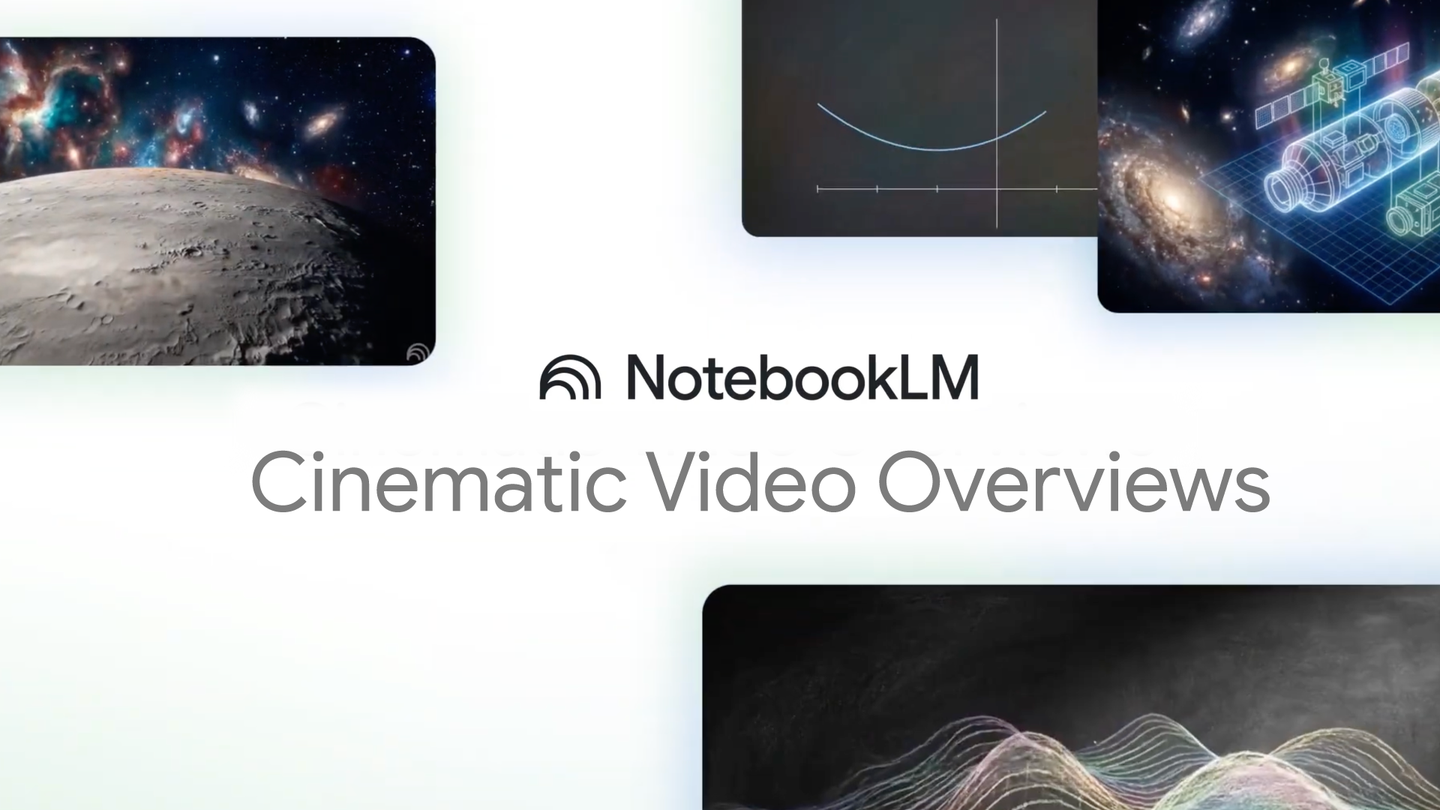
NotebookLM has just taken a giant leap forward, fully entering the realm of AI-generated video . Google has enhanced its research assistant so that it can not only summarize documents or create scripts, but also produce complete videos, with animations and carefully crafted narratives , practically with a single click.
The new feature is called Cinematic Video Overviews and takes the idea of NotebookLM video presentations far beyond simple narrated slides. We're talking about immersive audiovisual explanations that blend the best of several Google AI models to transform notes, PDFs, links, or even YouTube videos into visual pieces that can be understood in one sitting.
What is Cinematic Video Overviews in NotebookLM and why does it matter?
With Cinematic Video Overviews, NotebookLM moves beyond simply generating presentation-style videos to producing more dynamic , cinematic pieces designed to explain complex topics visually and engagingly. The AI no longer merely reads slides; it now acts as a creative director, deciding the pacing, style, and structure of the video based on your sources.
Google combines several of its most advanced models— Gemini 3 , Veo 3, and Nano Banana Pro —to work together within NotebookLM. This orchestra of AIs analyzes documents, generates scripts, designs animations, and integrates visual resources in minutes, without requiring any video editing skills or professional editing software.
The new feature is called Cinematic Video Overviews and takes the idea of NotebookLM video presentations far beyond simple narrated slides. We're talking about immersive audiovisual explanations that blend the best of several Google AI models to transform notes, PDFs, links, or even YouTube videos into visual pieces that can be understood in one sitting.
In practice, this means that both students and professionals can transform reports, classwork, or technical notes into high-level explanatory videos. It's especially useful for those who need to present ideas in class, meetings, or on internal networks without time to prepare slides by hand.
Currently, Cinematic Video Overviews are only available in English and to Google AI Ultra subscribers over 18 years of age , both on the web and mobile versions (with some limitations in the app). Google has already hinted that the plan is to expand support to more languages—including Spanish—and less powerful versions of its AI in the future.
How the combination of Gemini 3, Veo 3 and Nano Banana Pro works
The key to Cinematic Video Overviews lies in how Google's different models divide the work. Each one focuses on a part of the process so that the final result is a coherent, engaging video that is relatively quick to generate.
On one hand, Gemini 3 acts as the brain and scriptwriter . This model analyzes all the sources you've uploaded to your NotebookLM notebook (PDFs, Google Docs, pasted text, websites, YouTube videos, audio, etc.) and is responsible for understanding the context, organizing the information, and proposing a clear narrative . It decides what is explained first, what is omitted, and how the ideas are linked.
Based on this script, Veo 3 comes into play , handling the visual aspects . This model generates the animations, illustrations, transitions, and multimedia resources that shape the video. Its goal is to provide you with more than just a voice reading text on screen; it offers a series of scenes that help you "see" what's happening in your sources.
Finally, Nano Banana Pro focuses on optimization . Its role is to ensure that the video is generated quickly , is compatible with different devices, and doesn't involve excessively long waiting times . It adjusts the content so that the process is efficient and the resulting file plays well on both web and mobile devices.
This entire process is orchestrated by Gemini, which functions as a virtual film director : it makes hundreds of structural and stylistic decisions about duration, tone, storytelling, and visual coherence, and can even correct itself if it detects that something doesn't fit with the rest of the video.
How to create a video overview in NotebookLM step by step
Beyond the cinematic aspect, NotebookLM maintains the core concept of Video Overviews as visual summaries . Using your sources, it creates a video that condenses the content into an easy-to-view format, ideal for reviewing before an exam or preparing for a meeting.
The process always starts with a notebook. First, you need to open an existing notebook or create a new one , and upload all the sources you want to use: documents, PDFs, links, transcripts, or raw footage. To create or delete a Video Overview, you must have editing permissions for that notebook.
Once you have uploaded your material, in the "Studio" panel you will see the "Video Overview" option . Selecting it will start the generation process in NotebookLM. Before clicking the create button, you can decide whether to leave everything with the default settings or customize the video (format, language, visual style, additional instructions, etc.).
Once you've finished adjusting the settings, simply click "Generate" to let the magic begin. The video is generated in the background: you can continue working on other projects, switch screens, or even close the tab and return to the notebook later to see the result.
However, it's important to keep two things in mind: the Video Overviews, both the voices and the images, are AI-generated content and may have errors or minor audio glitches; and, in addition, the process can sometimes take quite a while, even more than 30 minutes , especially in notebooks with many sources or very complex topics.
Customization: format, language, visual style, and instructions
One of NotebookLM's strongest points is its ability to adjust the video type to suit your needs at any given time. You don't always want a "cinematic" production; sometimes a short summary is enough to review the key concepts.
As for the format, you have several options. The most advanced is the "Cinematic" mode , reserved for Ultra users over 18 years of age and, for now, only available in English. This format offers a rich and immersive experience that relies on narrative and visual staging to break down complex ideas.
If you don't need as much visual flair, you can choose the "Explainer" format . Here, the focus is on providing a structured explanation that clearly connects the dots between your sources. It's ideal for more formal presentations, classes, technical reports, or content where clarity is paramount.
And when you're short on time, there's always the "Brief" option , which generates a short video, almost like a trailer for the document. It's useful for grasping the essentials of the text without spending too much time watching it, which is very helpful for deciding whether or not you want to delve deeper into the material.
In addition to the format, NotebookLM lets you choose the narration language . You can generate Video Overviews in over 80 languages, and the platform defaults to your preferred Google account language, although you can always change it in the "Output Language" settings or when generating a specific video.
Visually, for most adult users (with the exception of Cinematic Video Overviews), there are several predefined aesthetics : from more understated styles like Classic or Whiteboard to creative options like Watercolor, Retro Print, Heritage, Papercraft, Kawaii, or Anime. You can also let NotebookLM choose automatically or define a "Custom" style by writing a description so the AI can generate a look that matches your preferences.
Finally, there's the "Steering Prompt ," a kind of direction note where you tell NotebookLM what to focus on: specific topics, particular sources, a target audience, a more formal or informal tone, and so on. This helps the video get straight to the point instead of trying to cover everything in a general way.
Playback controls, management, and ways to share the video
Once the Video Overview is ready, you can play it directly from the Studio panel in your notebook . Simply select the title of the video you generated earlier, open the player, and press the play button, just as you would with any other media.
During playback, NotebookLM lets you adjust the playback speed to go faster or slower as needed. You can also fast-forward or rewind using the progress bar or with "rewind" and "skip forward" shortcuts to jump to other parts of the video without having to watch it all again.
If you prefer to view it on a larger screen, the player includes a full-screen mode option . This makes it easier to follow explanations with many visual details, especially when the video contains a lot of graphics or animations generated by Veo 3.
NotebookLM also incorporates a quick feedback system for video quality . Within the player itself, you'll see "good video" or "bad video" buttons to indicate whether you found the result useful or if there's room for improvement. This information helps Google refine the behavior of its models.
Regarding sharing, there are three main ways. The first is to send a direct link to the video : generate the Video Overview, click "Share" within the player, ensure the notebook is shared (public or accessible to the recipient), and copy the URL. It's important that the recipient has access to the full notebook and not just the chat-only mode.
The second option is to share the entire NotebookLM notebook . By doing so, anyone with access will be able to view the Video Overview from the Studio panel, along with all other generated artifacts (summaries, scripts, timelines, etc.). This way, you share not only the video, but the entire ecosystem of resources associated with those sources.
The third option is to download the video as a file and send it wherever you want: by email, messaging, corporate environments, or internal social networks. Just click "Download" and then share the file saved on your device.
There's an important distinction: public sharing is only available for consumer accounts . In Workspace Enterprise or Education environments, this feature is currently disabled, so in those cases, you'll have to share the notebook internally or download the video as a file. Furthermore, if you delete a Video Overview, any public links that were generated will automatically stop working.
NotebookLM as a research assistant without “hallucinations”
Beyond its visual appeal, NotebookLM remains first and foremost a personalized research assistant . Its philosophy is very clear: it feeds exclusively on the sources you provide, drastically reducing the risk of the AI "making up" information that doesn't exist in your documents.
When you create a notebook, you can upload dozens of different sources per project : from PDFs and Google Docs to copied and pasted text, web pages, YouTube videos, or even audio files. From there, the AI processes all that material and becomes a kind of super-specialized expert on your own notes.
This allows you to ask complex and highly specific questions about your documents, request summaries, ask for comparisons between sources, or cross-reference data across multiple files—all in a matter of seconds. NotebookLM also always displays the citation and exact page number for each answer, which is crucial for academic and professional work.
Once your sources are uploaded, you don't just ask questions: you can request that AI generate essays, outlines, timelines, glossaries , or even convert a technical manual into a FAQ guide for a support team. All of this information can then be transformed into videos, closing the loop between text and audiovisual content.
Among the most striking features is "Audio Overview ," a mode in which NotebookLM takes dense documents and transforms them into a kind of impromptu podcast between two virtual presenters . They comment on, joke about, and explain the content in a natural, conversational tone, perfect for reviewing material while doing something else.
Editing presentations and exporting to PowerPoint
NotebookLM not only creates new content; it also allows you to edit existing content . For example, with presentations, you can edit a specific slide by selecting it and typing in the changes you want to make, without having to recreate the entire presentation from scratch.
This editing capability fits perfectly with the typical workflow of students and professionals: you generate a first version with the AI, review what doesn't work, and adjust the key points or tone until the presentation is exactly how you want it. In this way, the AI acts as a starting point, not a complete replacement.
Furthermore, the platform includes a very practical option: exporting to PPX format , compatible with PowerPoint. This makes it easy to create your content in NotebookLM, take advantage of its automatic summaries and structures, and then refine the details in PowerPoint if your academic or professional environment requires it.
For those who work in companies or organizations where PowerPoint is still the standard, this export capability eliminates a lot of friction. You can prepare complex materials in NotebookLM and then seamlessly share them in meetings, virtual classrooms, or internal platforms without having to redo anything manually.
Gemini 3.1 Flash-Lite: Fast and inexpensive AI for high volumes
Alongside the NotebookLM updates, Google has unveiled Gemini 3.1 Flash-Lite , a variant of its AI model designed for those who need speed and affordability without sacrificing reasonable response quality. This version is still in preview, but it aims to become a key tool for developers.
Flash Lite is designed to handle large amounts of data with very low response times . According to Google, it can be up to 2,5 times faster than the previous version, Flash 2.5, and in many cases maintains—or even improves—response quality, despite being designed to be lightweight.
One of its distinguishing features is that it allows developers to regulate the level of computational effort based on the difficulty of each task. In other words, it's possible to fine-tune how much computing power is dedicated to a specific request, thus optimizing cost and performance for each use case.
From an economic standpoint, Flash-Lite is particularly attractive: its price is roughly half that of its predecessor , with a fee of around $0,25 per million tokens invested and $1,50 per million tokens sold . This opens the door for more companies and developers to integrate generative AI at scale without an exorbitant budget.
Although Flash-Lite isn't directly tied to Cinematic Video Overviews, it's part of the same Google movement: to offer more efficient, scalable, and accessible AI tools so that applications like NotebookLM can continue to grow in features without costs skyrocketing.
Taken together, NotebookLM and new capabilities such as Cinematic Video Overviews , Audio Overviews, export to PowerPoint, and the push for models like Gemini 3, Veo 3, Nano Banana Pro, and Flash-Lite point to a scenario where creating rich, audiovisual, and reliable explanations from your own documents will be as commonplace as writing an email or preparing a few quick slides.


Passionate writer about the world of bytes and technology in general. I love sharing my knowledge through writing, and that's what I'll do on this blog, show you all the most interesting things about gadgets, software, hardware, tech trends, and more. My goal is to help you navigate the digital world in a simple and entertaining way.