- Full visibility into connections: states, ports, and PIDs for diagnostics and security.
- Statistics and routes: counters per protocol, interfaces and routing table.
- Conflict detection: filtering with findstr and cases such as ArcGIS Server.
If you've ever wondered what connections your PC is opening, which ports are in use, or why your network is choppy, the netstat command is your direct ally from the command prompt . This command -line utility has existed since the 90s in Unix and is also available in Microsoft Windows , and it offers a valuable snapshot of what's happening at the socket level, routing tables, and network statistics.
Although netstat lacks a graphical interface and may seem complex at first, with a few well-chosen options it can quickly detect intrusions, port conflicts, bottlenecks, suspicious processes, and network layer errors. Furthermore, its integration with Windows, Linux , and macOS makes it a universal tool that requires no installation.
What is netstat and why it deserves a place in your toolbox?
Netstat stands for Network Statistics and, as the name suggests, displays statistics and statuses related to your connections and protocols. You can see open (listening) ports, established and closed connections, local and remote addresses, and even the process ID (PID) behind each socket in Windows.
Its practical utility is enormous for administration and security: discovering services that should not be active, identifying malware that waits for a port to open, analyzing routes and routing metrics, or reviewing error counters that reveal physical or logical failures in the network.
The tool is available on Windows, Linux, Unix, and macOS, and although in modern environments some of its use has shifted to PowerShell or dedicated utilities, it remains a fast and ubiquitous command that resolves queries in seconds. If you prefer a visual approach, you can use alternatives like TCPView on Windows to display the same information graphically.
Tip for clean measurements: close applications that generate traffic and, if possible, restart your computer and open only the essentials before running netstat to avoid noise in the data and facilitate analysis.
Impact on performance and best practices for use
Running netstat occasionally doesn't degrade system performance, but excessive refreshes and verbose output can increase CPU and memory usage, especially with thousands of connections. The cost comes from enumerating sockets, resolving names, and aggregating statistics.
Recommendations to minimize impact: limit use to diagnostic moments, filter with specific parameters (for example, -n to not resolve names, -p for a protocol), avoid very fast execution loops and consider specialized tools if you need more granular continuous monitoring.
In corporate environments, it is advisable that the execution of netstat be documented and carried out after assessing the need, since the time spent on indiscriminate inspections can translate into operational costs without a clear return.
How to use netstat in Windows (CMD and Terminal)
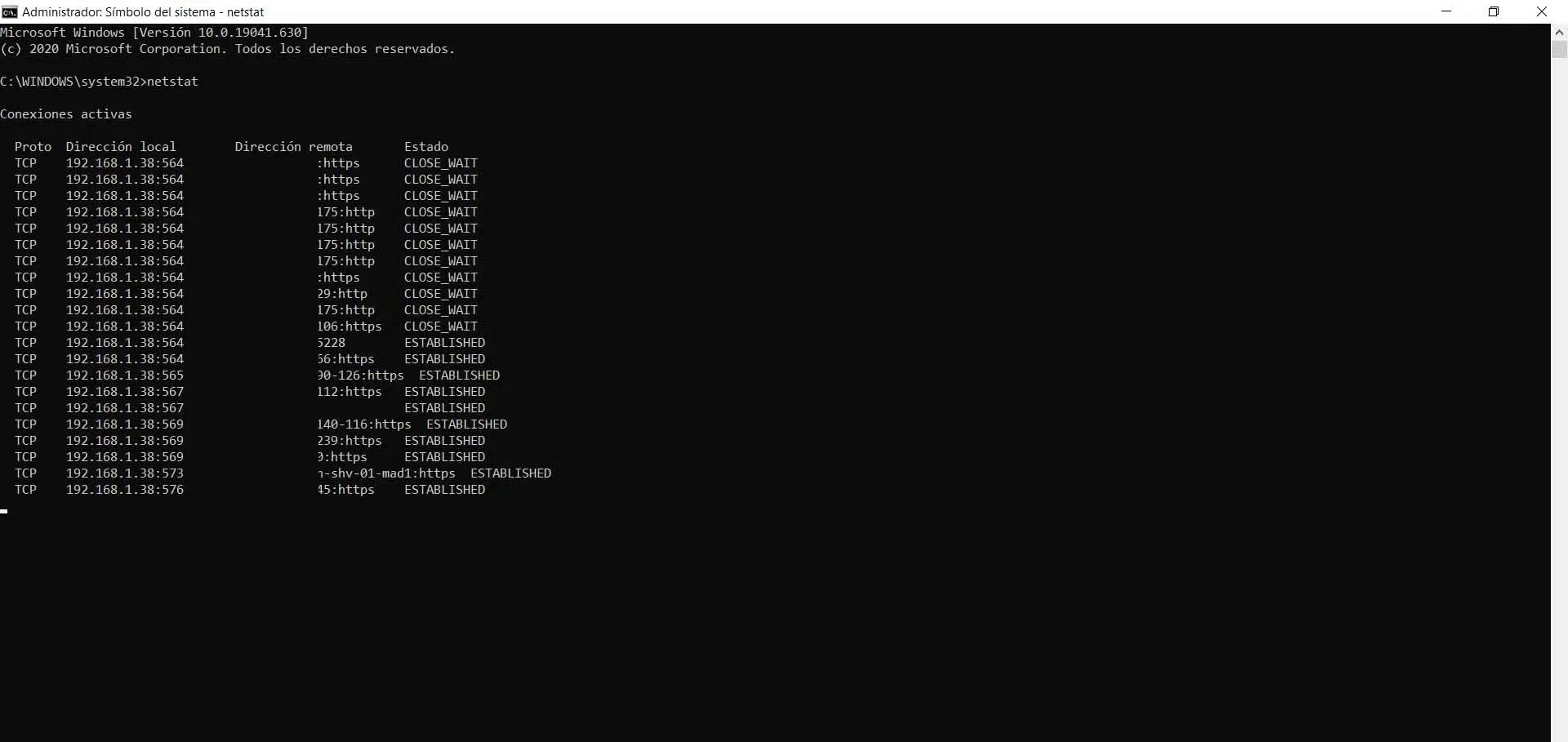
In Windows you can open netstat from CMD or from the Terminal (Windows 10/11) with administrator privileges to see all available information, including PID and full name resolution when necessary.
Start by typing netstat and pressing Enter to see a snapshot of active connections, listing columns such as Proto (TCP/UDP), Local Address, Remote Address, and State (LISTENING, ESTABLISHED, TIME_WAIT, CLOSE_WAIT, etc.).
General syntax
The standard method in Windows follows this pattern: netstat. You can combine parameters; if you include an interval in seconds, the output is refreshed every X seconds.
Useful notes: -n displays everything in numeric format (faster by avoiding DNS), -o adds the PID, -p filters by protocol (TCP, UDP, TCPv6 or UDPv6) and -f displays fully qualified domain names (FQDNs) when possible.
How to read the output
The State column is key: LISTENING indicates open ports waiting for connections; ESTABLISHED are active connections; TIME_WAIT and CLOSE_WAIT reflect closing phases in TCP; there are no states in UDP because it is connectionless.
The Local Address shows the IP address and port of the device, and the Foreign Address shows the remote endpoint, which with -f can include the FQDN for easier tracing. With -n you will always see numbers (faster and less ambiguous).
Common netstat parameters and options
-a: lists all listening connections and ports, useful for discovering active services and sockets waiting for clients.
-e: Interface statistics (bytes, packets, discards, errors). It's a quick look at the traffic and potential RX/TX anomalies.
-f: attempts to display the fully qualified domain name (FQDN) for remote addresses, very useful when investigating unknown destinations.
-n: unresolved DNS numeric output; speeds up execution and avoids confusion in diagnostics.
-o: Adds the PID of the process associated with each connection in Windows, the piece you need to cross-reference with the Task Manager or tasklist.
-p Protocol: filters by TCP, UDP, TCPv6 or UDPv6. On Windows, the protocol name is used (for example, netstat -p TCP), not "IP".
-q: Shows bound listening and non-listening ports, useful for reviewing socket associations.
-s: statistics grouped by protocol (IPv4, IPv6, TCP, UDP, ICMP), with packet counters, errors and retransmissions.
-r: exposes the routing table and the list of interfaces, essential for validating the default gateway and active routes.
-t: Displays timer/download information on connections (support and semantics may vary by system).
-x: details NetworkDirect connections when they are present, relevant in specific environments.
: adds periodic refresh, for example, netstat -n 7 to update every 7 seconds; use it sparingly to avoid overloading the system.
Practical step-by-step examples
The best thing about netstat is that each switch answers a specific, everyday question about networking and security. Here are some uses that cover everything from the basics to more advanced investigations.
Open ports and associated processes
To see at a glance what is listening, what connections exist and what process sustains them, use netstat -ano, which combines numeric and PID output.
With the PID in hand, open Task Manager (Details tab) or use tasklist to identify the executable, and thus confirm whether it is a legitimate service or something suspicious.
Filter by state with findstr
If you only want established connections, you can chain with findstr: netstat | findstr ESTABLISHEDTo see listening sockets, change the term to LISTENING, and for closings, use CLOSE_WAIT or TIME_WAIT.
This quick filtering lets you focus on what matters without drowning in lines, especially useful on teams with many simultaneous browsers, clients, and services.
Just a protocol
To list only TCP on Windows, run: netstat -p TCP -anoIf you are interested in UDP, replace the protocol. This way you reduce noise and speed up the analysis.
In some guides you will see "-p IP" for IPv4, but in Windows the parameter expects TCP/UDP (or its v6 variants), while in Linux there are other switches for similar roles.
Statistics by protocol and interfaces
To detect losses, dropped packets, retransmissions or strange spikes, run netstat -s and check IPv4/IPv6, TCP, UDP and ICMP counters.
If you want to see statistics per interface (bytes, packets, errors), netstat -e It gives you a clear summary that helps evaluate traffic direction and link quality.
Routing Table and Remote FQDN
With netstat -r you check the default route, active routes and available interfaces, very useful if Internet access fails or internal routes do not arrive.
To research destinations, netstat -f will attempt to resolve the FQDN of the remote host; you can tune with view open ports in Windows or use netstat -f | findstr "amazonaws.com".
Security and Diagnostics: How to Detect Suspicious Behavior or Bottlenecks
Netstat -ano is used to detect unusual connections and unfamiliar processes by cross-referencing the PID with the executable in Task Manager or with tools like TCPView. If you discover an unknown remote destination, investigate it before taking any action.
If you detect suspicious remote IPs, you can expand with netstat -aof to see FQDN and PID, and then block the suspicious IP address in Windows Firewall while running an antivirus/EDR. In serious cases, temporarily disconnect the computer from the network.

To monitor in "almost" real time without external tools, uses netstat -n 5 to refresh every 5 seconds; remember that it's not intended as a continuous monitor, and if you need it, consider specialized solutions.
Bottlenecks can arise from the accumulation of connections in waiting states or from error counters in -s y -e, which points to congestion, wiring problems or driversIf you see a lot of “Retransmitted Segments” in TCP, keep an eye on latency and loss.
Checking for port conflicts: ArcGIS Server case
Before deploying services that require specific ports (such as ArcGIS Server), it is advisable to verify that those ports are free and not listening to other processes.
A handy command is to chain netstat with findstr to search for specific ports in LISTENING: netstat -ao | findstr "LISTENING" | findstr "4000 4001 4002 4003 6080 6443".
If any port appears to be in use, note the PID (right column), go to Task Manager > Details and locate the process; if it belongs to ArcGIS itself (for example, javaw.exe with the service user), there is no conflict; if not, reconfigure the service or reassign the port.
Keep in mind that a firewall, antivirus, or perimeter security system can block ports regardless of whether the local system has them free, so also check your network policies.
Other useful network commands in Windows
Netstat isn't alone: combining it with other system commands greatly increases its diagnostic value. Here are the essential ones to keep in mind.
- ipconfig: displays IP configuration, mask, gateway and allows DHCP renewal; base to know where you are coming from and where you are aiming.
- ping: Checks range and latency to a host; useful for confirming connectivity and measuring round-trip times.
- tracert: It exposes the hop route to a destination, which is key to locating where traffic is cut off or where delays increase.
- pathping: combines ping and tracert with hop loss metrics, very useful although slower in execution.
- getmac: reveals the address MAC, necessary for controls by filtering or inventorying hardware.
- nslookup: Check DNS resolutions (domain <-> IP), essential if you see names that don't resolve or unexpected mappings.
- netsh: the network shell to configure everything from Wi-Fi profiles to firewall rules, very powerful if you need to change stack or firewall parameters.


Passionate writer about the world of bytes and technology in general. I love sharing my knowledge through writing, and that's what I'll do on this blog, show you all the most interesting things about gadgets, software, hardware, tech trends, and more. My goal is to help you navigate the digital world in a simple and entertaining way.