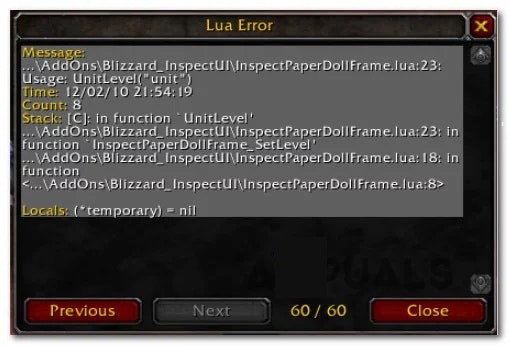
Some World of Warcraft users report regularly seeing a Lua Error pop-up window when launching the game, stating that some installed add-ons are not functioning correctly. This issue has been confirmed to occur on Windows 7, Windows 8.1, and Windows 10.
What is LUA?
Before we get to the causes and fixes regarding this LUA pop-up error, it is important to understand what exactly LUA is and how it is used within Word of Warcraft.
Lua is a scripting-based programming language that adds modularity to programs through embedding. It is the preferred programming language used by community modders to create custom content for World of Warcraft.
After researching this particular issue thoroughly, it turns out that there are several different causes that can cause this error to occur. Here is a list of the possible culprits that could be responsible for this error:
- Plugin or interface failure– In most cases, a LUA error will occur if you are dealing with a corrupted plugin or interface file caused by poorly written or outdated code. In this case, the solution ranges from reloading the interface file to updating the mode version to a newer version.
- Corrupt files from the plugin manager: If a simple reload didn't fix the problem for you, the other thing you can do is try resetting the Wow interface completely to clear out the corrupted Add-on Manager files.
- Remaining custom console variables: It turns out that you can also expect to see these kinds of issues if you're still launching games with some custom console variables meant to accommodate an add-on that's no longer installed. In this case, clearing the custom variables may prevent the error from appearing again.
- Outdated/incompatible plugin is installed: Another cause that can cause this problem to appear is an add-on that is no longer supported by the original developer. In this case, you can eliminate the error completely by uninstalling the problematic update or disabling error pop-ups altogether.
How to fix LUA error in Windows
Now that you know what the potential culprits are that could be causing this LUA error code, here is a list of verified fixes that other affected users have successfully implemented to resolve these annoying LUA pop-up errors:
1.- Reloading the interface
If the problem is caused by a glitch or a situation where not all additional items are loaded along with the base WOW game, you can fix the problem by forcing the game to reload the main game interface using a console command.
This issue has been confirmed by many users who previously received the ' LUA Error ' every time they launched the game. Please note that this error is not necessarily a symptom of an underlying problem causing the error to occur.
The error is most likely due to some of the add-on's code being outdated and no longer fully integrated with the base game.
In most cases, you can make the error message go away completely by reloading the WoW UI using the built-in game console.
To reload the WoW interface, simply open the chatbox, type the following command and press Enter to apply it: /reload
Note: This method may not work with the latest versions of WoW if the attached command is protected, but it should work with the vanilla version of World of Warcraft.
If you've already tried this solution and you're still getting the same LUA error, continue with the next solution below.
2.- Reset the Wow interface and uninstall the add-on manager
When a simple reload does not fix the LUA error popup in the interface, the next step you should take is to reset the WOW interface completely to clear any remaining code left by a previously uninstalled plugin or by your plugin manager.
While you're doing this, it's important to also uninstall the add-on manager you're currently using and delete any add-on files located in the 3 main Word of Warcraft directories that might be currently stored.
Follow these simple instructions below to reset the Wow UI and remove the LUA error message:
- First things first, start by closing Word of Warcraft and the launcher you use to start the game.
- Then press the Windows key + R to open a dialog box Run. Within this box called Run, you must write the following command: Cpl and press the key Log in to open the menu Programs and Features.
Note: If User Account Control ( UAC ) prompts you, you must click on the word Yes; this will grant administrator access.
- Then, inside the menu Programs and Features, you will scroll down through the list of installed applications and you will need to locate your WOW Add-on Manager, most commonly known as Ajour, CurseBreaker, InstaWoW, WowUp or Overwolf.
- Once you manage to locate the entry associated with your active WOW Addons Manager, you have to proceed to right-click on it and select the option that says uninstall in the context menu that just appeared.
- Within the uninstallation screen, you must follow each of the instructions on the screen to complete the uninstallation process. Once the operation is complete, you must restart your computer and wait for the next startup to complete.
Once your computer restarts, you should navigate to the location where you installed World of Warcraft. Unless you installed the game to a custom location, you'll find it within one of the following locations:
- C: Program Files / (x86) World of Warcraft
- C: Program Files / World of Warcraft
- C: Users [username] PublicGames / World of Warcraft
Note: If you can't remember the custom location where you installed the game, you need to right-click on the shortcut you use to launch the game and click on Open file location in the context menu that just appeared.
- Inside the Word of Warcraft folder, click on the version of the game in which you are experiencing LUA errors.
Next, go ahead and rename the Cache, Interface , and WTF folders as follows:
- Cache: Cache_Old
- Interface: Interface_Old
- WTF: WTF_Old
Note: This is important because it will force the game to create new equivalent folders for these three locations. And if this doesn't solve the problem, you can always go back and remove the _old extension to reload the old plugin files.
- Please launch World of Warcraft again and check if the issue is now resolved.
If the same issue persists after uninstalling the WOW Add-on Manager and avoiding interference with old add-on files, please continue to the next potential solution below.
3.- Resetting WOW console variables
If reloading or resetting the main WOW interface was not effective for you, you should proceed by resetting all WOW console variables that are currently in use.
This will be effective in those situations where you previously installed and ran multiple plugins with different parameters that might have ended up conflicting with each other.
Many users who encounter LUA errors when launching World of Warcraft have confirmed that the problem was resolved after running a series of commands within the game's chatbox designed to reset each custom variable and enforce the default variables once again.
Here is a quick guide on how to do this:
Important: Before starting this operation, understand that if you are currently running multiple plugins, resetting the console variables will also remove all plugins. This might not be a desirable outcome if you don't want to be forced to reinstall everything.
Once again you need to open World of Warcraft and locate the in-game chatbox menu once you reach the home screen.
Type the following commands in order and press Enter after each one to effectively reset any previously set WOW custom variables:
- / Console Cvar_reset
- / console cvar_default
Note: If you receive a permission error after applying these two commands, ignore it, as it is perfectly normal.
- Restart the game and check if the LUA error is resolved.
4.- Uninstall the Cartographer plugin (or other outdated plugins)
It turns out that you can also expect to see this error code if you're trying to launch the game with an outdated add-on that's no longer compatible with your version of the game.
This is very common with the Cartographer plugin and a few others that have stopped receiving support from their developers. The instructions for uninstalling these problematic plugins will differ depending on which plugin launcher you are using.
If you are not currently using Cartographer Mode and have no idea which of your installed mods is causing the problem, our recommendation is to uninstall each plugin before adding them again (one by one) to find out which one is causing the LUA error.
In any case, once you manage to uninstall the outdated mod, restart your game and see if the problem is gone for good. If none of the fixes so far have worked, continue with the final potential fix below.
5.- Disable LUA error messages
If you'd rather hide errors than figure out their root cause, you can simply enter a command to stop them from appearing every time you launch Word of Warcraft.
Of course, this won't fix the root cause of the problem, it will only prevent the error prompts from appearing. This is sufficient if you can still use the plugins without any underlying issues.
Here is a quick step-by-step guide that will allow you to disable LUA error prompts from appearing when you launch World of Warcraft:
- Open World of Warcraft and close the error pop-up when it appears on the screen.
Next, open the chat box and type the following command, then press Enter to effectively prevent LUA errors from reappearing on the screen:
- / console scriptErrors 0
Restart World of Warcraft and you should no longer see any LUA pop-up errors on the screen.
Note: If you ever wish to re-enable pop-up errors, simply type the following command within the console script /consoleErrors 1.
I hope these simple methods will help you fix the annoying LUA error in Word of Warcraft forever. If you have any other potential solutions for this error, feel free to share them with us in our comments section. Also, remember that we have a wide variety of technological information for you on our portal, so you can visit us whenever you like. See you in our next post.

My name is Javier Chirinos and I am passionate about technology. Ever since I can remember, I have been interested in computers and video games, and that passion has turned into a job.
I have been publishing about technology and gadgets on the Internet for over 15 years, especially in mundobytes.com
I am also an expert in online marketing and communication and have knowledge in WordPress development.