
Cybercriminals and malicious scammers often find ways to disguise their schemes as legitimate and trustworthy. A prime example of this is the FastSupport malware . The actual application is completely legitimate, distributed by LogMeln Inc., and uses the GoToAssist toolset to provide remote customer support.
While technicians often use the application itself to assist those needing IT support, scammers and malware developers have hijacked it and created dangerous infections. Granting remote access to the wrong person can result in your data being stolen, and in some cases, they may also scam you out of your money.
So, what can you do to remove FastSupport malware and avoid software scams? Read on to find out.
What is FastSupport.com?
The website FastSupport.com is completely legitimate and is used by professionals to connect to your computer and provide remote support. However, it has its own dangers, as malicious users often attempt to connect to your device to steal your information or carry out a tech support scam.
These scammers often impersonate technicians from large companies, such as Microsoft or Amazon , and carry out various scams. Some examples include refund scams, antivirus scams, and order cancellation scams.
Beyond using legitimate software to scam unsuspecting users, hackers can also create a fake FastSupport website and trick you into downloading malware. Unfortunately, malicious people can create near-perfect clones of legitimate websites and trick you into downloading suspicious software or entering sensitive data.
How to remove FastSupport.com malware
Below we will show you some methods that can help you perfectly to eliminate the Fastsupport malware:
Method 1. Turn off notifications for your browser
One of the most common ways FastSupport.com malware exploits a browser is by enabling notifications. This can disrupt you at a system level, depending on your settings. Fortunately, it's fairly easy to remove notifications from a browser, even if you've already approved them.
Disable notifications in Google Chrome
- Type the following link into your address bar: chrome://settings/content/Notifications.
- Check the allowed notifications. If you see anything out of the ordinary, click on the icon More Actions (shown by three dots arranged vertically) and choose
- Block all notifications you don't recognize. Usually, websites with strange addresses tend to be adware notifications.
Disable notifications in Firefox
- Click the menu button and then select the Options in the context menu.
- Choose Privacy & Security in the panel on the left side of the window. Scroll down to Permissions and click on the button Configuration along with Notifications.
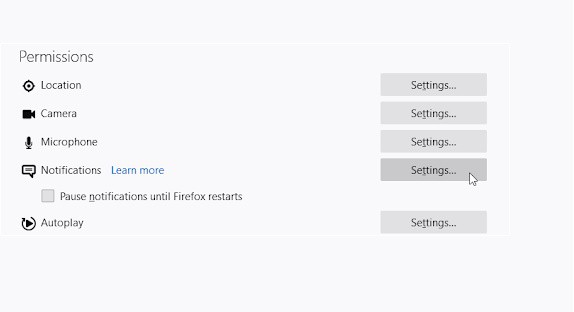
- Check your allowed notifications. If you see anything out of the ordinary, open the drop-down menu and choose Block.
- Click the button Save Changes after removing all unwanted notifications and suspicious websites.
Disable notifications in Safari
- Open a Safari window and then choose safari → Preferences using the top menu bar of your Mac.
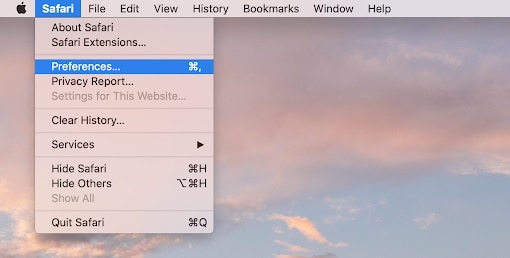
- Switch to the tab Websites, then select Notifications in the menu on the left side.
- Choose the website notifications you want to disable. Block all notifications you don't recognize. Usually, websites with strange addresses tend to be adware notifications.
Disable notifications in Microsoft Edge
- Click on the icon Settings and more at the top right of the window and then select Configuration in the context menu.
- Switch to the tab Cookies and site permissions, then click Notifications.
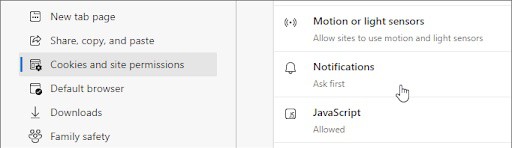
- Check the allowed notifications. If you see anything out of the ordinary, click the More actions icon (shown by three dots arranged horizontally) and choose Block.
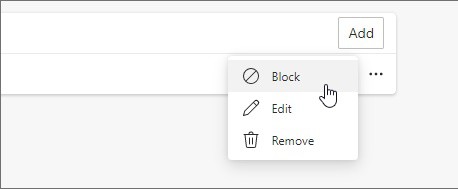
- Block all notifications you don't recognize. Usually, websites with strange addresses tend to be adware notifications.
Disable notifications in Opera
- Type the following link into the address bar: opera://settings/content/notifications
- Check the allowed notifications and block anything suspicious that you haven't enabled. To do so, click on More Actions (3 vertical dots) and select Block in the context menu.
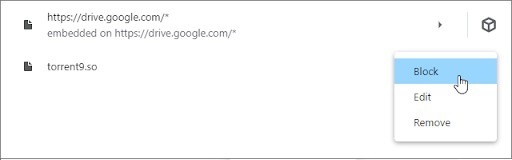
- Block all notifications you don't recognize. Usually, websites with strange addresses tend to be adware notifications.
Method 2. Remove suspicious extensions from your browser
Some browser extensions can be malicious, causing fraudulent ads to be displayed all over your browser and even on the websites you visit. To make sure all your extensions are trustworthy, follow the methods below and remove anything that raises your suspicions.
Remove extensions in Google Chrome
- En Google Chrome, you must click on the icon More (shown by three dots arranged vertically) and choose More tools → Extensions.
- Alternatively, you can access the Extensions page by typing chrome://extensions in the address bar.
- See if you notice any suspicious extensions. For example, extensions you don't recognize or those that look sketchy and come from an unknown company.
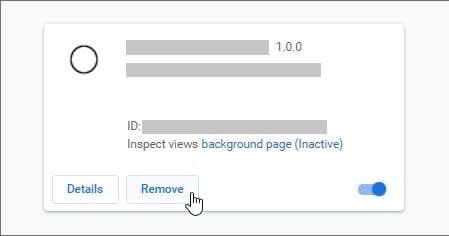
- To uninstall extensions that you do not want to keep on your device, click the button Delete.
Remove extensions in Firefox
- In Mozilla Firefox, you have to click on the menu button and then select Plugins and Themes in the context menu.
- Switch to the tab Here, you need to check if you notice any suspicious extensions. For example, extensions you don't recognize or those that seem incomplete and come from an unknown company.
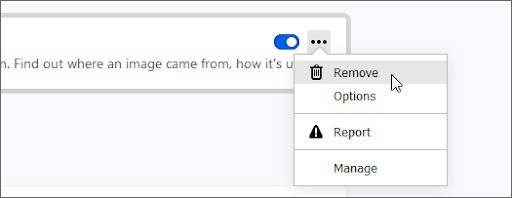
- To uninstall extensions that you do not want to keep on your device, click the button More Actions and select Delete in the context menu.
Remove Extensions in Safari
- Open a Safari window and then choose safari → Preferences using the top menu bar on your Mac.
- Switch to the tab Extensions and select the extension you want to remove. Click the button uninstall to remove it from your Mac.
- We recommend removing any extensions that you don't recognize or that you know you didn't install manually.
Remove extensions in Microsoft Edge
- En Microsoft Edge, type the following link in the address bar: edge://extensions/
- Find any extension you want to uninstall and then click the button
- Make sure to remove all suspicious extensions. For example, extensions you don't recognize or those that look sketchy and come from an unknown company.
Remove extensions in Opera
- In Opera, you have to click on the main menu near the top left corner and then navigate to Extensions →
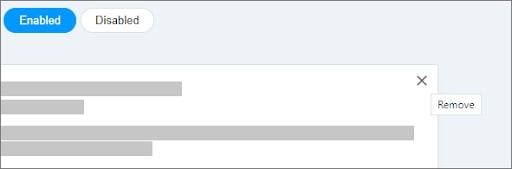
- Look for any suspicious extensions you want to uninstall. Then click the button X near the top right corner to uninstall it.
Method 3. Run an antivirus scan
There are tons of antivirus solutions that can help keep your device safe. Most premium apps have real-time threat detection, so you don't have to worry too much. However, if you don't have any, we recommend looking for some online deals or checking out this list we've prepared for you in this post.
For those seeking a free solution, we recommend Malwarebytes to scan and remove malware from your device. The guide below will describe the process of using an antivirus program to scan your computer.
- Launch the antivirus application.
- Select the option Scan and then click the button Start Scan to start a malware scan on your computer.
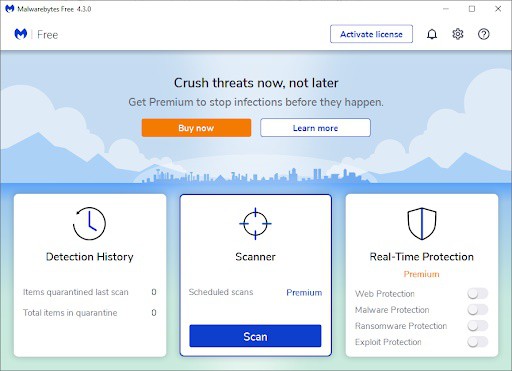
- Wait for the antivirus to finish scanning your PC for malware. If malicious files are found, you can neutralize them immediately by allowing the software to quarantine them.
- Optionally, allow the application to remove malicious files from your PC.
How to avoid falling for FastSupport malware scams
Here are some of our tips to help you stay safe and protected while using your computer and browsing the Internet. These tips can help you avoid a lot of scammers, hackers, and other cybercriminals.
1.- Always check the website URL.
Safe and legitimate websites will always have the correct URL. Many scammers try to exploit popular websites by creating clones that look identical except for a small difference in the URL.
For example, hackers may try to change 2 characters to create a typo-filled URL or use different website suffixes like “.org” or “.net” instead of the original “.com” domain. For example, notice the difference in the two websites below.
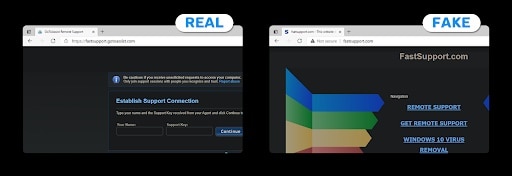
Another thing to keep in mind is the https:// indicator in the address bar. If a website is secure, it will have the https:// extension before the URL. Be careful with this, and be especially cautious if this extension is missing.
2.- Do not click on pop-up messages.
Some legitimate companies like Microsoft and Amazon never use pop-up messages to alert you about viruses or refunds. Their pop-ups also don't include phone numbers to call, as those numbers are available on their official support websites.
We strongly recommend that you never click on these messages or call the number listed in them and instead contact customer support directly from the official website. This way, even if there is a problem with your computer or account, you can get direct support from the company.
3.- Avoid suspicious phone calls
Certain legitimate companies like Microsoft and Amazon will never contact you over the phone unless you schedule a call yourself. If someone calls you and tells you something is wrong with your computer, hang up immediately unless the call has been scheduled in advance.
Always make sure you are speaking to a legitimate technician before giving out any information or allowing the caller to connect to your computer. Tech support agents will never call you first and will never need to ask for your social security number or other unrelated personal information.
If you do pick up a phone call, it's best to hang up and contact the official support team to ask if your device or account is at risk.
4.- Do not allow notifications from suspicious websites
Websites often try to force you to accept notifications to access their pages. This is most common with link shorteners, torrent sites, and other sources of illegal, pirated software. Even if you want to download something, never allow notifications from these sites.
I hope this guide has been very useful for you and that, with each of our tips, you will be able to successfully remove the FastSupport malware. If you liked this article, don't hesitate to share it. See you in a future post.

My name is Javier Chirinos and I am passionate about technology. Ever since I can remember, I have been interested in computers and video games, and that passion has turned into a job.
I have been publishing about technology and gadgets on the Internet for over 15 years, especially in mundobytes.com
I am also an expert in online marketing and communication and have knowledge in WordPress development.