
This tutorial contains step-by-step instructions for resolving the following issue: Left mouse click not working in Windows 10. When the left mouse click is not working, Windows Explorer freezes, or the user cannot see the left-click menu (also known as the "context menu") to perform various actions.
- (For example, to create a new folder or file, to open personalization settings, etc.)
The " left click not working " problem in Windows 10 can occur for several reasons. Therefore, in this guide you will find various methods to resolve this issue.
Reasons why left click no longer works:
In fact, this problem can be caused by several things. These are the following:
You might also be interested in reading about: Numeric Keypad Not Working. Causes. Solutions
- Problem with the mouse or touchpad driver.
- Damaged system files.
- Third-party programs and services.
- Incompatible drivers.
Otherwise, there may be other reasons . But these are the most common.
How to fix: Left click menu no longer works
Now that you know the causes, let's see what are the suggested solutions that can help you solve this problem:
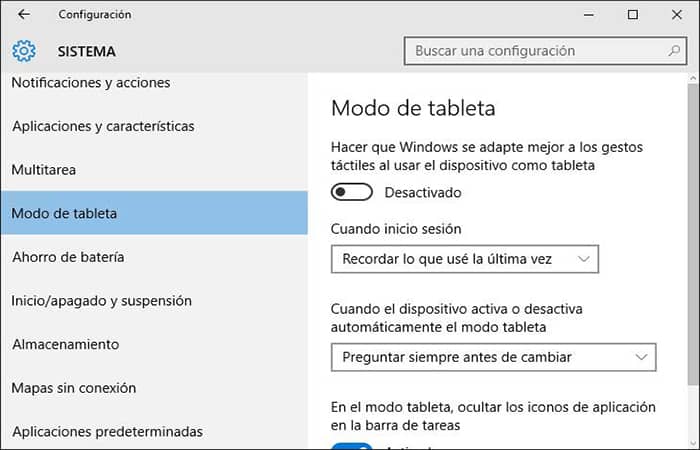
Method 1. Disable “Tablet” mode if left mouse click not working
- Step 1:: Click the Start menu and go to Configuration, then click System.
- Step 2:: Choose the tablet mode on the left.
- Step 3: In "login", Choose Use desktop mode.
- Step 4: In "This device automatically turns tablet mode on or off.", Choose "Don't ask me and don't change the way".
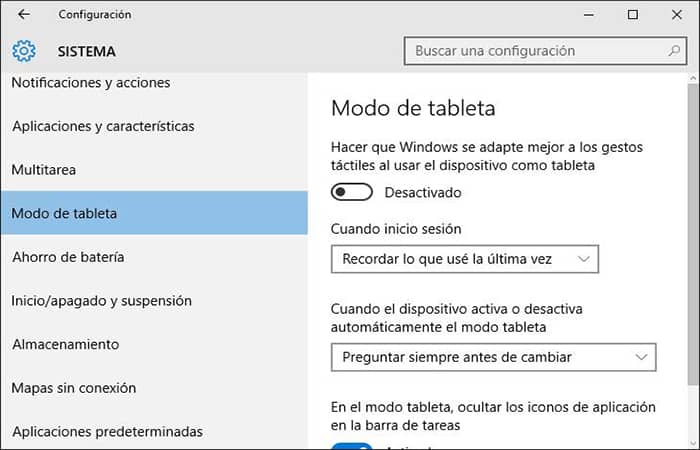
- Step 5:: Restart your computer.
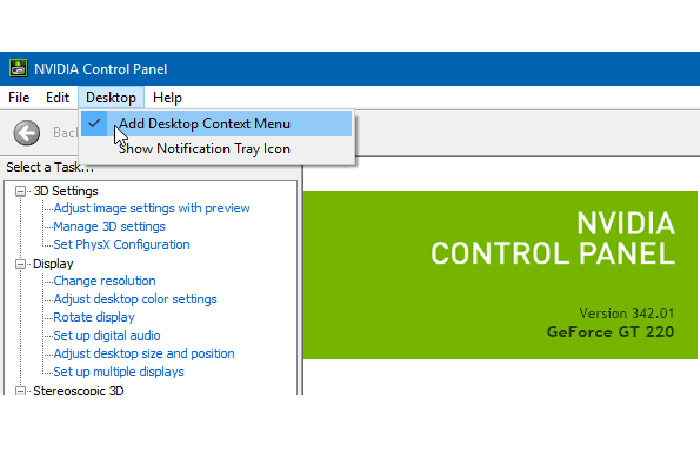
Method 2. Remove Intel and NVIDIA from context menu if left mouse click not working
The problem usually occurs on Windows 10 computers with an Intel or NVIDIA display adapter . In this case, proceed to remove the NVIDIA or Intel control panel options from the left-click context menu . To do this, follow these steps:
- Step 1:: Simultaneously press the keys Windows + R to open the box command of execution.
- Step 2:: Escribe regedit and press the ENTER key.
- Step 3: In the left panel, navigate and expand this route:
- Computer\HKEY_CLASSES_ROOT\Directory\Background\shellex\ContextMenuHandlers
- Step 4: Then choose the following commands one by one and press the button “Delete” to remove them:
- igfxcui
- igfxDTCM
- NvCplDesktopContext
Method 3: Use ShellExView to solve this problem if the left mouse click is not working
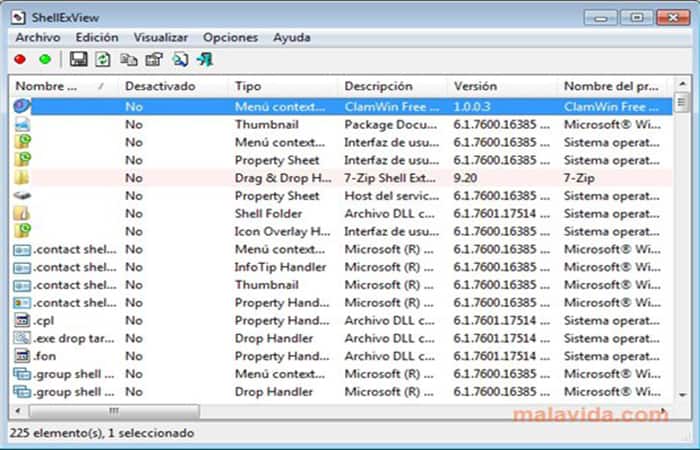
If you can't resolve the issue of the left click not working , this method will help. ShellExView is an extension management software for Windows.
Download ShellExView and then run it as administrator using your keyboard. To do this, simply click on the downloaded file , then press the Menu key (as shown below) on your keyboard to open the context menu and click on the Run as administrator option.
When ShellExView is run , it displays all third-party extensions on your PC.
To see only the extensions that may be causing a left-click problem , follow these steps:
- Step 1:: Click Options, then select Filter by extension type.
- Step 2:: If will open new pop-up window, select the option from the context menu and click on Accept.
- Step 3: In the list of Extensions, third-party extensions will be highlighted in pink. Select All third party extensions (highlighted in pink) and press the red button in the upper left corner to stop them.
- Step 4: Go to Options again and click on the option Restart Explorer.
- Step 5:: Now check if the problem is solved or not.
- Step 6:: If it still doesn't work on Windows 10, please try the following method.
- Step 5: cierra Registry Editor and restart your PC.
Method 4: Update the driver if the left mouse click is not working
It is quite possible that your PC's mouse driver is outdated or has issues. You can try updating it to fix the error when left click not working in Windows 10. Just follow these steps:
- Step 1:: Press the keys Windows + X simultaneously.
- Step 2:: A menu will open, click on the option Device administrator.
- Step 3:: In Device Manager, expand the section Mice and other pointing devices.
- Step 4:: Over there, Double click the mouse driver.
- Step 5:: For the computers portable, you can go to the section Human interface device y update the trackpad driver.
- Step 6: A new window will open. There, go to the tab Controller and click the option Update driver.
- Step 7: A new window will open again. Here, click on the option Automatically search for updated driver software.
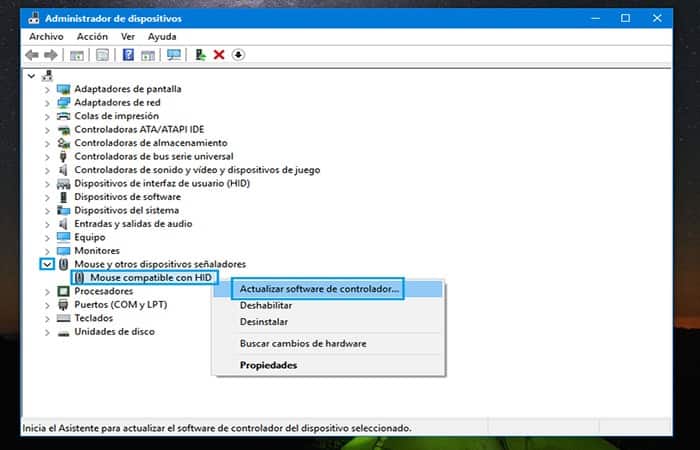
Your PC will begin searching for the latest mouse driver. Once the mouse driver installation is complete, restart your PC. Check if the left click now works.
Method 5: Use System Registry Editor to disable tablet mode if left mouse click not working (for advanced users only)
- Step 1:: Go to the window Run.
- Step 2:: In "Run«, writes the word Regedit.exe or simply Regedit.
- Step 3:: The will appear Registry Editor where you must navigate to the following route: HKEY_CURRENT_USER\SOFTWARE\Microsoft\Windows\CurrentVersion\ImmersiveShell
- Step 3: When you click on the folder ImmersiveShell, you must look for the entrance DWORD TabletMode on the left side. For disable tablet mode, changes its value to 0.
Method 6: Run DISM commands if left mouse click not working
Your hard drive's capacity may be affected by the fact that the left mouse click isn't working on your PC. Therefore, in this step, we'll check and repair the hard drive. To do this, follow these steps:
- Step 1:: You must press the “Windows + R” keys
- Step 2:: Writes "cmd»In the dialog
- Step 3:: Then, you need to press the keys «Shift» + «Ctrl» + «Enter» to open the Command Prompt window with administrator permission.
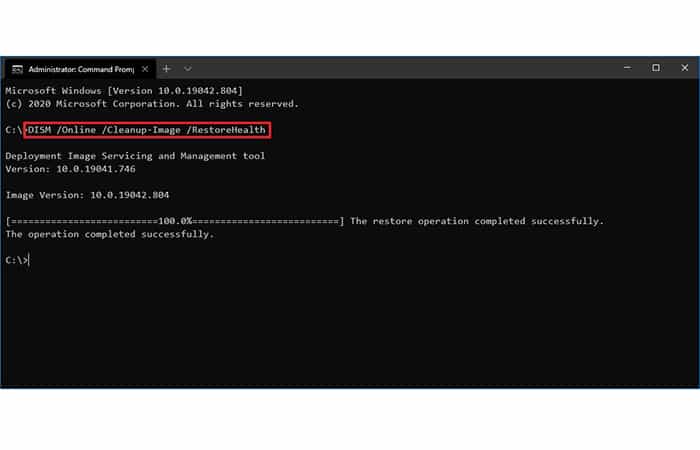
- Step 4:: Then, you need to type the following commands one by one and press «ENTER» after each one:
- Dism / Online / Cleanup-Image / CheckHealth
- Dism/Online/Cleanup-Image/ScanHealth
- Dism/Online/Cleanup-Image/RestoreHealth
- Step 5:: Once the process is complete, check if the issue persists.
Method 7: Uninstall/Disable Conflicting Apps if Left Click Not Working
Sometimes, applications can conflict with output devices, for example, when the left mouse click doesn't work correctly. In this case, uninstalling or disabling these applications may resolve the issue.
Below is a list of these applications that may be causing the problem:
- HP Display Control (PdiShellExt.dll)
- System recovery from Symantec
- 7zip
- WinZip
If you have installed any of these applications , disable them or uninstall and reinstall them . This list may not be exhaustive , so keep this in mind. You can also try starting your computer in safe mode to diagnose the problem.
Method 8: Uninstall newly installed software if left mouse click is not working
If you recently installed any software or drivers, such as a graphics driver, audio driver, etc., you should try uninstalling them . In many cases, the newly installed driver or software turns out to be causing the problem . After restarting , check if it works.
Method 9: Make sure the touchpad is working if the left mouse click is not working
Sometimes, this problem can be caused by the touchpad being disabled accidentally , so it's always recommended to check that this isn't the case . Different laptops have different combinations for enabling/disabling the touchpad.
- E.g., in my Dell laptop The combination is Fn+F3, on Lenovo it is Fn+F8, etc.
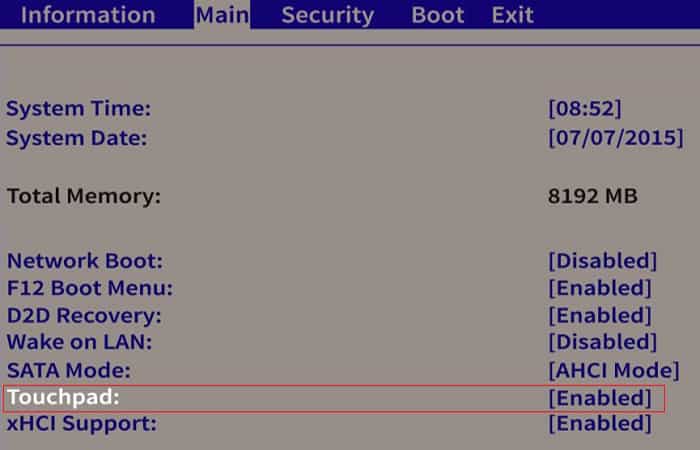
The touchpad isn't working , which can sometimes be due to the touchpad being disabled in the BIOS. To resolve this issue, you need to enable the touchpad in the BIOS.
- A satisfactory solution: Start Windows and as soon as the splash screens appearpress the F2 or F8 or DEL key.
Method 10: Enable the touchpad
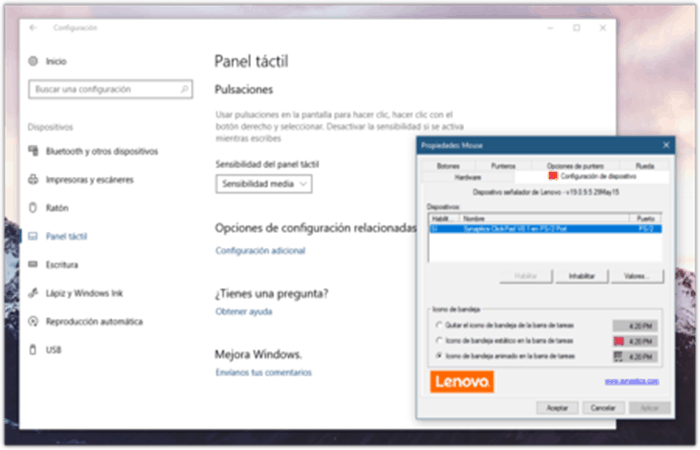
- Step 1:: Press the tecla Windows + I then select Devices.
- Step 2:: Choose Mouse & Touchpad in the menu on the left.
- Step 3:: Click Additional mouse settings.
- Step 4:: Now change to the last tab from the window of We take care of your rental property in Valencia. of the mouse and the name of this tab depends on the Manufacturer
- E.g.: Device Configuration, Synaptics or ELAN, etc.
- Step 5:: Then click on your device, then on » Activate".
- Step 6:: Restart your PC to save the changes.
This should fix the left click not working issue on Windows 10.
The best alternatives you can use when left mouse click not working.
Is your left mouse click still not working? Does your grip hurt when you use a mouse? These days, there are many alternatives to the classic mouse . Millions of people suffer from repetitive mouse use at work every day. There are different types of pain associated with mouse use.
- E.g.: Carpal tunnel syndrome, pain associated with repetitive movements, arthritis, tendonitis or pain in the wrist, arm, shoulders…
Handling a mouse for many hours a day and repeating the same gestures and clicks is an obvious reason for developing arm injuries and even more so when the left click of the mouse does not work properly.
The classic two-button mouse model was introduced in 1963. It was a revolution back then, but today you can use many other input devices to ease your pain.
In this section of the article, you'll find the main alternatives that currently exist and that work. Each of these options has advantages and disadvantages. Therefore, we encourage you to have several of these tools and alternate their use throughout the day. This will allow you to reduce the pain associated with repetitive movements.
1. The thumb trackball mouse
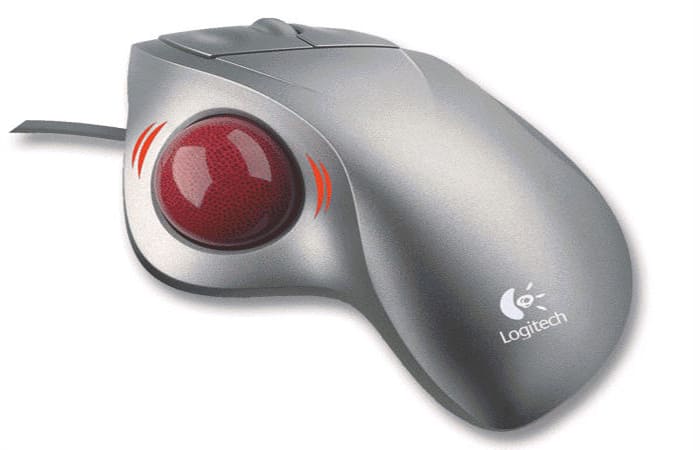
The thumb trackball mouse is perhaps the best alternative if your left mouse click isn't working. With this device, you don't have to move your wrist at all. Your thumb moves the cursor on the screen using a ball located on the side of the mouse.
Apart from the fact that the ball allows you to move the cursor, you will find exactly the same functions as a classic mouse with two buttons and a wheel. Wait a week to master the movement of the pointer with the trackball.
On the downside, the trackball is a little less precise than a classic mouse. It won't be suitable for delicate tasks in PhotoShop, for example.
Additionally, prolonged use of your thumb can cause long-term pain, especially if you're already using your thumb to navigate your smartphone or play games on your console.
Advantages
- Quick start.
- Appearance and functions that resemble a classic mouse.
- Very effective against mouse-related pain.
Disadvantages
- A little less precise than a mouse.
- It can cause pain in the thumb with intensive use.
2. The trackball mouse on the middle finger
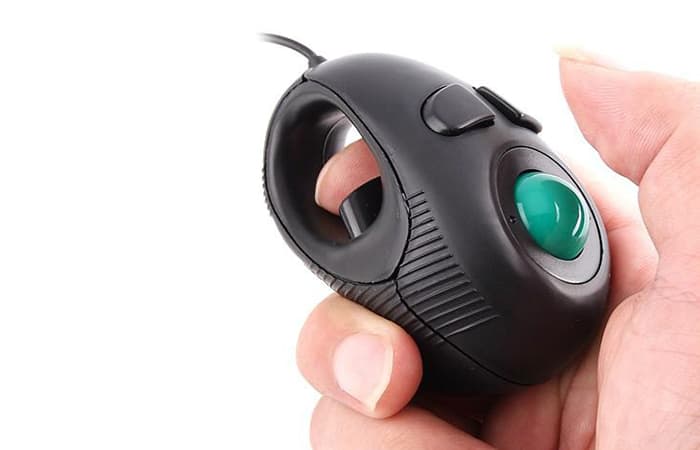
You will find other models of trackball with a ball that allows you to move the cursor at the level of the index and middle finger. The left mouse button is at the level of the thumb and the left button at the level of the ring finger.
It is also a great alternative that you can use if the left mouse click is not working. Plus, it helps reduce wrist pain. For those who are used to using the mouse wheel, this functionality is very lacking.
Advantages
- Very effective against pain.
- The doll remains motionless.
- The movement of the ball with the index finger is nice.
Disadvantages
- No dial.
- Less precise than a classic mouse.
3. Touch panel
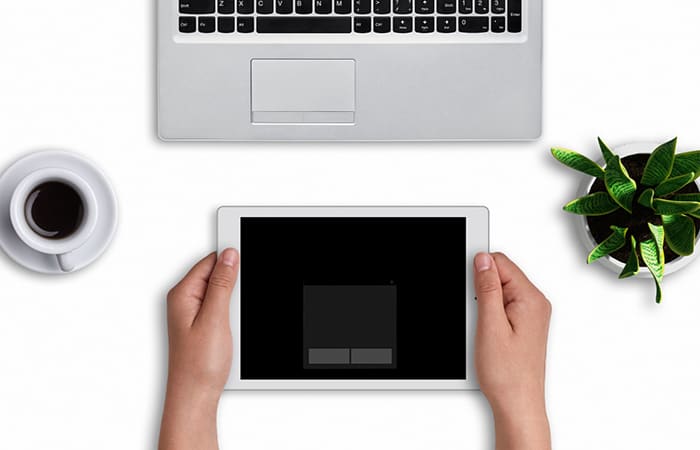
The touchpad is the device commonly found on laptops to replace the mouse. It is possible to purchase an external touchpad and connect it to your desktop computer with the same functions as a laptop touchpad. Touchpad handling is almost immediate.
Advantages
- Almost immediate handling.
- Compact.
Disadvantages
- Less efficient than a normal mouse.
- Not very precise.
4. The graphic tablet
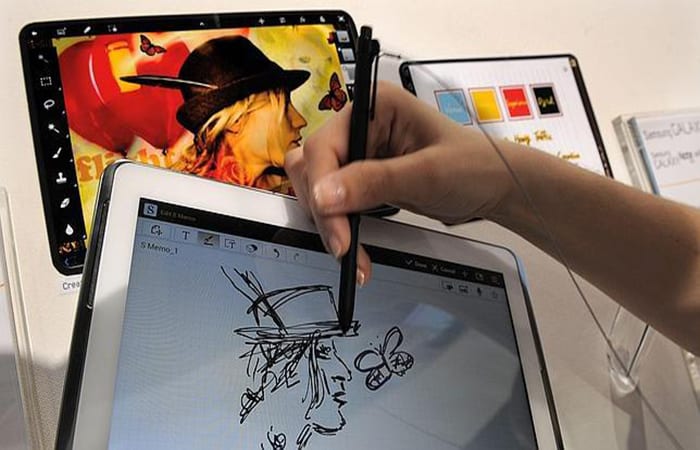
Graphics tablets are devices typically used by graphic designers. This system consists of a stylus with a button that moves like a pencil on a tablet that connects to the computer.
Use the same grip as a pen, like you used to do in school to take notes. When using a stylus, your wrist rests in a natural position without twisting your forearm.
In fact, when you use a mouse, you have to turn your hand to get it into a horizontal position, which causes forearm twisting or pronation. This is the main complaint against using the mouse.
There are affordable entry-level graphics tablets available today. They are less precise than higher-end graphics tablets, but accurate enough for traditional office use.
It is therefore an excellent alternative that you can use if the left click on the mouse does not work. The main drawback is the adaptation to the use of the pen and in particular the buttons, which can be quite long.
Advantages
- Natural wrist position.
- Precise tool when you master it.
Disadvantages
- Difficult adaptation.
- Long learning curve.
5. Vertical mice
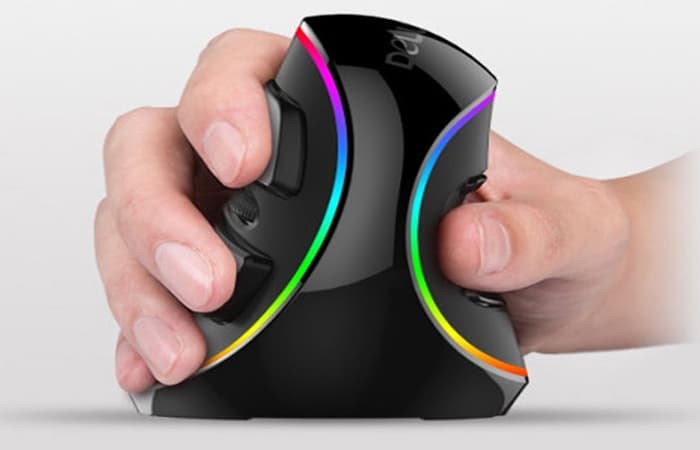
With the same idea of improving the position of the wrist by avoiding pronation of the forearms, vertical mice allow the use of a classic mouse without twisting the wrist.
This type of mouse has the advantage of looking like a normal mouse, but after prolonged use you find it too heavy and too tall. They may be able to provide relief for some people with specific symptoms, but in some cases, this type of mouse in an upright position increases the pain.
Advantages
- Immediate start.
- Use very similar to a classic mouse.
Disadvantages
- It causes other types of pain.
- Mouse too heavy and too high.
Other systems
There are many other systems you can try. We will mention them anyway in this paragraph so that you have an idea of what they are:
- There is the RollerMouse, two rollers that simulate horizontal and vertical movements.
- El mouse with joystick which looks like the old controllers video games.
- The navigable mouse with feet a bit similar to a thong or the mouse trackball that fits in the hand.
Use less mouse and more keyboard
The easiest and most effective way to reduce the pain associated with using a mouse and increase your productivity at work is to use the keyboard more. By learning keyboard shortcuts , you can use the mouse, if you use it at all. You can also create macros with AutoHotkey or Python to automate repetitive tasks.
Adopt a better posture
Pain associated with using a mouse is also often due to poor posture at the workstation.
We are used to arching our upper back, leaning our head forward and having rounded shoulders when working at the computer. This position should be avoided.
Here you can read about: HID Compatible Mouse Not Working on Windows 10
One solution to improve your posture is to use a height-adjustable desk.
Conclusion
As you can see, these are the alternatives and solutions you can use when the left mouse click isn't working in Windows 10. Furthermore, mice have come a long way since their inception. While they remain the preferred device for computers, you don't necessarily need to use them all the time for work.
If you experience pain while using a mouse, don't hesitate to try one or more of the mouse alternatives we offer. Your body will thank you, and you'll also avoid hardware problems like a malfunctioning or stuck left mouse click. We hope this information has been helpful.

My name is Javier Chirinos and I am passionate about technology. Ever since I can remember, I have been interested in computers and video games, and that passion has turned into a job.
I have been publishing about technology and gadgets on the Internet for over 15 years, especially in mundobytes.com
I am also an expert in online marketing and communication and have knowledge in WordPress development.