
Forza Horizon is one of the most popular racing video games , and players enjoy it immensely. For many users, navigating the game is straightforward, but some unfortunate players encounter the IPSEC error 0x00000000 , preventing them from launching the game or joining online matches . If you'd like to learn more about this error and its potential solutions, keep reading.
What causes IPSEC error 0x00000000?
The Forza Horizon IPSEC issue can be caused by many different factors, but we can identify the following as the main culprits of the problem:
- Incorrect date and time on device/system: PC date/time is used to synchronize different system states with the game servers and if your system date/time is incorrect, Forza Horizon may fail to sync with the servers resulting in the IPSEC issue.
- Incorrect DNS settings: DNS servers are used to resolve domain addresses for games/websites and if your PC is unable to resolve Forza Horizon web addresses, the game may be able to resolve the issue.
- Incorrect configuration of different system services:There are system services (such as the IP Helper service) that are essential to the functioning of Forza Horizon and if any of these services or their dependencies fail to start or are stuck in an error state, you may encounter the error message.
- Disable Teredo filter in router settings:- Router plays a vital role in Forza Horizon communication with servers and if Teredo filter is disabled in router settings then it may cause Forza Horizon issue.
How can I solve that?
Before proceeding with the solutions, ensure that the Xbox servers are operational . Additionally, check if trying any of the following solutions resolves the issue for you:
- update your Windows to the latest version.
- Log out and log back in in the game account / Xbox.
- Test another network or connection VPN.
- If the problem has started to occur after a Windows update, check if the uninstalling windows update conflict solves the problem.
- Make sure that the Windows of your PC is activated.
- Establishes the game graphics preferences in the settings recommended Geforce Experience.
- Sets the type of network profile of your system in Public.
- Turns off network devices and equipment, unplug power cables, waiting 1 minute, then reconnect the cables of eating y turn on the devices/routers to check if the problem is resolved.
For Xbox users:
Delete the alternate Mac address from the Xbox console
The Xbox alternate MAC address is used to connect to a secure network that only allows devices with whitelisted MAC addresses. If you've configured an alternate MAC address for your Xbox, it may conflict with Forza Horizon's game protocols, resulting in the IPSEC error 0x00000000.
- Open the Xbox Settings and go to your Network Configuration.
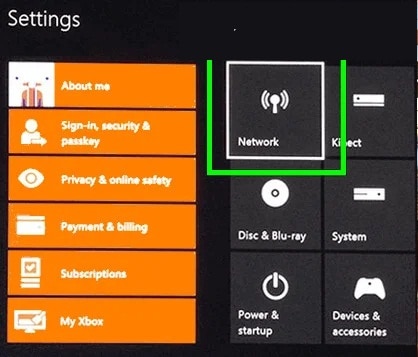
- Now select Advanced settings and open Alternative Mac Address.
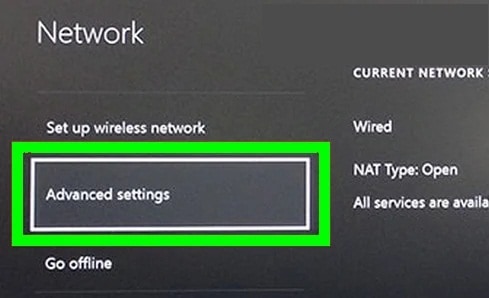
- Then select Delete and when you are I requested, restart your console.
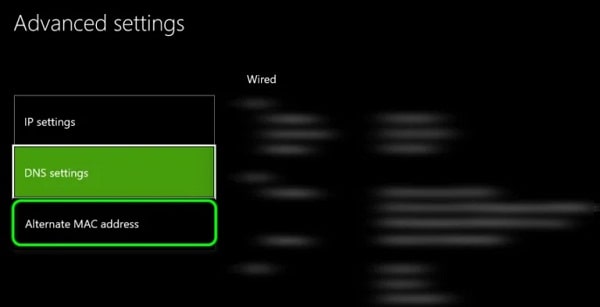
- Upon reboot, go to Advanced network settings and configure DNS, IP configuration y Alternate port selection en Automatic.
- Now start the Forza Horizon game and check if the game does not have the IPSEC error 0x00000000.
Delete Forza Horizon save data on Xbox console
Forza Horizon save data on your Xbox console can get corrupted due to many factors such as a misapplied game or OS update, etc. This corrupted game data can cause the IPSEC error in question. In such a scenario, deleting Forza Horizon save data may resolve the issue.
- Opens My games and applications on your Xbox and select Forza Horizon.
- Now press the button Menu of the xbox controller and select Manage games and plugins.
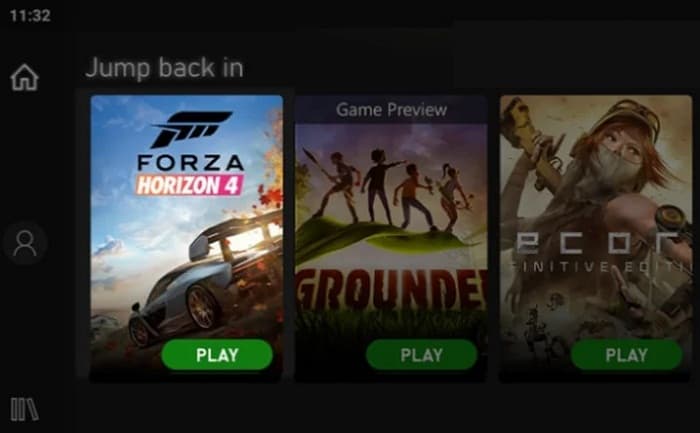
- Then select Saved data and later, remove Forza Horizon game save data.
- Now restart your Xbox console and when it restarts, it launches the Forza Horizon game.
- If you are asked if you want to sync data to the cloud, click Yes, otherwise click on No.
- Then check if the game's IPSEC issue is resolved.
For Windows users:
Use the 'Fix It' button in your PC's Xbox network settings
Forza Horizon may display the IPSEC issue if your PC's Xbox network is not optimally configured for your connection and fixing it could resolve the IPSEC issue.
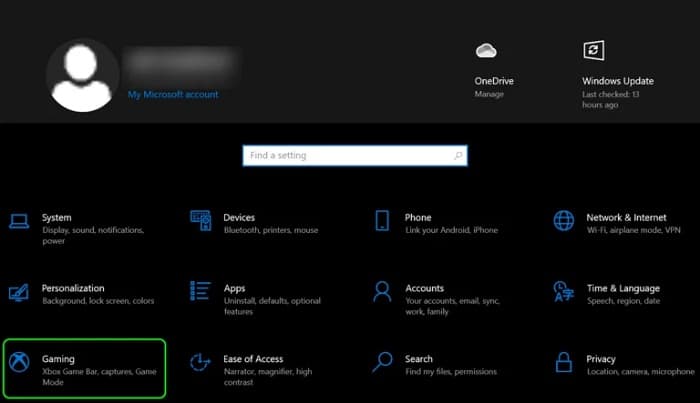
- Right click on Windows and open Configuration.
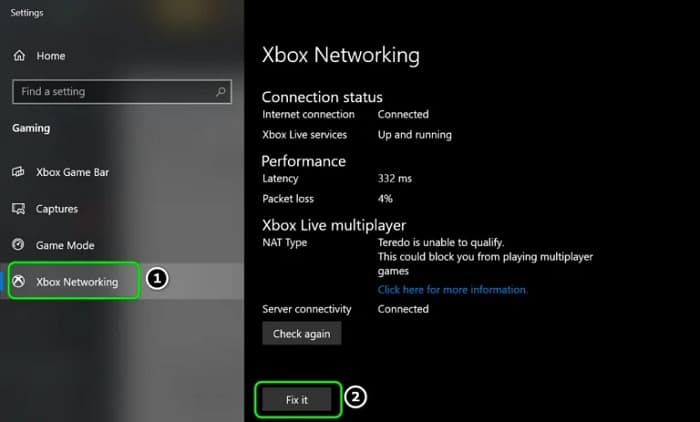
- Now open Games and in the left panel, go to the tab Xbox Networks.
- Then, in the right panel, you need to click on the button Repair and let him process is complete.
- After this, launch the Forza Horizon game and check if it is working properly.
- If that didn't work, click on Windows, search Symbol of the system, click with el right button in the result and, in the mini menu, select Run as administrator.
Now run the following cmdlets one by one and check if Forza Horizon works properly:
- netsh
- inter teredo
- set disabled state
- int ipv6
- set teredo client
Otherwise, run the following cmdlets one by one and after each one , check if the Forza Horizon problem is resolved:
- netsh interface teredo set state type = enterpriseclient
- netsh int teredo set state servername = teredo.remlab.net
- netsh interface teredo set state servername = win10.ipv6.microsoft.com
Change your device's date and time settings
If your device's date/time settings are not set correctly (especially if Daylight Savings Time is enabled), the game may not sync properly with the Forza Horizon servers, resulting in the IPSEC issue in question.
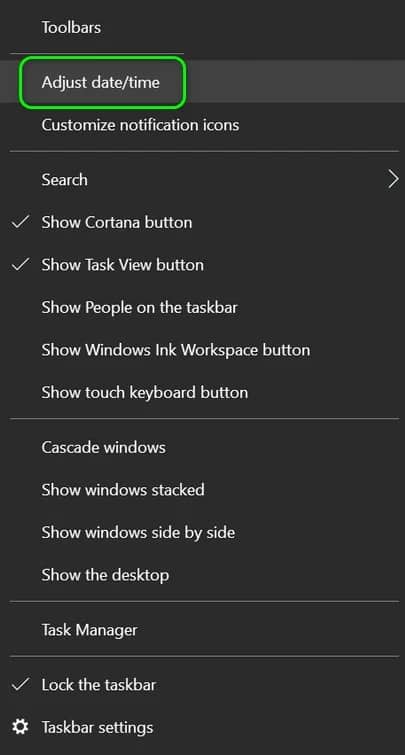
- In the system tray, click with the right button en Clock and, in the resulting context menu, open Set date / time.
- Now deactivate the options of Set time automatically y Set time zone automatically by turning off the relevant switches.
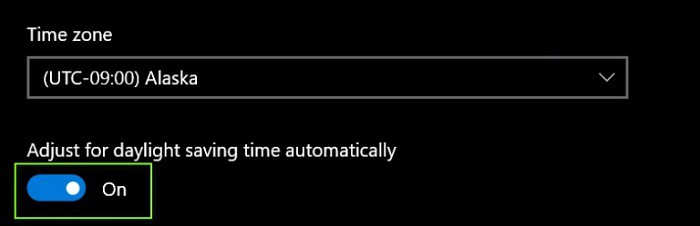
- then changes the switch Adjust for daylight saving time automatically to the off position and then click the button Change (in Set the date and time manually).
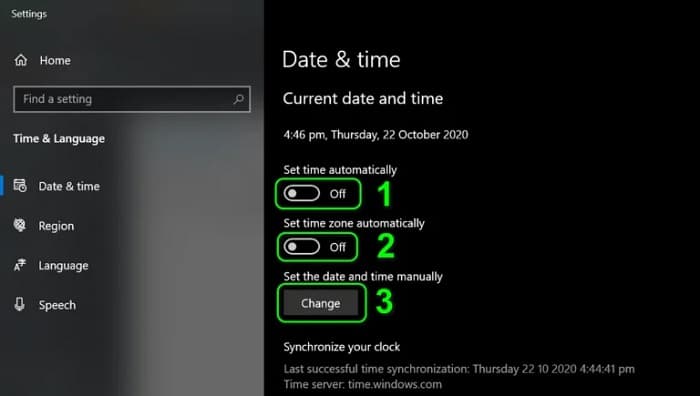
- After this, set the correct date/time on your system and launch Forza Horizon to check if it is working properly.
Change your device's DNS settings
DNS servers are used to resolve web addresses related to different online content and if the DNS server on your system/network is unable to resolve Forza Horizon web server addresses, the connection handshake may fail.
In such a case, changing the DNS settings on your device may resolve the issue. As an illustration, we will discuss the process of changing DNS servers on a Windows 10 PC.
- Right click on Windows and open Network connections.
- Now you have to click on Change adapter options and in the Network Connections window, click with el right button trust your network connection and select Properties.
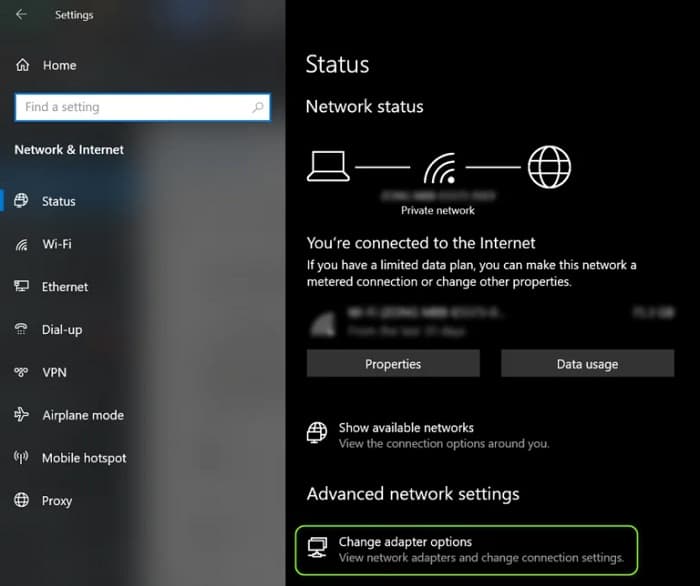
After this, you must double-click on Internet Protocol version 4 and configure the following Google DNS values (or any other DNS of your choice):
Primary DNS: 8.8.8.8
Secondary DNS: 8.8.4.4
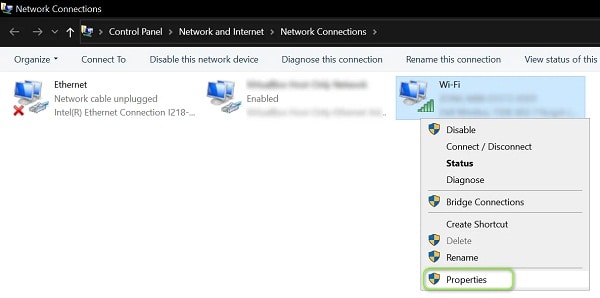
- Then you must apply changes and then launch Forza Horizon to check if it is working properly.
Edit the settings of different system services
The various system services are essential for the running of the Forza Horizon game and if any of these services is in an error state, it can cause the network issue in question. Additionally, the presence of a conflicting service can also cause issues. In such a case, editing the settings of the relevant system services may do the trick.
Start the Peer Networking Service and set its startup type to automatic
- Click on Windows, search Services, then you have to press with the right button on the result and, in the mini menu, select the option Run as administrator.
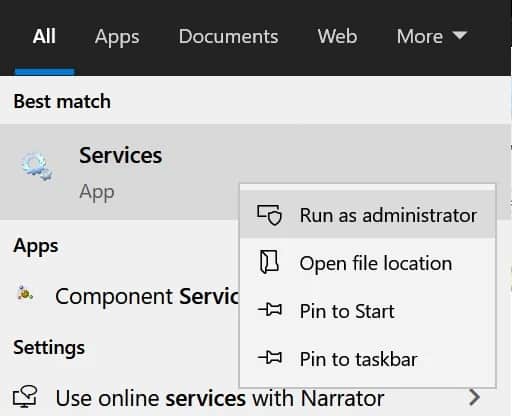
- Now double click in the service of Peer networking clustering and expand the drop-down menu Type de Home.
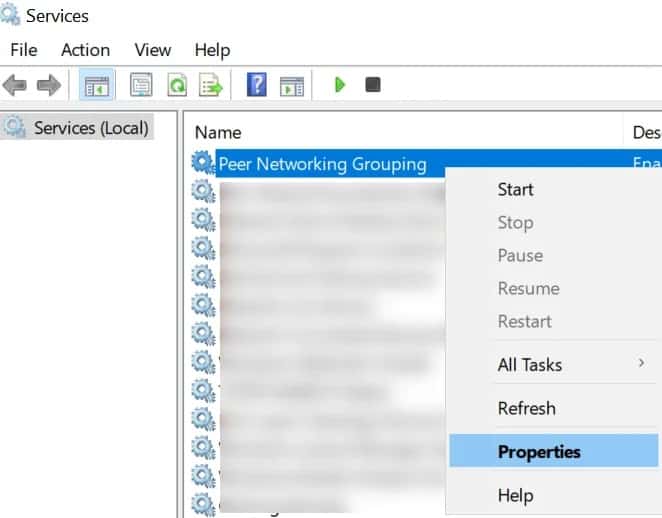
- Then select Automatic and click on the button Home.
- Later ceiling lamp the changes and check if Forza Horizon is working properly.
Start the IP Helper service and its dependencies
- Click ’s relationship with the right button at the IP Helper service in the service manager and select where it says Start o Restart.
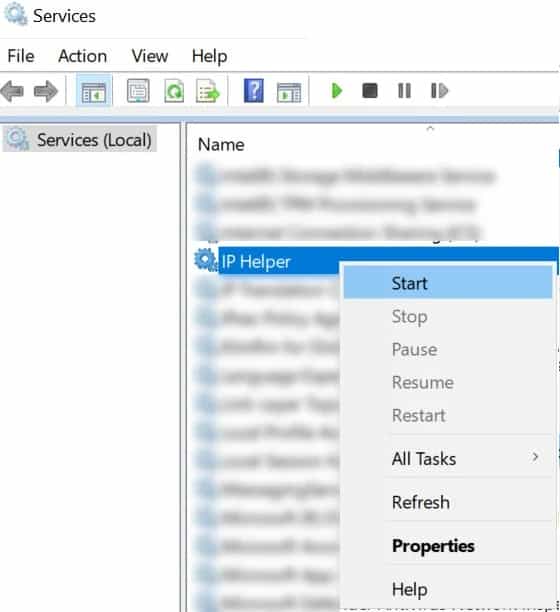
- Now check if Forza Horizon is running fine.
- On the contrary, double click in the service IP Helper and go to the tab outbuildings.
- Then you need to make sure that it is also start services de service dependencies IP Helper.
- Now restart the IP Helper service and then confirm if the Forza Horizon IPSEC issue is resolved.
Stop National Instruments Services and set your startup type to disabled
- double click in any of the services of National Instrument (NI) in the Service Manager and press the button that says Stop.
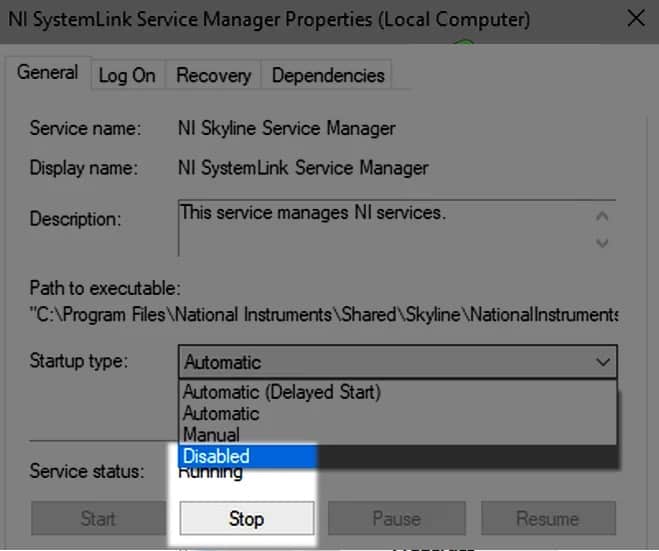
- Now set your start type en Disabled y repeat the same for All National Instrument (NI) services.
- Then, launch Forza Horizon and check if it is really free of IPSEC issues.
Disable Teredo filter in router settings
Forza Horizon may display the IPSEC error if your router is blocking access to the game servers by limiting Teredo-based traffic. In this context, disabling the Teredo filter in your router settings may resolve the Forza Horizon IPSEC error.
- Navigate to portal de administration your router and expands Internet.
- Now select Filter, and then in the right panel, uncheck the option of Teredo Filter.
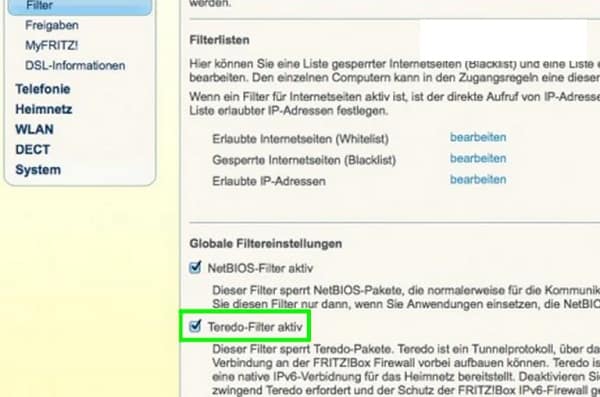
- then ceiling lamp the changes and restart your router.
- After rebooting your router, launch the Forza Horizon game and check if the game is not experiencing the IPSEC error 0x00000000.
- If that didn't work, forward the following ports in router settings, required by the Forza Horizon game, and then check if the game is running properly.
Forza Horizon 4 – PC
- TCP: 3074
- UDP: 88,500,3074,3544,4500
Forza Horizon 4 – Xbox One
- TCP: 3074
- UDP: 88,500,3074,3544,4500
For Xbox , you can forward the following ports:
- Xbox Live TCP 80
- Xbox Live TCP 3074
- Xbox Live TCP 53
- Xbox Live UDP 53
- Xbox Live UDP 88
- Xbox Live UDP 500
- Xbox Live UDP 3074
- Xbox Live UDP 3544
Clean boot your PC and disable conflicting applications
In a shared Windows environment, in rare cases, some applications may conflict with each other for system resources. If your system has an application that conflicts with Forza Horizon, you may force the game to display the IPSEC error 0x00000000. Before proceeding, check if reinstalling the Xbox app on your PC resolves the IPSEC error.
- Right click on Windows and select Task Manager.
- Now cierra all the non-essential tasks/processes in Task Manager, especially National Instruments (NI).
- After this, start Force Horizon and check if it is free from the IPSEC error.
- Following this, restart your PC and check if Forza Horizon is working fine.
- If so, you can re-enable one by one the apps/services/processes that were disabled during the clean boot process, until you find the problematic app.
- Once found, keep the conflicting application disabled during Boot system or uninstall the application (if not essential).
Users report that the following applications cause the IPSEC issue in question, and if any of these applications are present on your system, you can disable or uninstall them:
- National Instrument Ensemble (NI)
- LabView
- multi sim
- Applications VPN
- VPN Adapters at the Device administrator
Edit your device's firewall settings
Blocking Forza Horizon traffic by your system's firewall, either unintentionally by the user or by another application, can result in the IPSEC 0x00000000 network issue. In such a case, editing your device's firewall settings to allow Forza Horizon traffic may resolve the issue.
- First, deactivate a 3 rd third-party firewall application (if installed), right-click on its icon in the system tray and select Firewall Pause.
- Now, launch Forza Horizon and check if it is working fine.
- If not and Windows Firewall was enabled after disabling the 3 rd firewall, disable Windows Firewall and check if the Forza Horizon issue is resolved.
- If not, enable el Windows firewall and click Windows.
- Now search el Control panel and open the control panel.
- Then expand the drop-down menu of See for and select Small icons.
- What follows is to open the Firewall Windows Defender and in the left panel of the window that is displayed, you must click on Restore Defaults.
- Then, you need to confirm to restore Windows Defender Firewall to default and then launch Forza Horizon to check if it is working normally.
Reinstall the Forza Horizon game
Forza Horizon installation can become corrupted due to a sudden power failure or an essential game file is deleted by another application (such as an antivirus). This corrupted Forza Horizon game installation can cause the IPSEC issue in question by not honoring the network handshake.
In this context, reinstalling the Forza Horizon game may solve the problem. Before proceeding, make sure to backup your essential Forza Horizon information/data.
- Right click on Windows and open Applications and features.
- Now expand Forza Horizon and click uninstall.
- then confirms Uninstall Forza Horizon and sigue instructions to complete the uninstallation of the game.
- After this, you must Reiniciar your PC and when you restart, click with the right button en Windows and select Run.
- then browse to the following route:
%localappdata%
- Now remove the folders and subfolders related to Forza Horizon, especially the following directories:
\ NVIDIA \NvBackend\ApplicationOntology\data\Translations\
\NVIDIA\NvBackend\ApplicationOntology\data\wrappers\
\NVIDIA\NvBackend\VisualOPSData\
- Once removed, restart your phone and when you restart, reinstalls the Forza Horizon game and hopefully the IPSEC error 0x00000000 will be removed.
- If nothing has worked, check if create a new xbox account and using that account to play Forza Horizon fixes the issue.
- If the problem persists, check if Setting up a DMZ (at your own risk) on your router will resolve the issue. If it works, check your router to see if the settings are misconfigured and causing the problem.
We strongly recommend against permanently using DMZ on your router due to security concerns. If nothing else works, you can contact Forza Horizon support to check if your account is shadowbanned.

My name is Javier Chirinos and I am passionate about technology. Ever since I can remember, I have been interested in computers and video games, and that passion has turned into a job.
I have been publishing about technology and gadgets on the Internet for over 15 years, especially in mundobytes.com
I am also an expert in online marketing and communication and have knowledge in WordPress development.