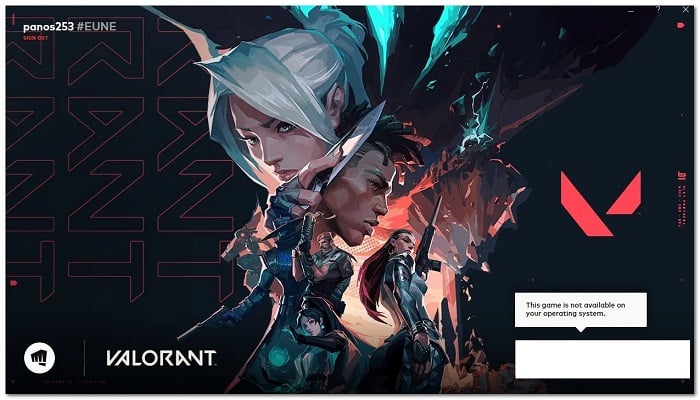
In some cases, users encounter the error message " This game is not available on your operating system" when trying to launch Valorant. This error message prevents users from starting the game and can be due to various reasons depending on your situation, including Valorant save files and more.
The problem appears in a small dialog box when you try to launch the game. This can be strange because many users have played the game for a while before the problem appeared. However, don't worry as we will show you how to solve the problem in this article.
What causes the error this game is not available on your operating system?
It turns out that the error message in question can be caused by a number of reasons like the ones we've mentioned. In most cases, the problem seems to be due to not being logged into your account in the Riot client.
When this happens, if you hover over the Play button in the app, you might be shown the said error message in a dialog box. Apart from this, there are other possible causes for the said issue. So, we are getting into the solutions, let’s first go through the potential list of causes so that you can isolate the source of the problem at hand here. So, without further ado, let’s get into it.
- Outdated GPU Drivers: One of the reasons why you may encounter the error message in question is when the graphics drivers on your system are outdated. In such a scenario, you will have to access the Device administrator to update the graphics drivers installed on your system.
- Valorant Save Files: In some scenarios, the problem can also be caused by the game save files that are stored on your computer. These files usually include logs and settings. To resolve the problem, you will simply need to delete the files from your computer and then see if the problem persists.
- Riot Accounts: Finally, the account of Riot you are using can also cause the issue you are facing in some scenarios. This can often happen due to region issues, in which case, in order to play the game, you will have to create a new Riot Account and then use it. Hopefully, doing that should resolve the issue.
How can you fix this game is not available on your operating system error?
Now that we have gone through the possible list of causes of the error message this game is not available on your operating system, we can finally start showing you the different methods that you can use to resolve the problem on your own. So, let’s get started without any further delay.
Restart your computer
The first thing you should do when you encounter this error message is to go ahead and restart your computer. As it turns out, the problem at hand can sometimes be a malfunction of the services that are required for the game to run smoothly.
Restarting your system will also reset all the necessary components, which can often resolve the issue for you, as it did for several other users who were facing a similar problem. So, go ahead and reboot and see if this resolves the problem.
Sign in to your Riot account
As it turns out, in some cases, you might be facing the error message in question because you are not logged into your Riot account. This can happen quite often when the Riot client requires you to log in again before you can play.
If you're not logged in, you may be experiencing the issue like many other users, in which case you'll simply need to log into your account on the left-hand side of the Riot client window. Once you're logged in, try clicking the PLAY button to see if the error message still appears.
Run it in compatibility mode
In some cases, the problem might be due to a compatibility issue with your computer. If this is the case, you'll need to run the game in compatibility mode. Windows offers a feature to run applications in compatibility mode, which means you can run the application as it would run on an older version of Windows.
This also allows you to use older programs on your computer. Doing this can resolve several application compatibility issues. To do this, follow the instructions given below:
- First, navigate to the directory where it is installed Valorant. This is essentially the Riot Client directory.
- Once there, right click on the file RiotClientServices.exe and choose Properties in the drop-down menu.
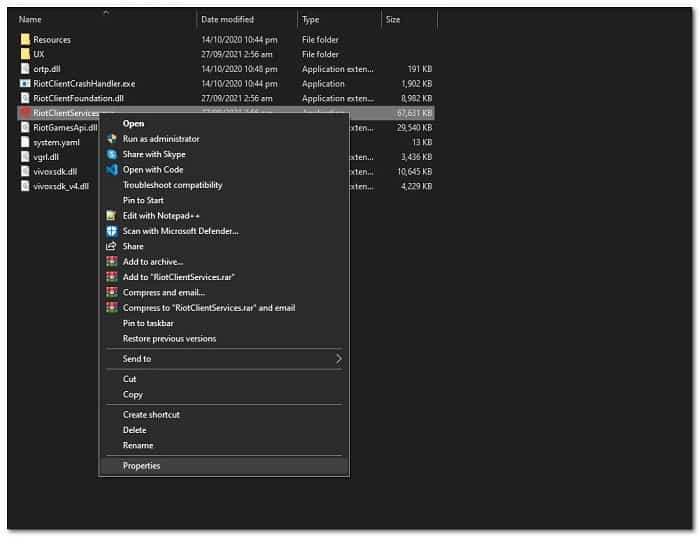
- In the Properties window, switch to the tab Compatibility.
- There, check the box Run this program in compatibility mode to.
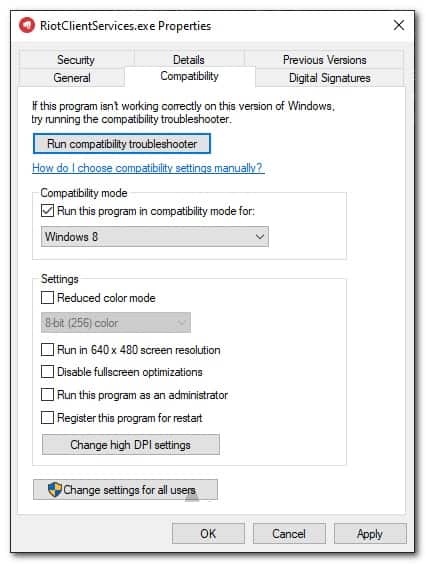
- In the drop-down menu, try choosing Windows 7 and then click Apply. Follow up by clicking on Accept.
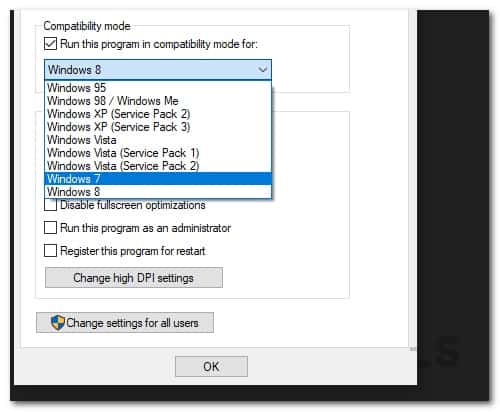
- Once you've done that, go ahead and launch the client and see if the error still appears.
Delete saved files
It turns out that the game files saved on your computer can also result in the error message you are facing. These files are stored in the AppData directory which is hidden by default. To fix the issue, we will be deleting the save files which include the logs stored on your computer as well as the contents of the config folder located in the Saved directory. To do this, follow the instructions given below:
- First, open the dialog box Run pressing the Windows key + R on your keyboard.
- In the Run dialog box, type %LocalAppData% and then press the key Intro.
- This will open a new Windows Explorer window that will take you to the Local folder inside AppData.
- In the list of folders, locate VALUE and open it.
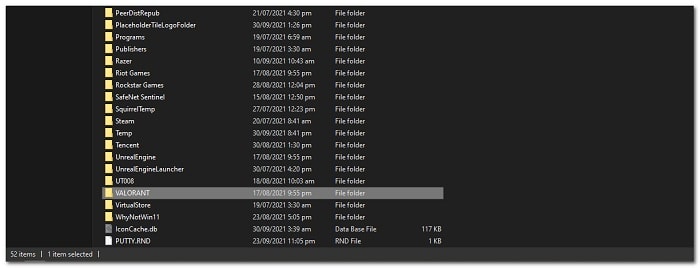
- Then go to the folder Saved.
- Inside the Saved folder, delete the contents of the webcache folder, Logs y Config.
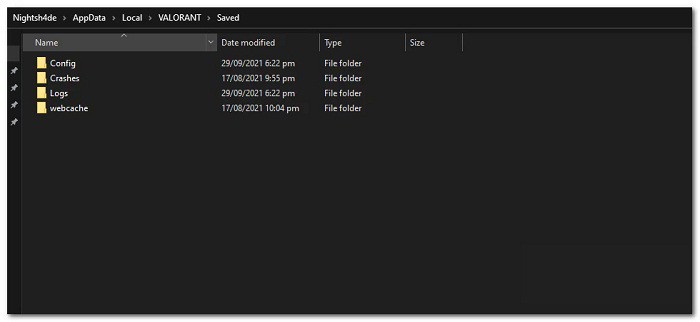
- To do that, open the folder one by one and delete all the file folders inside it.
- Once you've done that, go ahead and restart your computer.
- After your PC boots up, open the game and see if the issue persists.
Update GPU drivers
As we mentioned earlier, one of the reasons why you may encounter the problem is when you have outdated graphics drivers installed on your computer.
Having outdated drivers on your system is never ideal as they are very important when it comes to gaming. If this case is applicable, you will simply need to update your graphics drivers and then see if the problem persists.
We recommend downloading the latest drivers available for your GPU from the manufacturer's website instead of letting Windows install them for you. To uninstall the graphics driver, be sure to follow these simple steps below:
- First, open the option Device administrator that is inside the start menu.
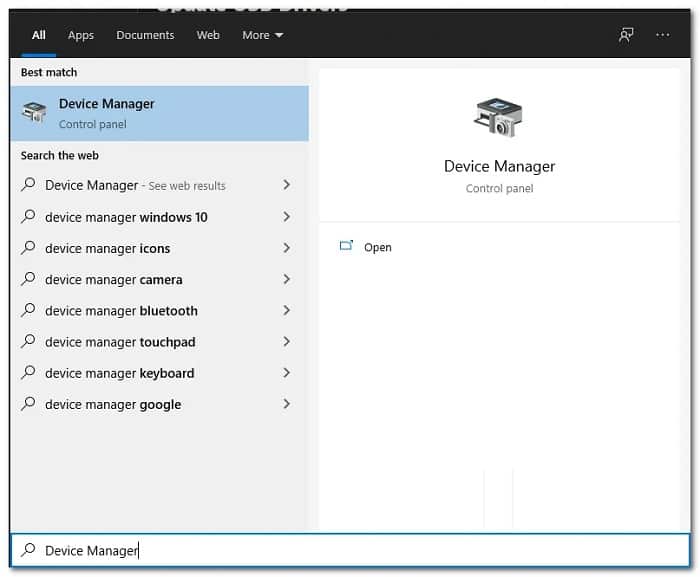
- Once the Device Manager is open, expand the list Display adapters.
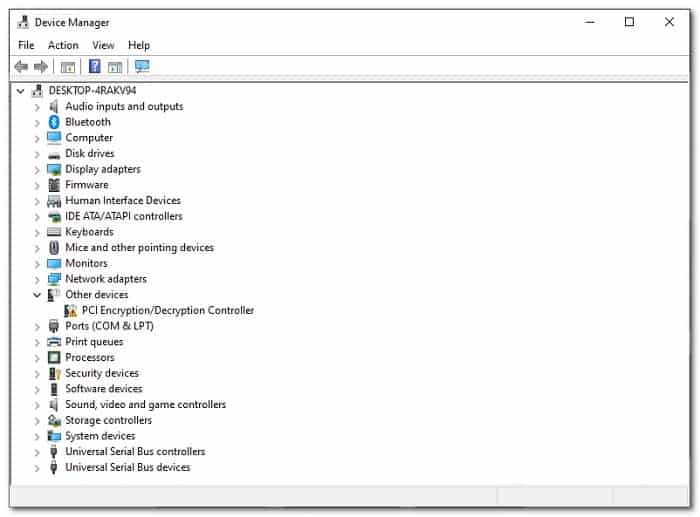
- From there, right-click on your graphics driver and from the drop-down menu, select Uninstall device.
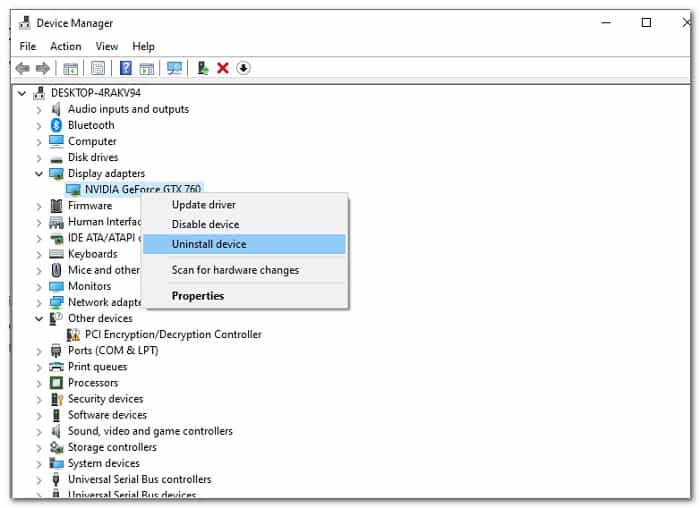
- After you have uninstalled the graphics driver, go to your graphics card manufacturer's website and download the latest drivers available. Download and install them on your system.
- Then, go ahead and restart your computer. After your PC boots up, open the game and see if the issue persists.
Create a new Riot account
Finally, if you're still having the problem even after trying the above solutions, it's most likely that your issue is due to the Riot account you're using. This can sometimes happen due to region issues, in which case you can try creating a new account to see if that resolves the issue.
This means that you will lose the progress you have made so far. In case you don't want this, you can contact Riot support to see if they can help you with any account issues. Creating a new account is pretty easy, just head over to their website and click on the Sign Up button to create an account.

My name is Javier Chirinos and I am passionate about technology. Ever since I can remember, I have been interested in computers and video games, and that passion has turned into a job.
I have been publishing about technology and gadgets on the Internet for over 15 years, especially in mundobytes.com
I am also an expert in online marketing and communication and have knowledge in WordPress development.