- Ghostty offers a native GPU-accelerated multiplexer that is smoother and faster for local workflows.
- Tmux is essential for managing persistent sessions on remote servers and for collaborative work.
- The tmux hierarchy is organized into sessions, windows, and panels, allowing for advanced background process management.
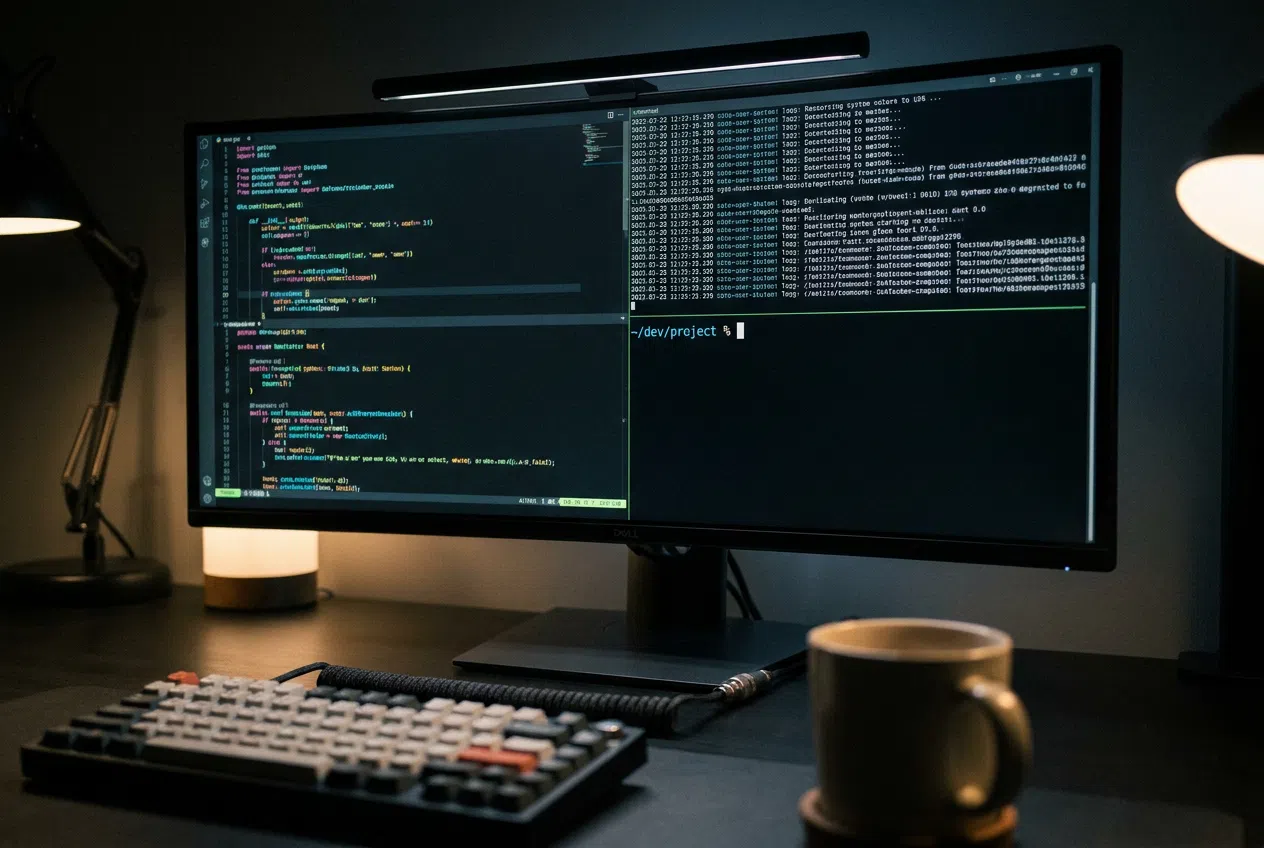
If you've ever felt overwhelmed when opening a terminal, or simply don't see the point in complicating things with advanced tools, don't worry. Many people find the world of multiplexers a bit of a senseless maze at first, but the truth is, once you get the hang of it, they become an invaluable tool for anyone who spends time coding or managing servers.
In this regard, the question arises as to whether it's worthwhile to continue using classic tools like tmux when we already have modern emulators like Ghostty, which promise to do almost the same thing but more smoothly. The key is understanding that, although Ghostty already includes built-in screen-splitting features, there are technical nuances and workflows that only a real multiplexer can offer, especially when the work extends beyond your own machine.
What on earth is a terminal multiplexer and what is it used for?
To put it simply, a multiplexer like tmux is basically a tool that lets you manage multiple terminals within a single window. Think of it as having a command center where you can organize your work sessions without having to open ten different operating system windows, saving a lot of space and visual clutter.
One of the most powerful features is the ability to detach applications . This means you can launch a process, send it to the background (detach), and close the terminal completely; the program will continue running on the server. Then, when you return, you can re-anchor to that session and find everything exactly as you left it, preventing an SSH connection outage from ruining your work.
Ghostty: The emulator that wants to replace tmux
Ghostty is here to break the mold because it's not just any terminal; it's GPU-accelerated and written in Zig, making it incredibly fast. While other terminals rely on the CPU, Ghostty leverages the graphics card to ensure smooth scrolling through massive log files and instantaneous keyboard response, without the slightest lag.
The most interesting thing is that Ghostty already includes its own native multiplexer . It allows you to split the screen into vertical or horizontal panels with simple shortcuts and resize the borders by dragging the mouse. For those who work exclusively locally and don't need their sessions to survive a system reboot or a remote disconnection, this system feels much faster and more natural than tmux.
Detailed guide to mastering tmux on Linux
If you decide you need the full power of tmux, the first step is to install it. On most Debian- or Ubuntu-based distributions, simply launch a sudo apt install tmuxOnce installed, you simply type tmux on your console and you're already in an environment where you can start creating your workflow by consulting a Complete guide to tmux to optimize it.
Fundamental concepts: Sessions, Windows, and Panels
To avoid making a fool of yourself using tmux, you need to understand its hierarchy. At the top, we have the Session , which is the global container. Within a session, you can have multiple Windows (which occupy the entire screen), and each window can be divided into Panes (independent rectangular partitions).
- Session Management: To create a named session, use
tmux new -s nombre_sesionIf you want to exit without closing the processes, use the shortcut Ctrl+by then dTo re-enter, the command istmux attach -t nombre. - Window Control: You can open a new tab by pressing Ctrl+bycor navigate between them with Ctrl+byn (next) or p (former).
- Panel Handling: Dividing the screen vertically is done with Ctrl+b % and horizontally with Ctrl+b «To move between them, simply use the arrow keys on your keyboard after pressing the prefix.
Advanced tricks and customization
Tmux doesn't have to be ugly or clunky. Everything can be tweaked through the file. .tmux.conf located in your home folder. Here you can change the keyboard shortcuts to resemble those of Vim, add color themes, or activate the mouse support by option set -g mouse on, which allows you to switch panels by clicking.
If you need to manually adjust the size of a pane from the command line, you can use the `resize-pane` function followed by the address (U, D, L, R) and the number of lines you want to move. This is ideal for having a small pane for monitoring logs and a large one for writing code.
Comparison: Native Ghostty or integrated tmux?
The age-old debate is whether you should ditch tmux and use Ghostty's multiplexing. If you're not working on remote servers, the short answer is that Ghostty's multiplexing is much smoother and more efficient. Furthermore, Ghostty offers session persistence that restores your tabs and directories after a PC restart, greatly simplifying your daily startup.
However, tmux remains the undisputed king for pair programming and remote administration. The ability to share a tmux session with a colleague so both can view and write in the same terminal is a feature a local emulator cannot replicate. Furthermore, the Kitty graphics protocol supported by Ghostty allows viewing images in the terminal, but tmux remains the most robust process control tool in the Unix ecosystem.
Ghostty redefines the user experience with its ultra-fast rendering and simplified window management, removing the learning curve for those seeking only local productivity. However, tmux remains the essential infrastructure for those operating in distributed environments, allowing tasks to continue regardless of the connection. The final choice depends on whether you prioritize the lightness and speed of a modern interface or the persistence and complete control of a remote server.

Passionate writer about the world of bytes and technology in general. I love sharing my knowledge through writing, and that's what I'll do on this blog, show you all the most interesting things about gadgets, software, hardware, tech trends, and more. My goal is to help you navigate the digital world in a simple and entertaining way.