- The error indicates memory corruption at the application level; it does not necessarily imply malware, but it requires action.
- The most effective methods combine Defender Offline, SFC/DISM, Boot clean and recovery options.
- DCOM 1084 in Safe Mode This is usually due to disabled services; it is not usually the root of the problem.
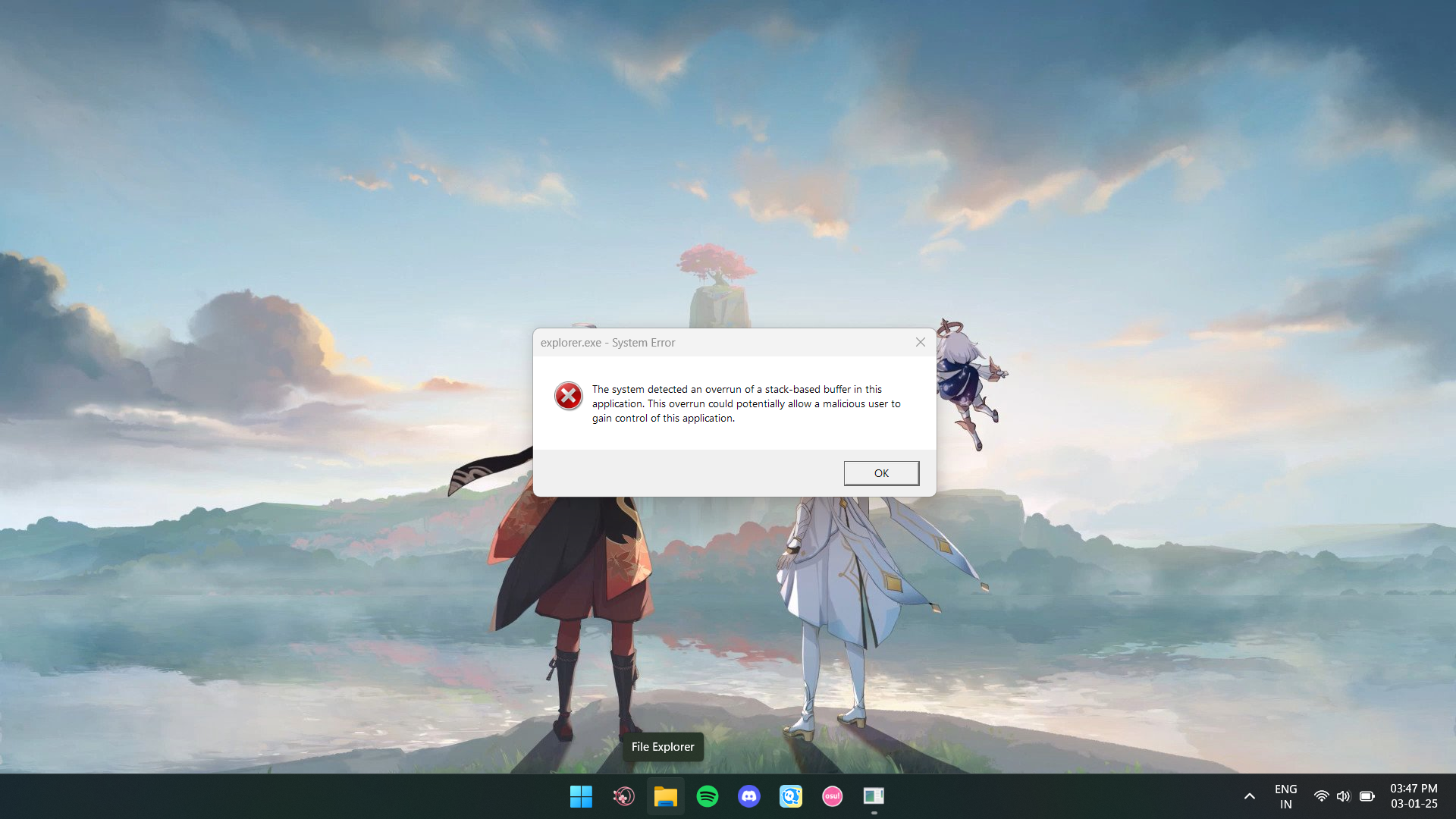
If every time you close a game you get the message "The system detected an overrun of a stack-based buffer" and several error windows appear in quick succession, it's understandable to be concerned. While it may not always affect performance, this message indicates a serious application-level error that should be investigated to prevent crashes or data loss.
First of all, take a breath: it's not automatically a virus or a hack . In many cases, the system is simply warning you about unsafe behavior (for example, when an app writes more than it should to a memory location). Even so, it's a good idea to check system files, potentially conflicting programs, and the Windows status to address the problem at its source.
What does the “stack-based buffer overrun” message mean?
A stack buffer overflow occurs when an application writes more data than it has allocated in that temporary memory. This can corrupt adjacent data and cause unexpected shutdowns , crashes, or other unusual behavior. You may also sometimes see the code c0000409 , which confirms that this is indeed such an exception.
This problem is usually related to user programs , although it can also manifest in drivers . In reported cases, it appears when closing games or installing apps like Discord or Twitch , and sometimes it arises after starting the system in Safe Mode due to other errors (for example, problems with explorer.exe).
When it appears and common symptoms
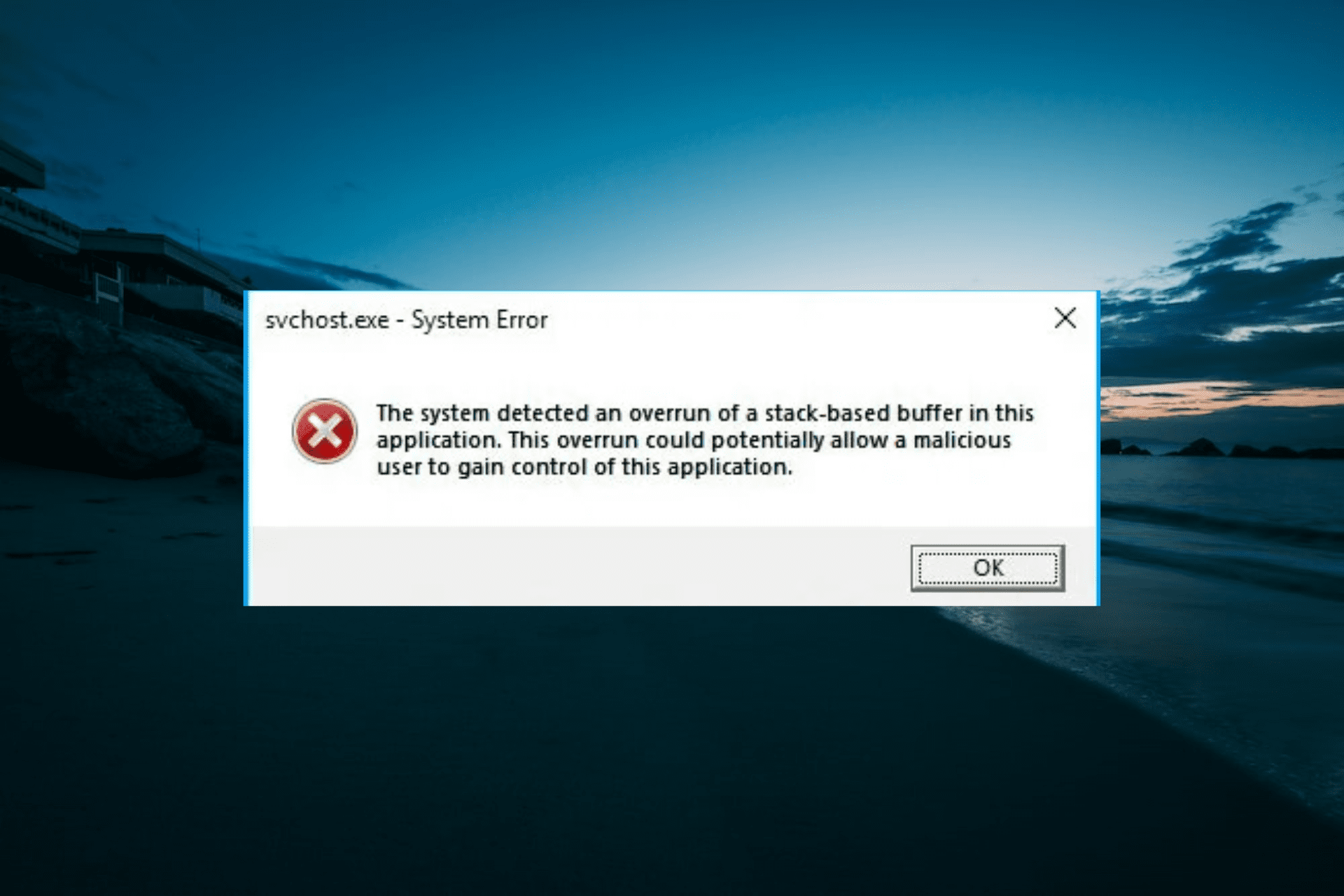
Several users report that the error occurs when closing any game , and that they then have to close between 3 and 10 error windows with similar messages. There isn't always a clear impact on the computer, but the constant repetition is a sign that something is wrong with the system or the apps involved.
In Safe Mode, it's common to see DCOM 1084 messages in the Event Viewer , indicating attempts to start services that are unavailable in that mode. These logs accumulate and can complicate diagnosis , although they aren't always the cause of the overflow.
Probable causes and technical nuances
The most common sources are: corrupted system files , a corrupted Windows image, third-party programs that inject themselves into processes (social media app overlays/monitors), or drivers that mismanage memory . Cases have also been seen after changes to the start/lock screen , theme customizations, or the use of utilities like CCleaner that modify the registry.
One thing to note from the reports: some SSD tools have caused conflicts on certain systems. Specifically, it's recommended to temporarily uninstall Samsung Magician and test, as in some cases the problem disappears after removing it.
Quick checklist before getting started
- Update Windows and the graphics/chipset drivers. Sometimes a driver fixes memory leaks or errors when closing processes.
- Temporarily uninstall Samsung Magician and any game overlay (Discord, Twitch, grabbers), to rule out conflicting injections when closing games.
- Check the Event Viewer for the following: code c0000409 next to the app name. This points to the specific executable that causes the failure.
Offline scanning with Windows Defender
Let's rule out malware that's difficult to remove on the fly. Windows Defender 's offline scan restarts your computer and scans in an isolated environment.
- Open Settings > Update and security > Windows Security.
- Under Virus & threat protection, choose Advanced exam options and select Windows Defender Offline Scan.
- Balance browse nowThe computer will restart and the scan will take about 15 minutes. It is normal that you can't use the PC until it's finished.
Repair system files with SFC and DISM
If the error is due to file corruption, the SFC and DISM utilities usually resolve it. We'll go through them in that order to cover both cases.
1) Command Prompt as administrator: Press Windows + R , type cmd and confirm with Ctrl + Shift + Enter . Accept the UAC prompt to open the elevated console.
2) First run the system file checker: it will repair protected files with their cached copies.
sfc /scannow3) If SFC reports damage it cannot repair, use DISM to repair the Windows image and run SFC again afterward. You can include all three DISM phases for greater coverage.
DISM /Online /Cleanup-Image /ScanHealth
DISM /Online /Cleanup-Image /CheckHealth
DISM /Online /Cleanup-Image /RestoreHealth
When finished, restart your computer and check if the buffer overflow message disappears when you close your games or applications.
Clean Boot to isolate conflicts
A third-party service or program that starts with Windows can cause an app to close unexpectedly . A clean boot disables all non-Microsoft programs to help pinpoint the culprit.
- Write msconfig in the search box and open System Settings.
- In the Services tab, check Hide all Microsoft services and press disable all.
- On the Home tab, open the Task Manager, disable all startup items and close.
- Apply and accept in msconfig, and restart. If the error disappears, go re-activating in groups until the cause is found.
Restore the system to a previous point
If you had System Protection enabled, you can revert to a previous state where the failure didn't occur. This is a safe way to undo software changes.
- Search for Create a restore point and open the window. System properties.
- Balance System Restore, choose a point before the problem and continue with the wizard.
- Save the work; the team will restart to apply the restoration.
Startup Repair from Advanced Options
When the problem affects the startup or basic components, Startup Repair can correct critical settings and files that prevent normal operation.
- Force enter recovery environment: Turn your PC off/on 3 times in a row interrupting the boot before Windows loads.
- Go to Troubleshoot > Advanced > Startup repair.
- Choose your username, enter the password and let the tool diagnose and repair. It may take several minutes.
A log file will be generated in C:\\Windows\\System32\\LogFiles\\Srt\\SrtTrail.txt ; reviewing it may give you detailed clues about what was repaired.
Repair using an installation USB
If you cannot access the recovery environment through the normal method, use Windows installation media to access the diagnostic tools.
- Create a USB with the Media creation tool of Windows on another PC.
- Boot from USB by changing the boot order in BIOS/UEFI.
- On the installation screen, choose language and press Repair equipment (not Install), and open Startup repair as in the previous section.
In-place upgrade (repair installation)
If all of the above fails and you're worried about stability, an in-place upgrade restores Windows files while keeping your programs and data.
- Before, make a Backup of what is important.
- Download the ISO or use the official Microsoft wizard for your version of Windows 10/11.
- Run the installer from Windows itself and choose Keep files and apps. Let it complete the process and test if the error disappears when you close your games.
Clean reinstallation as a last resort (with a backup)
When there's no other option, a clean install returns the system to a completely clean state . Keep in mind that this involves reinstalling applications and may result in the loss of settings.
To avoid surprises, make a full backup of your system disk. One way to do this is to use a cloning tool that allows you to copy the entire disk to another. In the steps reported by some users with paid utilities, it's done as follows:
- Acquire and register the appropriate edition of the tool (e.g., Pro Ultimate (if the supplier so requires).
- In its main interface, select the system disk and choose the option to copy disk.
- Choose the destination disk to host the copy and press Next.
- Adjust the copy options (default is usually valid), check partition sizes/positions and continue.
- Read the instructions for boot from the cloned disk, finish and apply the changes to execute the clone.
With the backup created, reinstall Windows from the installation USB drive: on the initial screen, click Install now and follow the wizard. You can then restore your data.
DCOM 1084 in Safe Mode: What It Really Means
When you start in Safe Mode, you will often see entries like "DCOM got error '1084' attempting to start the service" . This happens because many services are disabled in that mode and cannot be started on demand.
- Typical examples: camsvc (Windows.Internal.CapabilityAccess.CapabilityAccess), RmScv ({581333F6-28DB-41BE-BC7A-FF201F12F3F6}), UdkUserSvc_XXXX (WindowsUdk.UI.Shell.ViewCoordinator).
- also appear TokenBroker (Windows.Internal.Security.Authentication.Web.WamProviderRegistration) and ShellHWDetection ({DD522ACC-F821-461A-A407-50B198B896DC}).
These warnings in Safe Mode are generally expected noise . Use them for context, but focus on the repair steps (malware, SFC/DISM, clean boot) to address the root cause.
If you customized lock screen/theme or used cleaners
Some community advisors have seen this error linked to changes in the home/lock screen , themes, or registry entries . If you used utilities like CCleaner to modify entries, consider reverting those changes or restoring to a previous restore point.
If the recovery environment does not start automatically, prepare an installation USB drive as explained and launch System Restore or Startup Repair from there.
Practical notes for cases related to games
When the error occurs when closing games , check components that are connected to the processes: capture tools and overlays (Discord, Twitch), hardware monitors , post-processing injectors, etc. Temporarily uninstalling them is a quick way to pinpoint the culprit.
Also check disk tools like Samsung Magician . There are reports that removing it stopped the message from appearing. If the problem goes away after uninstalling it, consider alternatives or reinstall an updated version.
When to consider an in-place upgrade without hesitation
If the problem persists after offline scanning, SFC/DISM, and a clean boot, a repair installation is usually the next reasonable step. It preserves your apps and refreshes system binaries , reducing the risk of persistent corruption without formatting.
What if nothing works?
Then go ahead and perform a clean reinstall , and remember: back everything up first. You can clone the disk to have a complete backup , and if something goes wrong, you can easily revert to the previous state.
With all of the above, you should have a clear path forward: start by ruling out malware with an offline scan, repair files with SFC/DISM , try a clean boot , and use System Restore if necessary. If the error persists, run Startup Repair , consider an in-place upgrade , and leave a clean reinstall as a last resort. DCOM 1084 messages in Safe Mode are not usually the cause, and uninstalling overlays and Samsung Magician has helped several users. By following these steps, you'll likely be able to stop the "stack-based buffer overrun" warning from bothering you when closing your games.

Passionate writer about the world of bytes and technology in general. I love sharing my knowledge through writing, and that's what I'll do on this blog, show you all the most interesting things about gadgets, software, hardware, tech trends, and more. My goal is to help you navigate the digital world in a simple and entertaining way.