
In this article, we'll show you how to fix unbalanced headphones on your PC or Android device . Headphone imbalance can have several causes, but it's extremely easy to fix with a few simple adjustments. Have you ever used your headphones and noticed that one side is quieter or much louder than the other?
If you've tried adjusting the audio jack, rotating it, or unplugging and plugging it back in but to no avail, you're probably feeling a little frustrated; noticing that the two sides of an earphone can't balance out is an annoying experience that makes us want to throw the device away. But calm down! Don't do it! Many times it's not necessary.
The good news? Balancing the sound of your headphones is often a simple fix, whether you're using a PC or an Android device. Check out this easy guide to learn how to restore balance to your uneven headphones.
You might also be interested in: How to Turn Off Speakers When Connecting Headphones
What causes headphones to be unbalanced?
When a channel is overused or underused, the sound is split between the channels. This causes the music to sound unbalanced. Unbalanced audio channels can be caused by the following reasons:
- This can be caused by the changing the equalizer (EQ) settingsWhen more current is directed to one side than the other, the frequencies are compromised and the audio appears seemingly unbalanced.
- Computers come with highly specialized sound effects, which are programmed to alter the perception of the music coming from the sound card. The effects can be found in the Control panel and accentuate a mono or stereo sound effect.
- The headphones are plugged into the wrong place. This can cause an imbalance in the channels and sound. This problem is less common these days as most commercial audio devices are adaptable and can detect input devices.
If you're curious to know if your headphones are synced with your device's channels, use the helpful left/right stereo test to check your sound balance.
How to fix unbalanced headphones on a PC
On a PC, you can check how audio channels are used via the 'Sound' section in the Control Panel. You'll just need to make a few minor adjustments and you'll be able to change the way your headset produces sound:
1. Check that your speakers are equally balanced
If the sound from your headphones is different, it could be due to a left/right imbalance . This means either the left or right side of the earbud is louder than the other. To check and fix this, do the following:
- Step 1: go to 'Control Panel' and open it.
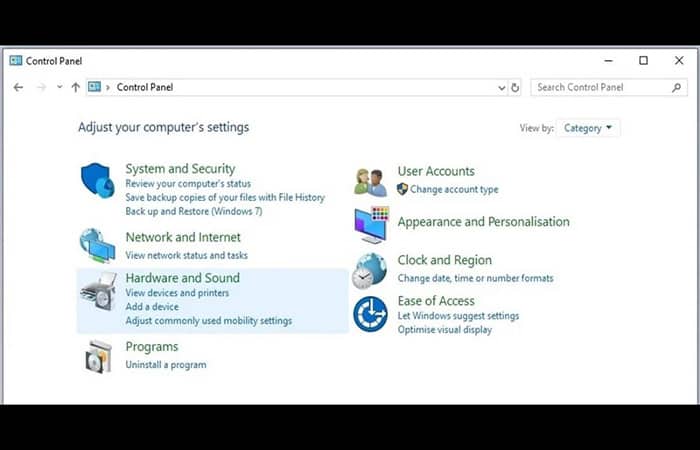
- Step 2: look for the option 'Sound' and click on it.
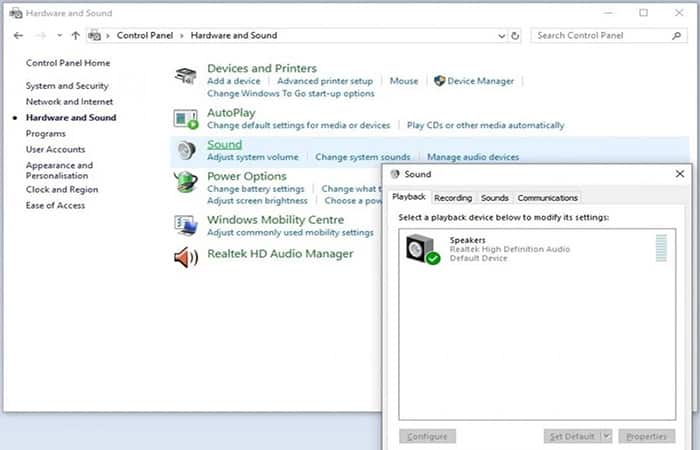
- Step 3: Right click on the headphones and then select the option 'Properties'.
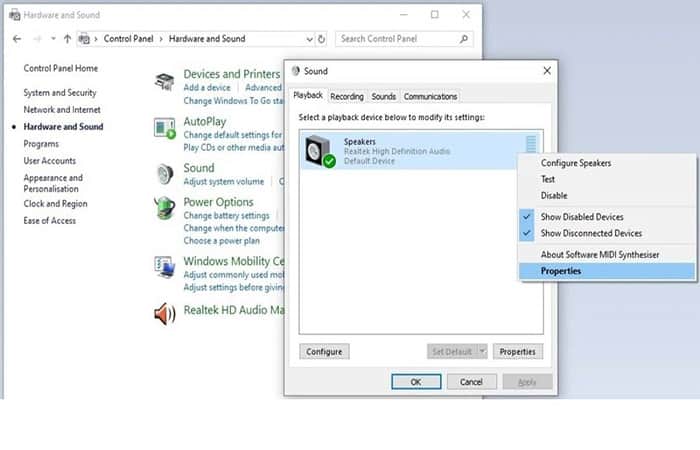
- Step 4: press the option 'Levels'.
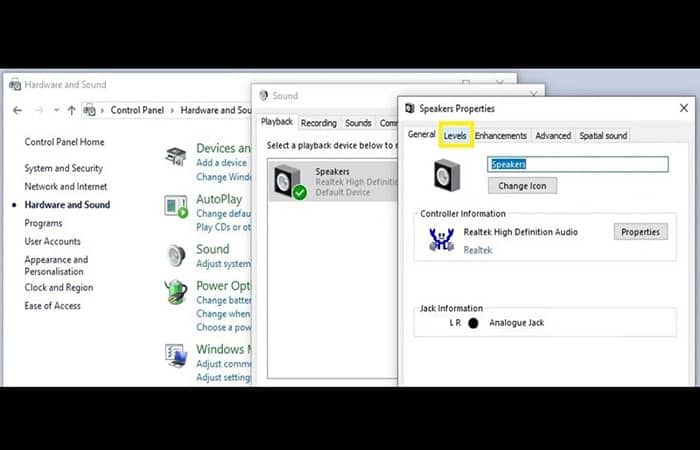
- Step 5: push the button 'Balance' which is located just to the right of your device.
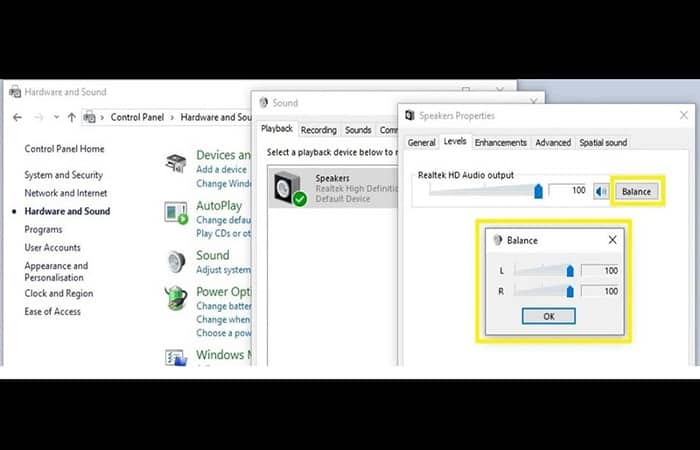
- Step 6: restore the balance to equal, or adjust it so your speakers sound the same.
This simple solution is very effective at altering the left/right balance of most headphones. However, it often doesn't change because it's a bit difficult to find.
2. Disable special sound effects
Windows computers have special features for enhancing sound. These features can sometimes affect normal headphone playback, potentially causing an altered perception of sound. To resolve this and fix unbalanced headphones, you can disable special sound effects to restore the audio to normal. Here are the steps to follow:
- Step 1: go to 'Control Panel'.
- Step 2: look for the option 'Sound' and click on it.
- Step 3: Right click on the headphones and then press the option 'Properties'.
- Step 4: look for the option 'Improvements' and click on it.
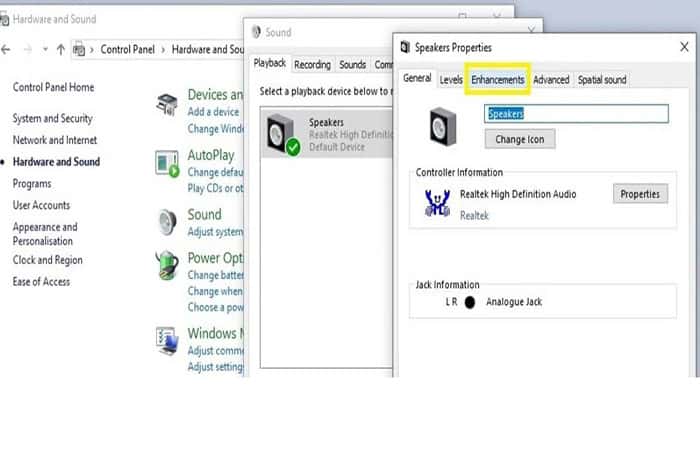
- Step 5: go to the 'checkbox' which is labeled as 'Disable all sound effects'.
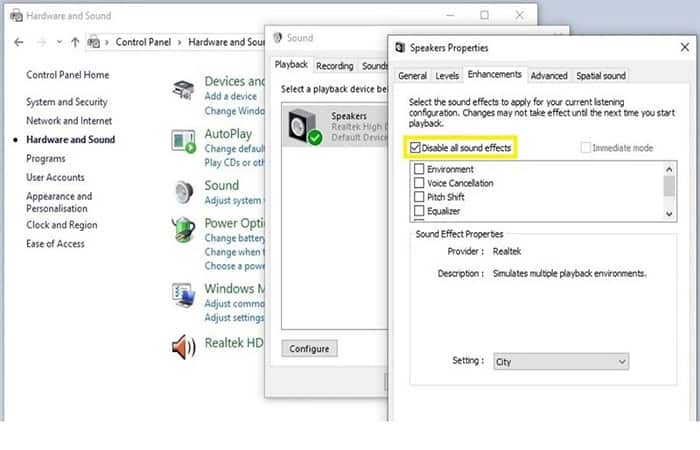
Disabling sound effects removes the different playback sounds. This allows mono audio to maintain similar channels. The '3D' effect on the sound is removed, but the balance of the headphone audio can be easily restored by allocating the sound to both channels equally.
3. Check that your headphones are not connected to a 'mono' jack
Headphone imbalance can occur if you're using the wrong connector. If you're only hearing sound from the left earpiece speaker, you might be using an audio device with a mono output or a 'mono' connector. To resolve this and fix unbalanced headphones , try the following:
Make sure your headphones are plugged into a port designed for headphones.
The headphone port will be labeled " headphones ," and there may also be a headphone icon or engraving to identify it. If properly connected, your headphones will produce stereo sound, with both sides sounding the same.
Make sure you don't plug your headphones into a 'headphone' jack
Headphones must be plugged into a headphone jack, as plugging them into this type of jack will only create sound in the left earpiece.
You might also want to know: How to Connect Headphones to a Samsung TV Without Audio Output
How to balance the sound in headphones on an Android device
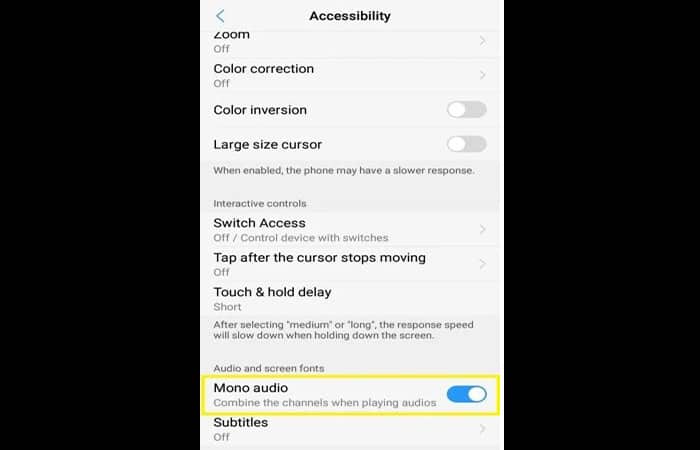
If one earbud is louder than the other on your Android device, your Accessibility settings might be the culprit. It works similarly to Windows devices; it assigns audio through mono or stereo channels for improved listening. To see if these settings are enabled, try adjusting the headphone balance or enabling 'Mono Audio'. Here are the steps:
- Step 1: go to the option 'Setting'. Go to 'Setting'.
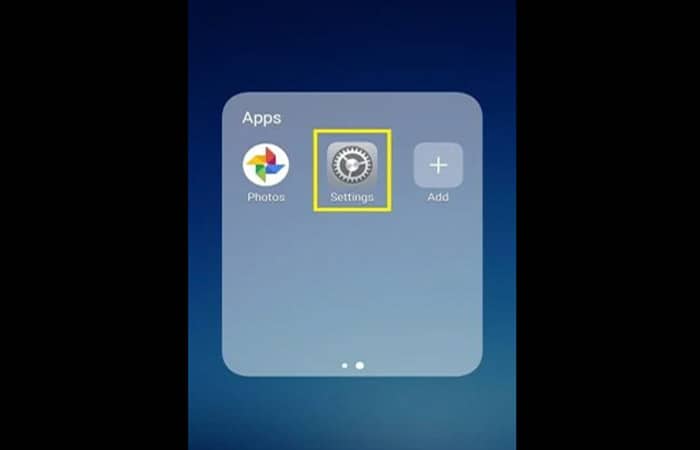
- Step 2: select option 'Accessibility'.
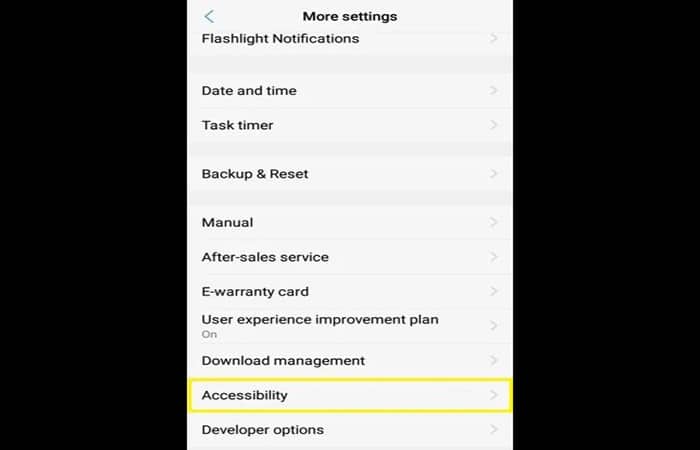
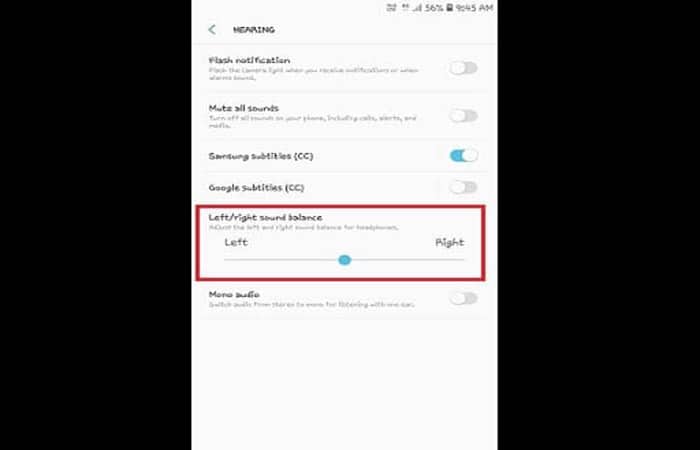
- Step 3: There, you'll find a slider that you can use to shift the balance of the speakers to where you want it (hand o right).
- Step 4: If this doesn't work for you, you can check the function 'Mono Audio'. This will make the sound through both channels sound the same. The stereo effect will be eliminated but the playback will be similar.
How to balance headphone sound on Samsung smartphones?
If you want to adjust the headphone sound balance on any Samsung phone, you need to follow the steps below:
Note: You can adjust the Sound Balance option only when the headphones are connected to the mobile phone.
Follow the steps below to fix unbalanced headphones on Samsung smartphones:
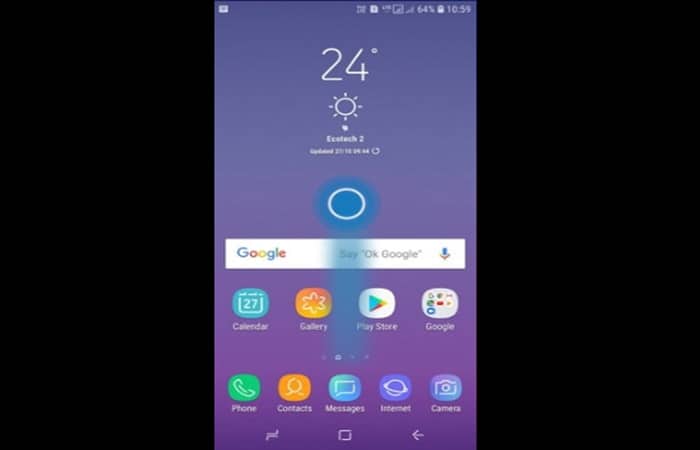
- Step 1: Swipe up to open the apps screen or tap the option Applications.
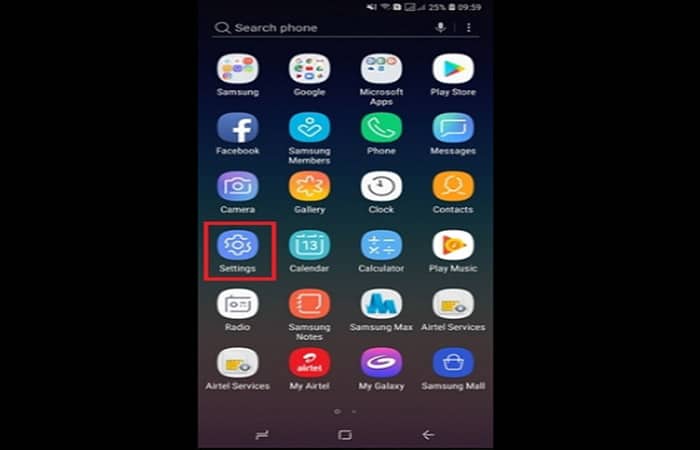
- Step 2: go to the option Configuration.
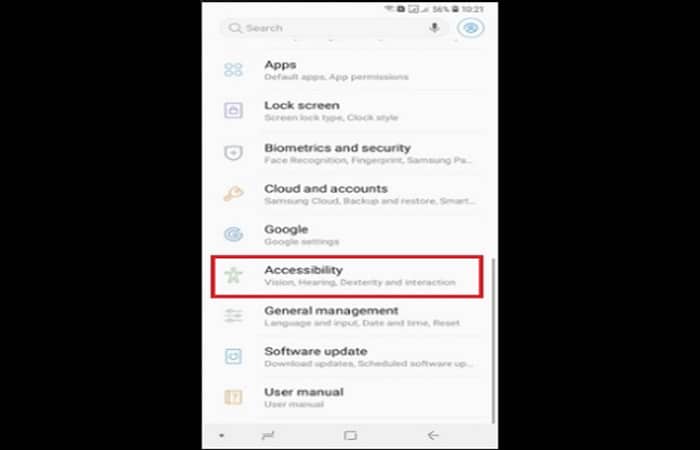
- Step 3: scroll down and press the option Accessibility.
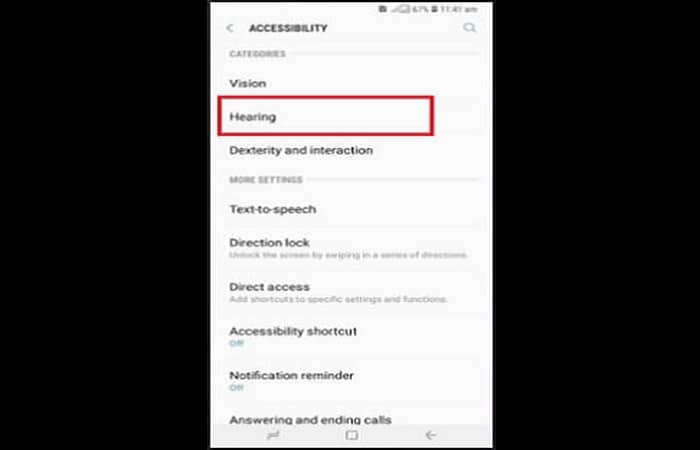
- Step 4: press the option Hearing (or select Hearing improvements).
- Step 5: It's time to adjust the sound balance; you can do that now.
Check out: My Headphones Aren't Working on Windows 10. Solutions
Final thoughts
Okay, by now you should know how to fix unbalanced headphones on any of the devices mentioned above. We hope so, and that you're enjoying your movies, audiobooks , or favorite songs. Are your headphones currently balanced? Were you able to find the cause of the problem? Did you make a few or many changes? You can reply in the comments section.

My name is Javier Chirinos and I am passionate about technology. Ever since I can remember, I have been interested in computers and video games, and that passion has turned into a job.
I have been publishing about technology and gadgets on the Internet for over 15 years, especially in mundobytes.com
I am also an expert in online marketing and communication and have knowledge in WordPress development.