- Strategic I/O buffer tuning and core management to eliminate clicks and delays.
- Implementation of track freezing and audio bouncing techniques to free up CPU.
- Storage optimization using external SSD drives and APFS file formats.
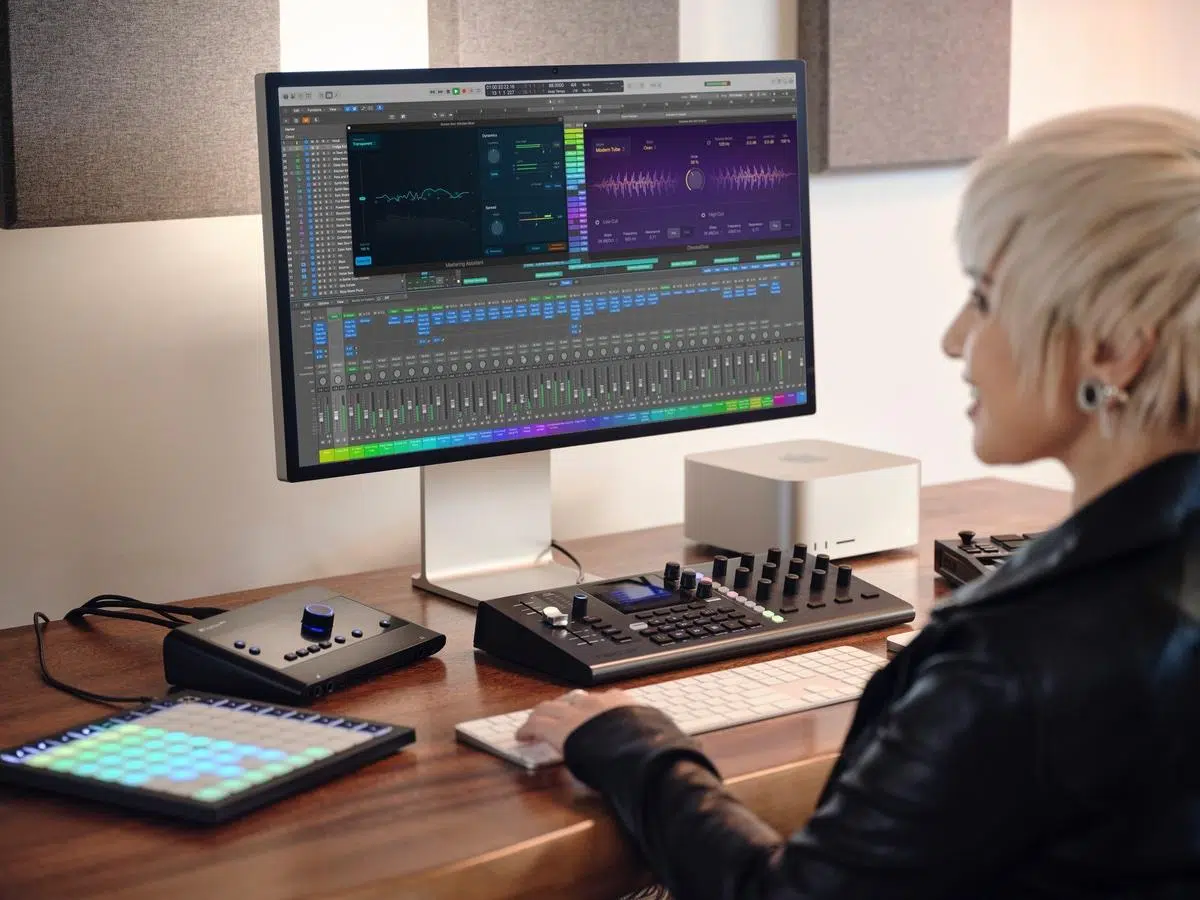
When you delve into the world of music production, nothing is more infuriating than being in the middle of a perfect take and then that dreaded system overload warning pops up . This usually happens when Logic Pro runs out of processing power, either because we've overused virtual instruments or because the Mac simply can't handle it anymore, causing interruptions that stifle creativity.
To ensure your workflow runs smoothly, it's essential to balance hardware and software resources . It's not just about buying the most expensive Mac, but about intelligently configuring your DAW so that latency isn't an issue and performance remains stable, even on projects with hundreds of tracks.

System and Hardware Configuration
Before making any changes within the program, it's a good idea to leave your computer running undisturbed. Ideally, close any applications that aren't strictly necessary, such as web browsers or messaging apps, to free up RAM. If you're using an audio interface, only allow its control software to run alongside Logic Pro.
A critical point is where you store your work. Putting large projects on your startup disk is a common mistake; it's best to use an external USB-C SSD formatted in APFS or Mac OS Extended (Journaled). This prevents your main disk from becoming overloaded and allows for much faster sample retrieval.
If you work with large sample libraries in the Sampler, it's highly recommended to dedicate a specific storage device just for the samples. This is vital if you have virtual memory enabled, as it prevents the system from crashing when trying to read audio data from the disk where the operating system is installed.

Mastering the Performance Meter
To avoid going in blind, you should enable the performance monitor . Go to Settings, Advanced Tools section, and activate all features. Then, in the toolbar, change the display mode to "Custom" so that the CPU and HD indicators are always visible.
Double-clicking these meters will reveal two key sections. Threads tells you how much power each processor core is using, while I/O shows your disk bandwidth. If you see consistent spikes in CPU usage, it's time to optimize your plugins; if the problem is I/O, the bottleneck is your hard drive.
Audio Settings to Eliminate Lag
The key to latency lies in the size of the I/O buffer . For recording, we need a small buffer (32 to 128 samples) to avoid delay between playing and listening. However, this puts a heavy load on the CPU. For mixing, it makes sense to increase the buffer size to 512 or 1024 samples, thus reducing the processing load.
Another interesting option is buffer gap processing . Setting it to "Large" improves stability, though it does add a bit more latency. As for multithreading, this is how Logic distributes the workload across the cores; make sure it's optimized to take full advantage of the power of your Apple Silicon or Intel chips.
If you don't need pinpoint accuracy in your automation, you can disable High Precision Automation in the general audio settings. This provides immediate relief for the processor, especially during sessions with a lot of fader movement.

Intelligent Plugin and Resource Management
Don't add heavy effects like reverb or delay directly to each track. The professional solution is to use send effects (buses), processing multiple signals with a single plugin. If you need something fast and lightweight on a single track, opt for options like SilverVerb or PlatinumVerb, which use significantly less CPU.
When a virtual instrument track becomes unmanageable, freezing tracks is your best friend. This feature creates a temporary audio file that disables plugins, freeing up resources. However, be careful: if the I/O Unit meter is already at its limit, freezing can make things worse by increasing disk reads.
To optimize the Sampler, you can adjust the virtual memory settings. If you're experiencing CPU spikes, enable it so that only sample attacks are loaded into RAM, while the rest is read from disk. Also, adjust the host disk activity based on the number of audio tracks in your session.
Strategies for Massive Projects
If you're dealing with a project that's years old, with hundreds of tracks and constant errors, the best thing to do is clean up the session . Start by bouncing the existing tracks in place , converting the MIDI and plugins into pure audio. This eliminates the real-time processing load.
Reduce the sampling rate if possible. Working at 96 kHz is great for quality, but it requires twice the resources of 44,1 kHz. For most digital productions, 44,1 kHz and 32-bit floating point is the perfect balance between fidelity and performance.
To avoid distractions and micro-cuts, enable Do Not Disturb mode on macOS. Closing background applications and preventing system notifications while recording can make the difference between a stable session and one filled with audible clicks.


Passionate writer about the world of bytes and technology in general. I love sharing my knowledge through writing, and that's what I'll do on this blog, show you all the most interesting things about gadgets, software, hardware, tech trends, and more. My goal is to help you navigate the digital world in a simple and entertaining way.