- A .deb package combines installation files and metadata into a directory structure with a mandatory DEBIAN folder.
- The control file defines name, version, architecture, dependencies and descriptions, along with scripts such as postinst and postrm.
- dpkg-deb and dpkg-buildpackage allow you to generate packages from simple structures or complex source code with debhelper support.
- Testing, installing, and, if necessary, retrofitting packages ensures clean and maintainable integration into Debian and derivative systems.

If you use Debian, Ubuntu, or any derivative, sooner or later you might want to create your own .deb package to install scripts, binaries, wallpapers, or any other resource in a clean and repeatable way. Proper packaging not only looks professional, but it also saves you time when you want to deploy the same package to multiple machines or share it with other users.
Although it may sound a bit complicated at first, the reality is that The .deb format follows very clear rules.A package consists of a specific directory structure, control files containing package information, and optionally, maintenance scripts that run at different stages of installation or uninstallation. Understanding these basic concepts will allow you to create anything from a typical .deb file that copies a package to a more complex package. script en /usr/bin up to more elaborate packages with fonts, wallpapers or complete applications compiled from source code.
What exactly is a .deb package?
A file with the .deb extension is the software package format used by Debian and all its derivatives (Ubuntu, Deepin based on Debian, etc.). Within this file, you'll find, compressed, the files that will be installed on your system and a series of metadata describing the package: name, version, architecture, dependencies, post-installation scripts, etc.
The low-level program that manages these packages is dpkg , which handles unpacking, installing, configuring, and removing .deb files. More user-friendly tools like apt , aptitude , or graphical package managers such as Synaptic , PackageKit , Gdebi , or the Ubuntu Software Center work on top of it. However, when creating a .deb file manually, you'll almost always be working with dpkg and dpkg-deb.
On a practical level, a .deb package is nothing more than an installable file on Debian systems that integrates everything necessary to correctly deploy an application or resources. Compared to a simple tar.gz Like an AppImage, the .deb file integrates with the package system, respects standard paths, and allows for orderly management of dependencies and versions.
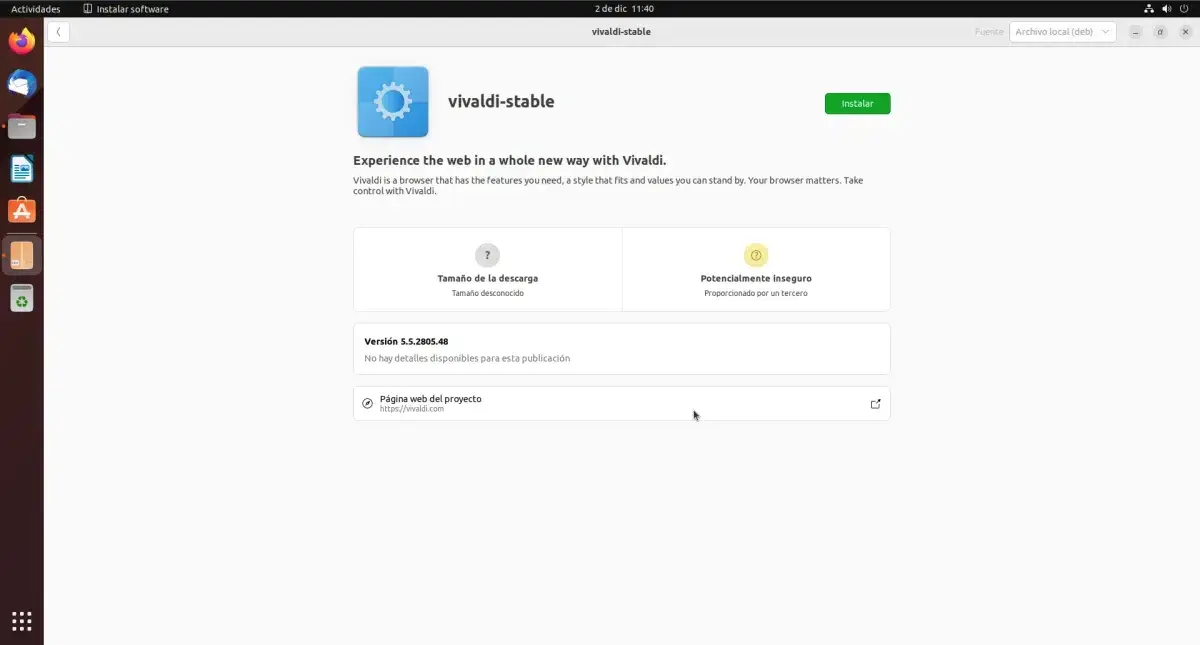
Basic structure of a .deb package
Before packing anything, it is essential to understand that A .deb file is built from a root folder whose name usually matches that of the package (for example miapp, fuentes-personales, debetc.). Within that folder we have two large blocks: the folder DEBIAN (in uppercase) and the installation hierarchy where the package files will be copied.
Folder DEBIAN contains the control files of the package. The mandatory one is controlwhere the package name, version, architecture, dependencies, description, etc., are defined. Additionally, special scripts can be created such as postinst y postrm, which run automatically after installing or removing the package.
The rest of the structure replicates the system paths where you want your files to end upIf you want to install a script in /usr/binYou will need to create miapp/usr/bin/ and place the executable there. If they are source files, you will use /usr/share/fonts/If they're wallpapers, maybe /usr/share/backgrounds/The packager simply unpacks the contents of the .deb file into those paths, respecting the hierarchy.
mkdir deb

mkdir -p deb/usr/bin

cp execute.sh deb/usr/bin/
Then, inside deb, you would create deb/DEBIAN/ and the file deb/DEBIAN/control with the package metadata. That structure will then be packaged with dpkg-deb o dpkg -b to generate the final .deb file.
The control file: the heart of the package
Inside the folder DEBIAN The file is mandatory. control, Which defines all the basic information about the packageIt is a plain text file without an extension that contains fields in the format Clave: ValorOne per line. Some of the most common fields are:
Package: nombre-del-paquete

Version: 1.0

Section: misc

Priority: optional

Architecture: all

Maintainer: Nombre Apellido <email@dominio>

Depends: paquete1, paquete2

Replaces: paquete-viejo (>= 1.0)

Description: descripción corta

descripción larga del paquete en una o varias líneas
Field Package indicates the internal package name and It does not allow spaces or underscores.Only lowercase letters, numbers, and hyphens are usually used (-). This is the name the package system will see when installing it.
Field Version It specifies the exact version of the package, and it's important to update it whenever you make significant changes. You can follow a simple format like 1.0 or more elaborate type 1.0-3 to indicate revisions within the same software version. If you need to revert changes, learn how to revert to a previous version of a package.
Fields Section y Priority They help to sort the package. Section It could be something like misc, custom, netetc., especially useful if you plan to publish the package in a repository. Priority It reflects the importance: common values are required, important, standard, optional o extraBeing optional the most common for custom packages.
Field Brand Specify which architecture the package is intended for: amd64, i386, x86, arm64etc. If the package contains only architecture-independent scripts or files (such as images, fonts, or bash scripts or Python), you can use all to indicate that it works on any platform.
The Maintainer field specifies the developer or person responsible for the package, usually with their name and email address. The Replaces field is used to indicate packages or versions that this new package replaces, which is useful when you release a new version that needs to replace a previously installed one. If you prefer to maintain multiple versions, see how to install two versions of the same package on Linux.
Field depends List the dependencies that must be installed before or during the package installation. For example, if your application is written in Python and you don't install the libraries yourself from a script, you can specify the necessary packages here. apt resolve them automatically. If your package already handles this (for example, by downloading dependencies from an installation script), you can leave it as is. Depends: empty.
Finally, the Description field has a trick to it: the first line contains a short description , and subsequent lines (optionally) form the long description. It's mandatory that each line of the long description begins with a space before the text. This allows Debian tools to distinguish between the two parts and display the information correctly in package listings and managers.
Post-inst and post-rm scripts: automating tasks
In addition to the file control, in the folder DEBIAN You can create several maintenance scripts that run automatically at different times. The most commonly used ones in simple packages are: postinst y postrmalthough there are others such as preinst o prerm for more advanced cases.
The post-installation script runs after unpacking and installing the files . It's the ideal place to run configuration commands : for example, running your application's installer, regenerating caches, reloading services, or modifying any configuration files generated during installation.
The script postrm runs after removing the packageIt is typically used to clean up residual files that are not strictly part of the package or to uninstall changes made to the system configuration. For example, you could delete a folder created in /usr/share/fonts/fuentes-personales/ after uninstalling a font package.
These scripts are simply executable text files containing the commands to be executed, usually in bash. Adding the line is not mandatory. #!/bin/bash Initially, although it's good practice, it's important that they have the correct execution permissions, usually something like 755 (i.e., read and execute for everyone, write only for the owner). In general, it is recommended that they be between 0555 y 0755.
#!/bin/bash

rm -Rf /usr/share/fonts/fuentes-personales/
By doing this, the package will be removed. dpkg -r o apt remove, the specified directory will disappear automaticallyavoiding unnecessary waste in the system.
Creating the package directory hierarchy
For the package to work as expected, you need to play within your root folder the exact structure where you want the files installed. The idea is that what you put in miapp/usr/bin/ will end in /usr/bin/, whatever is in miapp/usr/share/fonts/ will end in /usr/share/fonts/ and so on.
Imagine you want to create a package that installs new fonts on your system. The directory tree might look something like this:
fuentes-personales/

├── DEBIAN/

│   └── control

└── usr/

└── share/

└── fonts/

└── fuentes-personales/

├── fuente1.ttf

└── fuente2.otf
In this case, when installing the package, The fonts will be copied to /usr/share/fonts/personal-fonts/If you later release a new version with additional or improved fonts, you would only need to update the contents of that folder and upload the version in the file. control.
Another typical scenario is packaging a script downloaded from GitHubFor example, a tool that you want to place in /opt and maybe add a launcher in /usr/binYou could download the project (for example) 4nonimizer), create a folder deb/opt/ and insert the complete code there:
mkdir -p deb/opt/

cp -R 4nonimizer deb/opt/
If you also want a command to be executed when the package is installed, like 4nonimizer installYou could use a script postinst have it automatically run that command after unpacking the files. This way, the user only has to install the .deb file and that's it, without any additional manual steps.
Don't forget that, before building the package, it's highly recommended that the owner of the entire root folder be root , since, in actual execution, the system files belong to this user. You can adjust the ownership with:
sudo chown -R root:root ./deb
Generate the .deb package manually
Once you have the structure prepared with the folder DEBIAN, the file controlthe possible scripts postinst/postrm and the hierarchy where the files go, the next step is build the .deb packageThere are several ways to do this, but the most common for simple packages are dpkg -b y dpkg-deb –build.
dpkg -b ./deb /home/usuario/SCRIPTS.deb
In the case of the application miappThe usual order would be something like:
cd ruta/donde/este/miapp

dpkg-deb --build miapp
This will create a file with a name similar to myapp.deb Or, depending on how you've configured it and where you're launching it from, a file following a pattern like miapp-1.0_amd64.debThat file will then be the installable package that you can copy to other machines or upload to a repository.
After construction, you can inspect the internal package information with:
dpkg --info fuentes-personales.deb
The command will display data such as size, sections, priority, maintainer, architecture, short and long description, as well as references to maintenance scripts (for example, postinst o postrm) if you have included them.
Install and test your .deb package
Once the .deb file is generated, it's time to test that it actually does what you expect . You can install it from a graphical environment, using tools like GDebi or your distribution's package installer, or directly from the terminal.
sudo dpkg -i nombre-del-paquete.deb
If your system alerts you to broken dependencies, you can fix them with sudo apt -f installwhich will attempt to download and install the missing packages. That's a good idea. Afterwards, verify that the files have been installed in the intended paths. (for example, checking if the script is in /usr/bin or if the sources appear in the corresponding directory and are recognized by the system).
To view the package details again after installation or simply review its contents, you also have the following options:
dpkg --info nombre-del-paquete.deb
And if you want to uninstall it, simply use:
sudo dpkg -r nombre-del-paquete
If you have correctly defined a postrm script , in this phase the cleaning tasks you have scheduled will be executed, removing residual directories or files to leave the system as clean as possible.
Compiling from source and rebuilding advanced packages
Beyond simply creating packages for scripts or static resources, in more advanced environments it's common to recompile existing packages from their source code . This might be necessary when you need a newer version of a program than the one included with your distribution, or when you want to change the default compilation options.
This process of compiling a newer version of a package to work on a stable distribution is usually called backporting . Typically, you take the source code from a newer Debian version (for example, Testing or Unstable), adapt it, and rebuild the .deb file to be compatible with your stable system.
To download the source code of a package that already exists in the repositories, you can use:
apt source nombre-del-paquete
For example, with samba:
apt source samba
This command is responsible for download the source files (normally a .dsc control and one or more compressed files .tar.gz, .tar.xzetc.), verify their integrity and extract them to a directory whose name combines the package and version, for example samba-4.13.13+dfsg.
If you have the file URL directly. .dsc On a Debian mirror or on the maintainer's website, another convenient option is to use dget (from the package) devscripts), which downloads the .dsc file, associated files, and verifies signatures using dscverify and extracts the source package, leaving everything ready to work.
Modify compilation rules and dependencies
When what you need is change build optionsYou will mainly need to edit the file debian/ruleswhich controls the package build phases. In the simplest cases, you'll see clear calls to ./configure ..., make ..., cmake ... or similar, and you will just need to adjust the options to suit your needs.
In packages that use the modern style based on debhelper (with the command dhThese calls may be more hidden. In that case, you may need to create overrides specific to dh_auto_configure o dh_auto_buildso that your extra parameters are executed during configuration or compilation.
Another key file is debian/control (note, different from the) DEBIAN/control (from an already built .deb), which describes the binary packages that will be generated from the source code and, above all, its compilation dependencies through the field Build-Depends.
This field typically includes very specific dependency versions , designed to ensure that autobuilders always use the expected library versions. However, when you manually retrofit, these versions may not exist in your stable distribution.
In those cases, you can consider relax some overly strict dependenciesProvided you're sure the software can compile correctly with slightly older versions. It's advisable to read files like INSTALL or the project documentation to identify which libraries are truly essential and what minimum versions they require.
Sometimes, to successfully complete a backport, you'll need to retrofit packages listed in Build-Depends that aren't available on your system. This can become a recursive and quite complex process if you're not careful. Therefore, it's recommended to keep these types of dependency chains to a minimum whenever possible.
Build the binary package from the sources
Once you have applied the necessary changes to the packaging files (for example in debian/rules y debian/control), the time comes to regenerate the .deb binary packageThis is mainly done using the command dpkg-buildpackage, which orchestrates the entire compilation and packaging process following Debian standards.
It is common to use options to prevent the automatic signing of generated control files, such as the .dsc and the .changesFor example, the options -us y -uc They are used to indicate that the source package and changes should not be signed, which is reasonable if you are only doing local testing.
Many developers prefer to use a higher-level tool, such as debuild (also included in) devscripts), which internally calls dpkg-buildpackage It also performs a battery of extra checks on the generated packages, verifying whether they comply with Debian's policy and cleaning up environment variables that might interfere with the compilation.
The result of this process will be one or more .deb files ready to install on your system, just like any other package. The beauty of this approach is that it allows you to adapt complex programs to your specific needs or bring newer versions into stable distributions without having to resort to potentially less reliable external repositories.
Mastering from the minimal structure with DEBIAN/control From a few basic scripts to the most advanced techniques of recompilation from source and dependency management, you have everything you need at your fingertips to Build and maintain your own .deb packagesWhether for home scripts, background collections, or complete applications, with a level of system integration identical to any official package.


Passionate writer about the world of bytes and technology in general. I love sharing my knowledge through writing, and that's what I'll do on this blog, show you all the most interesting things about gadgets, software, hardware, tech trends, and more. My goal is to help you navigate the digital world in a simple and entertaining way.