- The hal.dll file is essential for the functioning of the operating system Windows, allowing communication between the hardware and the software.
- Errors related to hal.dll are usually caused by corrupted files, hard drive failures, or incorrect configurations on the operating system. Boot.
- There are multiple effective methods to repair hal.dll errors without losing important data on your computer.
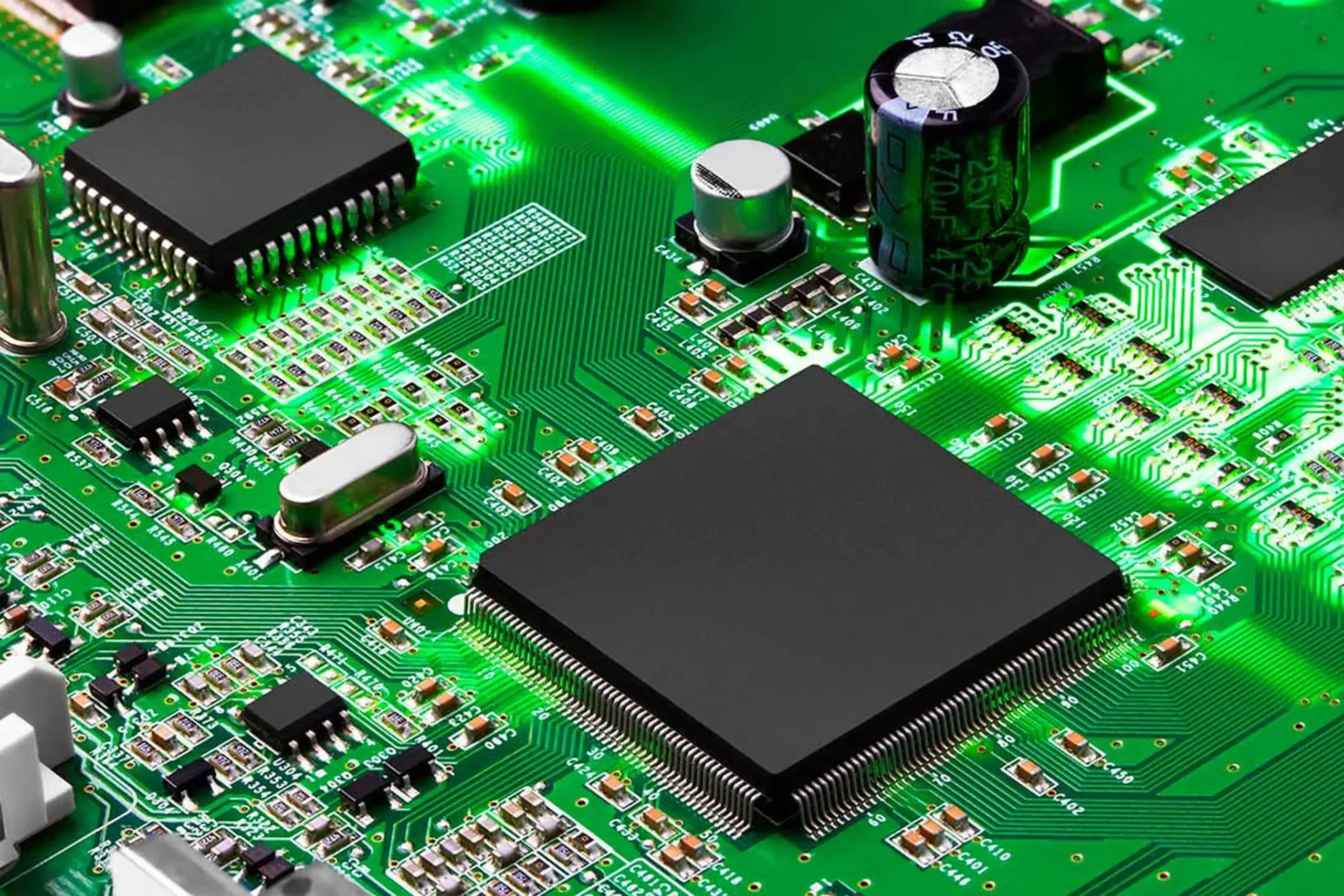
When our computer throws errors at startup, few files are as recurring and enigmatic as hal.dll . The infamous blue screen or the dreaded message that hal.dll is missing can frighten even experienced users. However, understanding what hal.dll is, what it does, and how to fix the associated problems makes all the difference between a useless computer and a system that comes back to life in a matter of minutes.
Let's delve, step by step and in the clearest language possible, into the world of hal.dll : its function within Windows, the most common causes of errors, and above all, how you can effectively fix them even if you've never opened your computer's BIOS before . Did the 'hal.dll could not be found' message scare you? Keep reading and learn everything you need to know to never fear it again!
What is hal.dll and what is its function in Windows?

The hal.dll file , short for Hardware Abstraction Layer Dynamic Link Library , is a critical component of the Windows operating system (especially in versions like Windows XP, 2000, and some editions of Vista). This file typically resides in the C:\Windows\System32 directory and acts as an intermediary between the computer's physical hardware and the operating system itself.
In other words, hal.dll is responsible for translating the commands that the system and applications send to the hardware, so that Windows can function correctly on all types of computers, regardless of their specific technical characteristics. Thanks to this abstraction layer, the Windows kernel can communicate with processors, motherboards, and other devices without depending on model-specific details.
Additionally, when you start your computer, hal.dll participates in the system startup process , helping to load other vital elements such as drivers and configuration files.
Why might hal.dll errors occur?
Errors involving hal.dll are often a major headache because they prevent Windows from starting correctly or cause it to crash abruptly. But why do these errors occur? The most common causes are:
- Corruption of the hal.dll file: Whether due to an unexpected failure, incorrect installation, or virus/malware attack, the file becomes corrupted and Windows cannot use it to start the system.
- Accidental deletion or movement: Deleting or moving hal.dll from its original location in System32 makes it impossible to boot directly.
- Errors or corruption in the boot.ini file: This file is responsible for informing Windows about the installed partitions and systems. If corrupted, it can cause the system to lose sight of hal.dll.
- Physical problems with the hard driveBad sectors, deterioration, or mechanical failure can prevent Windows from properly accessing hal.dll or associated files during startup.
- Modern versions of Windows: On systems like Windows 10, Windows 8 and Windows 7, the architecture has changed and the boot operation is different, so the error itself is usually caused by other components but may appear in a similar way.
It is important to emphasize that, although hal.dll is fundamental in Windows XP and some earlier systems, in more recent versions its relevance is different, although similar errors still occur for other reasons related to startup.
Common error messages related to hal.dll
When there is a problem with hal.dll, Windows usually displays one of these characteristic messages :
- Windows has not started because the following file is missing or corrupt: C:\Windows\System32\hal.dll. Please reinstall a copy of the file above.
- Cannot find \Windows\System32\hal.dll.
- C:\Windows\System32\Hal.dll is missing or corrupt: Reinstall a copy of the previous file.
- Windows could not start because the file C:\Windows\System32\hal.dll is corrupt or missing.
Any of these messages means the operating system can't boot properly because the layer that communicates between the system and the hardware (hal.dll) is unavailable or not working. So, if your PC displays one of these warnings, it's time to get to work and apply some solutions.
How to fix hal.dll errors?
There are several methods to restore normal operation to your PC when you encounter a hal.dll error . Below, we review the most effective techniques, ordered from simplest to most advanced. Remember that every situation is different, so try the solutions based on the error message and your technical capabilities.
Check and correct the boot order in the BIOS
One of the most frequent reasons for the hal.dll error is that the BIOS tries to boot from the wrong partition , preventing it from finding the necessary file. To check this:
- Access the BIOS/UEFI from your computer. You usually enter by pressing 'Del', F2, or a specific key at startup (depending on the manufacturer).
- Find the tab Boat u Boot order.
- Make sure that the disk where Windows is installed appears as the first boot option. If not, change it using the on-screen keys (usually + and – or the arrows).
- Save the changes and restart the PC.
Failure to do so may result in the system not finding hal.dll when attempting to load another system or partition.

Repairing the boot file and boot.ini file
The boot.ini file is essential in systems like Windows XP, as it contains information about the location of installed operating systems . If it is corrupted or misconfigured, the system will display errors related to hal.dll. To fix it:
- Enter the CD or USB windows installation and restart the computer.
- Boot from that media and when asked, select the option to Repair equipment or access the recovery console.
- In the console, run the following commands one by one (pressing Enter after each one):
attrib -h -r -sc:\boot.ini
from c:\boot.ini
bootcfg / rebuild - When asked, accept the default options and type fixboot & AFTER exit to go out.
- Restart your PC and check if the problem persists.
This process rebuilds the boot.ini file, eliminating configuration errors and allowing Windows to correctly locate hal.dll.

Restore or replace the hal.dll file
If the hal.dll file is corrupted or missing from your system, you can manually restore it from the installation disc . To do this:
- Boot from the Windows XP installation CD or USB.
- Balance R when prompted by the installer to enter the recovery console.
- Enter the administrator password if requested.
- At the command line, type:
expand D:\i386\hal.dl_ C:\Windows\System32\hal.dll
(Replace the letter D with the letter corresponding to your CD/DVD drive. Replace C with the drive where Windows is located if necessary.) - Balance Y to overwrite the existing file and then restart the computer.
This will restore the original, functional hal.dll file, resolving errors caused by corruption or deletion.
Repair system files with SFC and check the hard drive
Another very effective solution is to use the SFC (System File Checker) tool to detect corrupted system files:
- Boot from the Windows installation media.
- Choose 'Repair your computer' and access the symbol of the system.
- Enter the command:
sfc /scannow /offbootdir=C:\ /offwindir=C:\Windows
(Make sure to use the correct drive letter and folder for your system.) - Let the process complete. If it finds any corrupted files, it will automatically replace them.
On the other hand, you can check the status of the hard drive with the chkdsk utility :
- From the repair command prompt, type:
chkdsk C: / f
(Replace C with the drive where you have Windows.) - Let it scan and repair errors on the disk. If your drive has bad sectors or corrupt filesThis tool can solve many problems related to hal.dll.

Advanced Diagnostic Tools: MiniTool Partition Wizard and Data Recovery
When basic methods fail, advanced tools can help diagnose and repair hardware and partition problems . Programs like MiniTool Partition Wizard Professional Edition allow you to create bootable media and run surface tests on your hard drive, scan for bad sectors, and repair damaged file systems.
If your computer won't boot, you can use another PC to create a bootable USB drive, launch MiniTool Partition Wizard on the failed computer, and perform detailed checks. Additionally, if you've lost important files due to the hal.dll error, tools like Recoverit Data Recovery can recover documents, images, and formatted partitions from both hard drives and external storage devices.
What to do if the above solutions don't work?
If, despite trying all of the above, your computer still isn't working and the hal.dll error persists, the only option may be to perform a clean installation of Windows . Although this is a drastic measure that erases all data, it guarantees the elimination of any conflicts or deep system damage. Before resorting to this, be sure to recover all important files using specialized software.


Passionate writer about the world of bytes and technology in general. I love sharing my knowledge through writing, and that's what I'll do on this blog, show you all the most interesting things about gadgets, software, hardware, tech trends, and more. My goal is to help you navigate the digital world in a simple and entertaining way.