
If you're venturing into the world of web hosting and want complete control over your infrastructure, setting up a LAMP server is probably the best decision you can make. Essentially, it's a set of open-source tools that stack on top of each other, allowing you to host anything from a simple blog to incredibly complex and dynamic web applications without spending a penny on licenses.
Just so you don't get lost, LAMP is an acronym for Linux (the operating system), Apache (the web server), MySQL or MariaDB (the database), and PHP (the programming language) . Unlike static websites, which are like digital brochures that don't change, a LAMP server allows you to create dynamic websites, where content is generated on the fly based on user requests—something fundamental for any serious project these days.

Preparing the ground: The Operating System
Before diving into commands, you need a solid foundation. While many distributions exist, Ubuntu and Debian reign supreme for this purpose due to their stability and the vast amount of documentation available. If you're using a cloud service, it's best to reinstall the distro from the control panel to start with a clean system.
If you're going to install it yourself on physical hardware, remember to download the ISO image, burn it to a USB drive, and configure basic settings like time zone, keyboard layout, and hostname. Once you have access to the terminal via SSH, the first thing you should do is run `sudo apt update` and `sudo apt upgrade` to ensure all packages are up to date and avoid any surprises with outdated versions. In some cases, you might need a guide to migrate a Linux server if you already have some data.
Apache Installation and Tuning

The web server is the component that receives user requests and delivers the page. To install it, simply use the command `sudo apt install apache2` . Once installed, you can verify that everything is working correctly by entering your server's IP address in your browser; if you see the default Apache page, then you're all set.
For those looking to optimize performance, there are a few tricks. For example, you can adjust the KeepAlive parameter in the apache2.conf file to balance loading speed and RAM usage. Additionally, if you're using PHP, it's recommended to configure the MPM Prefork module and disable the Event module to avoid compatibility issues, restarting the service afterward with `systemctl restart apache2`.

Data management with MySQL or MariaDB

To store users, comments, or products on your website, you need a database management system. While MySQL is the classic choice, MariaDB is a powerful and fully compatible alternative. It's easily installed with `sudo apt install mariadb-server` or `mysql-server`.
A critical step here is security. You can't leave the database open to the elements, so you must run the `mysql_secure_installation` script . During this process, the system will ask if you want to remove anonymous users, block remote root access, and delete test databases. My advice is to say yes to everything to protect your server against common attacks. If you need to manage all of this visually and don't want to struggle with the command line, you can install phpMyAdmin, although keep in mind that on modern versions of Debian, you may have to perform a manual installation.
Implementing the PHP language
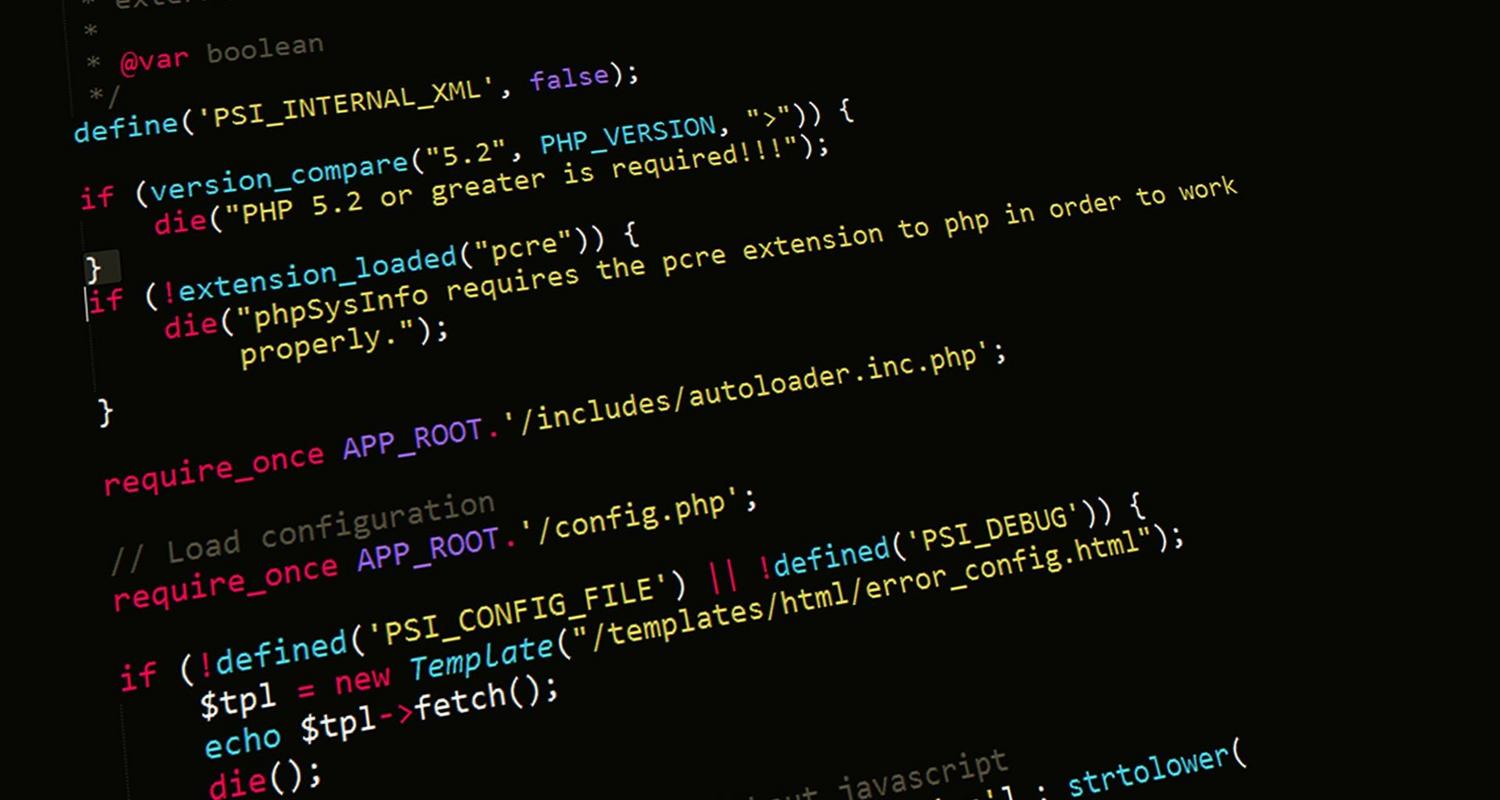
PHP is the brain that makes the web dynamic, processing information before Apache sends it to the browser. To install it, use the command ` sudo apt install php libapache2-mod-php php-mysql` . This ensures that the language communicates correctly with both the web server and the database.
To verify that PHP is running, the easiest way is to create a file called info.php in /var/www/html/ with the content <?php phpinfo(); ?>. When you access it from your browser, you'll see a detailed table with all the server configuration. An important detail is to edit the Apache dir.conf file so that the server looks for the index.php file before index.html, ensuring that your dynamic content has priority.

Strengthening security and access

Having a running server is great, but leaving it exposed is dangerous. This is where a firewall comes in. UFW (Uncomplicated Firewall) is the perfect tool for beginners. You can learn more about its use with this guide to configuring the UFW firewall . You should allow SSH traffic (port 22) to avoid being locked out of your own server, and activate the 'WWW Full' profile to open ports 80 (HTTP) and 443 (HTTPS).
For a professional website, you need an SSL certificate. Forget about paying for it and use Let's Encrypt through Certbot . Once you've configured your DNS and your domain points to the server's IP address, Certbot will automatically generate the certificates, allowing your users to see the green padlock for a secure connection in the address bar.
By integrating Linux, Apache, MariaDB, and PHP, you've built a versatile and powerful architecture that supports everything from small personal projects to robust platforms like MediaWiki. Mastering this stack allows you to manage every layer of the process, optimize hardware performance, and ensure efficient data flow between the server and the end client.


Passionate writer about the world of bytes and technology in general. I love sharing my knowledge through writing, and that's what I'll do on this blog, show you all the most interesting things about gadgets, software, hardware, tech trends, and more. My goal is to help you navigate the digital world in a simple and entertaining way.