
Having the entire Apple ecosystem working seamlessly is wonderful: you write a note on your iPhone and, presto, it appears on your Mac instantly. However, when that magic fails and data stops updating, it can be incredibly frustrating, especially if you work with important files that you need to have readily available on different devices.
Sometimes the problem is something trivial that escapes us, like a loose cable or a pending update, but other times the system seems stuck in an infinite loop. There's no need to panic; most of these issues have a fairly simple solution if we know where to look and what steps to take to bring iCloud back to life.

Basic checkups before complicating your life
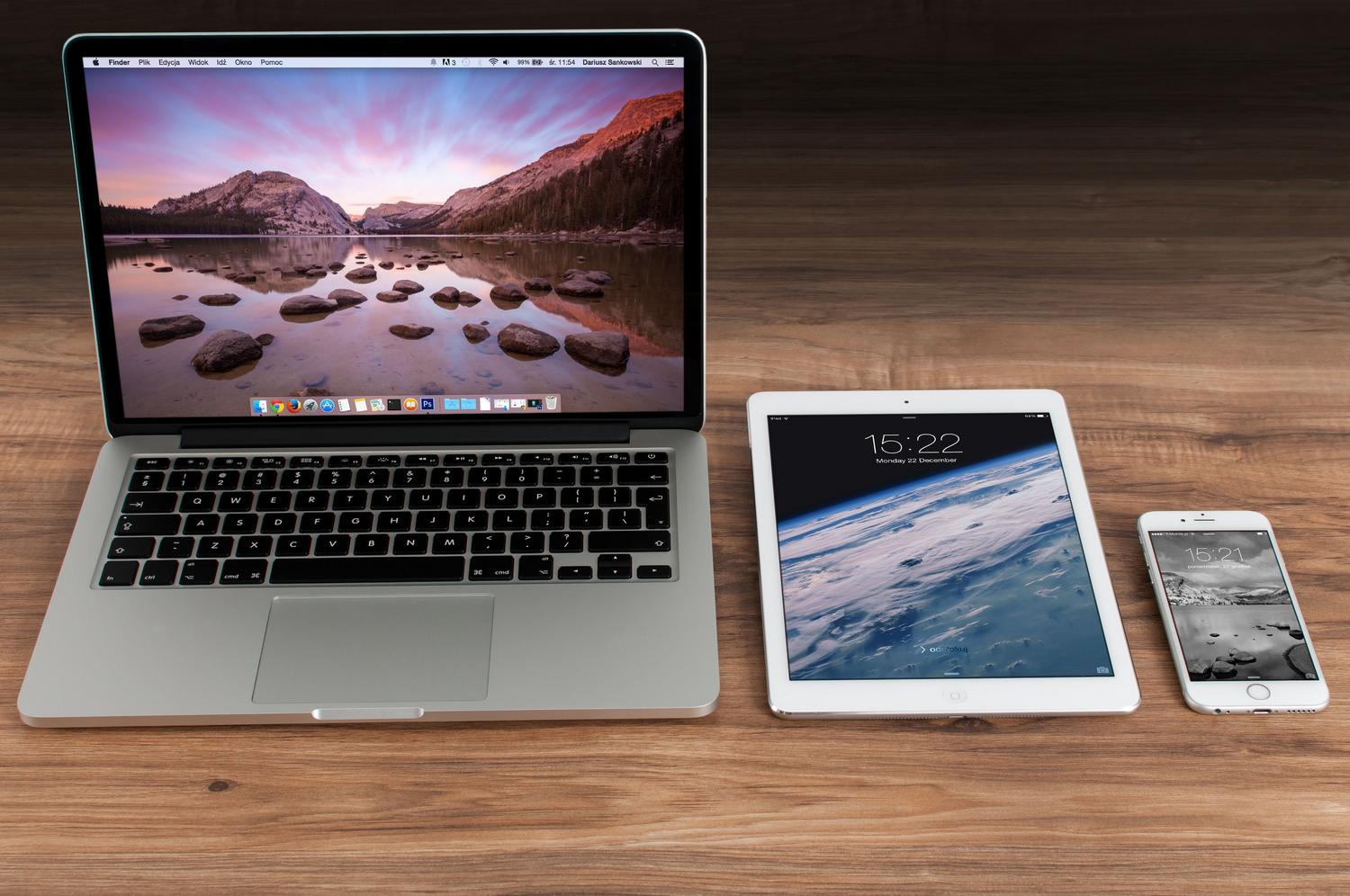
Before diving into advanced settings, it's wise to rule out the usual suspects. The first step is to confirm that all your devices are using the same Apple ID , as this is the most common and sometimes the most obvious mistake. If you have multiple accounts, it's likely that your information is being stored in different locations.
Another critical point is storage. If your cloud storage is full, syncing will stop completely. You can check the available space on your Mac by going to System Preferences > Apple ID > iCloud . If your storage is full, you'll need to free up disk space on macOS or upgrade your plan to get your data flowing again.
We also can't forget about the internet connection. It's not enough for the Wi-Fi icon to be active; sometimes the network is so slow that large files won't upload. It's advisable to run a speed test or troubleshoot intermittent Wi-Fi and network issues to rule out a problem with your router or internet service provider.

Tips for forcing synchronization and common mistakes
If you notice that iCloud seems to be working but a specific folder isn't updating, there's a handy trick that avoids having to restart your entire computer. Simply create a new folder or upload any small file to iCloud Drive; this usually "wakes up" the system and forces a general update of the contents.
Regarding software, keeping macOS and iOS up to date is vital. Apple constantly releases patches to fix bugs that specifically affect the cloud. Make sure there are no pending software updates , as an outdated version can cause compatibility issues between your devices.
If the problem persists, a tried-and-true solution is to sign out of iCloud and sign back in. This restarts the authentication process. Keep in mind that, depending on the amount of data you have, the initial sync after signing back in may take a while.
Photo, Video, and iCloud Drive Management

The Photos app is where sync issues most often occur. If you notice missing photos, check the bottom of the "All Photos" tab. Uploading might be paused due to battery saver mode or a weak connection. In these cases, you'll see the option to "Resume" or "Sync Now."
If you use the Optimize Storage option, remember that your Mac saves smaller versions of your photos, while the originals are stored in the cloud. If a specific photo isn't downloading, you can try pressing and holding it for a few seconds to force the system to download the entire file.
For iCloud Drive, it's normal for files to take a while to appear when setting up a new Mac. Don't worry if the process seems slow; the system is indexing all your stored content , and this requires time and a stable connection, ideally by plugging your computer into a power outlet overnight.

Specific problems and technical solutions

There are more complex cases, such as when your Mac asks for passcodes from other devices and doesn't accept them. In these situations, removing old or outdated devices from your iCloud account can help clear the trusted devices list and update your Apple password.
If you suspect the problem isn't on your end, check Apple's System Status website . If the iCloud indicator is orange or red, it means the servers are down, and you'll have no choice but to wait for Apple technicians to fix it.
When none of the above works and the system gets stuck in infinite loading loops, it could be a hardware problem or deep disk errors. In those cases, the wisest course of action is to take your computer to a specialized technical service for a thorough inspection.
Synchronization of Contacts, Notes and Calendars
Sometimes the problem isn't with iCloud, but with where the data is stored. It's quite common for a new contact not to appear on your Mac because it was saved to a Gmail or Outlook account instead of iCloud. To avoid this, you need to go into the settings of each application and troubleshoot calendar and contact synchronization issues by setting the default account to iCloud.
To troubleshoot photo upload issues, check if there's an album called "Couldn't Upload." If so, try slightly editing the photo or video so the system can attempt to process it again and upload it successfully to the cloud.
Keeping the Apple ecosystem up to date involves monitoring the connection, disk space, and operating system versions, applying strategic restarts or logging out when the cloud freezes, thus ensuring that all our information is always available on every device no matter where we are.


Passionate writer about the world of bytes and technology in general. I love sharing my knowledge through writing, and that's what I'll do on this blog, show you all the most interesting things about gadgets, software, hardware, tech trends, and more. My goal is to help you navigate the digital world in a simple and entertaining way.