- Foxit excels at lightning-fast search, forms, and MSI deployment with update control.
- SumatraPDF is the lightest and fastest, ideal for pure reading without advanced annotations.
- PDF-XChange Editor brings the best free OCR and power, with watermarking in premium features.
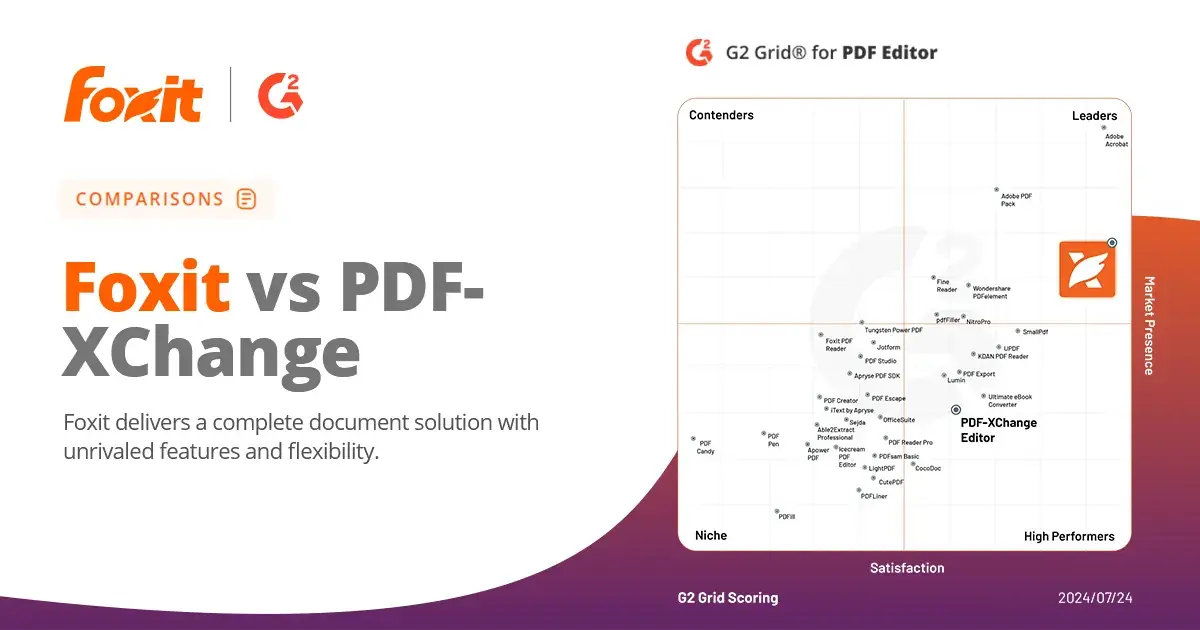
If you need a fast and reliable PDF viewer for Windows , Foxit PDF Reader, SumatraPDF, and PDF-XChange Editor are always among the top choices. The dilemma arises when you need fillable forms, OCR for scans, fast searches, or enterprise deployments with MSI and update control.
This analysis gathers and reorganizes information from recent comparisons and reviews to explain, in practical detail, what each one does best. You'll see where they excel and where they fall short in performance, annotations, forms, OCR, interface, memory usage, and administration , plus a useful overview of alternatives and browser readers for those who want to get by.
How we have approached the comparison
The starting point is real-world scenarios where a student or professional opens everything from native PDFs to complex scans . To simplify, we distinguish five types: 1) digital documents with real text, 2) scans with recognized text and accurate highlighting, 3) scans with recognized text but positional errors when highlighting/searching, 4) scans without OCR, 5) scans with restrictions that prevent highlighting even in Adobe Reader. We also consider misaligned scans that require rotation.
We focused on the reading and annotation experience, rather than full editing capabilities. Even so, PDF-XChange has a foothold in the editing world and allows you to activate premium features (with a watermark if a license isn't purchased), which influences some of our conclusions. We also considered IT requirements such as MSI, disabling automatic updates , and compatibility with 64-bit Acrobat in corporate environments.
Quick overview of free PDF readers
Although we thoroughly compare the three candidates here, it's worth remembering that there are options for everyone: from browsers (Chrome, Edge, Firefox) with built-in viewers, to lists of apps that include UPDF (with AI ), Adobe Reader, Nitro, Xodo, WPS, SlimPDF, STDU Viewer, Google PDF Viewer, Foxit/Adobe Online, Soda PDF Online, and SmallPDF. Many of these combine reading, annotation, conversion, and signing , sometimes with limitations in their free versions.
There are also helpful mentions of less popular alternatives like Okular (open source, customizable interface, and the ability to bypass certain DRM) or PDFGear , which promises to be free and ad-free but has recently faced objections and doubts about its reliability , in addition to shortcomings such as tabs and a region-based OCR that's not very useful on desktop. At the other end of the spectrum, Wondershare PDF Reader/PDFelement offers convenient reading modes (including a 3D mode) but is plagued by corporate controversies and, as has been observed, a lack of transparency in its online promotion .
Foxit PDF Reader: Full-featured, lightning-fast search
Foxit's interface is reminiscent of Microsoft Office , with a clear ribbon and numerous labeled tools. Highlights include "Find and Highlight" (which marks all instances of a word), rotation view (which only rotates the display), and a search function that, in addition to being very fast, offers an advanced mode with a results counter. In the settings, you can cache the search index of frequently used documents for near-instant searches in long books.
In everyday use, Foxit handles annotations and highlighting well, and it supports fillable PDF forms and signatures . In enterprise deployments, it's often a solid choice because it offers MSI and administration policies (and in IT environments, automatic updates can be controlled). It integrates cloud collaboration and is one of the most well-rounded readers in terms of both speed and features.
It's not all perfect: the zoom control via the bottom bar can be impractical (1% increments), although Ctrl + scroll fixes the scaling jumps. Sometimes it leaves a promotional banner that clashes with the UI, and it creates an empty folder in Public/Documents. And be aware of a change from late 2023: creating and editing bookmarks became a paid feature in the free version, something to keep in mind if you rely on bookmarks.
In terms of performance, Foxit usually comes out on top: its search engine is among the fastest, and memory consumption is reasonable . Furthermore, the index cache speeds up recurring checks. When handling misoriented scans, "View Rotation" is immediate, although it doesn't modify the saved file (for actual rotation, see PDF-XChange below).
SumatraPDF: Extreme Minimalism and Speed
SumatraPDF is the reader of choice if you want to open PDFs in seconds on modest computers or if you're drawn to an ultra-clean interface. It's free software (GPLv3), with a tiny installer (the 64-bit version is only a few MB) and also a portable version for use on a USB drive . It manages tabs, supports very useful shortcuts, and opens more formats: ePub (if you need to convert ePub to PDF ), MOBI, FB2, CHM, XPS, and DjVu, as well as LaTeX preview.
In return, it forgoes advanced features: it doesn't offer full editing, signing, or annotation capabilities , and form support is very limited or nonexistent depending on the PDF type (not ideal if you frequently receive documents with fillable fields). It's also not designed for large-scale collaboration or page manipulation. Essentially, it's a fast and lightweight viewer.
In IT environments, Sumatra is easy to deploy due to its portability and low impact , although it lacks an official MSI with advanced policies like Foxit. For those who simply want to read, search, navigate quickly, and little else, it's a delight; for tasks involving OCR, signing, or editing, you'll need to look at more powerful options.
PDF-XChange Editor: Powerful OCR and Editing Toolkit (with Watermark)
PDF-XChange Editor is the ideal candidate when you need to perform OCR on an entire document . The application allows you to activate features from its paid version, but using them without a license adds a large watermark to each page. The good news is that many capabilities (approximately 70%) are free, including basic OCR that converts Type 4/5 scans into searchable and highlightable documents (to a “Type 2”).
Its search engine is fast, with search history , although the progress bar doesn't display page counts like some other tools. It allows view rotation and also true page rotation (without watermarks). In terms of performance, it starts with low memory usage, but quickly increases memory consumption because it caches pages for very smooth navigation; you can limit this usage in the settings.
The Office-style interface can be overwhelming due to the sheer number of tools. There's no dedicated "area highlighting" feature: you have to configure the rectangle tool to simulate it, although if you've already used OCR, you'll rarely miss it. Page manipulation, numbering, insertion, and rotation are free; other actions like skewing or conversions to certain formats add a watermark, with a few exceptions (for example, converting to an image).
In corporate deployments, PDF-XChange is well-regarded for its powerful scanning capabilities and flexibility, but you have to be prepared for a learning curve and be aware of which features unlock watermarks. The original PDF reader is no longer supported , so the standard solution now is to use Editor.
Practical differences that save you time
When working with "difficult" scanned PDFs, each reader handles highlighting on pages without actual text differently . In several viewers, you can only use "area highlighting" (drawing rectangles). Adobe Reader, for example, allows you to activate "normal" highlighting, but it turns it into a freehand brush that attempts to correct itself in rectangles if it detects straight lines (it doesn't work on certain Type 5 PDFs). Foxit and PDF-XChange address this with area tools or, in the case of PDF-XChange, by using OCR.
In terms of page rotation , Foxit offers view rotation (which isn't saved to the file), while PDF-XChange also allows for permanent page rotation. Sumatra, true to its philosophy, provides the basics for smooth navigation, without complex page operations.
Performance, search and memory
In terms of indexing and search speed, Foxit shines thanks to its advanced search and index caching , which greatly speeds up textbooks that you open frequently. PDF-XChange is fast and displays history, but it doesn't cache the index, so Foxit may fall behind in documents reviewed repeatedly . Sumatra, while very fast at opening, doesn't compete in advanced search features.
In terms of memory consumption, Foxit has shown very low usage in tests, while PDF-XChange increases its usage by caching pages for smooth navigation (adjustable in settings). Sumatra, due to its extremely lightweight design, requires the fewest resources, making it ideal for older computers or when you need something immediate.
Forms, signature and notes
For fillable PDF forms and signatures, Foxit and PDF-XChange perform admirably. Sumatra is a viewer and not designed for these tasks, so if you frequently receive forms from clients or the university, you'll want to use Foxit or PDF-XChange . For annotations, both also excel, offering a variety of tools and customization options.
If you also need occasional PDF editing (text, images, annotations), PDF-XChange offers a lot, but keep in mind that many of the advanced editing features add a watermark if you don't purchase a license. For annotating, commenting, and organizing bookmarks, Foxit is sufficient, although bookmark creation/editing became a premium feature at the end of 2023.
Enterprise deployment and management (MSI, 32/64-bit, updates)
In corporate environments, an MSI installer, policies, and update control are typically required . Foxit excels with corporate editions and packages suitable for mass deployment, and PDF-XChange is also appreciated by administrators for its flexibility. Sumatra, due to its portability and size, works well as a backup viewer , although it doesn't have the same arsenal of update controls/policies as Foxit.
It's worth remembering that Acrobat 2022 is 64-bit ; mixing it with a 32-bit reader isn't viable, and the 64-bit version of Reader is similar to Acrobat. If you have Acrobat licenses (paid and requiring Adobe ID login) but still want a standalone reader that doesn't require login to simply view PDFs , Foxit or Sumatra fulfill that role seamlessly.
Direct comparison: Foxit vs SumatraPDF vs PDF-XChange
- For quick and easy readingSumatraPDF wins for its lightness and opening speed, tabs and shortcuts, and support for several reading formats (ePub, MOBI, DjVu, etc.). If you only need to read and print, it's perfect.
- To annotate, search, and work with formsFoxit offers the best combination of lightning-fast search (with caching), comprehensive annotation, and forms and signature support, with a clear interface and good enterprise management options.
- For complex scans and full OCR: PDF-XChange Editor is the most powerful. Its OCR converts scans into searchable text with excellent results, and allows for fine page manipulation. Keep in mind the watermark in premium features.
- Interface and learning curveSumatra is minimalist; Foxit is very familiar if you're coming from Office; PDF-XChange is overwhelming at first due to the number of tools but tremendously capable.
What to choose according to your profile
- Read only and speedSumatraPDF. Opens instantly, uses minimal resources, tabs, and shortcuts. Perfect for students who just want to read notes or books without taking notes.
- Intensive reading with searching and annotationFoxit. Lightning-fast search, index caching, convenient annotations, and easy form handling. Whether in the office or at university, it's the sweet spot between functions and lightness.
- Scans, OCR and page operations: PDF-XChange Editor. Its OCR converts scans into workable documents; powerful page manipulation. Accepts watermark if you use premium features in the free edition.
- IT/business: Foxit and PDF-XChange for MSI availability/policies and update control. Sumatra as a secondary viewer for its portability and zero impact.
Those who only need to open and sign documents occasionally can manage with Edge or the Chrome viewer. And if you're looking for extras like AI within the app itself, UPDF can be interesting for processing and summarizing documents, as long as you don't rely on advanced features only available in its Pro plan.
After comparing them side-by-side, the choice becomes clear: for distraction-free reading, Sumatra; for daily work with PDFs and forms, Foxit; for handling scans and applying OCR without paying (with limitations), PDF-XChange. From there, the remaining viewers cover specific niches or expand functionality with their own compromises in price, privacy, and complexity.

Passionate writer about the world of bytes and technology in general. I love sharing my knowledge through writing, and that's what I'll do on this blog, show you all the most interesting things about gadgets, software, hardware, tech trends, and more. My goal is to help you navigate the digital world in a simple and entertaining way.