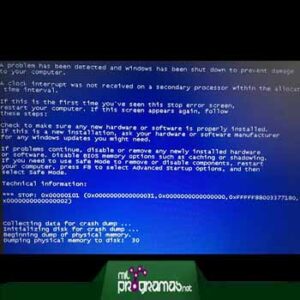
- Error 0x0000000A in Windows It is usually caused by problems with hardware, drivers corrupt or software incompatibilities.
- There are multiple effective methods for diagnosing and resolving this blue screen, from checking the RAM and hard drive to updating drivers and the operating system itself.
- Prevention, such as avoiding overclocking and keeping your system up to date, reduces the chances of the error recurring.

Have you ever been surprised by a dreaded blue screen on your PC that prevents you from using Windows normally? If the error code you see is 0x0000000A (IRQL_NOT_LESS_OR_EQUAL) , don't worry: you're not alone, and this article is for you. In the following lines, I'll teach you everything you need to know about this error, its most common causes, and, most importantly, the best proven solutions to restore your computer's functionality. We'll also cover how to prevent it from happening again and how to recover any files lost after the incident.
Error 0x0000000A can appear in any modern version of Windows, whether you're using Windows 7 , 8, 10, 11, or even servers like Windows Server 2008 or 2012. The causes are varied, and although it may seem complicated, you have several effective options to get your computer working again. Let's get started, step by step, and remember that the solutions you'll see here are based on official guides, user manuals, and experiences, always explained so that anyone can apply them without difficulty.
Why do I get error 0x0000000A (IRQL_NOT_LESS_OR_EQUAL) in Windows?
The infamous "blue screen of death" with error code 0x0000000A doesn't appear for no reason. This error indicates that Windows has attempted to access an invalid memory address (or one without the proper permissions) from a kernel-mode process. In other words, a driver, the system itself, or a piece of hardware is trying to perform a task it's not designed for, causing the entire system to crash to prevent further damage.
What usually causes this problem? Common reasons include:
- Corrupt or incompatible drivers (very common after installing or updating hardware or peripherals such as printers, memory USB, graphics cards…)
- hardware incompatibility with the version of Windows you have installed, or problems after adding a new component.
- Windows Registry Corruption, whether due to corrupted programs, failed installations, or malware.
- Physical defects in RAM (memory) or on the hard drive.
- Malware or virus that damage critical system files.
- Excessive overclocking in the BIOS, which forces components to work beyond their safe limits.
- Recent software changes that have not been fully compatible.
In most cases, Windows itself cannot identify exactly which file or component has caused the error, so part of the work falls to you : you will have to check several factors and apply different solutions until you find the real cause.
First steps before troubleshooting
Before diving into repair techniques, it's a good idea to perform some basic checks:
- Write down the full message on the blue screen; although it usually indicates “IRQL_NOT_LESS_OR_EQUAL” and the code 0x0000000A, it sometimes mentions the problematic file or driver.
- Remember (if you can) the last changes you made before the error appeared: installing new hardware, updating Windows, new drivers, installed programs, etc.
- Disconnect non-essential external devices (printers, external drives, cameras…)
- Restart the PC in safe mode so that only Boot the essentials; this helps to isolate the problem.

Top Solutions for Error 0x0000000A in Windows
I'll present the most effective solutions one by one, starting with the simplest and progressing to the most advanced. After each attempt, restart your system to check if the error has disappeared . If it's resolved, you can stop trying further steps.
1. Check the compatibility of hardware and connected devices
Many users experience this error after adding a new component (RAM, graphics card, SSD/HDD, etc.) or connecting a peripheral. If you made any hardware changes before the blue screen appeared, try uninstalling or disconnecting the component , restart Windows, and see if the problem persists.
If the error disappears, reconnect the devices one by one until you find the one causing the conflict. In many cases, reinstalling the driver from the manufacturer's official website resolves the issue.
2. Eject USB devices and peripherals
The system's inability to manage an external device can trigger error 0xA. Disconnect all USB peripherals (printer, scanner, camera, external drives, mouse, and keyboard if you can adjust the settings) and restart. If the system boots without the error, connect the devices one by one to identify the problematic one. If so, download the updated driver from the manufacturer.
3. Check and repair the Windows registry
A corrupted registry is the source of many errors, including the blue screen we're discussing. To clean and fix problems, you can use tools like CCleaner or Lavasoft , which detect and repair damaged entries. Remember:
- Download programs only from trusted sources.
- make a system restore point before touching the record.
- Perform the scan and repair any errors indicated by the application.

4. Update system drivers
Whether the reason is new hardware or you simply haven't updated in a while, having up-to-date drivers is crucial . There are two options:
- Use Windows Update: Go to Settings → Update & Security → Check for updates. Install any pending updates.
- Download drivers from each manufacturer's official website. Don't trust generic programs or dubious websites.
If you prefer, you can use tools like Driver Easy , which simplifies the search, download, and installation of the correct drivers. Simply download the application, run a scan, and update the recommended drivers. Always restart your computer after installing new drivers to check if the problem is resolved.
5. Analyze the RAM and hard drive
Faulty memory or a damaged hard drive are common causes of memory access errors. Windows offers built-in utilities you can use:
- For RAM: Type “Windows Memory Diagnostic” in Start and follow the prompts to restart your computer and analyze the memory.
- For the hard drive: Open the symbol of the system as administrator and run the command chkdsk / f. Wait for it to check and repair the bad sectors.
6. Use the system file checker (sfc /scannow)
To repair any corrupted system files that may be causing the error, follow these steps:
- Click on the Start menu and search for “cmd”.
- Right-click on “Command Prompt” and select “Run as administrator.”
- In the black window, write sfc / scannow and press Enter.
- Let the process finish (it may take several minutes) and follow the instructions.
If problems are detected, the system will attempt to repair them automatically.
7. Restore the system to a previous point
If all of the above doesn't work, you can use the System Restore tool to return to a previous state where everything was working correctly. This is especially useful if you know the error occurred after a specific installation or change.
- Balance Windows + R to open Run.
- Write Control and press Enter.
- Sign in Recovery and later Open restore Sistem.
- Choose a restore point from before the error occurred, follow the instructions, and restart.
8. Defragment the hard drive regularly
A fragmented hard drive slows down your system and can eventually cause serious errors. Use the Windows "Defragment and Optimize Drives" tool and perform defragmentation regularly to clean up corrupted files and optimize disk space.
9. Avoid overclocking
If you've modified the BIOS or software to increase CPU speed (overclocking), it's recommended to revert all settings to their original values . Excessive speed can cause instability and memory management errors.
10. Remove malware and viruses from your system
Viruses and malware can corrupt system files and drivers, generating errors like 0x0000000A. Run a full scan with your preferred antivirus, and if you suspect stubborn infections, use specialized malware removal tools. Make sure to update the signature database before scanning.
Hotfix and official Microsoft technical support
Microsoft released a special hotfix for older versions of Windows (Vista, 7, Server 2008, and 2008 R2) specifically designed to address issues related to error 0x0000000A. This hotfix should only be applied if you are experiencing the problem on the listed systems and have the corresponding Service Pack installed.
After applying the update, a system restart is required for the changes to take effect. If you need this hotfix and the automatic download option doesn't appear, please contact official Microsoft support to process it. Keep in mind that the hotfix does not replace general system updates.
Have you lost data after the blue screen? How to recover it
If you lost files during the process due to unexpected failures or forced restarts, you have options to recover documents, images, videos, etc. One of the most effective tools is Recoverit , which allows both deep scanning and selective recovery of lost or deleted data.
- Download and install Recoverit on a healthy computer.
- Select the location where the data was lost after the error (main drive, specific folders, etc.)
- Let the tool scan and locate recoverable files.
- Preview the results obtained and select the ones you want to recover.
- Save the recovered files to another safe location.

Additionally, there are other paid and free data recovery options, but if the drive has suffered severe physical damage, it's best to turn to professionals.

Passionate writer about the world of bytes and technology in general. I love sharing my knowledge through writing, and that's what I'll do on this blog, show you all the most interesting things about gadgets, software, hardware, tech trends, and more. My goal is to help you navigate the digital world in a simple and entertaining way.