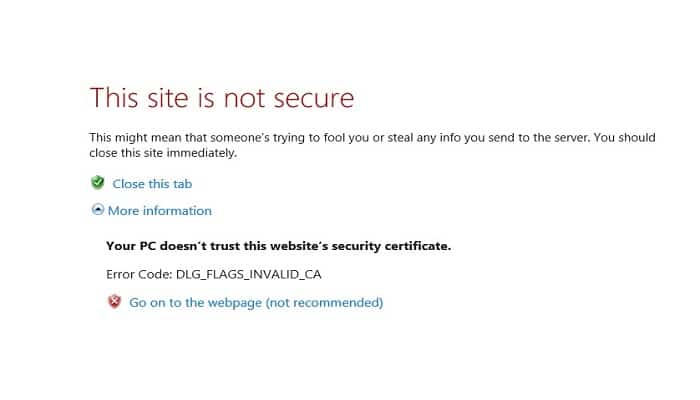
Internet users often don't have a clear idea about the origin or causes of the Dlg_Flags_Invalid_Ca error code . However, there are several reasons for this error.
However, one of its main causes includes problems with the installation of the web certificate, expiration of the web certificate, lack of renewal by the administrator or the web portal you visit is not secure or its content is malicious.
Whatever the scenario, keep in mind that the DLG_FLAGS_INVALID_CA error serves as a security method to prevent malicious content from entering your computer easily.
In most cases, they will give you the option to Go to Website (not recommended). So, if this option is not available, there are solutions that we will mention below, so take note of each one.
How can I fix the Dlg_flags_invalid_ca error?
The dlg_flags_invalid_ca error is one that can be seen in various types of browsers. When such an error occurs, browsers display a certain error message.
This happens when browsers do not recognize website certificates or the certificates are no longer valid. To fix this you can do the following:
1.- Try a different browser
If you are tired of seeing the same old dlg_flags_invalid_ca error messages in most of the browsers you use, I suggest you change them to a better alternative.
In that regard, I'd like to show you Opera , a web browser built with the Chromium engine that boasts high levels of security, along with a lightweight feel and low resource requirements.
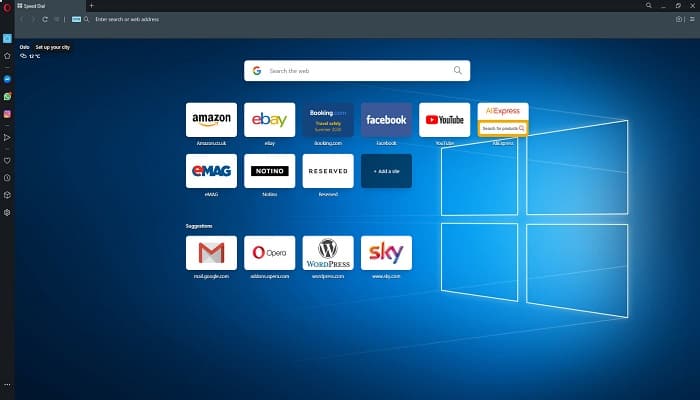
Given your current situation, you'll be pleased to know that Opera is also updated frequently, sometimes every day, so any bugs you might encounter won't be there for long.
Furthermore, you don't have to worry about websites actually being unsafe, as the browser comes with a built-in VPN and ad blocker that will greatly reduce the speed at which you encounter them.
2.- Look at the date and time settings
✔ Press the Windows key + S shortcut key.
✔ Enter 'date' in the Type here to search box.
✔ Then click Date & time to open the Settings window as shown directly below.
✔ Then, select the Set time automatically option if it is not already selected.
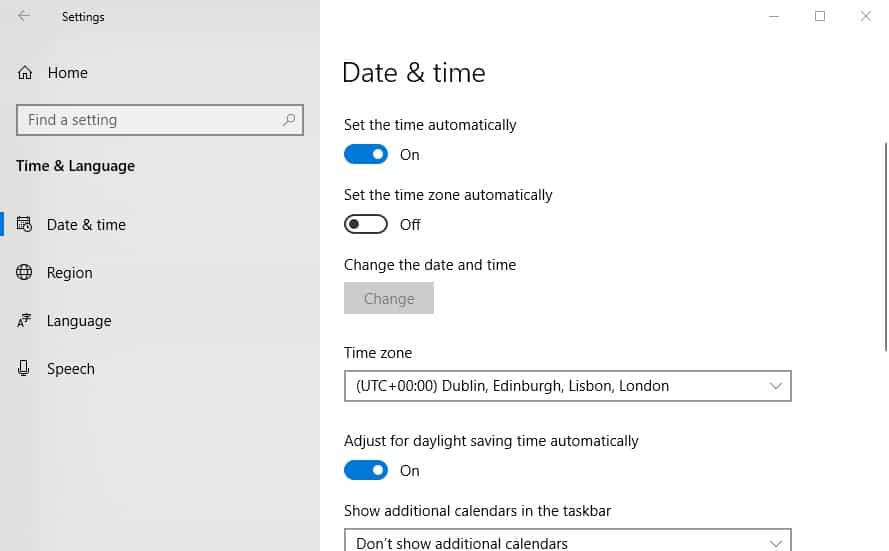
✔ If the time and date don't seem correct even with Set time automatically enabled, try synchronizing the clock with a time server.
✔ Click on the Add clocks for different time zones option.
✔ Next, select the Internet Time tab shown directly below.
✔ Press the Change Settings button to open the window in the snapshot directly below.
✔ Select the Synchronize with an Internet time server option. Then, choose a server from the drop-down menu.
✔ Now press the Update button.
3.- Clear the browser cache
✔ You must click on the button that says Customize Google Chrome.
✔ Then you have to click on More tools and select Clear browsing data.
✔ Afterwards, you need to click on the Advanced tab shown below.
✔ Select the option that says All the time located within the Time interval drop-down menu.
✔ You must also select the Cached Images and Files check box.
✔ Press the Clear data button.
5.- Reset your browser
✔ Click on Customize and control Google Chrome to open that browser's menu.
✔ Select Settings to open the tab in the screenshot directly below.
✔ Scroll down to Settings and press the Advanced button.
✔ Then click on the option Restore settings to their original default values.
✔ To further confirm, press the Reset settings button.
6.- It is important that you uncheck the option Warn about certificate address mismatch
✔ Press the Windows key + S keyboard shortcut.
✔ Enter the keyword 'Internet Options' in the search box.
✔ Select Internet Options to open the window shown directly below.
✔ Choose the Advanced tab.
✔ Next, uncheck the box "Warn about certificate address mismatch ".
✔ Select the Apply option and click OK to exit the window.
✔ From then on, restart Windows.
Please note that the browser error code dlg flags invalid ca also arises due to website administrators not renewing their sites' certificates.
In such a case, it is likely that one or another user will need to remind the site administrators to make the relevant certificate updates for their web portals.
I hope that each of the methods outlined in this guide will be of great use to you. In case you know of any other possible solution to this error, feel free to share it with us in the comments section.
We'll see you in a future post where we'll give you more tips and interesting solutions. We invite you to visit our portal regularly to stay up to date.

My name is Javier Chirinos and I am passionate about technology. Ever since I can remember, I have been interested in computers and video games, and that passion has turned into a job.
I have been publishing about technology and gadgets on the Internet for over 15 years, especially in mundobytes.com
I am also an expert in online marketing and communication and have knowledge in WordPress development.