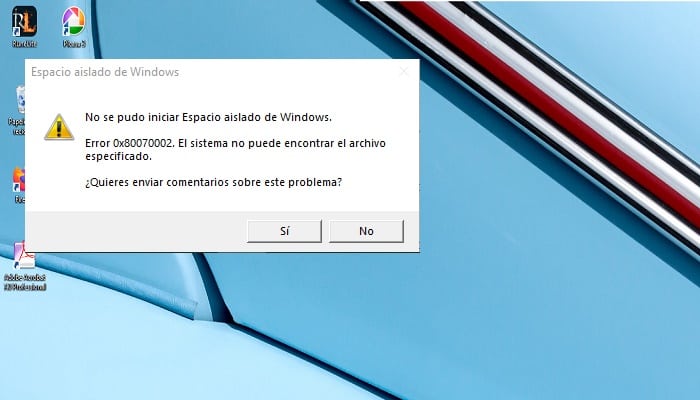
If you receive this error code 0x80070002 or 80070002 on your Windows PC/laptop , don't worry! It's one of the most common error codes that the Windows operating system displays.
Similarly, it may appear on your screen as 0x80070003 or 80070003 , and although they may seem different, they actually represent the same problem, so you can solve it with the same methods that we will present in this guide.
Why does error 0x80070002 occur?
This is an error that can vary from one version of Windows to another. Typically, Windows XP users see error code 0x80070002. On the other hand, those using the Windows 10/8/7 operating system see error code 80070002.
This is an issue that occurs when certain files present in Windows updates become corrupted or missing, even when the update is downloaded and extracted correctly.
How to fix error 0x80070002?
This is one of the questions that people ask the most when they experience this error, for this reason, here we are going to show you those possible solutions that can help you solve error 0x80070002 that have worked for others.
You may not need to try them all, just work your way down the list until everything works again.
Check the date and time settings
Although it may seem incredible, it is actually one of the best solutions to correct error code 0x80070002, in part, because it has worked for various Windows users.
One of the main causes of the error is incorrect date and time settings, so you need to make sure that your computer's time is synchronized with the Internet time server.
- You need to click on the Date & time button at the bottom right, then click on Change date & time settings.
- Click Change date and time to make sure the date and time are correct on your Windows, then click OK.
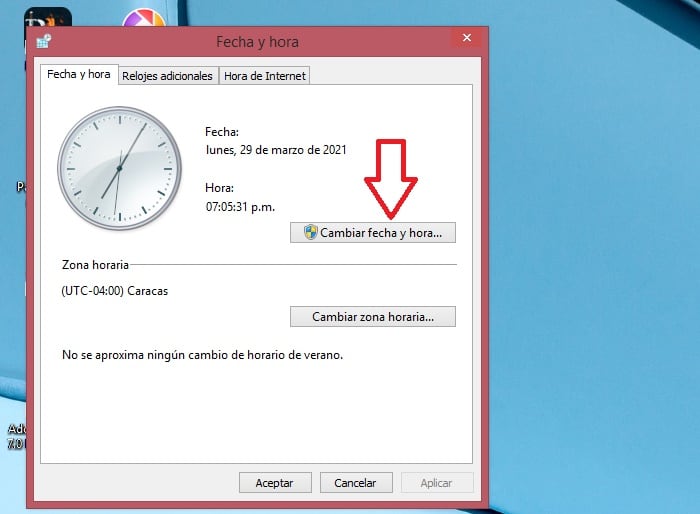
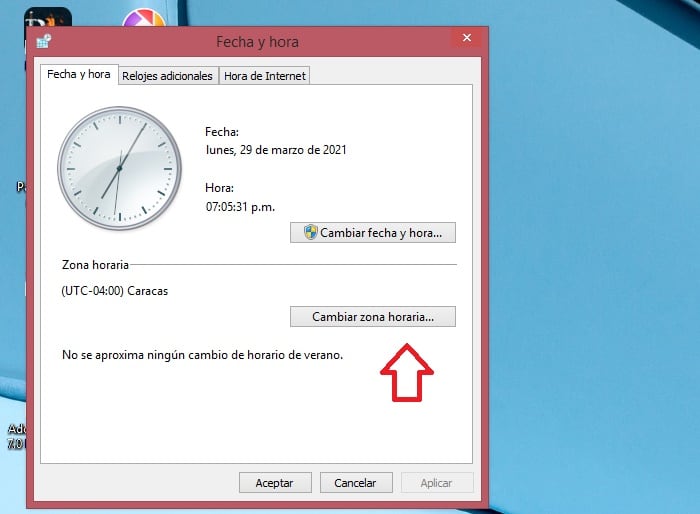
- Then you need to click on Change time zone to make sure the time zone is correct, then click on the OK button.
- Next you need to click on the Internet Time tab at the top, then click on Change settings.
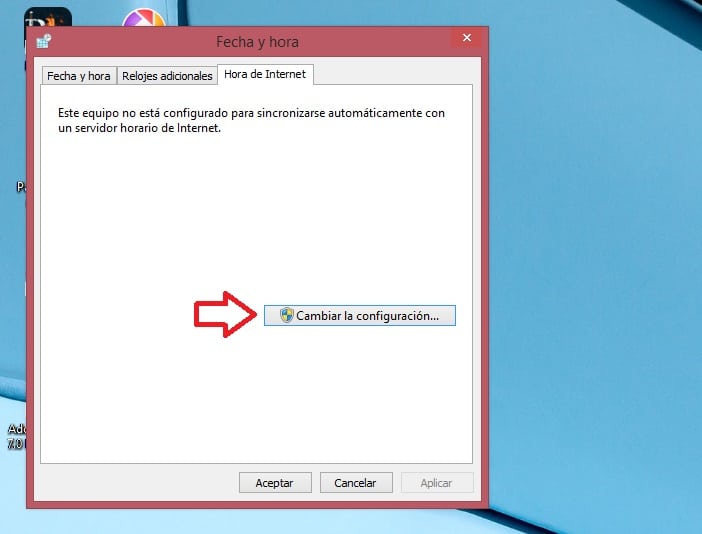
- Make sure you check the box next to Synchronize with an Internet time server, click Update Now, and then click OK.
- Click on the option that says OK to finish the configuration.
- Restart your computer and start Windows Update again to see if it works.
If you are using Windows 10, you can check the date and time settings using the command prompt ; you just need to make these changes:
- Write cmd in the search box and right-click Command Prompt, click Run as administrator, and then click Yes.
- Type the time, date, and w32tm /resync respectively in the window and press Enter after each command.
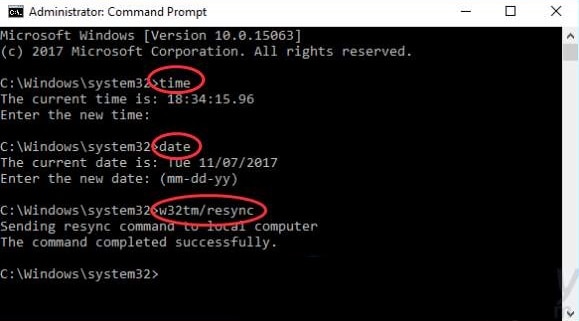
If the time and date are incorrect after execution, you can type the correct time and date in the window and press Enter.
- After completing the commands, restart your computer and start Windows Update again to see if it is working again.
Modify Windows Update installation files
Sometimes, the error 0x80070002 is caused by the failure of the system update process or the corruption of Windows installation files. Therefore, you can try to delete the installation files or rename the installation folder to resolve the issue.
Before you modify the files or folder, you may need to stop the Windows Update service. Otherwise, the files or folder are open in programs and you won't be able to modify them. So make sure to follow these steps to get it done:
Disable Windows Update Service
1) On your keyboard, press the Windows logo key + R at the same time to invoke the Run box.
2) Type the phrase services.msc and then click OK.
3) Double-click on Windows Update (if you are using Windows XP, double-click on Automatic Updates ).
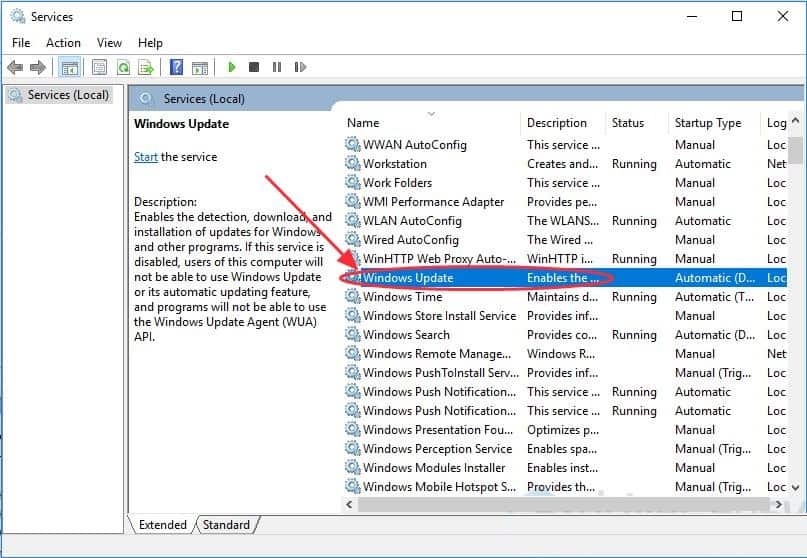
4) Change the Startup type to Automatic and click Start in the Service status, then click Apply and OK to save.
5) Restart your PC and try Windows Update again to see if it works.
Delete the software distribution folder
1) Double-click the drive where Windows is installed, usually the C drive.
2) Go to the folders: Windows> SoftwareDistribution.
3) Delete the folder named SoftwareDistribution . (If you are prompted for an administrator password or confirmation, type your password or provide confirmation.)
If you do not want to delete this folder, you can also rename it with SoftwareDistributionOld.
4) Close all panels.
Re-enable the Windows Update service
1) On your keyboard, press the Windows logo key + R at the same time to invoke the Run box.
2) Type services.msc and click OK
3) Right click on Windows Update (if you are using Windows XP, right click on Automatic Updates) and press where it says Start.
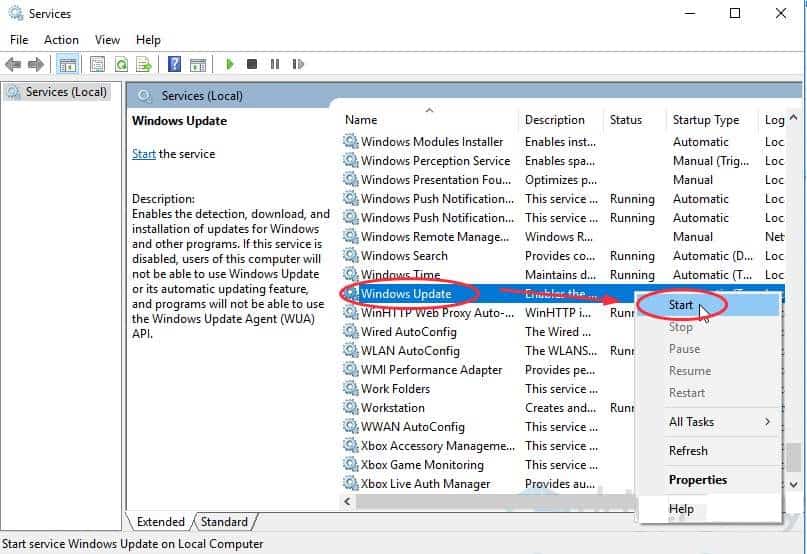
4) Restart your Windows operating system to see if that resolves the issue.
Try the Windows “troubleshooter” option
With the help of the Windows troubleshooter you can solve many problems that you may encounter with your operating system. In fact, it is one of the most recommended methods to put an end to this.
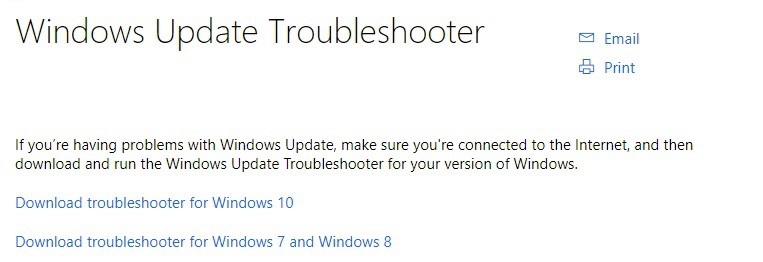
1) Download the troubleshooter from the official Microsoft website.
2) Run the downloaded file.
3) Click Windows Update and then click Next.
4) It will then run and try to fix the problem. After it completes, restart your computer and run Windows Update again to see if it works.
Modify the registry editor
If you see the error when installing Windows Update: Something happened 0x80070002, you can try this method to solve the problem.
Before continuing, make sure you select Spanish (Spain) in the Language settings. And run the Windows Media Creation Tool as administrator.
Then you have to right click and select the option that says Run as administrator. Afterwards, you have to follow each of the instructions that the system shows you:
1) Press the Windows logo key + R at the same time on your keyboard.
2) Type regedit and press Enter . You may need to provide administrative privileges to open it; click Yes to confirm.
3) Go to HKEY_LOCAL_MACHINE\SOFTWARE\Microsoft\Windows\CurrentVersion\WindowsUpdate\OSUpgrade.
4) Select OSUpgrade key, then right-click on the empty area in the right pane of Registry Editor and click New, then Click DWORD (32-bit).
5) Right-click on the newly created NewValue #1 and select Modify.
6) Rename the value to AllowOSUpgrade, after which you can double-click the number under Value data and enter 1. Select Hexadecimal and click OK.
7) Restart your computer and start again to see if it works.
Update device drivers
Updating your device drivers is so important that you should make sure all your device drivers are up to date. Doing so can resolve many hardware issues and provide you with the best possible experience.
Option 1 – Manually : First, you can uninstall your device drivers in Device Manager , then go to the official website to download the correct drivers that match your Windows operating system.
That may require time and computer skills.
Option 2 – Automatically (recommended) : If you don't have the time or skills to update drivers manually, you can do it automatically with Driver Easy.
With Driver Easy, you don't need to figure out the operating system and you don't need to worry about making mistakes during processing. That will save you a lot of time and patience.
You can update your drivers automatically with the FREE or Pro version of Driver Easy. However, with the Pro version, you only need to make a couple of clicks to get a quick fix.
1) Download and install Driver Easy.
2) Next, you have to run Driver Easy and click on the button that says Scan Now.
The Driver Easy application will then scan your computer for any driver problems.
Click the button Update next to a flagged device to automatically download and install the correct version of this driver (you can do this with the version FREE).
You can also click Update all to automatically download and install the correct version of all missing or outdated drivers on your system.
After the update, restart your computer and launch Windows Update again. For many, these methods are the most common and effective when it comes to fixing error 0x80070002 on Windows.
Which method helps to solve your problem? If your problem persists, feel free to comment below and we'll see what else we can do to help you.

My name is Javier Chirinos and I am passionate about technology. Ever since I can remember, I have been interested in computers and video games, and that passion has turned into a job.
I have been publishing about technology and gadgets on the Internet for over 15 years, especially in mundobytes.com
I am also an expert in online marketing and communication and have knowledge in WordPress development.