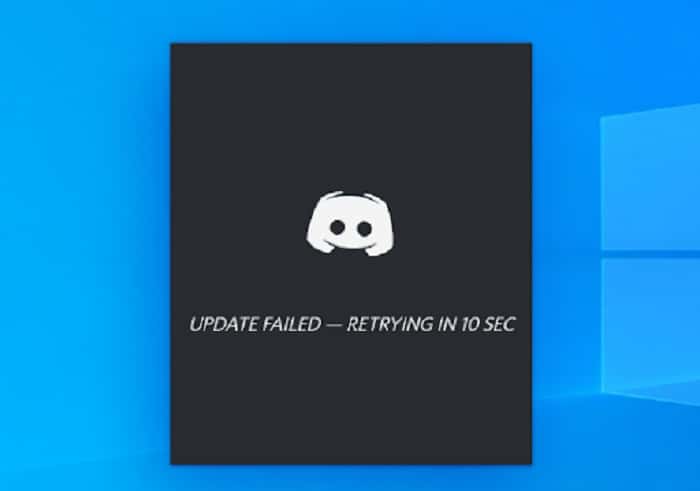
Discord is an extremely popular app for communication and entertainment. However, many users have had a problem with it. Discord Update Failed error, which causes the software to fail to start.
In most cases, Discord gets stuck in a failed update loop and does not allow users to continue with the app. Today, we will show you how to fix Discord update failed error with simple and easy-to-follow methods. Let’s get started.
Methods to fix Discord Update Failed error
Make sure to try the following methods to fix the Discord update error:
Method 1. Run Discord as an administrator
A simple fix for the Discord Update Failed error could be to simply run the app with administrative permissions. This allows the updater to make changes to your device, so download and install the new Discord update.
Please note that your local account must be an administrator account to do this. Otherwise, you will need to have access to an administrator password.
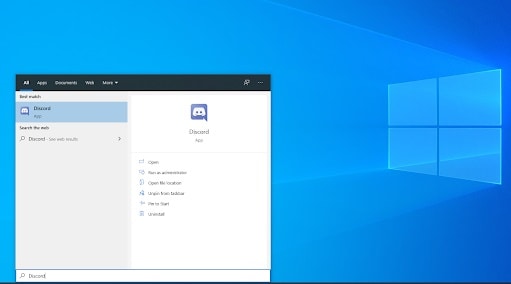
- Use the search bar Windows 10 in your taskbar and search for “Discord.”
- Right-click the Discord app from the results, usually found under Best Match.
- Here, choose the Run as administrator option from the context menu that appears.
- If you are prompted by User Account Control (UAC), click Yes to allow Discord to run and make changes to the device.
- This is required to update the application.
Method 2. Rename the Update.exe file
Discord troubleshooters were able to identify a problem with the application's update.exe file. We recommend that you try renaming this file to successfully update Discord to the latest version.
Navigate to the AppData folder:
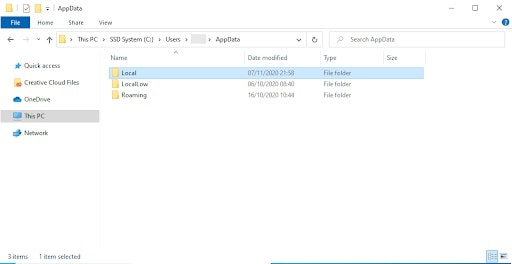
- Press the keys Windows + R on your keyboard and paste » C:\Users\Username\AppData » without the quotes. Make sure to replace username with your local account username.
- Alternatively, open the File Browser, then navigate to This PC → C: → Users → Username → AppData.
- Open the local folder. Inside, locate the Discord folder and open it as well.
- Right click on the file exe and choose Rename.
- Write exe (note that distinguish between case sensitive) and press Enter.
You can proceed to try to run Discord again, preferably as an administrator following the guide above
Method 3. Disable Windows Defender
In some cases, Windows 10's default antivirus measures conflict with Discord Update, causing it to continually fail. You can disable Windows Defender to try to update Discord by following the steps below:
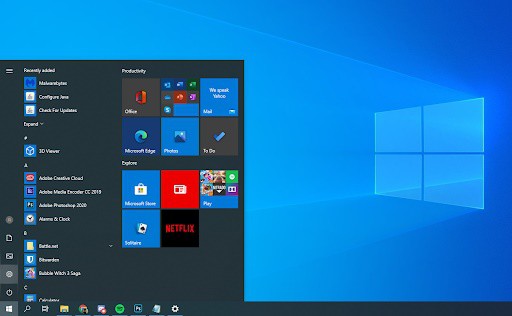
- Open the application Configuration using the keyboard shortcut Windows + I, or the icon of adjustments on your menu
- Click on the tab Update and security. Go to Windows security → Protection against viruses and threats → Manage settings.
- Turn off the real-time protection. This will almost completely disable Windows Defender until the option is re-enabled.
Try running Discord again, preferably as an administrator following the guide above. If the update is successful, it is most likely that Windows Defender was conflicting with the Discord client.
Method 4. Temporarily disable your antivirus
Antivirus applications are known to cause problems on computers by interfering with your Internet connection or preventing applications and services from running properly.
You can test whether the antivirus you are currently using is causing the Discord Update Failed error by temporarily disabling it. Please note that this method is not recommended as it is not safe to use your computer without protection.
Only proceed if you are aware of the potential risks and have a backup of your system to reverse any damage that may occur.
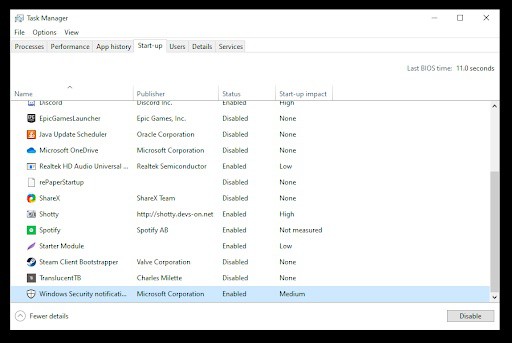
- Right click on an empty space on your taskbar and choose Task Manager.
- If Task Manager started in compact mode, be sure to expand the details by clicking the » button. Details of the mode”.
- Switch to the tab Home using the header menu located at the top of the window.
- Find your antivirus application in the list and select it by clicking on it once.
- Click the button Deactivate now visible at the bottom right of the window. This will disable the app from running when you start your device.
- Restart your computer and open Discord to see if the error appears again. If Discord can update properly, your antivirus is likely to blame.
Method 5. Reinstall Discord and clear app data
If none of the above solutions seem to work, your last resort should be to completely remove Discord and then reinstall it using the official installer. To do this, follow the steps below.
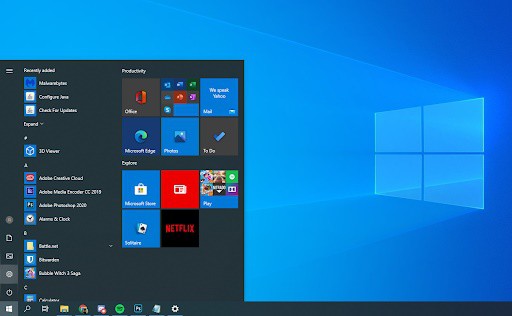
First, you will need to uninstall Discord. Open the app Configuration using the keyboard shortcut Windows + I, or the icon of adjustments on your menu Start. Click on the tab Applications.
Find Discord in the list of programs. You can click Name to arrange the list alphabetically, or use the built-in search to locate the application.
- Press click on Discord and choose the option
- Click on uninstall again to allow Windows 10 to remove Discord from your device.
- Now, you can proceed to delete residual files in your app's data folder.
- Press the keys Windows + R on your keyboard. This will open the Run utility.
- Write " %appdata% » and click the button This will immediately redirect you to the AppData folder in File Explorer.
- Find the folder Discord, then right click on it and choose Delete. This will remove most of the residual files.
- Go to disagree.com and download the latest version of the application by clicking on the icon Download for Windows.
We hope that each of these tips will be very useful to you in solving the Discord Update Failed error. If by chance, you know another repair method, do not hesitate to share it in our comments section below.
Also, remember that there are plenty of recommendations for you on our portal. See you in our next post.

My name is Javier Chirinos and I am passionate about technology. Ever since I can remember, I have been interested in computers and video games, and that passion has turned into a job.
I have been publishing about technology and gadgets on the Internet for over 15 years, especially in mundobytes.com
I am also an expert in online marketing and communication and have knowledge in WordPress development.