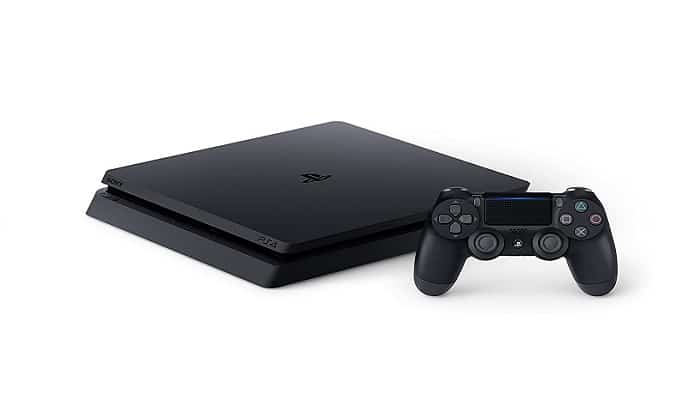
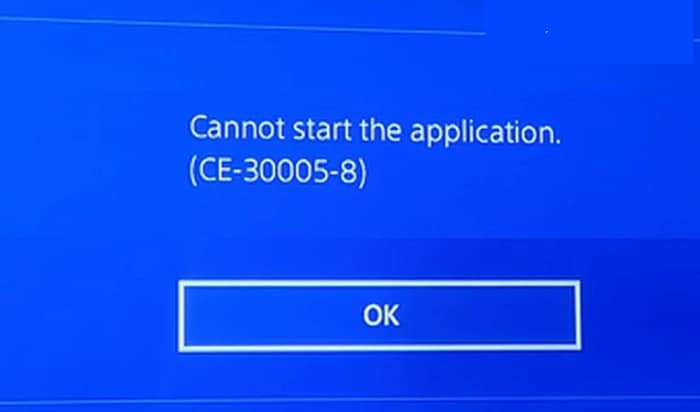
When the application cannot be started due to error code CE-30005-8, it means that the game disc is damaged or your PS4 console "thinks" that your hard drive is damaged (for example, if you are installing a PS4 update and try to install a game via disc, then it may display the error in question).
Typically, the user encounters the problem when they try to install a game via disk, but encounter the following message: The application cannot be started (CE-30005-8)
Some users encounter the same error code when connecting an external drive to the PS4. In some cases, the error code was also displayed when creating a backup of the PS4 console.
You can fix error code CE 30005 8 on PS4 by trying the solutions below, but before that, check if your PS4 has enough free space (for example, if the game needs 20 GB of space, make sure your PS4 has 40 GB of free space).
Additionally, check if replacing the cable connecting the PS4 and the hard drive resolves the issue. If the problem is with an external drive, try formatting the drive to the exFAT file system on your PC and creating a single MBR partition across the entire drive.
Now, if the problem is related to a game disc (you can check the disc on other consoles), see if completely cleaning the disc resolves the issue. Users report the following disc cleaning methods (multiple attempts) resolving the problem:
- Clean the disc with a lint-free cloth.
- Wash the disc with clean water and dry with a lint-free cloth.
- Place the disc in direct sunlight for 10 minutes.
- Cleaning the disk with WD40.
- Polish the game disc.
Solutions for error code CE-30005-8
Below, we are going to show you what are the potential solutions for the error code CE-30005-8, so take note of the following:
1.- Restart the PS4 console, clean the disc and reconnect the power cable.
A temporary glitch on the PS4 console can cause it to display error code CE 30005 8 and restarting the PS4 station may resolve the issue.
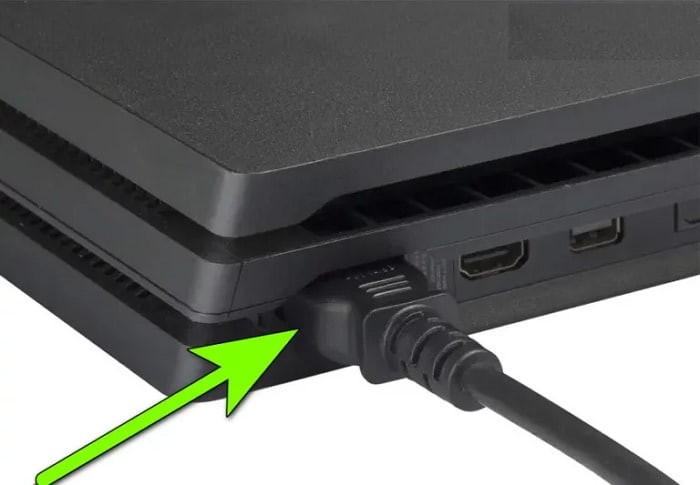
- Turns off your PS4 and when the lights are off, unplug the power cord of the PS4.
- Now wait 2 minutes y reconnect the console's power cable.
- Meanwhile, take out the disco from the PS4 and clean it with a soft cloth. Be sure not to apply too much pressure.
- then turn on the console, insert the disk again and check if it is free of the CE-30005-8 error.
2.- Reinstall the problematic game
A partial installation of the game may force the PS4 to "think" that the game is installed and therefore cause the CE-30005-8 error even though not all files are available for operation. In this context, removing the partial installation and reinstalling the game may solve the problem.
- Open the library On your PS4 home screen and in the left panel, go to the Games Tab.
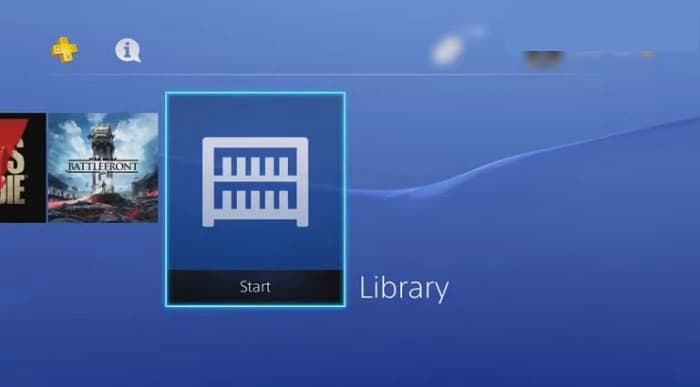
- Then select the problematic gambling (for example, FIFA) and press the key Options.
- Now select Delete y confirms to eliminate problematic gaming.
- Once the game is deleted, restart your PS4 and after restarting, check if reinstalling the game resolves the PS4 issue.
3.- Update the PS4 system software to the latest version
Outdated PS4 system software can cause PS4 error code CE-30005-8, and you can fix the “cannot start application CE 30005 8” error by updating the PS4 system software.
First, uninstall the problematic game as mentioned above, but do not reinstall it, and make sure there is no disc (DVD, Blu-ray, etc.) in the PS4's disc drive.
- Now start the Configuration from PS4 and open the System software update.
- If an update is available, select the button Next and then click Update.
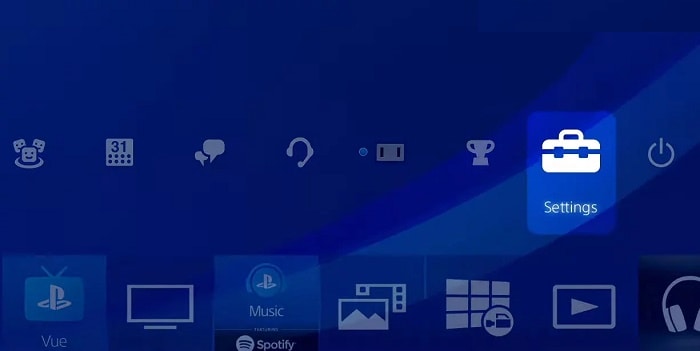
- Then let it install the update for system software and once updated, check if the PS4 error code CE 30005 8 is cleared (you may need to reinstall the game).
- If the issue persists, check if using a different network resolves the PS4 issue.
4.- Rebuild the PS4 console database
Your PS4 may display error code CE-30005-8 if its database is corrupted. In this case, rebuilding your PS4 console's database may resolve the issue. Before proceeding, ensure you have backed up any essential data on your PS4 console and remove any discs from the PS4's disc drive.
- First, start your PS4 in safe mode and when prompted, connect the controller to the PS4.
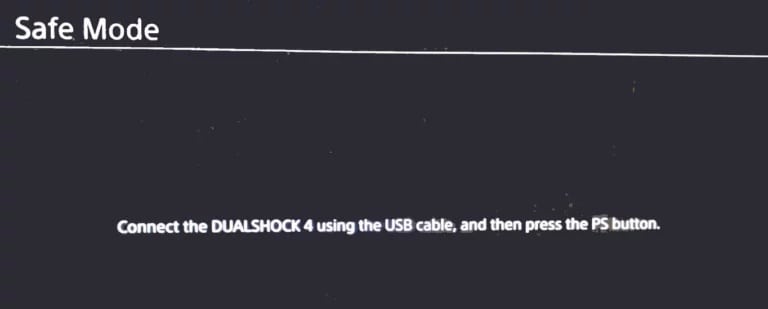
- Then scroll down and select option no. 5 of Rebuild base de data.
- Now confirms to rebuild the database by clicking the button Accept and let the rebuild process complete (this may take some time).
- Once the database rebuild is complete, press the button PS in the controller and select your PS4 account on the screen.
- Now open Configuration and select Storage.
- Then open system storage and select Saved data.
- Select the problematic game (for example, Red Dead Redemption) and press the key Options.
- Then select Delete y repeat same to delete all entries in the game (if there is more than one entry in the game, remove all the entries one by one).
- Now try to install the game again and check if you are not getting the error code CE 30005 8.
If that did n't work, enable debug mode on your console and open Debug Settings . Then, go to Game > Add Content Manager > Rights Control > Game and remove any disabled rights . Next, check if the PS4 error code CE 30005 8 is gone.
5.- Restart the PS4 console
Corrupted firmware on your PS4 can cause error CE 30005 8, and initializing it, which will reset the PS4 console to its default settings, may resolve the issue. Before proceeding, be sure to back up essential data to a USB device (or create an online backup).
- Start the Configuration from your PS4 and select Initialization.
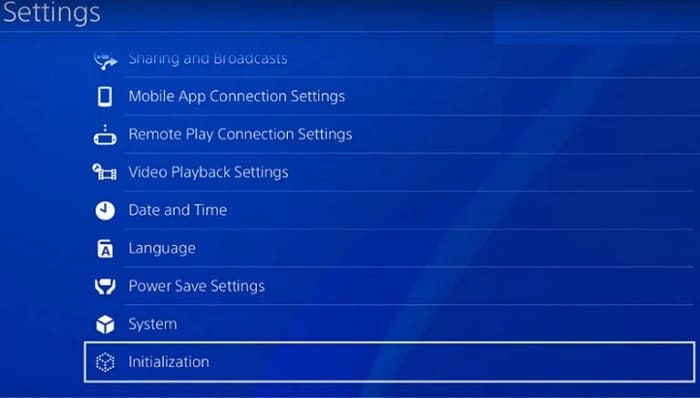
- Now select Initialize PS4 and click Eventing.
- Then, waiting until the PS4 reset process is complete and make sure the PS4 is not Turn off during the process.
- Once the reset process is complete, check if the CE 30005 8 error has been cleared.
6.- Reinstall the PS4 console system software.
If resetting your PS4 did not work, then you have no other option but to reinstall the PS4 console system software. Before proceeding, make sure to back up any essential data (as all PS4 data will be erased) on your PS4 console.
- First, connect a USB to Desktop PC (Windows, Mac, etc.) and format it in the file system FAT32.
- Now creates a new folder on the USB and name that PS4 (name in capital letters).
- Next, open the PS4 folder, create another folder in the same and to name , the UPGRADE (name in capital letters).
- Now you must start a Web navigator on the PC and browse to page PS4 system software official download.
- then download el PS4 console reinstallation file y changes el name from the downloaded file to PS4UPDATE.PUP (name it in capital letters).
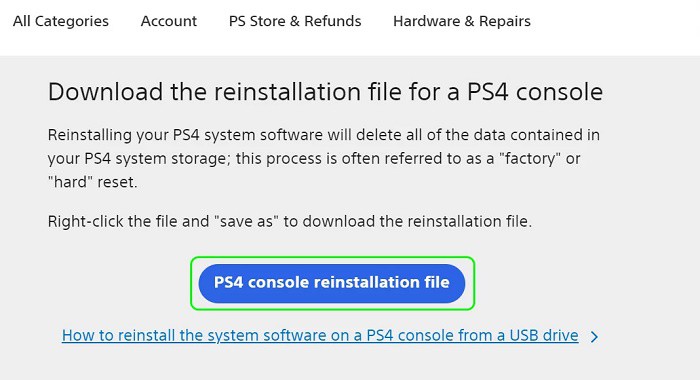
- Now copy el renamed file to the folder of update from the USB (created in step 3) and connect the USB device to the PS4 console.
- Starts the PS4 console in safe mode and select option 7 of Initialize PS4 (Reinstall system software).
- Select option Update from USB storage device and do click en Accept.
- Once the PS4 console system software is reinstalled, set it up and wait, the error code CE 30005 8 is cleared.
If none of the solutions worked for you, you can get a new game disc (if you encounter the problem with a disc) or have your PS4 checked for a hardware problem.

My name is Javier Chirinos and I am passionate about technology. Ever since I can remember, I have been interested in computers and video games, and that passion has turned into a job.
I have been publishing about technology and gadgets on the Internet for over 15 years, especially in mundobytes.com
I am also an expert in online marketing and communication and have knowledge in WordPress development.