- Activate debug mode NVIDIA and returns to reference clocks to rule out instability
- Disable experimental features (e.g., RTX Dynamic Vibrance) and interfering overlays
- Force DX11, repair files and use drivers clean/stable; avoid OC/SLI if it fails
- As an advanced test, TdrLevel=0 and checking nvlddmkm.sys permissions can make a difference.

If you've landed here, it's because you're being driven crazy by the DXGI_ERROR_DEVICE_HUNG message or its cousin DXGI_ERROR_DEVICE_REMOVED with codes 0x887A0006 and 0x887A0005, and because every gaming session ends abruptly on the desktop. I understand: these are treacherous errors, they appear in specific games, and sometimes even reinstalling Windows doesn't fix them . In this guide, you'll find a detailed compilation of real causes and solutions that have worked for other players in very similar situations.
What follows is distilled from several real-world cases: from Call of Duty : Warzone/MW3 players with high-end rigs to Microsoft Flight Simulator users who encountered the error when enabling new features in the NVIDIA beta app. It includes proven troubleshooting steps such as enabling NVIDIA debug mode, editing the registry (TdrLevel), disabling DX12, repairing games, and even adjusting permissions on the nvlddmkm.sys file . It's a lot to cover, but we'll go step by step and in a logical order so you don't waste any more time.
What are DXGI_ERROR_DEVICE_HUNG (0x887A0006) and DXGI_ERROR_DEVICE_REMOVED (0x887A0005)
Both codes indicate that the Windows Graphics Subsystem (DXGI) has detected that the GPU is not responding as it should or that the graphics device has logically "disconnected." In practice, the game loses communication with the graphics card, and Windows attempts to re-establish it by restarting the driver . If this fails, the game is forced to close, displaying the error message.
There are nuances: 0x887A0006 (DEVICE_HUNG) is usually associated with a game or driver command that hangs; 0x887A0005 (DEVICE_REMOVED) indicates that the driver restarted or that the GPU became unavailable. In specific titles like Call of Duty, you'll sometimes see the infamous 6068, which is another internal code from its engine related to the same problem.
Real cases that will sound familiar to you
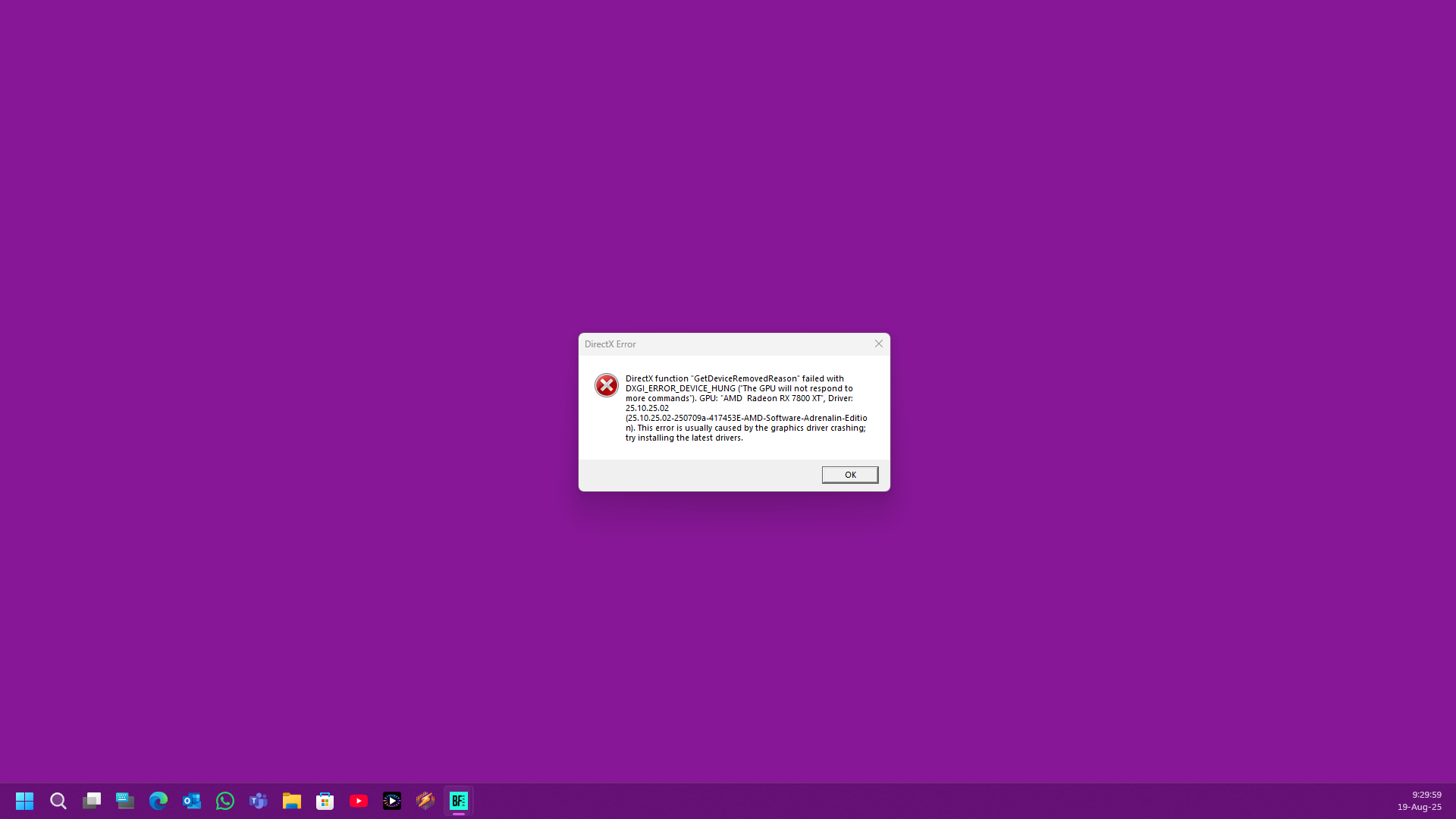
A user with a high-end PC encountered the same bug in Warzone/MW3 again after days of testing: i9-13900K, RTX 2080 Ti MSI Lightning Z, 32 GB DDR5 6600, 2 TB Samsung EVO M.2 SSD , ASUS ROG Z790 motherboard, and Windows 11 Home. They tried a clean Windows reinstall, using DDU with the latest graphics drivers (526, 537), disabling XMP, undervolting/underclocking with MSI Afterburner in 50/100/150/200 MHz increments, reinstalling the game, running it as administrator, modifying the DirectX key in the registry, verifying game files, and even upgrading the GPU to an RTX 2070 Super . Nothing worked: Warzone/MW3 were the only games that crashed; the rest ran perfectly.
After much trial and error, this person found a lifesaver: enabling debug mode in the NVIDIA Control Panel (Help menu) and granting full permissions to the nvlddmkm.sys file located in the DriverStore directory on System32 (Properties > Security). They then played three consecutive matches without a single crash and even switched from the Battle.net launcher to the Steam version . They noted this down for anyone else stuck in the same situation.
Another player was experiencing crashes every 20 minutes. He had tried adjusting TdrDelay in the registry, running DDU, and lowering graphics settings, all to no avail. His setup consisted of an SLI configuration of GTX 980s, an i7-4790K at 4,5 GHz, 16 GB of RAM, and a 1440p monitor . This is a typical example of how multi-GPU setups or historical overclocking can take their toll on modern APIs.
And in Microsoft Flight Simulator, someone with an RTX 4070 Super and the NVIDIA beta app v10.0.1.253 discovered that enabling RTX Dynamic Vibrance caused the simulator to always crash with dxgi_error_device_hung (0x887A0006). Immediate solution: disable RTX Dynamic Vibration in the NVIDIA beta app; it worked like a charm.
Finally, fatal D3D errors such as “Fatal D3D error (24, DXGI_ERROR_DEVICE_REMOVED, 0x887a0005)” have been seen in recent titles (for example, Monster Hunter Wilds). The pattern is the same: the driver restarts or communication with the GPU is cut off.
Why it happens: most common causes
In most cases, it's not "just one thing." It's usually a combination of drivers, GPU clock/voltage, game/launcher specifics, and Windows watchdog timers like TDR. These are the most common triggers we've seen in previous cases :
- Unstable overclock/undervolt on GPU or CPU, even if you have been able to play other games for months without any issues.
- Faulty video drivers in specific versions or residues after changes (hence DDU).
- Experimental functions (e.g. RTX Dynamic Vibrance in the NVIDIA beta app) causing instability.
- Graphic APIs: DX12 can be more delicate on some engines; DX11 tends to be more conservative.
- Multi-GPU configurations (SLI/Hybrid) and incorrect GPU selection in portable with dedicated iGPU +.
- Watchdog TDR Windows that restarts the driver if a graphics task takes “too long”.
- Permits/property from the nvlddmkm.sys driver or corrupted game files.
- Overlays and screenshots (Discord, GeForce Experience, Steam, etc.) interfering.
Solutions that have worked for other players
I suggest starting with what has proven to have the best time-to-success ratio and then moving on to more technical measures. Make the changes one at a time and test them in several games to confirm.
1) Enable Debug Mode on NVIDIA
This mode forces the GPU to its reference clock speeds and disables overclocks, including factory overclocks. Access it by right-clicking on the desktop > NVIDIA Control Panel > Help menu > Debug Mode . Leave it enabled and test the game.
2) Disable experimental features: RTX Dynamic Vibrance
If you're using the NVIDIA beta app (v10.0.1.253 in this case) and have RTX Dynamic Vibrance enabled, uncheck it. In Microsoft Flight Simulator, it caused immediate crashes with error 0x887A0006; disabling it stopped the crashes.
3) Change launcher or reinstall from another platform
It seems trivial, but in Call of Duty, some players switched from Battle.net to Steam and stopped experiencing the error. Binaries, anti-cheat software, paths, and dependencies aren't always identical between launchers . If you can, try that alternative.
4) Repair game files
Corrupted files can cause invalid GPU calls. On Steam: Library > right-click on the game > Properties > Local Files > Verify integrity . On Epic: Library > game menu (three dots) > Manage > Verify.
5) Force DX11 and disable DX12
In games with unstable DX12, forcing D3D11 is often a lifesaver. In Epic, you can add the d3d11 argument in Settings > Command Line Arguments . In titles with an internal selector, uncheck DX12.
6) Select the correct GPU
On systems with a dedicated iGPU and integrated graphics, ensure the game uses the dedicated GPU. NVIDIA: Control Panel > Manage 3D settings > Program Settings > NVIDIA High Performance Processor . On AMD Radeon: System > Switchable Graphics > High Performance GPU.
7) Clean drivers and stable versions
Use DDU in safe mode to remove any remaining files and try drivers that you know are stable for your game (the latest isn't always the best). In this case, the latest drivers, 526 and 537, were tested; if one fails, try a different one . Download from the official NVIDIA/AMD websites.
8) Overclock/undervolt: returns to stock
Even if your graphics card doesn't exceed 75°C, a slight adjustment can trigger a crash. Restore default values in MSI Afterburner/your tool and temporarily disable CPU overclocking/XMP . That user tried undervolts of 50/100/150/200 MHz without success; stock settings plus debug mode was the key.
9) Disable overlays and screenshots
Disable overlays from GeForce Experience, Steam, Discord, Xbox Game Bar, Rivatuner/RTSS, etc. Fewer layers around the game mean less chance of interference with the GPU command queue.
10) Run the game as administrator
Grant elevated privileges to prevent access denials. Right-click the EXE > Properties > Compatibility > Run this program as an administrator . In some cases, this eliminates unnecessary blocks when writing to registry entries or cache.
11) Edit the registry: TdrLevel = 0 (advanced)
Windows includes TDR (Timeout Detection and Recovery), which restarts the driver if it freezes for a few seconds. Disabling it can prevent the reset and, therefore, the game from closing . Steps (with caution):
- Win + WILL, writes Regedit, right click and Run as administrator.
- Navigate to HKEY_LOCAL_MACHINE\SYSTEM\CurrentControlSet\Control\GraphicsDrivers.
- Right click on the right area > New > DWORD (32-bit) Value and name it TdrLevel.
- Open it and put Value = 0. Accept and restart the PC.
Some had tried using TdrDelay (which increases the wait time), but setting TdrLevel=0 disables detection. Warning: if there's an actual driver crash, you might get a frozen screen instead of it recovering . Use this for diagnostics; if it works, confirm stability by reverting to default settings.
12) Adjust permissions of the nvlddmkm.sys driver
One case was resolved by granting full permissions to the NVIDIA driver file in the System32 DriverStore path. Navigate to C:\Windows\System32\DriverStore\… > Properties > Security > Edit and grant full control to the system user/player . Apply, restart, and test.
13) Hardware changes and stability tests
Helpful tests that have worked for others include: temporarily switching to a different GPU, booting with only one RAM module, and running CHKDSK , MEMTEST, and SFC /scannow . In one case, SFC repaired files, but the game continued to crash, pointing to a graphics issue . Even so, it eliminates some suspects.
Specific notes per game/scenario
Call of Duty: Warzone/MW3 are particularly sensitive to minor GPU instabilities and the combination of driver and launcher versions. If this only happens in COD, try the following: switching from Battle.net to Steam, setting your GPU to reference clock speeds (debug mode), enabling DirectX 11 (if the game supports it), and disabling any overlays . Verify game files after each change.
In Microsoft Flight Simulator using the NVIDIA beta app, a direct correlation has been observed with RTX Dynamic Vibration. A straightforward solution is to disable this feature in the app and confirm that error 0x887A0006 disappears . If it persists, check your drivers and DirectX 11 as a backup.
SLI configurations (such as 2x GTX 980) can intermittently cause these errors. Disable SLI/second adapter and try with a single GPU; DX12 rarely scales well on older generation multi-GPU setups . This also reduces the likelihood of "DEVICE_REMOVED" errors.
Engines displaying codes like “Fatal D3D error (24, DXGI_ERROR_DEVICE_REMOVED, 0x887a0005)” are usually due to a reset driver. Try the following: stock clocks, stable driver, DX11, overlays disabled, and if the problem persists, set TdrLevel=0 to determine if the watchdog timer is the culprit.
Quick checklist before you go crazy
For those who prefer to check the essentials in 10 minutes, here's a recommended order. If it gets fixed halfway through, don't touch it anymore.
- NVIDIA Debug Mode and factory clocks (without OC/UV).
- DX11 forced and RTX Dynamic Vibrance disabled if you are using NVIDIA beta.
- Overlays out (GFE, Discord, Steam, Xbox Game Bar, RTSS).
- Repair/Check files from your launcher.
- Clean driver with DDU and known stable version for your game.
- Select dedicated GPU on NVIDIA/AMD panel.
- As an advanced test, TdrLevel=0 and restart.
Although these errors are frustrating, accumulated experience shows that they almost always resolve with a combination of three key elements: reference clocks (without overclocking), a "good" driver for your game, and the elimination of interference (overlays/experimental features/DX12 if it's running poorly) . If you need a proven starting point, begin by enabling NVIDIA's debug mode, forcing DX11, repairing game files, and disabling overlays. If it doesn't crash, add TdrLevel=0 as a test and check the permissions of nvlddmkm.sys. Patience pays off: some have gone from one crash per game to zero crashes after three consecutive sessions, and in some cases, changing the launcher was the final push.


Passionate writer about the world of bytes and technology in general. I love sharing my knowledge through writing, and that's what I'll do on this blog, show you all the most interesting things about gadgets, software, hardware, tech trends, and more. My goal is to help you navigate the digital world in a simple and entertaining way.