- Microsoft Edge for business natively separates work and personal browsing, with independent windows, data, and policies.
- Integration with Microsoft Entra ID and Intune allows for MAM and data protection on managed and personal devices.
- The Microsoft 365 admin center makes it easy to manage Edge policies, extensions, and appearance at an enterprise scale.
- Features such as Internet Explorer mode, SmartScreen, and brand customization enhance compatibility, security, and corporate identity.
Choose Microsoft Edge for business has become a strategic decision for many organizations that want a modern browserSecure and easy to manage on both managed and personal devices. More than just "Microsoft's browser," Edge for business provides an additional layer of control, protection, and productivity that fits seamlessly into environments with Microsoft 365, Intune, and Microsoft Entra ID.
When a company considers When to adopt Microsoft Edge for your corporate environmentYou shouldn't just focus on speed or compatibility with modern websites. The key is its ability to separate personal and professional lifeApply security policies centrally, protect data on unmanaged devices, and offer an intuitive user experience, without driving the IT team crazy.
What is Microsoft Edge for Business and what makes it different?
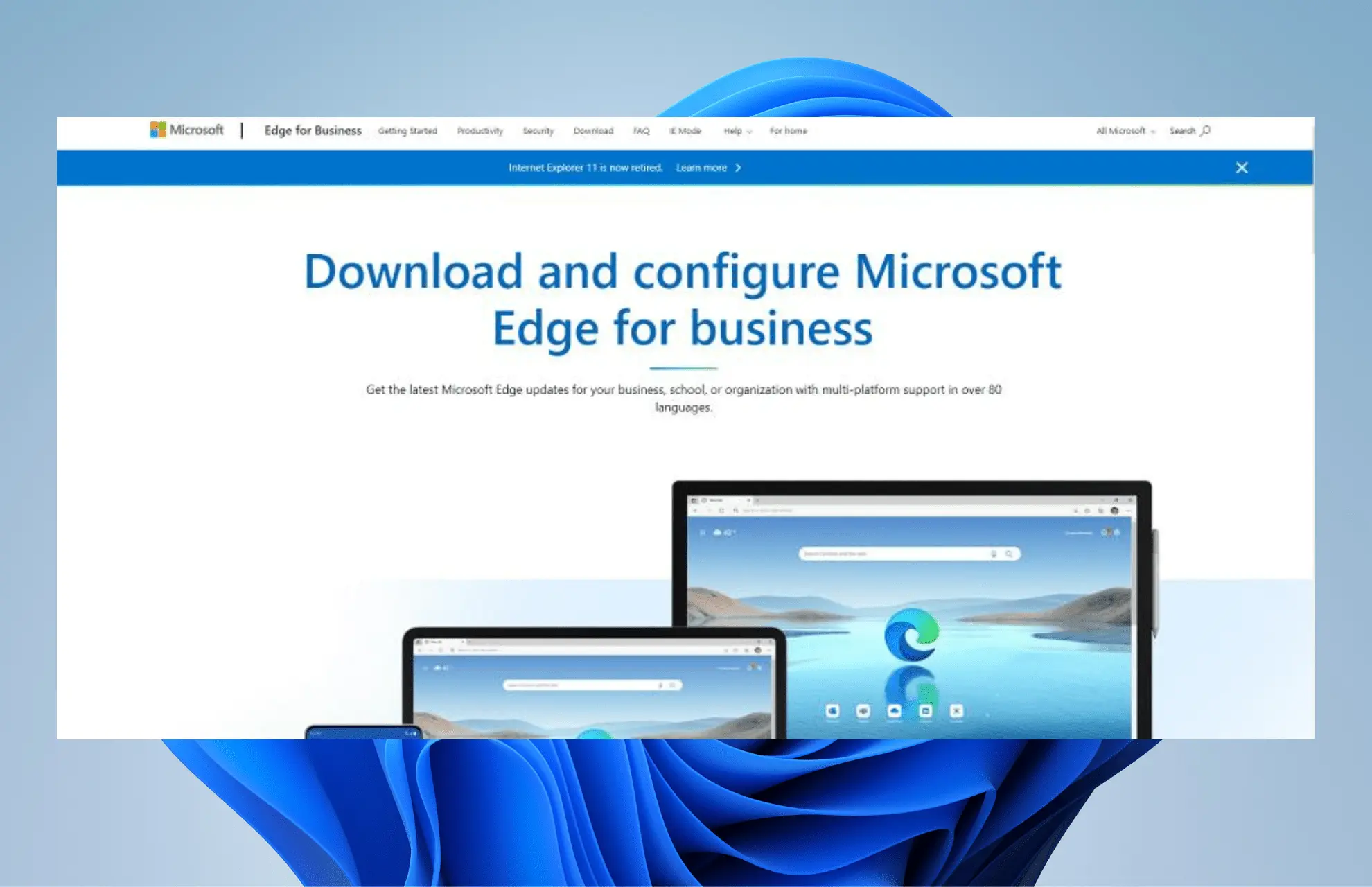
Microsoft Edge for business Edge for Business is a dedicated Microsoft Edge experience geared towards work, designed to provide a productive and secure browser on any device, whether managed by the organization or entirely personal. It shares the same Chromium engine and the typical Edge featuresBut it adds enterprise controls, data isolation, and management options designed for the changing needs of businesses.
The unique feature of Edge for business is that It automatically separates work and personal browsing in separate windows, each with its own favorites, cookies, caches, and storage locations. This way, work content doesn't get mixed up with personal content, reducing user mental overload and minimizing the risk of sharing sensitive information where it shouldn't be.
This experience is activated by logging into the browser with a Microsoft account Sign in ID (formerly Azure Active Directory). Starting with stable version 116, Edge for Business is generally available on managed devices, and also integrates with Intune MAM (Mobile Application Management) for unmanaged devices, extending control without the need to enroll the entire team in MDM.
Within this proposal, Microsoft Edge for business includes several key components: visually distinct work window, personal business window, automatic switching between contexts, MAM compatibility on Windows and mobile devices, and corporate branding customization options within the browser itself.
Work exploration experience and differentiated personal window
One of the clearest reasons for choosing Edge in companies is its work exploration window with differentiated visual designWhen the user logs in with their Entra ID account, the corporate profile adopts its own icon and style: the Edge for business icon replaces the standard Edge in the taskbar and shortcuts, an identifying "profile pill" is displayed, and a floating visual treatment makes it clear that this window is from the work environment.
In parallel, Edge for business offers a lightly managed personal browsing experienceThis personal window, usually associated with a personal Microsoft account (MSA), allows the user to access social networks, private services, or any non-work-related website without putting corporate data at risk, while maintaining a minimum of corporate control over security, compliance, and updates.
The great value lies in the automatic context separationCertain sites classified as corporate (for example, Microsoft 365 apps or websites that require a work login) open directly in the work window. If the user tries to open them from the personal window, Edge can automatically move the tab to the work context, preventing common human errors such as logging in with the wrong account.
This separation is not only visual: Each window maintains its own cache, storage, and data.Favorites, passwords, and other work profile information are not shared with the personal profile, and vice versa. No link is created between the Entra ID account and the personal Microsoft account, and the existing corporate settings for linking work and personal accounts are not broken.
For users, this dual window system allows them to work comfortably with a single browser, while maintaining the boundaries between work and private life much clearer and safer.
Corporate brand customization in Edge for businesses
Another differentiating factor that can tip the scales in favor of Edge in enterprise environments is the organization brand customizationCompanies can customize the appearance of the work window with their own visual elements: logo, colors, or iconography consistent with the corporate identity.
This personalization is reflected, among other things, in the profile pill, the floating profile panel and the Edge for Business taskbar icon, helping users immediately distinguish which window belongs to the professional environment. This also reinforces employee confidence that they are in a secure corporate space aligned with company policies.
For the communications and branding area, these options represent a simple way to increase visual affinity and consistency across all digital tools, using Edge as another point of contact with the organization's identity. Microsoft offers specific documentation on how to set up and manage these brand assets.
When does it make sense to choose Enterprise Edge in your organization?
Choosing Microsoft Edge for business makes a lot of sense for companies that already work intensively with Microsoft 365, Enter ID and IntuneIn this scenario, the browser fits naturally into the ecosystem and allows users to take full advantage of security, device management, and productivity integrations.
Edge for Business is simply enabled logging into the browser itself with the Entra ID account. From there, the work window becomes the central space to access Outlook, Teams, SharePoint and the rest of the corporate applications, applying the security and compliance policies defined by IT.
Business experience includes, among other things, specific visual treatments in the working windowA partially managed personal window and an increasingly advanced automatic switching mechanism between personal and work windows are now available for many websites. This simplifies things for users, ensuring they do the right thing without requiring constant training.
Microsoft also offers a Edge adoption kit for businessesIt includes communication materials, guides, and resources designed to standardize browser usage, inform employees, and help them take advantage of productivity features. It is especially useful when making a large-scale rollout or replacing another corporate browser.
Data management and synchronization: what is saved and where
A common concern when choosing a browser for businesses is how they are managed favorites, passwords, history, and other dataIn the case of Edge for business, the elements already associated with the user's work profile are maintained and used within the work window, without being mixed with the personal context.
Synchronization of this data between devices is normally done with the Microsoft professional account (Enter ID), so the employee retains their work environment (bookmarks, passwords, settings) whether in the office or remotely. However, preferences for which window is used to open specific sites are not synchronized across different Edge channels, so they must be configured independently in each one.
by design, There is no password sharing or favorites between the work window and the personal window. Each maintains its own data space, and IT teams can decide to what extent they allow password management from the browser, strong password suggestions, or integration with other security solutions.
Control of site opening context and automatic switching
Edge for business offers several options for the user and the organization control which window each website opens inWhen the browser detects that a URL fits better in another profile (for example, a business application opened from the personal window), it displays a change icon that allows you to move that site to the correct window and remembers the choice for the future.
Additionally, there is a specific settings page in edge://settings/profiles/multiProfileSettings where the user can manage "Profile Preferences for sites". From there, it's possible to add, edit, or delete websites that use automatic profile switching or select a preferred profile for specific domains, which provides considerable flexibility.
In stable version 116, work-related URLs opened from the personal window are redirected to the work window by default. Automatic switching from personal to work context It comes enabled, although the user can disable it. In the opposite direction (from work to personal), the switch is initially disabled, with the option to enable it manually, and according to Microsoft, it will be enabled by default in a future version.
The settings for how external links behave and which window is used can also be adjusted from the section Choose how external links are opened in Microsoft Edge settings, allowing users to further refine their experience according to their preferences and need for separation.
MAM for Windows: Protecting corporate data on personal PCs
Edge for enterprise shines especially when combined with Microsoft Intune and MAM (Mobile Application Management) capabilities on Windows. This integration allows remote or home access to corporate resources on personal computers, without needing to enroll the entire device in a full MDM solution.
With MAM for Windows, administrators can apply application configuration policies (ACP) to customize the Edge for Business experience on personal PCs, adjusting interface, behavior, or integration options according to the organization's needs.
At the same time, they can be deployed application protection policies (APP) To control how organizational data is handled in Edge: blocking copy/paste to unauthorized applications, printing restrictions, controlled downloads, etc. This is complemented by the integration of Windows Security client threat defense, connected with the Intune app to assess device health.
Another key layer is the Application Protection conditional accessThis system verifies that the device meets certain security requirements (threat level, configuration, protection status) before allowing it access to services protected by Entra ID. In this way, a personal PC can only access corporate applications if it is in good condition and complies with the policies defined by IT.
It's worth noting that when using MAM for Windows, there are some limitations: for example, the application launcher (the “waffle menu” of Microsoft 365) It's not available in the new tab to directly open apps like Outlook. This is a necessary concession in exchange for the level of data isolation and control.
The basic requirements for MAM on Windows are clear: Windows 11 22H2 (build 10.0.22621) or higherMicrosoft Intune 2309 or later, and Microsoft Edge 117.0.2045.31 or later. From there, the company can apply advanced data protection in the browser even on computers that have never enrolled in MDM.
MAM for mobile devices: iOS and Android under control
In the mobile arena, Edge for business also integrates with Intune's MAM on iOS and Androidallowing a level of control similar to Windows over the data handled in the browser, but without requiring the phone to be owned by the company or fully managed by them.
Organizations can apply application configuration policies specific to Edge mobile, adapting the experience to the business context: which pages open by default, how new tabs are displayed, what browser options are available, or what extensions (if any) are allowed.
Along with those directives, the application protection policies They help keep corporate data encapsulated within Edge on the mobile device, controlling content copying, opening documents in unauthorized apps, and behavior against attempts to exfiltrate information to personal accounts.
For administrators, the documentation for “Managing Microsoft Edge on iOS and Android with Intune” details how to integrate these policies and what security scenarios can be covered, which is especially useful in BYOD contexts where the same device serves for both personal and professional use.
Centralized management, advanced security, and Internet Explorer mode
Beyond the separation of contexts, Edge for business stands out for its centralized management from the Microsoft 365 admin centerThe so-called Edge management service makes it easy to deploy browser policies, manage extensions, enable or block AI features, and customize the browser's appearance for the entire organization.
This service is currently available in a stable manner for Windows devices And it's in preview for iOS, Android, and macOS, allowing IT to maintain a consistent experience regardless of the operating system. In practice, this translates to less manual work, reusable policy templates, and the ability to react quickly to new threats or regulatory changes.
In terms of security, Edge for Business relies on Microsoft Defender Smart Screen to block malicious sites, phishing, and dangerous downloads, as well as offering blocking of potentially unwanted applications (PUAs) and support for secure DNS. It also natively integrates techniques for hardware isolation and Application Guard in Windowsadding an extra layer against more sophisticated attacks.
A very relevant element for many companies is the Internet Explorer mode Edge. Although Internet Explorer is discontinued for security and compatibility reasons, many organizations still rely on legacy applications that only function correctly with that engine. With IE Mode, Edge can open those older websites directly in the same browser, eliminating the need to maintain a second, outdated browser and reducing risks.
Deployment, onboarding experience, and protection notifications
Once the conditional access policies, application protection, and app configuration are defined in Intune, the setup for the user is quite simple: Simply open Microsoft Edge (on a managed or personal device) and log in to the browser with the corporate account.
During the onboarding process, the user will see the profile icon at the top of the window. By selecting it and choosing the option to “Log in to synchronize data”You will be asked for your tenant email address and account password. It is important that you agree to log in and register the device according to the flow defined by IT, as some options, such as "log in only to the app," prevent MAM policies from being applied correctly.
In scenarios where the organization does not want to use the new preview option to manage the MDM screen, the user will need to Avoid registering the entire device in Intune If the goal is to apply only MAM, after completing the steps and verifying that the session has started correctly, the browser will already be under the established protection and configuration policies.
When any security condition is not met, Intune displays Clear notifications within EdgeFor example, you can block access to an application if the device's threat level is too high, prevent copying content from a protected site, deny printing or downloading of certain files, or warn that the offline grace period allowed by the organization has expired.
All this behavior is aligned with the previously defined APP and ACP directives, and allows the company to maintain fairly fine control over what can be done with business data in the browser, without needing to invade the personal part of the device.
Key FAQs when choosing Edge for business
When evaluating when to make the leap to Edge for business, several factors arise. frequently asked questions between IT and security managers. Some of the most common points are the following:
Regarding the icons in the taskbarUsers who have only logged in with their Entra ID will see only the Edge for Business icon, not the "normal" Edge icon. This helps avoid confusion and reinforces that they are browsing within the corporate context.
As for the directives applicable to the personal windowThis is managed in a "lightweight" way: security, compliance, and update policies are inherited from Edge, but without the complexity of managing a completely different browser. It's a way to guarantee a minimum level of protection, even in the personal sphere, without excessively invading user privacy.
If an organization wants to go a step further and completely disable the personal windowYou can do this by using the documented settings to restrict which accounts can be used in Microsoft Edge. This way, only work accounts are allowed, and all browsing is confined to the corporate environment.
Regarding unmanaged devices, Edge for Business Yes, it offers support.Currently available in preview in some scenarios. By following the MAM for Windows setup steps, it's possible to apply data protection policies even on computers that aren't enrolled in Intune as managed devices.
By combining all these possibilities, Edge for business positions itself as a robust corporate browser, capable of adapting to both very strict security organizations and more flexible environments where BYOD, teleworking and legacy applications coexist.
This entire set of capabilities—clear separation between personal and professional life, deep integration with Entra ID, Intune and Microsoft 365, MAM controls for unmanaged devices, Internet Explorer mode, centralized management of policies and extensions, plus a range of advanced security measures—makes Microsoft Edge for business a very solid option for companies that want to standardize their browser without sacrificing either security or user convenience.


Passionate writer about the world of bytes and technology in general. I love sharing my knowledge through writing, and that's what I'll do on this blog, show you all the most interesting things about gadgets, software, hardware, tech trends, and more. My goal is to help you navigate the digital world in a simple and entertaining way.