- Optimizing Warzone involves prioritizing high FPS and low latency over heavy visual effects that barely provide a gameplay advantage.
- A high refresh rate monitor (120-240 Hz) and a well-tuned GPU with DLSS/FSR and sharpening make a big difference in smoothness and sharpness.
- The Control Panel of NVIDIA It allows you to fine-tune Warzone using specific profiles, image sharpening, and synchronization and filtering control.
- Finding the balance between clear visibility and stable performance is more effective than forcing a "Potato Mode" that compromises gameplay.
If you play Call of Duty : Warzone on PC and want to squeeze every millisecond of advantage, fine-tuning your NVIDIA Control Panel and in-game graphics isn't optional—it's essential. Warzone is a fast-paced, chaotic battle royale with a lot of on-screen information, so poor settings can cause you to miss enemies in the undergrowth or make the game feel sluggish and laggy.
In the following lines, you'll find a complete guide to configuring the NVIDIA Control Panel specifically for Warzone and its in-game graphics settings, whether you're aiming for a competitive 240Hz refresh rate or prefer to sacrifice some FPS for much clearer visuals. You'll see what hardware you need, how to fine-tune each parameter, and which options are truly key to reducing lag and improving sharpness.
Why optimize Warzone and the NVIDIA Control Panel
Warzone has established itself as one of the most played battle royale shooters on PC , with matches of up to 150 players on a massive map inherited from the Call of Duty franchise, and with mechanics like the Gulag that give you a second chance if you're eliminated. All this dynamism heavily rewards those who spot their opponents first and react the fastest.
In such a competitive game, high FPS and low latency make all the difference : the closer what you see on screen is to the "real-time" of your mouse and keyboard movements, the less you'll be playing "seeing the past." That small margin is precisely what allows you to win more one-on-one duels, especially in the Gulag or in close- and mid-range encounters.
Furthermore, Warzone has become a regular haunt for competitive players and streamers who spend hours online trying to improve their rankings, so the game's graphics settings and GPU configuration are no longer just a matter of aesthetics, but a real competitive advantage. Graphics card, monitor, and peripheral manufacturers know this and have flooded the market with products designed for this environment.
Although Activision sets official requirements, the reality is that more powerful hardware allows for greater freedom in balancing quality and performance . However, even with powerful PCs, many players choose to reduce visual effects to minimize lag and squeeze every last frame out of the game. Hence the importance of knowing exactly what settings to adjust in both Warzone and the NVIDIA Control Panel.
Ideal hardware for Warzone at 240 Hz
Before delving into the NVIDIA Control Panel, it's important to understand that configuring for 240 FPS won't be very useful if your monitor isn't up to the task . To get the most out of this guide in an ultra-competitive environment, you'll need a 240Hz monitor with NVIDIA G-SYNC support or compatible, so you can synchronize the high frame rate with the panel's refresh rate.
The experience changes significantly when you go from 60 Hz to rates like 120, 144, or 240 Hz: the feeling of fluidity, the clarity when moving the camera, and the mouse response improve dramatically. Many gamers who have made this upgrade describe the impression that the image no longer has any "lag," resulting in more natural movements and more consistent aiming.
This increased refresh rate means seeing opponents in motion with greater clarity, detecting an enemy around a corner sooner , and firing a fraction of a second ahead of another player with a slower monitor. In the world of esports, that difference of a single frame can decide an entire tournament; in your daily matches, it can be the difference between being eliminated or wiping out a squad.
However, to maintain a true 240 FPS in Warzone, even the most powerful GPUs often require adjustments . In many cases, the most sensible approach is to lower the resolution to Full HD (1920x1080) if you're aiming for a combination of high frame rate and stability. Even so, the principles in this guide also apply to monitors with 120Hz refresh rates and higher, even if you're playing at 1440p.
Which graphics cards can handle Warzone at high FPS?
At the high end of the range, an RTX 4090 can run Warzone at incredibly high frame rates without breaking a sweat , but it's a graphics card with a price tag prohibitive for most gamers. It's not the most realistic starting point for building a balanced rig just for this game.
If you're looking for something more reasonable, the RTX 3080 or RTX 4070 and higher are very capable options for playing Warzone with good image quality, enabling technologies like DLSS without sacrificing too much detail. With some moderate tweaking, these models can achieve close to 240 FPS in Full HD or maintain very stable frame rates above 144 FPS at 1440p.
For mid-range or lower mid-range GPUs, such as an RTX 4060 or RTX 3060 , the situation changes slightly. Although they are very decent graphics cards, they can struggle at high resolutions if you try to maintain an excessively high framerate without adjusting anything. In these cases, it's advisable to be more aggressive in reducing certain effects and relying heavily on DLSS to alleviate the load on the GPU.
It's also important to keep in mind that the difference between the RTX 30 series and the RTX 40 series is significant in terms of efficiency and performance. So, a 4060 might be relatively close to a 3060 Ti in many scenarios, but for Warzone at a stable 240 FPS, downsizing is still necessary. That's why all the configurations we'll see below are so relevant for non-top-of-the-line systems.
Prioritize FPS and low latency over extreme quality
In Warzone, unless you're a pure sniper playing at very long ranges , the priority should always be reaction time , not graphical spectacle. This means that when adjusting the game settings, the most important thing is to achieve the highest and most stable FPS possible, even if it means sacrificing ultra shadows or spectacular reflections.
This is the mindset most competitive players follow: they prioritize smoothness and reduced input lag at the expense of the game looking like a cinematic trailer. That's why so many people opt for "ugly but effective" configurations, similar to those seen in shooters from over a decade ago.
However, if you simply play a few matches a day to unwind with your friends, it's not always worth turning everything down to the minimum until Warzone looks like a 2010 game. Ideally, you should find a middle ground where the image is clear and enjoyable, but where nothing interferes with your ability to quickly spot enemies and aim accurately.
Based on this, we will detail a typical configuration geared towards competitive performance and explain what alternatives you have if you prefer to prioritize visibility, even at the cost of losing a few FPS in the process.
Basic graphics settings within Warzone
A crucial first step is to ensure Warzone is running in full-screen mode . Any other mode, such as borderless windowed, can negatively impact performance by sharing resources with the desktop and other applications, or by introducing increased latency between the game and the monitor.
In your video settings, set your monitor's refresh rate to its maximum value (for example, 240 Hz, 144 Hz, or 165 Hz, depending on your screen). Avoid leaving it on automatic if you can choose manually, to ensure the game actually uses that frequency.
Another key setting is the rendering resolution: you can keep the monitor's native resolution, but lowering the rendering scale to 90% usually offers a good balance. You'll notice a slight reduction in sharpness, but you'll gain a significant FPS, which is very useful in chaotic battles where you need maximum responsiveness.
Regarding vertical synchronization (V-SYNC), the general recommendation is to disable it in both the game and the driver to minimize input lag. Enabling it only makes sense if you experience significant screen tearing or stuttering and find it bothersome; in that case, accepting a few extra milliseconds of latency might be worthwhile for a more comfortable gaming experience.
Textures, anisotropic filtering, and sharpness
Texture resolution directly impacts video memory usage, so leaving it at a normal level is usually a good idea to avoid overloading the GPU and VRAM, especially on cards with less memory. From there, you can try increasing it to high if you find your GPU has plenty of resources.
Anisotropy filtering, which improves the sharpness of surfaces viewed at an angle (such as distant ground and paths), should also be kept at a medium or normal setting. This helps you distinguish enemies at a distance without excessively impacting performance.
Keep in mind that if you use tools like NVIDIA's Image Sharpening in the Control Panel , some systems may experience interference with anisotropic filtering. If you notice unusual behavior or artifacts, trying to disable anisotropic filtering in the game and letting the driver's sharpening improve the perceived sharpness might be a solution.
In general, properly adjusting these parameters greatly helps in recognizing silhouettes and movements at medium and long distances , something fundamental in Warzone where an enemy half camouflaged among bushes or on a dark surface can go unnoticed if the image is too blurry.
Particles, bullet impacts, and tessellation
The quality of the particles is quite subjective, as it affects effects such as explosions, smoke, or crossfire . In some cases, clearly seeing these particles can help you identify where a shootout is taking place before entering the area.
On the other hand, too many particles on screen can obstruct your vision in certain situations , especially when using certain scopes or when explosions are piling up around you. It's generally best to opt for low or medium quality settings, maintaining enough visual information without overwhelming the scene.
As for bullet impacts and sprays on surfaces, they have obvious tactical utility: they can indicate where other players have been or if there has been a recent exchange of fire. If your team is short on resources, you could disable them to squeeze out a few FPS, but if you value the information they provide, it's common to leave them enabled.
Tessellation, which enhances the volume and relief of surfaces like rocks, walls, or uneven terrain, is also a double-edged sword: it adds visual depth at the cost of resource consumption . If you're the type of player who tends to lie prone or hide behind map features, it can help you better perceive cover, but if you're aiming for peak performance, it's one of the first settings you should reduce.
Shadows, caches, and advanced lighting
Shadows are often one of the settings that most negatively impact performance when set to maximum. However, in Warzone, keeping them at a normal level is usually sufficient : you won't gain enough FPS to justify setting them to the absolute minimum, and retaining some shadow detail helps you better read your surroundings.
Even more important are the caching options: shadow caching and texture caching allow the game to preload and organize data before you start a match, reducing stuttering when loading new areas or textures. Having both enabled usually improves the overall smoothness considerably.
In the advanced lighting settings, it's advisable to lower particle lighting to low values , as its visual impact on gameplay is less than its performance cost. This helps reduce the graphical load of explosions and bright effects without hindering your understanding of what's happening.
Finally, it's advisable to disable features like Ray Tracing, advanced ambient occlusion, or SSR (screen space reflections), as these options are designed to greatly improve the visual aspect but, in a competitive game like Warzone, contribute little in terms of clear visibility and significantly penalize FPS.
Anti-aliasing and sharpening to better see enemies
Anti-aliasing (AA) smooths the jagged edges of objects, but some methods are very resource-intensive and can introduce a hazy or blurry appearance into the image. A good balance is to use SMAA 1X as the anti-aliasing method , which mitigates aliasing without significantly impacting performance.
However, if you're looking for maximum clarity and your absolute priority is to recognize silhouettes at a distance with the greatest possible sharpness , you can try completely disabling Anti-Aliasing, especially if you're going to combine this with external sharpening techniques like those offered by NVIDIA in the driver.
Many competitive Warzone players, or players of other shooters, opt for a slightly "harder" image with sharper edges, in exchange for greater accuracy in discerning movement and contours in environments with foliage, complex structures, and dark areas. The key is to experiment and stick with what feels most comfortable for you when aiming.
Keep in mind that it's almost always better to disable oversaturation of effects and unnecessary brightness rather than excessively cropping things that clearly help with visibility, so playing with AA and driver sharpness is one of the best ways to find your sweet spot.
Using DLSS and FSR to gain FPS
If your graphics card is an NVIDIA RTX, you have access to DLSS, an AI- powered image reconstruction technology . Ideally, you should use DLSS to increase FPS while maintaining your game resolution , not to boost it to a higher resolution than your GPU can comfortably handle.
In practice, DLSS renders the game at a lower internal resolution and then reconstructs the image with considerable quality , allowing you to gain a significant FPS without noticing a major loss of detail, especially on 1080p or 1440p monitors. The impact will vary depending on the mode you choose (Quality, Balanced, Performance).
If you're using an AMD Radeon graphics card, your equivalent is FSR 2.0, which works on a similar principle: enabling FSR 4 or adjusting the correct FSR can help reduce the GPU load without compromising visual quality. In both cases, it's worth experimenting with different modes to find the balance that best suits your system and preferences.
Configure Warzone from the NVIDIA Control Panel
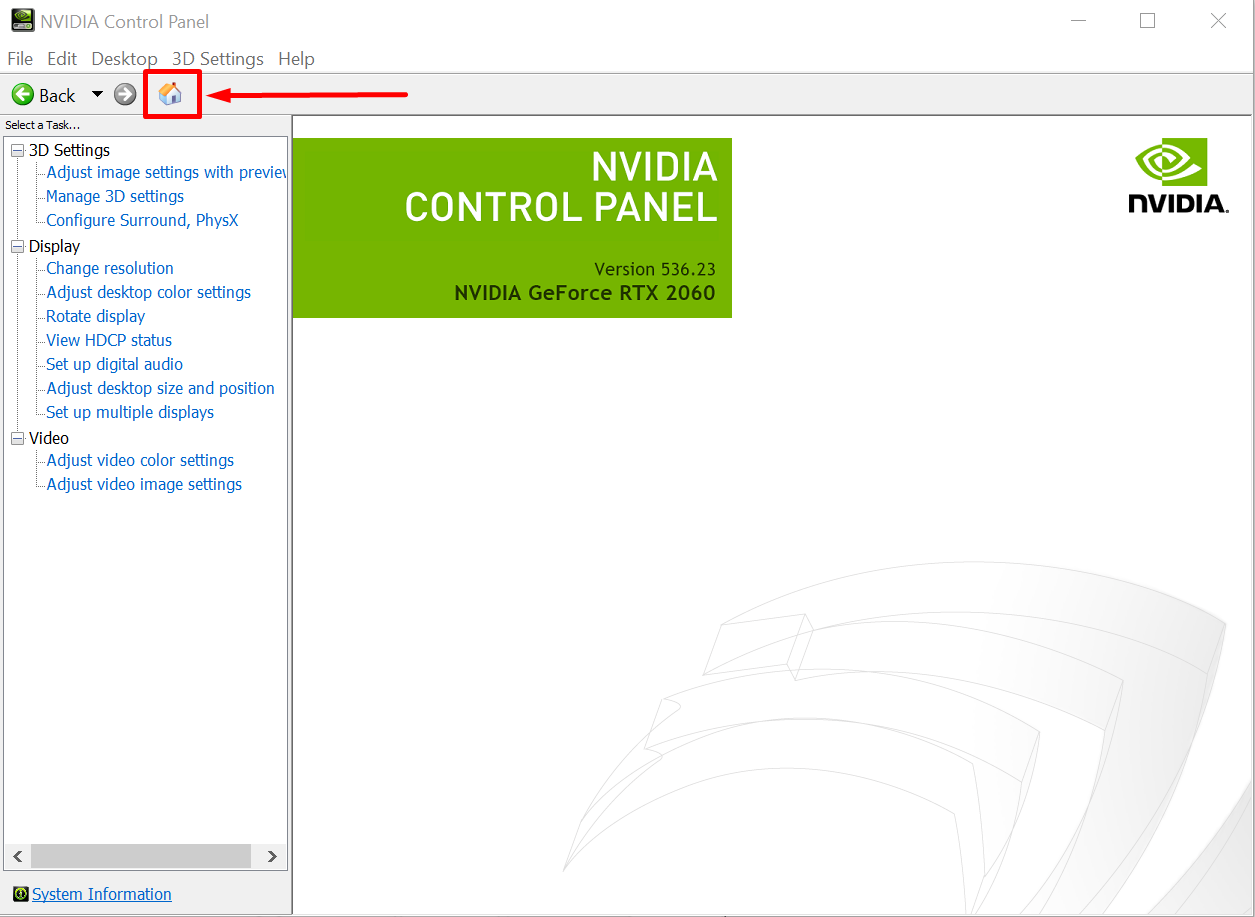
Beyond the game's own options, the NVIDIA Control Panel lets you adjust additional parameters to get even more out of your GPU . To access it, simply right-click on the Windows desktop and select "NVIDIA Control Panel," and make sure your system has the latest version of DirectX.
Within "Configure 3D settings," you can choose between global or program-specific settings . For Warzone, it's best to create or edit the game profile so that the changes only affect this title and don't affect other installed games.
One of the most interesting settings is "Image Sharpening." By enabling it for the Warzone profile and leaving it at standard values, such as 0,50 for sharpening and 0,17 for film grain , you'll achieve a sharper image without exaggerating grain or making it look artificial.
This added sharpening can make a clear difference when visually separating enemies from the background , distinguishing bushes, trees, and shadows, and reducing the feeling of excessive or hazy brightness in certain areas of the map. When combined with normal textures and moderate anti-aliasing, the result is usually a good balance between sharpness and performance.
Global sharpening versus game-specific sharpening
The Image Sharpening setting in the NVIDIA Control Panel can also be applied globally, meaning it will affect all your games . This isn't necessarily a bad thing: in many titles, a slight sharpening improves clarity quite nicely.
For Warzone, however, it's usually preferable to define the sharpening within the game profile . This ensures that the chosen values work well with your specific Warzone graphics settings and don't conflict with other titles that might react less favorably to this type of sharpening.
If you decide to apply sharpening only to Warzone, remember that you can adjust the film grain value in the game itself. This way, between the NVIDIA filter and the internal settings, you can reduce exaggerated reflections, annoying glare, and excessive glare that makes it difficult to see the enemy.
After adjusting your profile in the Control Panel, it's a good idea to save the changes and restart your PC to avoid unexpected behavior or settings not being applied correctly. After that, you can launch Warzone and test the results in several matches, not just in the menu.
What to do if you still can't achieve a stable 240 Hz
Even with all these optimizations, your system might not maintain a stable 240 FPS or you might encounter a DirectX error in Warzone , especially if you're playing at 1440p or if your GPU is mid-range. It's not the end of the world, though: remember that a mid-range graphics card playing at 144 or 165 Hz with solid settings is still an excellent experience.
Watching many streamers and content creators focused on Warzone, you'll see that they fine-tune almost everything for pure performance : low textures, minimal shadows, effects reduced to the limit... The visual result is a very stripped-down game, but extremely fluid.
However, if you're not competing professionally, sacrificing graphics quality to that extent isn't necessarily worth it. If you enjoy the game for relaxation, playing with friends, or simply racking up the occasional win, you can afford a bit more visual detail, even if you don't reach a guaranteed 240 FPS.
An intermediate option is to choose frame rates like 120 or 144 FPS, which significantly improve the experience compared to 60 Hz , while maintaining decent graphics that make Warzone look modern. This way, your experience will be both competitive and visually appealing.
Is it possible to reduce the graphics load even further?
If your PC is running on fumes and you're determined to push it to its limits, you might consider using external tools like NVIDIA Profile Inspector . This utility allows you to modify internal driver parameters, including texture filtering and many other advanced settings not found in the standard Control Panel.
Through these types of applications, it's possible to reach what many call "Potato Mode": a graphical mode so simplified that the game looks like something else entirely , with extremely basic textures and almost no distracting visual elements. In games where FPS is everything, some users are willing to go to this extreme.
The problem is that forcing such a drastic reduction in graphics settings can create visual artifacts , errors when displaying effects (for example, dxgi_error_device_hung ), or even situations where important elements of the environment are not displayed correctly. In Warzone, this can be counterproductive, because you might miss certain useful information precisely when you need it most.
Therefore, before diving into such complex settings, it's wiser to check if your hardware needs an upgrade or if you can improve the system's cooling and overall performance. Adjusting the NVIDIA control panel and in-game graphics offers a lot of flexibility, but there's a point beyond which you lose actual gameplay value for what you gain in FPS.
Balance visibility and performance if you're having trouble seeing enemies
Many players with powerful rigs (for example, an RTX 3080 with an Intel i9 and a 1440p monitor ) report that, after some changes to the game, they find it harder to spot enemies among bushes, trees, shadows, and other effects. Even with good frame rates, the screen feels cluttered, making it difficult to read the action.
If you experience something similar and prefer to sacrifice some FPS for cleaner, more eye-friendly visibility , it's advisable to focus on these points: reducing excessive brightness, adjusting overall brightness, moderating bloom, lowering motion blur, and controlling HDR if you use it.
Along with that, combining moderate anti-aliasing (such as SMAA 1X), light sharpening via the NVIDIA Control Panel , and normal or high texture settings helps the map look sharp without appearing blurry or overly bright. Reducing certain particle effects to prevent them from overwhelming the image with each explosion can also be helpful.
Ultimately, if your priority is clarity, it's better to remove unnecessary visual noise than to chase the highest possible framerate . Warzone will still run very smoothly at 120-144 FPS in 1440p, and your eyesight and aim will thank you for it in the medium and long run.
With all these Warzone and NVIDIA Control Panel settings, you can tailor the game to your goals, whether you want to push a 240Hz monitor to its limits for competitive play or prefer a more polished 1440p image with stable FPS. The key is to correctly combine disabled V-SYNC, intelligent use of DLSS or FSR, well-measured sharpening, reasonable texture and shadow levels, and, when necessary, selectively cutting advanced effects so that your GPU works precisely where it helps you win duels on the battlefield.


Passionate writer about the world of bytes and technology in general. I love sharing my knowledge through writing, and that's what I'll do on this blog, show you all the most interesting things about gadgets, software, hardware, tech trends, and more. My goal is to help you navigate the digital world in a simple and entertaining way.