- Android It offers a notification history (since Android 11) that saves alerts from the last 24 hours and allows you to retrieve them even if they have been discarded.
- The history must be manually activated from Settings and can be viewed both from the notifications menu and from the system settings themselves.
- Not all mobile phones include this function or do so in the same way, so in some cases it is necessary to use third-party applications to register and manage alerts.
- Configure properly which notifications each app can send and how they are displayed in the lock screen It is key to balancing privacy, comfort, and productivity.
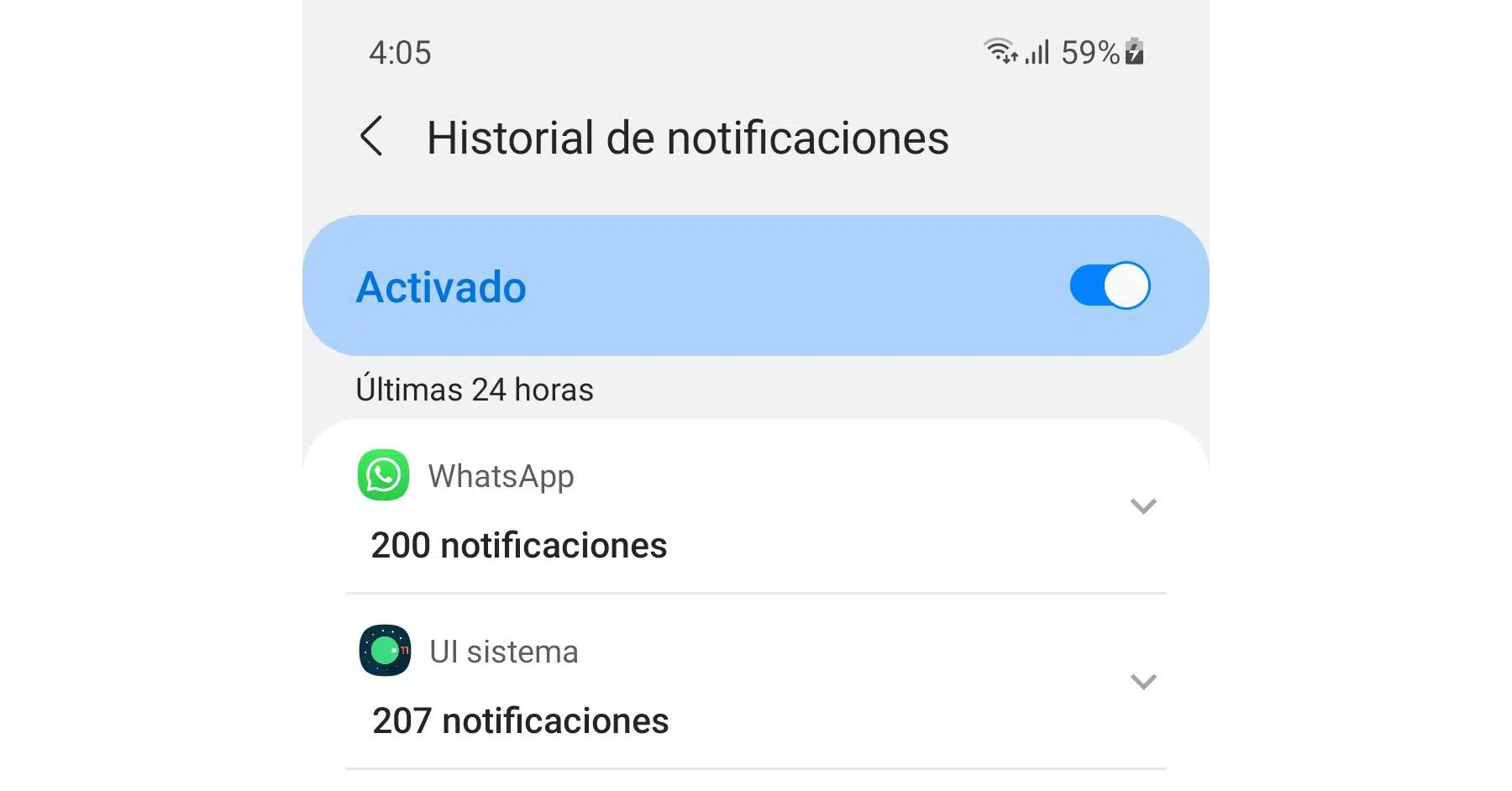
If you use an Android phone daily, it's easy to end up hastily deleting notifications and then wondering what exactly that message or alert you discarded said. The good news is that Android has a notification history When properly configured, it allows you to review what has appeared in the notification bar in the last few hours, even if you accidentally deleted it.
In this guide you will see How to activate, view, and get the most out of your notification history On Android, what are the limitations, what alternatives exist if your phone doesn't include this feature by default, and how to use notifications to better manage your daily life? All explained in Spanish (Spain), with a practical and straightforward approach.
What is Android notification history and how does it work?
The system maintains an internal record with all the notifications that the device receives for a limited period of time, usually the last 24 hours. This record is what Android displays when you access the notification history.
Starting with Android 11, Google integrated a specific panel from which You can see recently closed notifications, snoozed notifications, and notifications from today.They are grouped by application and ordered chronologically. This way, if you delete all the notifications at once or something pops up while you're busy, you'll always have a second chance to check it.
It should be noted that Not all customization layers include history. Exactly the same. Phones with "pure" Android (Pixel and some models from other manufacturers) include it as is, while other manufacturers may modify it, hide it, or even not offer it.
In addition, the native history It is not retroactiveIt only starts saving notifications from the moment you activate it. If you need to restore settings, see How to reset notification settings.
How to activate notification history step by step
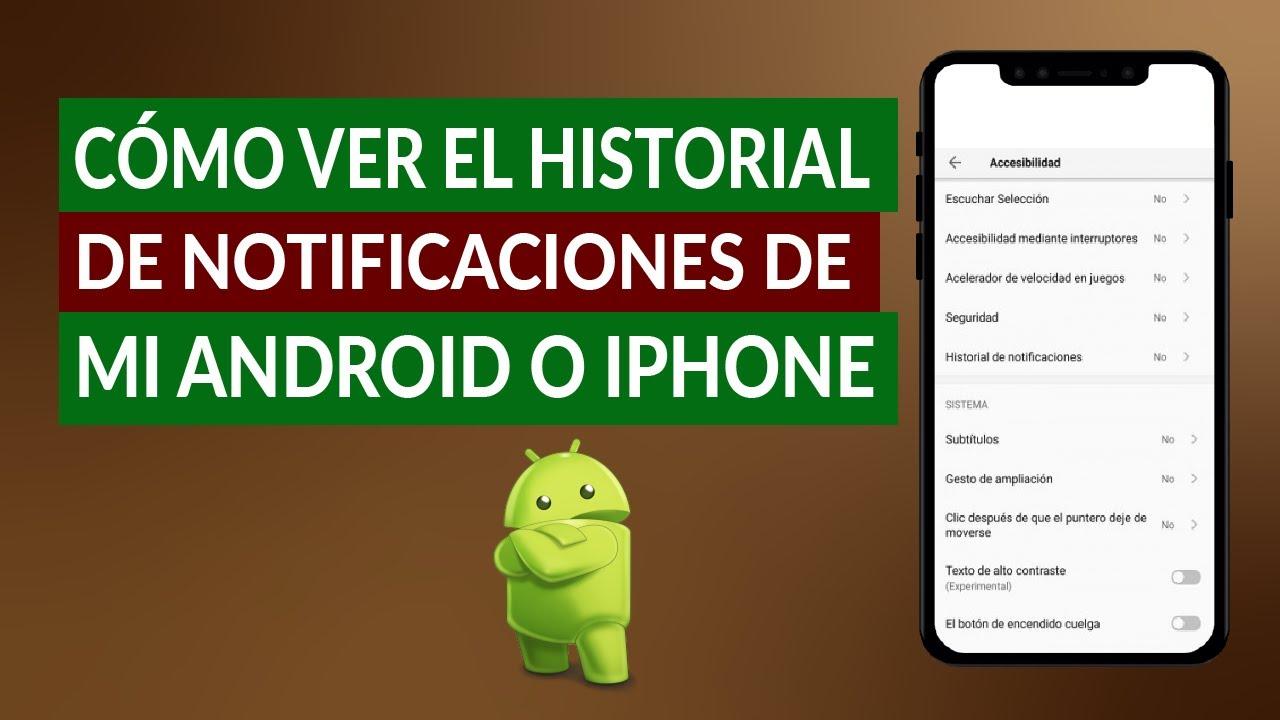
The first essential step is Activate history from system settingsThe path may vary slightly depending on the manufacturer, but on most modern mobile phones it is quite similar.
On many devices with Android 11 or higher, simply follow this general idea: open the Settings app, go to the notifications section, and locate the section that refers to the “Notification history” or notice logOnce inside, you'll see a switch that allows you to enable it.
In other models, especially those very close to pure Android, it is practical to use the internal settings search: type “Notification History” In the Settings app's top bar, tap the option that appears in the search results. If your phone is compatible, you'll see a specific panel with a toggle switch to activate it.
Once you have it turned on, the system will begin to save notifications received from that moment onwardsFrom that same menu you can see a list sorted by applications with all the notifications received in the last 24 hours, differentiating whether they are closed, postponed or active.
Access the history from the notifications panel
Once activated, Android offers very convenient shortcuts for Open the history without having to delve into the settingsThe most direct one is in the notification panel itself.
When you have notifications visible in the bar, swipe down from the top of the screen to open the notifications, and just below the last one, a button or text with the word "notifications" usually appears. "Record" or similar. Tapping there takes you directly to the screen that displays the complete log of the last 24 hours.
If your notification panel is empty, that's fine too. On many phones, that's all that's needed. tap the blank space that says “No notifications” so the system takes you to the same history panel. It's a little-known but very useful trick once you've deleted everything.
Within this list, entries are usually grouped by app and ordered by time. When you tap on a notification in the history, Android Open the app that generated it.Keep in mind that it doesn't always take you to the exact item (for example, the specific Gmail email), but in many cases it simply opens the application in a generic way.
Check if your mobile phone has a notification history
Not all devices offer this feature as standard. Some models, especially older ones or those with highly customized interfaces, The notification history may not exist or be quite hidden.
The quickest way to check is to open Settings and go to the section on NotificationsIf your phone supports it, you'll see a specific option related to history, log, or previously viewed notifications. If you don't see it, use the settings search function with terms like "history," "log," or "previous notifications."
Google warns that Some manufacturers remove or modify this featureSo don't be surprised if your phone doesn't display the menu even if you have Android 11 or higher. In that case, you'll have to use third-party apps if you absolutely need a detailed log.
It's also important to remember that native history is limited to about 24 hours of activityIf you want to save notifications for longer periods, analyze patterns, or keep a very long log, the apps Specialized ones offer more margin and additional features.
Manage notifications from the history and dashboard
In addition to serving as a "backup" of missed notifications, the history and the notification bar itself help you to control what bothers you and what doesn't. In day to day.
From the main panel, if you press and hold a specific notification, the following will open directly: settings of that appThere you can completely disable notifications for that application or refine them by category (for example, mute only promotions, but leave personal messages active).
Some notifications include quick actions at the bottom, such as Reply, Archive, or Mark as readIf you have many accumulated, these actions may appear hidden; simply expand the notification or tap the corresponding icon to see them without having to open the entire application.
In the history list, by tapping on certain entries you will be able to access the specific notification settings from that app. This is very useful for quickly locating which application is bombarding you with notifications and adjusting its behavior without wasting time searching for it in the menu.
Configure which notifications you want to receive on Android
A key part of not going crazy with notifications is Adjust which apps can notify you and how.Android offers several ways to configure it flexibly.
The most comprehensive way is through the Settings app. Go to Notifications > App notifications (or a similar path) and you'll see, in "Most recent", the apps that have recently sent alerts. From there you can open the full list by tapping "All apps" or an equivalent menu.
When you enter the details page of a specific app, the system allows activate or deactivate all your notifications Or go category by category: direct messages, system alerts, promotions, reminders, etc. If the app supports notification channels, you can adjust the sound, vibration, priority, or on-screen appearance for each type.
Another option is to manage alerts directly from a current notification. Tap and hold the notification, tap Settings, and choose if you want block it, mute it, or allow bubbles (floating windows for certain messaging apps). It's a quick way to react when something annoys you at that moment.
Many applications also include their own internal menu for customize sounds, vibrations, and alert frequencyIt's usually found in a "Notifications" or "Alerts" section within the app's settings. There you can decide, for example, that a specific chat makes a different sound or that certain alerts don't make a sound but still appear in the notification bar. You can learn more about how customize sounds in specific apps.
Hide or limit notifications on the lock screen
If you're concerned about privacy, Android lets you control exactly what is seen on the lock screen When a notification arrives. That way, no one will read your messages just by looking at their phone.
Within Settings, in the Notifications section, you will find a section dedicated to the lock screen notificationsFrom there you can choose to show all content, hide sensitive content, or simply not show any notifications when the screen is locked.
The concept of "sensitive content" is not universal; it depends on each application. In general, it refers to personal data or private informationThis includes information such as the message body, email sender, verification codes, etc. If you choose to hide this content, you will still see that there is a notification, but not its details.
In some cases, if a notification cannot be dismissed from the lock screen, you will have to unlock the phone and close it once inside the systemThis is common with persistent alerts, such as screen recording, VPN or voicemails that require action.
Using third-party apps for notification history
If your phone doesn't include a native history, or if the 24 hours offered by Android aren't enough, you can resort to specialized apps from Google Play that record the alerts in a more advanced way.
These tools typically allow you to group by app, sort chronologically, perform searches, export data, or even create backups of the notification logThe downside is that they need access to your notifications, so it's important to only install trusted apps.
It is essential to understand that none of these applications are magic: They can only record what comes from their installationNotifications prior to that time cannot be retrieved because the system has not saved them.
Among the most popular apps, some stand out for their simplicity and others for their extensive features. Before settling on one, it's worth trying several to see which best suits your needs, always carefully reviewing the permissions they request and other users' ratings.
Examples of popular apps for registering notifications
One of the most direct tools is an app whose very name makes clear what it does: “Notification history”When you open it for the first time, it asks you to enable its access in the system settings, from the section for applications with special access to notifications.
Once permission is granted, this app allows Group alerts by application, sort them by date, and search for specific notifications.Its typical operation involves activating a box to always verify the configuration, accepting, and then going to Settings > Applications and notifications > Special access > Notification access to select it.
From then on, every message, call, alert or notification that arrives on your mobile will be recorded in the application, so you only have to open it to check what has accumulated, even if you have deleted it from the system bar.
Another similar option is “Notification history log”It also saves notifications from the moment of installation and shows you the exact time, the content, and, in many cases, the possibility of blocking certain applications so that they don't bother you again.
This app includes extra features such as log backups or complete history deletionThis is useful if you handle a lot of sensitive information and prefer to clean it up from time to time. Again, the first step will be to accept their terms of service, enable notification access permission in the system settings, and then review the list from their interface.
Advanced control and monitoring with remote tools
Beyond apps focused solely on history, there are remote control and parental control solutions that They synchronize notifications from one or more devices in real time. They are designed primarily for parents who want to monitor their children's mobile phones or for users who need to manage multiple phones.
A good example is comprehensive parental control that allows View and manage notifications from another deviceYou can set usage limits, receive alerts if it detects problematic activity, and even review daily usage reports. This type of tool goes far beyond simple registration, because it also allows you to block apps, track location, and set safe zones.
The general process usually involves installing the control app on your own mobile phone, creating an account, and then Install the child or client module on the device you want to monitor.After linking both phones using a pairing code, you will be able to see notifications from the other phone on your screen.
This approach is useful if you want to make sure that Critical notifications are not missed (for example, school notices, important messages, security alerts) or if you need to have more overall control over how certain devices are used within the family.
However, since these are very powerful and sensitive tools, it is essential Use them responsibly and respect privacy. of the people involved, especially if they are minors. It is always advisable to talk about it openly and explain the reason for the check.
Tips for getting more out of your history and notifications
Once you have the history working, you can use it for several practical purposes beyond recovering something you've accidentally deleted. For example, it's a good way to detect which apps are overwhelming you with notifications throughout the day.
If you see the same ones always appearing on the list, perhaps it's time to mute some categories or completely disable their notificationsThis not only reduces noise, but also helps save battery and keeps you less distracted.
The history can also be useful for quick reviews. Everything that happened on your mobile phone while you had Do Not Disturb mode activatedBy disabling that mode, you'll have a perfect summary in the log without having to open each application individually.
Finally, get used to taking advantage of the features of snooze notifications If your phone offers this feature, many apps let you swipe a notification and choose to have it reappear after a few minutes or hours. This way, if you can't attend to something right now but don't want to forget, you can be sure it will reappear at the right time.
Mastering the notification history and all these configuration options allows you to have a much finer control over what happens on your mobileRetrieve missed notifications, avoid missing important messages, reduce constant noise, and adapt each app to your usage style so your phone works for you, not the other way around. If you want more detailed control and to make sure you don't miss anything, see how. find the unread notification count.


Passionate writer about the world of bytes and technology in general. I love sharing my knowledge through writing, and that's what I'll do on this blog, show you all the most interesting things about gadgets, software, hardware, tech trends, and more. My goal is to help you navigate the digital world in a simple and entertaining way.