- Adjust BlueStacks 5's CPU, RAM, and graphics mode according to your PC's actual power.
- Configure resolution, FPS, and dedicated GPU usage to achieve smoothness and stability.
- Optimize Windows controls, instances, and settings to squeeze performance out of games.
If you play mobile games on your computer, having a Good BlueStacks 5 configuration for gaming It makes all the difference between a smooth experience and a choppy one. Haphazardly adjusting the emulator often results in FPS drops, crashes, and absurd resource consumption, so it's worth taking a few minutes to fine-tune it.
In the following lines you will find a very complete guide so that you can Optimize BlueStacks 5 step by stepThis applies both within the emulator itself and on Windows and your hardware. The idea is that you can get the most out of your favorite games, with the best possible graphics quality and without sacrificing stability, even on less powerful computers.
Minimum and recommended requirements to play with BlueStacks 5
Before you start tinkering with settings, it's essential to check that your PC meets the requirements requirements needed to move BlueStacks 5 With some ease. If the hardware is barely adequate, no matter how much you adjust the parameters, the performance will have a clear limit.

In general terms, to use BlueStacks 5 in a basic way, a modern processor with 2 or more cores would suffice. 4GB RAM minimumA hard drive with at least 5 GB of free space and a relatively up-to-date integrated graphics card (for example, recent generations of Intel HD graphics) are sufficient. But if you want to play games seriously, this falls short.
For more gaming-focused use, ideally you should have a quad-core CPU or higher (Intel Core i5 or Ryzen 5 and above). 8GB of RAM or superiorAn SSD for the system and BlueStacks, and a dedicated GPU like an NVIDIA GTX 1050/1650 or equivalent AMD card. You don't need an enthusiast-level PC, but the closer your specs are to these, the more headroom you'll have for increasing quality and FPS.
Another aspect to consider is the Windows version. BlueStacks 5 works best on Windows 10 and Windows 11 Updated, with the latest patches and drivers installed. Using older versions of Windows can cause incompatibilities, crashes, or some graphics features to not work correctly.
Finally, check your system's overall health: make sure you have enough disk space, that no background processes are consuming all your CPU or RAM, and that your computer's temperature is under control. An overloaded or overheated PC is a computer's worst enemy. Android emulator geared towards gaming.
Initial BlueStacks 5 configuration to improve performance
Once it's confirmed that the team is up to the task, the next step is to enter the BlueStacks 5 internal settingsFrom there you can decide how much RAM to use, how many cores to allocate, and which graphics engine to use, among many other things. This part is key for the emulator to run smoothly.
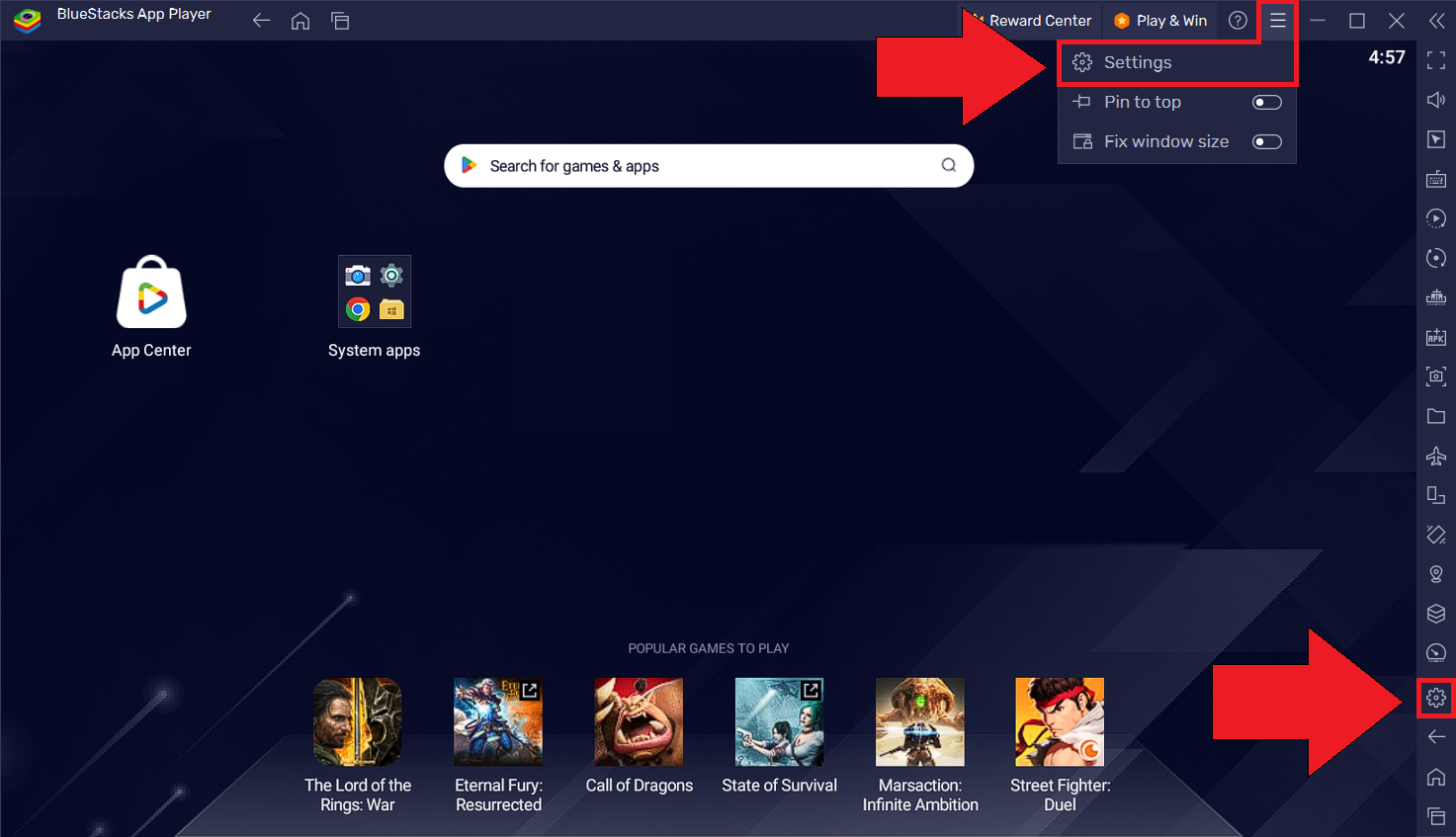
Open BlueStacks 5 and tap the gear icon (Settings). In the performance section, you'll see several options that directly affect how smoothly your games run. What you do here should be in line with your hardware; don't just max everything out without thinking, because you could end up with a crash. overloading the PC and lowering performance.
Initially, the emulator usually detects an automatic configuration, but this is rarely ideal for gaming. Therefore, it's advisable to review each setting, test different adjustments, and stick with the combination that offers the best balance between visual quality and stable FPS, especially in competitive online titles where Stability is more important than graphic detail.
It's also advisable, during this initial setup, to disable features that don't contribute to gameplay, such as unnecessary pop-ups, notifications, or secondary services within BlueStacks that only increase resource consumption. The cleaner and simpler you make the environment, the better it will handle the demands of your games.
Performance settings: CPU, RAM, and performance mode
Within the settings menu, the performance section allows you to specify how many CPU cores and how much RAM They are reserved for BlueStacks 5. This is where many people get confused: allocating more resources does not automatically improve performance, especially if you leave the operating system without any headroom.
As a general guideline, on a PC with 4 physical cores, it usually works well to allocate 2 or 3 cores to BlueStacks, leaving the rest for Windows and other applications. On 6 or 8-core machines, you can dedicate 4 cores without issue. The important thing is that CPU usage doesn't remain at 100% constantly, as this can cause temperatures to spike and lead to problems. FPS drops due to thermal throttling.
Regarding RAM, on computers with 8 GB, it's not advisable to allocate more than 4 GB to BlueStacks 5, as the system and other programs need the rest to run smoothly. If you have 16 GB or more, you can increase the allocation to the emulator to 6 or 8 GB, which helps with demanding games or when you have multiple instances open, always keeping an eye on Windows to prevent it from using the page file.
In addition to CPU and RAM, BlueStacks 5 includes various performance modesYou'll usually find a balanced mode and a high-performance mode focused on gaming. For gaming, it makes sense to activate high-performance mode, but if you notice the computer overheating or becoming unstable, you might be better off using an intermediate mode, especially on laptops that don't have very robust cooling.
In many cases, the wisest approach is to try small changes: increase RAM usage by a bit, check your in-game FPS, monitor temperatures and power consumption, and adjust accordingly. With a little patience, you'll eventually find the right setup. optimal CPU and memory configuration for your specific PCwhich does not necessarily coincide with that of other users.
Graphics mode selection and GPU settings
The other major set of options that affects BlueStacks 5's performance is the graphics. Here you can choose between different rendering engines (OpenGL, DirectX, etc.), enabling or disabling hardware acceleration and adjusting the emulator's internal resolution, among other parameters.
On many systems with modern NVIDIA or AMD graphics cards, DirectX tends to perform better, while on some systems with integrated Intel graphics, OpenGL can be more stable. There's no universal rule, so it's best to try both modes with your most frequently played game and stick with the one that offers the best performance. More stable FPS and less stutteringEach hardware combination reacts differently.
It is also important to activate the option to use the Dedicated GPU for BlueStacks 5If you have one, make sure the emulator is set to high-performance in your display and graphics settings on Windows. This way, the workload is shifted to the dedicated graphics card instead of the integrated one, resulting in more processing power available for the game.
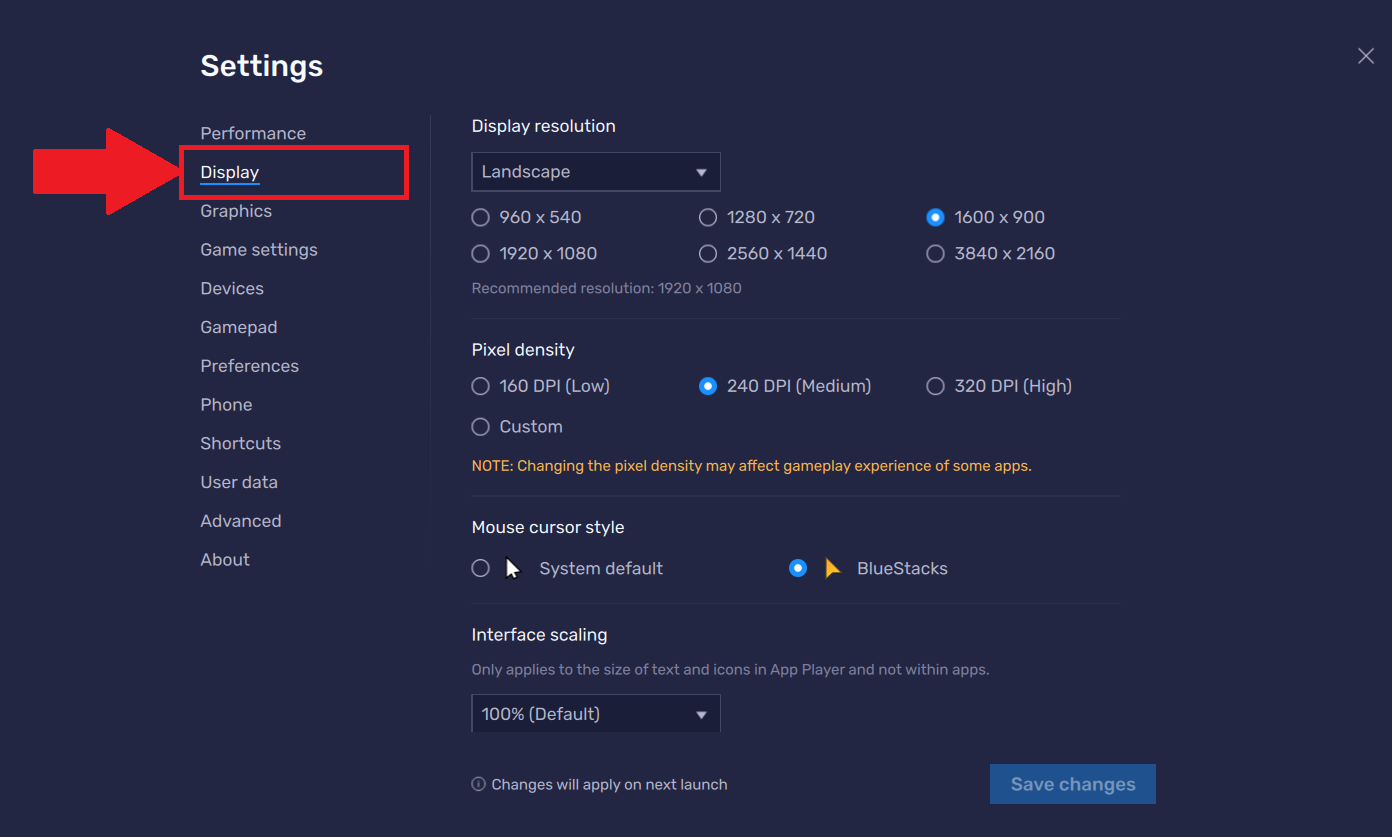
Another key aspect is resolution. Higher resolution means more graphical load, so on less powerful systems it's a good idea to lower the resolution a bit. BlueStacks internal resolutionGoing from 1080p to something slightly lower can mean a noticeable FPS increase without it being too noticeable in sharpness, especially if you play on screens that aren't very big.
Finally, check options like texture filtering, in-game graphics quality, and maximum FPS. Many mobile games let you select low, medium, high, or even ultra quality; for competitive play, you'll usually get better results with these settings. medium quality and high FPS with graphics at maximum and an unstable frame rate.
FPS settings and synchronization
Another key point for the gaming experience in BlueStacks 5 is the FPS (frames per second) settingsBy default, the emulator may be limited to a specific number (for example, 60 FPS), but many games allow you to go beyond that, and it's advisable to align all the options to avoid creating unnecessary bottlenecks.
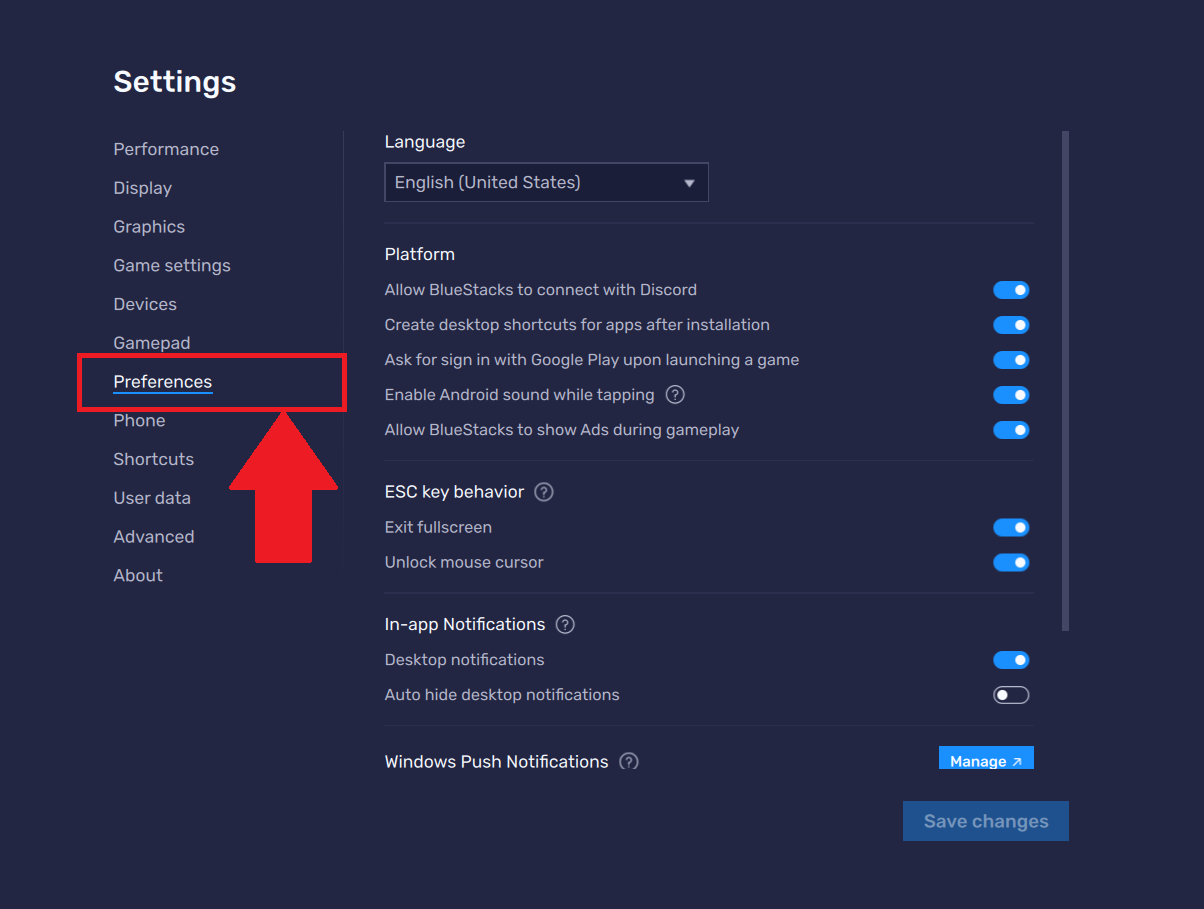
In BlueStacks 5's preferences, you can set a global FPS maximum for the emulator. If your monitor is 60Hz, setting the limit to 60 is usually sufficient. On 120Hz or 144Hz displays, you can increase this limit if your PC can maintain that refresh rate, although in mobile games, the limit is often imposed by the game itself.
In addition, some users activate the Vertical synchronization (V-Sync) To prevent the image from appearing choppy. However, this can add some latency, so in competitive games you might want to prioritize a fast response time even if it means a minor visual flaw. Again, the priority is stable FPS rather than the maximum number you see at any given moment.
Within each game, also check if there's an FPS setting in the configuration menus. Many titles allow you to choose between 30, 60, or more FPS. If your machine supports it, activate the highest available frequency mode and check if power consumption and temperature remain reasonable. If you see constant stuttering or drops, lower the setting until you find the sweet spot between fluidity and stability.
A practical recommendation is to use BlueStacks' built-in monitoring tool (or external software) to view your FPS in real time during gameplay. This will allow you to detect whether any changes to your settings actually improve the experience or simply worsen performance without compensating for any loss of visual quality.
Profiles, instances, and settings for different games
One of the great advantages of BlueStacks 5 is that it allows you to create different instances and profiles to better organize your games. This is especially useful if you play very different titles, some light and others very demanding, or if you want to completely separate work and leisure setups.
With the instance manager, you can clone the main installation or create a new one from scratch, assigning each its own CPU, RAM, and graphics settings. This way, for example, you can have a highly optimized instance for a specific competitive game, with aggressive performance adjustments, and another more relaxed one for casual games where visual quality is paramount.
Furthermore, it's possible to manage multiple instances simultaneously, which is useful for those who play games that support multiple accounts or require repetitive tasks. However, the more instances you have open, the more resource consumption will increase, so you'll need to allocate CPU and memory wisely to prevent the system from slowing down.
Another useful feature in some cases is the synchronization of operations between instances, which allows you to replicate actions from one window to the others. Although it's more geared towards productivity or certain types of games, it's worth considering if you want Automating tasks within BlueStacks 5 without resorting to external tools.
In short, profiles and instances give you the flexibility to adapt the emulator to different uses, avoiding a single configuration that might not be the best for all your games. Taking advantage of this feature will help you keep your system organized. get the most out of your PC's resources.
Gaming controller, keyboard, and mouse optimization
Besides raw power, a very important part of the gaming experience in BlueStacks 5 is how you have configured the keyboard and mouse controlsGood mapping can make a huge difference in shooters, MOBAs, and action games where precision and responsiveness are essential.
BlueStacks 5 features a comprehensive control editor that allows you to drag and drop virtual buttons onto the screen, assigning them to physical keys or mouse movements. This makes it possible, for example, to move the character with WASD, aim with the mouse, and fire with a click, resulting in controls much closer to those of a native PC game.
It is advisable to spend a few minutes adjusting the mouse sensitivityEspecially in shooting games. Too high a sensitivity will make precise aiming difficult, while too low a sensitivity will force you to move the camera halfway across your screen. Experiment until you find a comfortable setting, and don't hesitate to adjust the sensitivity within the game itself for even finer control.
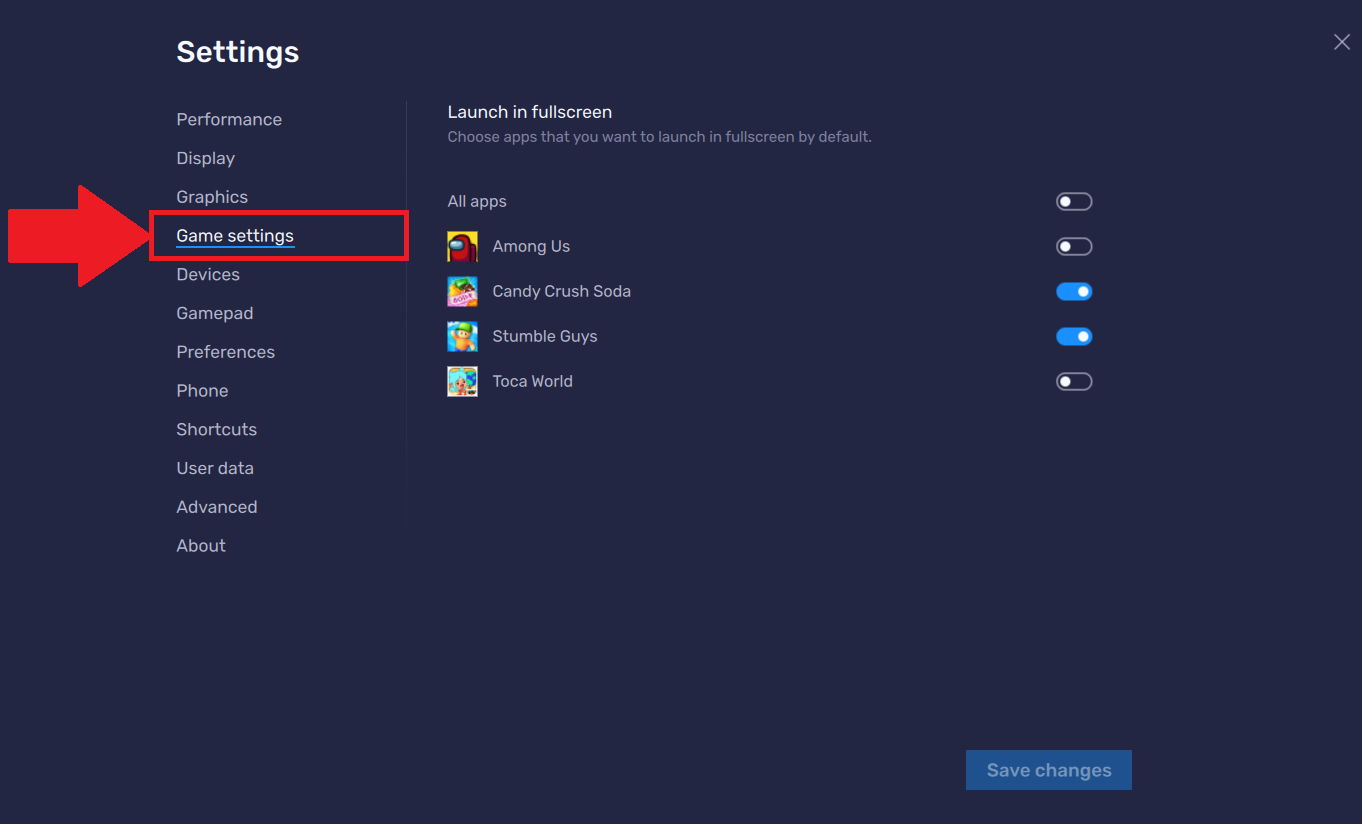
Another interesting option is to save different key profiles for each game. This way, you won't have to change the configuration every time you start a different title, and you can better adapt to the control schemes that feel most natural to you. Furthermore, some games already include BlueStacks default templates They are quite well done, which you can use as a base and retouch to your liking.
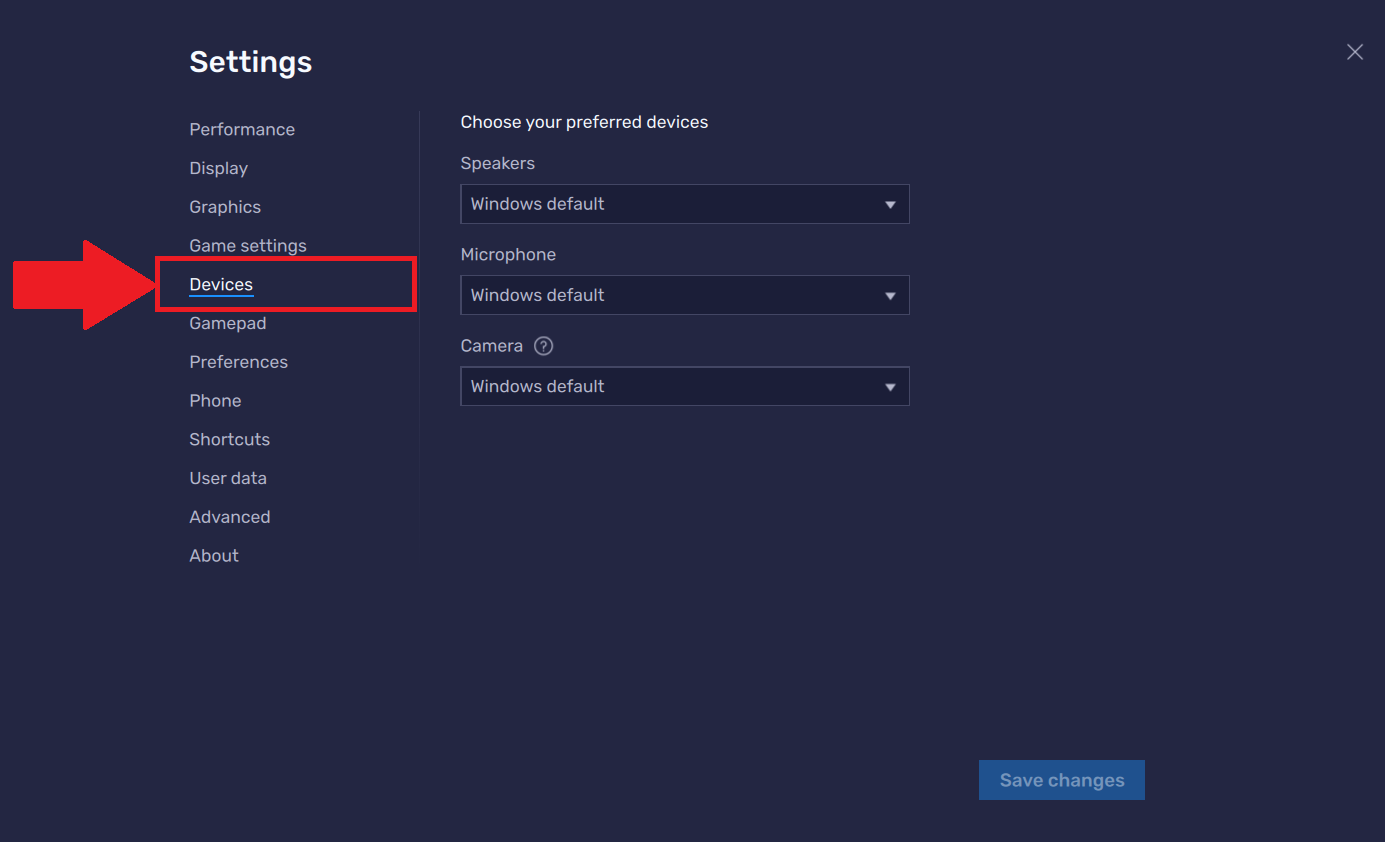
If you use gamepads, also check their compatibility with BlueStacks 5, as many mobile games offer native support. In those cases, it's possible to play very similarly to how you would on a console, combining the best of both worlds: the comfort of the controller and the advantages of PC screen and power.
Performance improvements in Windows to support BlueStacks 5
Configuring the emulator itself is only part of the job. For BlueStacks 5 to run really well, certain things need to be done. settings in Windows and in the system itselfavoiding programs that consume resources absurdly while you play.
The first thing to do is close any applications you don't need during gameplay: browsers with many tabs, editing programs, streaming clients, or any resource-intensive software running in the background. The fewer active processes there are, the more CPU, RAM, and disk space BlueStacks will have available, and you will have less chance of suffering micro-cuts.
It's also a good idea to check your Windows power plan. On laptops, it's usually set to balanced or even power-saving mode by default, which reduces processor and GPU performance. Switching to high-performance mode or the manufacturer's specific maximum performance mode helps your computer deliver its full potential when running games in the emulator.
Don't forget to keep the updated graphics card driversas well as major Windows updates. Many compatibility and performance issues are resolved with recent driver versions, especially those related to graphics engines and hardware acceleration.
Finally, make sure the drive where you have BlueStacks 5 installed isn't running out of space. Leaving some free space (at least 15% of the total drive space) improves overall performance and reduces the risk of the system becoming sluggish when handling temporary files, caches, and game data.
With all these adjustments properly combined, it's quite feasible to get BlueStacks 5 to behave like a Very smooth Android gaming environmenteven on non-high-end systems. Ultimately, it's about finding a reasonable balance between graphics quality, resource consumption, and stability, relying on both the emulator's internal settings and those of the operating system itself.
After applying these recommendations and spending some time trying different combinations, it is common to notice a clear difference in the gaming experience: fewer stutters, more stable games, better-tuned controls, and an overall feeling that the emulator responds as it should when pushed with modern and demanding mobile games.

Passionate writer about the world of bytes and technology in general. I love sharing my knowledge through writing, and that's what I'll do on this blog, show you all the most interesting things about gadgets, software, hardware, tech trends, and more. My goal is to help you navigate the digital world in a simple and entertaining way.