- FPS indicates how many frames the GPU generates per second, and Hz marks the maximum frequency at which the screen can display them.
- It is possible to see FPS and Hz in Android without root through apps monitoring with permission to overlay other applications.
- Many manufacturers integrate FPS counters and performance monitors into their game modes and developer options.
- Android developer tools allow advanced performance analysis by connecting the mobile device to the PC.
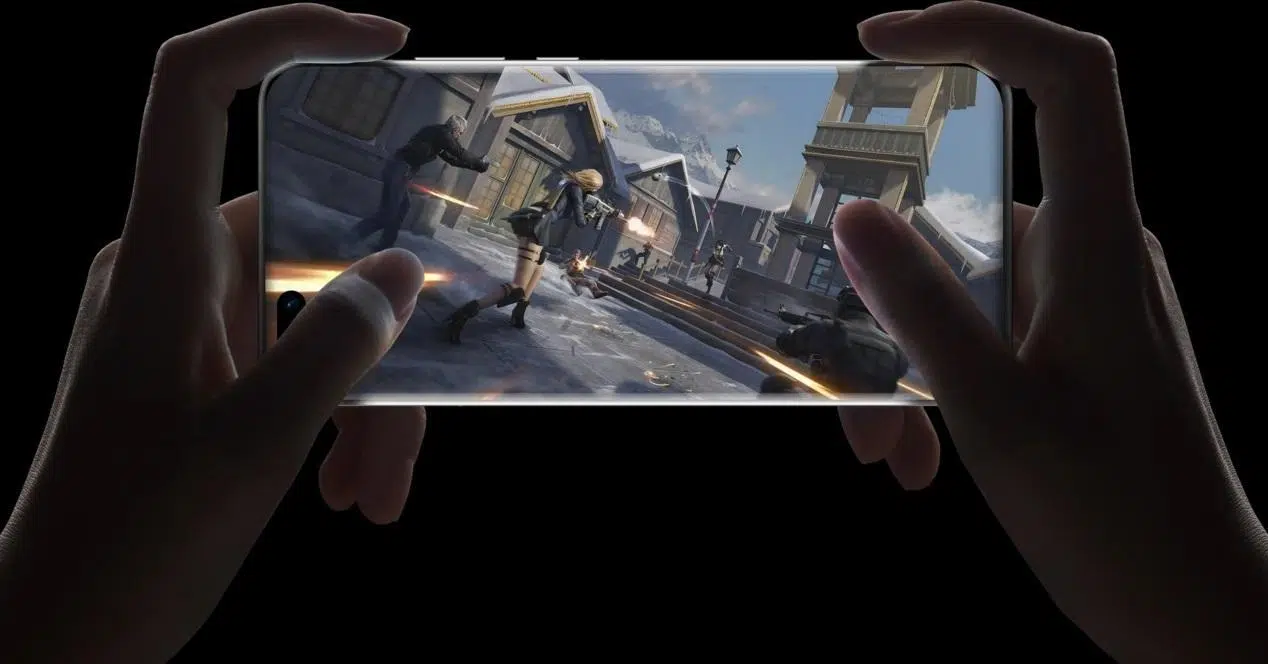
If you regularly play games on your mobile device, you've probably wondered why one title runs smoothly while another seems to stutter. Much of the blame (or credit) lies with the... frames per second and screen refresh rateThese are two concepts that you should have well understood if you want to get the most out of your Android phone when you start playing games.
In this article you will learn How to view real-time FPS and Hz in Android gamesDirectly on the screen while you play, without needing root access, and using both built-in manufacturer tools and third-party apps. Let's take a look at it calmly, step by step, and in clear language so you can check your phone's performance without getting confused.
What are FPS and Hz on an Android phone?
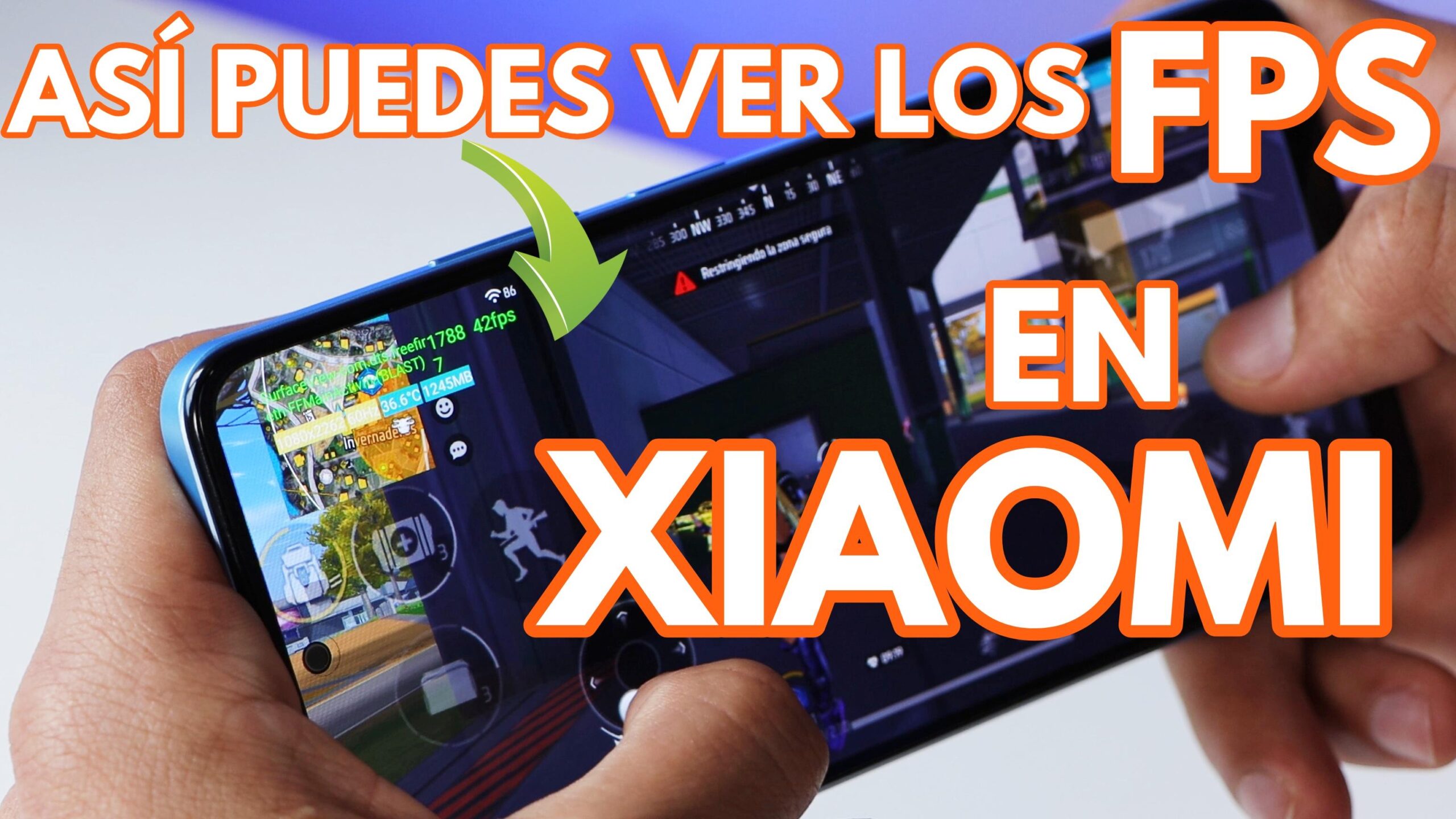
Before we start installing anything, it's important to be clear about exactly what we're measuring when we talk about FPS and refresh rate on AndroidThey are two related concepts, but they are not the same and are often confused.
On the one hand, Hz (hertz) indicates the cycles per second at which the screen operatesThat is, how many times per second the screen is able to update the image it displays. A 60Hz screen can refresh 60 times per second, a 90Hz screen 90 times per second, and so on with 120Hz, 144Hz, or even higher refresh rates. gaming mobiles.
Furthermore, the FPS (frames per second) They measure the speed at which the system, specifically the processor and GPU, generates game frames. Simply put, they are the number of distinct images the GPU manages to draw each second to keep the game running.
If you look at them together, the FPS reflects the raw performance of the mobile device while running the game.While Hz marks the limit of what the screen can display. For example, if your screen has a 60 Hz refresh rate, the ideal scenario is for the game to run at a stable 60 FPS. If the game stays at 40 FPS, you'll see less smoothness; if the screen has a 120 Hz refresh rate but the game only reaches 60 FPS, the panel could refresh more often, but the game isn't generating enough frames to take advantage of it.
Furthermore, FPS is much more variable than Hz.The screen refresh rate usually remains fixed (60, 90, 120…) or changes between a few values depending on the chosen mode, while the FPS goes up and down depending on how demanding each scene is, the temperature of the mobile phone, the state of the battery and the graphics settings of the game.
Therefore, when you notice stuttering, skipping, or that the game "sluggish," what's usually happening is that The frame rate drops below a comfortable levelPlaying at 60 FPS is considered ideal in most mobile titles; 30 FPS is acceptable but it already feels less smooth, and going below 20 FPS usually results in a pretty bad experience, with lag and very jerky animations.
Why is it useful to see FPS and Hz while gaming?
Real-time control the FPS rate and the refresh rate It's not just for performance geeks. It's a very practical way to know if your phone is holding its own in the games you love and to adjust the graphics settings properly so you're not playing "blind."
For example, if you see that in a demanding game the counter stays close to the 60 stable FPS with high qualityYou know your phone can handle it without problems. However, if the number constantly jumps between 25 and 40 FPS, with noticeable drops in scenes with heavy effects, the sensible thing to do is lower the graphics settings or resolution, or disable options like 4x MSAA to achieve a smoother experience.
It is also useful for checking if the Your screen's high refresh rate mode is actually being activatedMany phones include a "smart" or adaptive mode that switches between different refresh rates (Hz) depending on the application. By viewing the real-time refresh rate, you can see if the screen increases to 90 or 120 Hz when you enter a compatible game, or if it remains stuck at 60 Hz even if you have a faster screen.
Furthermore, with the right tools you'll see not only FPS and Hz, but also You will be able to monitor CPU and GPU usage, temperature, and battery life.This helps you detect if a particular game is putting too much strain on your system. hardware or if a specific graphics mode causes the phone to overheat or consume more battery than usual.
In mobile phones with very powerful hardware, and especially in the Gaming phones with 120Hz or 144Hz displays and processors like Snapdragon G SeriesHaving this data readily available allows you to fine-tune the balance between smoothness, graphics quality, and battery life. Ultimately, it's about making the game run smoothly enough for a good experience, without unnecessarily sacrificing resources.
View FPS and Hz on Android using third-party apps
If your mobile phone doesn't have its own gaming tools or
The ones it comes with won't be enough; the easiest way to View FPS and refresh rate in Android games is to install a dedicated application from Google Play. There are several options, but many work in a very similar way.
One of the most practical apps is similar to Display Checker or the popular real-time on-screen FPS metersThese types of applications usually offer an overlay counter that shows both the frames per second and the frequency at which the screen is refreshing, in addition to other useful device data.
These types of performance monitoring tools usually include features such as display FPS as an overlay It's always visible, even when you switch apps or are playing a game in full-screen mode. They usually also allow you to send this information to the status bar or notification area for quick access without being too intrusive.
In addition to the counter, these apps usually offer detailed hardware specificationsThis includes information about the processor (CPU), GPU, screen (resolution, pixel density, OpenGL version, maximum refresh rate, etc.), and even resource consumption. In this way, a single tool provides a fairly comprehensive overview of what your mobile device is doing.
Don't let permits scare you: in order to display information above other applicationsThese types of apps need overlay permission. This is normal, because without it they couldn't display the FPS indicator on top of the game. You don't need to be rooted or do anything unusual: simply grant this permission in your system settings when prompted. If you plan to record your gameplay, please refer to our [link to relevant documentation]. screen recording apps.
How to enable refresh rate and FPS with a Display Checker-type app
Let's look at a practical example using an app like Display Checker or a real-time FPS and Hz meterThese are very similar tools in operation. The specific steps may vary slightly depending on the application you choose, but the general idea is the same in all of them.
The first is Download the app from Google Play and install it. Just like any other. You don't need root permissions or anything special, just accept the basic permissions and open it when it finishes installing.
When you open the app, you'll usually see a block at the top with Information about your mobile phone screenResolution, density, maximum refresh rate, and even technical details like the supported OpenGL version. This main screen usually includes an option like "Show real-time refresh rate and FPS" or something similar.
Activate that option with the corresponding lever to Turn on real-time display of refresh rate and frames per secondIn many apps, the refresh rate is enabled by default, and FPS must be enabled manually, so double-check that both options are selected if you want to see both at the same time.
Once you activate real-time counting, the system will likely display a notification indicating that the application wants to stand out above othersThis is the overlay permission we mentioned earlier. Tap the "Allow" button to go to the settings screen where you can grant it.
That screen is usually called something like "Show over other apps" or "Appear on top of other apps." You'll see a list of all the apps that have requested this permission. Simply search for the name of the tool (for example, Display Checker, or your chosen FPS meter), go to its details page, and enable the option to allow it to display content over other applications.
Once you've done that, go back to the app. Within its settings you'll see options for individually enable the display of refresh rate and FPSMake sure to turn both on if you want to monitor them simultaneously. From there, you can also choose the meter format and where on the screen you want it to appear.
Many of these tools let you choose whether you want the counter up or down, left, center or rightChoose the combination that's least obtrusive depending on the game. Sometimes, placing it in a top corner is the least intrusive; in other cases, you might want to center it so you can see it quickly at a glance.
Some more advanced apps also allow customize the size, color, and style of the textas well as the counter's update interval (how often the number refreshes in milliseconds). Adjusting these parameters helps make the meter readable without becoming a distracting eyesore while you're playing.
From that moment on, every time you open a game or any other app, You will see the FPS and Hz values superimposed. in the area of the screen you've selected. And even if you close the monitoring app, many of them keep the information visible through a persistent notification, which you can also use to quickly turn the counter on or off.
Advanced tools: professional FPS meters
Besides the simple apps that only show your FPS, on Google Play you can find more comprehensive tools designed for users who want analyze the mobile's performance in more detailThey are usually presented as game boosters or "Game Boosters", but they include very useful monitors.
A good example is any real-time on-screen FPS meter with extra features. These types of apps display a floating frame-per-second counter, but also offer information on CPU load, GPU usage, battery consumption, and device temperature while you play.
Other variants, sometimes called "real-time display FPS meter"They focus on doing just one thing and doing it well: displaying a clear and legible number with the current frame rate. They're ideal if you don't want to overcomplicate things and just want to know how smoothly a particular game is running.
In both cases, the mechanics are similar: downloads the app, you install it, you grant it the overlay permission to draw the counter over the gamesFrom there, simply open the game you want to check. You'll see the FPS number in a corner of the screen, changing in real time depending on what's happening in the scene.
If the tool includes a more comprehensive settings panel, it usually offers you the possibility of Activate or deactivate the FPS monitor from a quick access point, change the opacity of the box, modify the text color or even choose different fonts to make the counter more or less discreet.
Contrary to what many people think, You don't need to be rooted to see the FPS on Android.Modern apps leverage standard system permissions to overlay information and measure performance. In some settings menus, you'll even see specific entries called "FPS Monitor" or similar, associated with these tools, from which you can adjust their behavior without touching any advanced settings.
Enable refresh rate on Android from developer options
If what interests you most is View the refresh rate (Hz) on screen And to check when your panel's maximum rate is activated, many Android phones offer a native option within the developer settings.
The first step is to enable developer options on your mobileTo do this, go to Settings, then to the "System" or "About phone" section (depending on your manufacturer's interface), and locate the "Build number" entry. Tap on it repeatedly (usually about seven times) until the system indicates that you are now a developer.
Then go back to Settings and enter the new menu of "Developer options" which will have appeared. Inside, look for an option with a name similar to "Show refresh rate" or "Display refresh rate". By activating it, the system will display the current refresh rate (Hz) in a corner of the screen.
From that moment on you will be able to see in real time how the update frequency changes This is especially useful on phones with multiple refresh rate modes, as it allows you to check if adaptive mode is working correctly.
For example, on a mobile phone with a variable rate you might see Low values (such as 60 Hz) in static menus Or when there's hardly any movement, and the refresh rate jumps to 90 Hz, 120 Hz, or higher in compatible games or when you're scrolling quickly. This way you can check if your phone is actually taking advantage of the high refresh rate in the games you're interested in.
If you notice that in a game that should run at 120 Hz the indicator is stuck at 60 Hz, you may need to go to Settings > Display and manually force a high refresh rate instead of leaving it in automatic mode, as long as the game supports that extra frequency.
Use Game Booster and gaming overlays from the manufacturers
Many manufacturers have already developed their own integrated gaming tools in the customization layer. If you have a relatively recent phone, it's quite likely that you already have a game mode capable of displaying FPS without installing anything else.
On Samsung phones, for example, you have Game Launcher and Game BoosterOpen your game from Game Launcher, open the Game Booster tool panel, and in the settings, there is usually an option to enable FPS display or a real-time performance monitor.
OnePlus has Game Space, its gaming hub, where you can also enable a performance monitoring mode that includes, in many models, a frames-per-second counter and CPU and GPU usage data while you play.
On Xiaomi, Redmi, and POCO devices, many models allow you to activate a Performance monitor You can access this information through the Developer Options or the Game Tools panel that appears when you swipe in from a corner during gameplay. This monitor typically displays FPS, CPU/GPU usage, and temperature without requiring third-party apps.
If you have a phone clearly geared towards gaming, like the Asus ROG Phone, Lenovo Legion and other specialized modelsThey almost certainly already include a built-in FPS counter in their software. It usually appears within an advanced game mode where you can adjust performance profiles, control external fans, configure touch triggers, and so on.
In these cases, all you have to do is Explore game mode or your manufacturer's gaming app and enable the option corresponding to the FPS counter or performance monitor. It's more convenient than installing additional apps and is usually better integrated with the system.
Connect your mobile device to your PC for professional-level measurements
If after trying all these options you want to go a step further and get even more precise performance measurementsYou can always use Android developer tools and monitor the mobile device from a computer.
To do this you will need to reactivate the Developer options and debugging USBIn Settings, go to "About phone", tap "Build number" several times until Developer mode is activated, and then go to "Developer options" to enable "USB debugging".
Then connect your phone to your PC with a USB cable and use tools like Android GPU Profiler or other performance profiles These utilities are part of the Android SDK. They allow you to view detailed graphs on your computer showing GPU load, rendering times for each frame, and many other technical metrics.
This method is more complex and is designed primarily for developers or very advanced usersHowever, in return, it provides extremely precise information about the game's and device's behavior. This is useful if you want to analyze a performance issue down to the last detail or objectively compare the behavior of different phones running the same game.
While the average user doesn't need to go that far, knowing that these tools exist gives you an idea of just how far you can go. Measure in detail the graphics performance on Android when the mobile device is combined with a PC development environment.
Monitoring FPS and refresh rate on your Android phone, whether through third-party apps, hidden developer options, or manufacturer gaming tools, allows you to better understand what's happening when a game runs smoothly or stutters, and gives you room to adjust settings. adjust graphicsActivate high-frequency modes or even change the title if your hardware isn't up to par, or check what The Android operating system is fasterHaving those small numbers in view in a corner of the screen thus becomes a kind of scorecard with which to fine-tune your gaming experience and get the most out of it to the device you already have in your pocket.


Passionate writer about the world of bytes and technology in general. I love sharing my knowledge through writing, and that's what I'll do on this blog, show you all the most interesting things about gadgets, software, hardware, tech trends, and more. My goal is to help you navigate the digital world in a simple and entertaining way.