- PowerShell Direct allows you to manage Hyper-V virtual machines without relying on the network, using the internal bus between the host and the VM.
- Requires Windows 10 or Server 2016 or higher on host and guest, and valid credentials within the virtual machine.
- It supports Enter-PSSession, Invoke-Command, New-PSSession and Copy-Item with -VMName or -VMId parameters.
- It offers a reliable channel for automation, file copying, and troubleshooting, even with network or firewall failures.
If you work with virtual machines in Hyper-V and spend your days battling with networks, firewalls, and policies that block remote access, PowerShell Direct will save you a lot of trouble.It's one of those features that, once you try it, makes you wonder how you ever lived without it.
With PowerShell Direct you can launch commands and scripts directly within a virtual machine From the host, without depending on a network connection, without opening ports, and without configuring WinRM. Everything travels through the VM's internal bus, locally and quite transparently to the administrator.
What exactly is PowerShell Direct?
PowerShell Direct is a feature introduced in Windows 10 and Windows Server 2016 which allows you to open a PowerShell session directly against a virtual machine running on the same Hyper-V host, using the internal channel provided by the hypervisor itself instead of the network.
Thanks to this mechanism, The virtual machine does not need to have a network adapterIt doesn't matter if it's connected to any virtual switch, or if you haven't configured remote management or specific firewall rules. As long as the VM is powered on and the guest operating system has booted successfully, you can manage it with PowerShell Direct.
In practice this means that You no longer depend on IP connectivity For automation tasks, initial setup, lab testing, demos, or troubleshooting when a bad network configuration has left you in the dark, you can continue working without having to go to the Hyper-V graphical console and type everything manually.
Before this functionality existed, the only way to run PowerShell commands in a Hyper-V VM was over the network using Invoke-Command or Enter-PSSessionby passing the computer name or IP address (-ComputerName). If the machine was on an isolated network, with a very restrictive firewall, or simply without a network card, you had to use the VM console and that was it.
PowerShell Direct changes the game: now you can Use classic remoting cmdlets but point to the virtual machine name or its GUID (-VMName or -VMID) instead of the network computer name, and all traffic goes through the internal bus managed by Hyper-V.
Requirements to be able to use PowerShell Direct
Before you rush to try it, it's a good idea to make sure that You meet the minimum operating system and configuration requirements, both on the host and on the virtual machines.
Regarding the Hyper-V host operating system, you need Windows 10, Windows 11 or Windows Server 2016 or laterThis is always required with the Hyper-V role installed and running. Earlier versions of Windows Server or client editions without support for this feature do not expose the -VMName and -VMID parameters in the remoting cmdlets.
Regarding guest systems, PowerShell Direct requires that the The virtual machine must also run Windows 10, Windows 11, or Windows Server 2016 or later.If you are managing VMs with older Windows versions, you will still need to use VMConnect or traditional remote network management.
In addition, the VM must be hosted and running on the same Hyper-V host This is the server you'll be connecting from. It's not suitable for managing VMs residing on another remote Hyper-V server; in those cases, you'll need to combine classic remote PowerShell to the host with some other mechanism.
Another important requirement is that the virtual machine is powered on and has at least one user profile configured in the guest operating system. If the OS has not finished booting or is stuck requesting user intervention, the PowerShell Direct connection will not be established successfully.
On the host side, you will need to open the PowerShell console with Hyper-V administrator privilegesIn other words, your account must belong to the Hyper-V administrators group so that cmdlets using -VMName or -VMID can access VM information and the internal channel that connects them to the host.
Finally, to enter the guest system session you will need to provide valid user credentials within the virtual machineThere is no "magic" access without authentication: the host does not automatically obtain administrator permissions on the VM, so you will need to provide a username and password for a valid account (usually a local or domain account with administrator privileges within the VM).
How PowerShell Direct works in practice
When used on a daily basis, PowerShell Direct relies on the same cmdlets as PowerShell Remoting, but Add specific parameters for Hyper-V which replace the classic -ComputerName. The key cmdlets are:
- Enter-PSSession to create an interactive session.
- Invoke-Command to execute one or more commands or scripts.
- New-PSSession to generate reusable persistent sessions.
- Copy Item combined with sessions to move files between the host and the VM.
Instead of using the network computer name, PowerShell Direct works with -VMName or -VMidThese refer to the name of the virtual machine in Hyper-V or its unique identifier (GUID). To quickly locate them, you can use:
Get-VM | Select Name, Id
From there, any remoting command that supports these parameters can open a session directly against the VMprovided that the version and permission conditions we have discussed are met.
Create and close an interactive session with Enter-PSSession
The most convenient way to start working with PowerShell Direct is usually to set up a interactive session, where everything you type in the host console runs as if you were inside a PowerShell window in the VM itself.
The first step is to open a PowerShell console on the Hyper-V host running it as administratorFrom there, you can log in in several ways, for example using the VM name:
Enter-PSSession -VMName "NombreDeLaVM" -Credential (Get-Credential)
If you prefer, you can use the GUID of the virtual machine that you get with Get-VM, using the -VMid parameter instead of -VMName:
Enter-PSSession -VMId <VMId> -Credential (Get-Credential)
When you launch any of these commands, PowerShell will ask you guest system credentialsEnter the username and password for a valid account within the VM, and if everything is correct, you will see the prompt change, displaying the virtual machine name as a prefix, something like this:
: PS C:\>
From that moment on, Everything you execute takes place within the virtual machine.You can do simple tests like launching hostname o ipconfig to verify that you are actually in the guest environment and not on the host.
When you're finished, simply close the interactive session using the cmdlet Exit-PSSessionThis returns you to the host prompt and closes the PowerShell Direct connection to the VM.
Execute specific commands or scripts with Invoke-Command
In many scenarios you don't need to open a prolonged interactive session, but simply Issue one or more commands and collect the output.For that purpose, Invoke-Command is the most flexible option when working with PowerShell Direct.
If you want to run a single command on a virtual machine without keeping the session open, you can do it from the host like this:
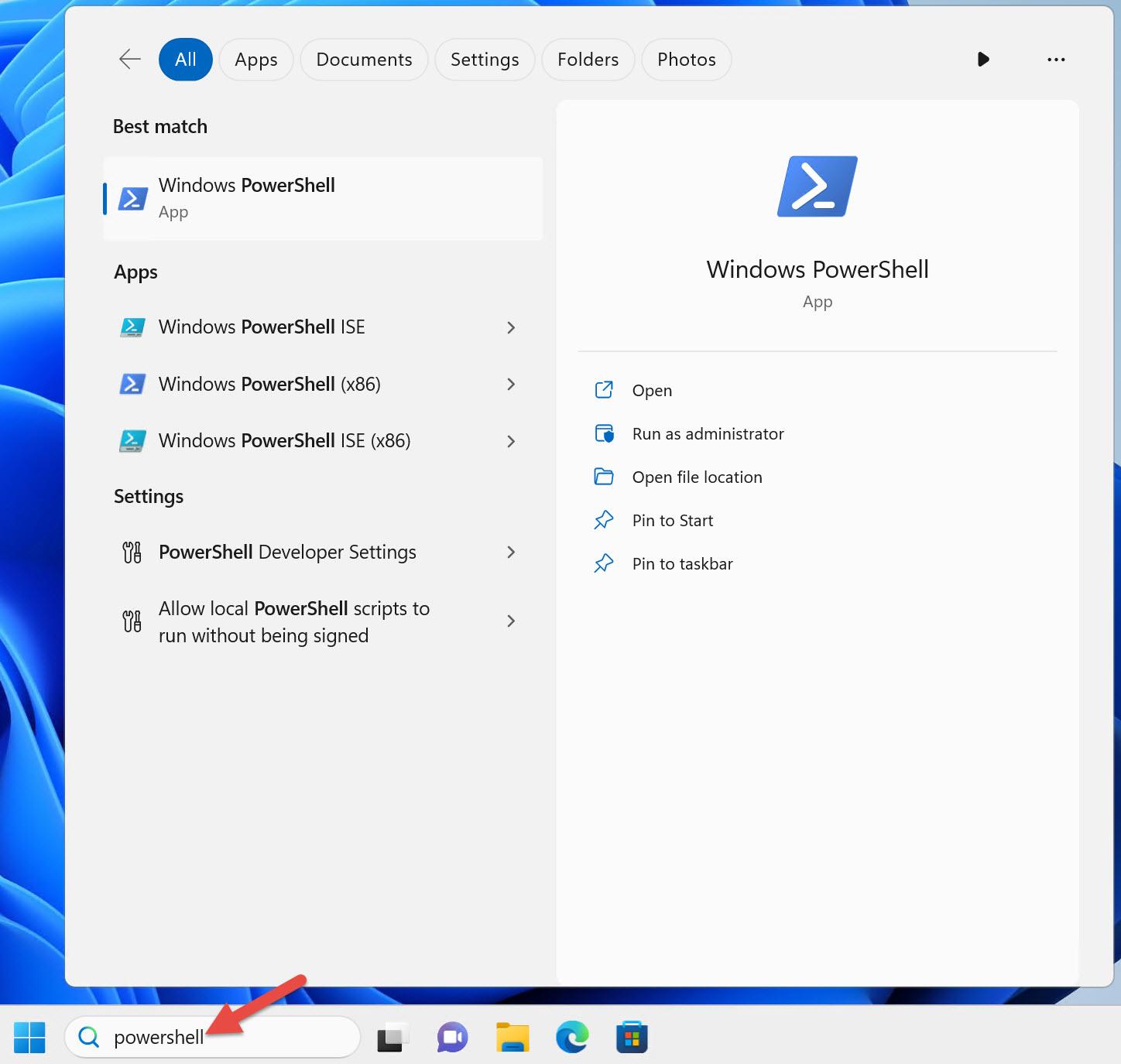
Invoke-Command -VMName "NombreDeLaVM" -ScriptBlock { Get-Process }
Or by using the VM identifier, if you prefer to work with the GUID displayed by Hyper-V:
Invoke-Command -VMId <VMId> -ScriptBlock { Get-Process }
In both cases, PowerShell will ask you virtual machine credentials If you don't already have an established session, once authenticated, the command runs within the VM and the output is displayed in the host console. When it finishes, the connection closes automatically.
If instead of a single command you want run a complete script that resides on the hostYou can reference it using the -FilePath parameter of Invoke-Command. The script is then sent and launched within the virtual machine.
Invoke-Command -VMName "NombreDeLaVM" -FilePath C:\host\scripts\config.ps1
You can also use the variant based on the VM ID, maintaining the same idea: The file is on the host, but it runs within the guest.This greatly simplifies automated configuration tasks in laboratories and test environments.
Use persistent sessions and copy files with New-PSSession and Copy-Item
In addition to interactive sessions or one-off commands, PowerShell Direct shines when combined with persistent sessions These sessions are created using New-PSSession. They remain in the background and can be reused as many times as needed, preserving state and variables between invocations.
To create a persistent session to a virtual machine using PowerShell Direct, you can do something as simple as:
$s = New-PSSession -VMName "NombreDeLaVM" -Credential (Get-Credential)
If you're working with the GUID, you would change the parameter to -VMID and you would keep the rest the samesaving the resulting session in a variable so that it can be referenced later in other cmdlets:
$s = New-PSSession -VMId <VMId> -Credential (Get-Credential)
Once you have created the session, you can reuse it with Invoke-Command, Enter-PSSession, or, very interestingly, to transfer files using Copy-Item, without needing to share network folders or mount additional ISOs or disks.
For example, to copy a file from the host to the virtual machine, you would use the -ToSession parameter pointing to the session you previously created:
Copy-Item -ToSession $s -Path C:\host_path\data.txt -Destination C:\guest_path\
Similarly, if you want to bring a file from the VM to the host, you would use the -FromSession variant of Copy-Itemspecifying the source path on the guest machine and the destination folder on the host:
Copy-Item -FromSession $s -Path C:\guest_path\data.txt -Destination C:\host_path\
When you no longer need to continue using that persistent session, it's good practice close it with Remove-PSSession to free up resources on both the host and guest operating systems:
Remove-PSSession $s
Real advantages of using PowerShell Direct in everyday life
Beyond theory, where PowerShell Direct makes a difference is in management and laboratory scenarios which are often problematic due to network issues. If you work in the field of setting up proofs of concept, demos, test environments, or training programs, you know how burdensome it can be to constantly rely on connectivity.
One of the typical cases is when you are adjusting network configurations within the VM And, due to an error in an IP address, VLAN, or route, you lose remote access. Previously, you had to open the Hyper-V console and fix it manually. Now, as long as the operating system boots correctly, you can connect using PowerShell Direct and correct the configuration without requiring the VM to have a working network connection.
Something similar happens when you apply domain policies that change firewall rules or security settingsA poorly configured GPO could leave you without classic PowerShell Remoting. With this feature, you still have a direct route to the guest system to review which policy broke which setting and revert it.
It is also especially convenient for automate installations and initial startups of virtual machines, avoiding tricks like RunOnce or scripts pasted into sysprep. You can prepare your configuration scripts on the host and run them as soon as the VM is powered on, without having to rely on it obtaining an IP address or resolving names.
From the perspective of service providers and cloud environments based on Hyper-V, PowerShell Direct is clearly intended for simplify the mass management of VMsIt allows administrators to maintain a management channel even in isolated or highly segmented networks, making it ideal for multi-tenant environments or those with strong security requirements.
Common error messages and how to diagnose them
Like any technology, PowerShell Direct is not without its problems. There are a number of fairly frequent error messages which is worth knowing in order to be able to react quickly when they appear.
One of the most common is that cmdlets Enter-PSSession, Invoke-Command, or New-PSSession do not display the -VMName or -VMID parametersIf this happens to you, it's most likely that your host operating system doesn't support this feature, because you're using an older version of Windows that didn't include it.
To check the Windows version on the host, you can use the following PowerShell command, which displays the system build number:
::OSVersion.Version
It is also important to confirm that PowerShell version 5 or higherbecause PowerShell Direct and related features like JEA require at least that major version. You can verify this with:
$PSVersionTable.PSVersion
Another typical error is the message indicating that “An error has occurred that PowerShell cannot handle. A remote session may have ended.” When using Enter-PSSession or New-PSSession against a VM. This problem is usually due to the virtual machine existing but not running, or the guest system not supporting PowerShell Direct because it does not meet the version requirements.
In other cases, the failure is due to PowerShell is not yet available within the VM because the operating system is still booting, has a critical startup error, or is waiting for user input in the console. To quickly check which VMs are running on the host, you can use:
Get-VM
There is a particular case where the same error message occurs with New-PSSession due to a bug that forces you to always pass credentials with -CredentialWhen this occurs, the service related to VM sessions within the guest may become stuck and need to be restarted from within the machine itself.
To resolve this situation, log into the VM using VMConnect, open PowerShell, and restart the vmicvmsession service with this command:
Restart-Service -Name vmicvmsession
Another message that appears quite frequently is that “the parameter set cannot be solved” When trying to use Enter-PSSession with options that are not compatible with virtual machines, such as the -RunAsAdministrator parameter, which does apply in the case of Windows containers, but not in VMs.
In the context of PowerShell Direct, you must Avoid using -RunAsAdministrator when connecting to virtual machines and instead explicitly provide the credentials of an account with administrator permissions on the guest system, either with -Credential or by entering them when PowerShell prompts you on the screen.
Finally, it is quite common to encounter errors of the type “The credentials are not valid” or messages indicating that the VMName parameter does not match any virtual machine. In the first case, check that the username and password exist and are correct within the VM, and that the local administrator account is not disabled if you are trying to connect with it.
In the second case, it usually means that The VM does not exist on the host, or your user is not a Hyper-V administrator.Again, you can use Get-VM to see the list of available virtual machines and check if your credentials have the necessary Hyper-V administrator role.
Best practices and advanced uses with PowerShell Direct
Once you've mastered the basics, it's easy to get much more out of PowerShell Direct by combining it with automation scripts, JEA and shared sessions in delegated administration environments.
For example, you can define functions that abstract the repetitive logic of connecting to VMs using -VMName or -VMId, so that Your scripts orchestrate changes across multiple virtual machines without having to repeat the same block of code for authentication and VM selection over and over again.
You can also integrate it with Just Enough Administration (JEA) Administration to expose to other operators a very limited set of commands that can be launched against virtual machines, maintaining a high level of security but without giving up the convenience of using the Hyper-V direct channel.
In more complex scenarios, it is common to use persistent New-PSSession sessions to multiple VMs in parallel, saving each session in a variable, and then Invoke coordinated commands using Invoke-Command across multiple sessions at onceThis way you can deploy simultaneous configurations without needing to open traditional network connections.
PowerShell Direct is also very handy when you need copy large ISO files, installers, or configuration packages to VMs that don't have network access to the usual repositories. By using Copy-Item with -ToSession and -FromSession, you bypass the dependency on SMB, HTTP, or any other classic transport protocol.
In short, it is a tool that, when used wisely, It greatly simplifies the management of Hyper-V environments.It reduces time wasted on repetitive tasks and gives you much more flexibility when something goes wrong at the network layer or in security policies.
PowerShell Direct has established itself as a key tool in the toolbox of anyone managing Hyper-V, because It offers a reliable management channel even under the worst network conditions.It allows you to run commands and scripts directly within VMs, facilitates file transfer, and provides a significant boost in agility in lab, production, and private cloud environments.

Passionate writer about the world of bytes and technology in general. I love sharing my knowledge through writing, and that's what I'll do on this blog, show you all the most interesting things about gadgets, software, hardware, tech trends, and more. My goal is to help you navigate the digital world in a simple and entertaining way.