- Error 0x8007232B usually indicates activation configured by KMS without correct access to the server or DNS not resolved correctly.
- On home computers, it is often due to fraudulent activations with volume licenses or KMS-type cracks.
- In business environments, it is necessary to check KMS, DNS SRV records, connectivity to port 1688 and key type (KMS vs MAK).
- The solution involves cleaning the system, using a legitimate key, updating Windows, and, if necessary, reinstalling or contacting support.
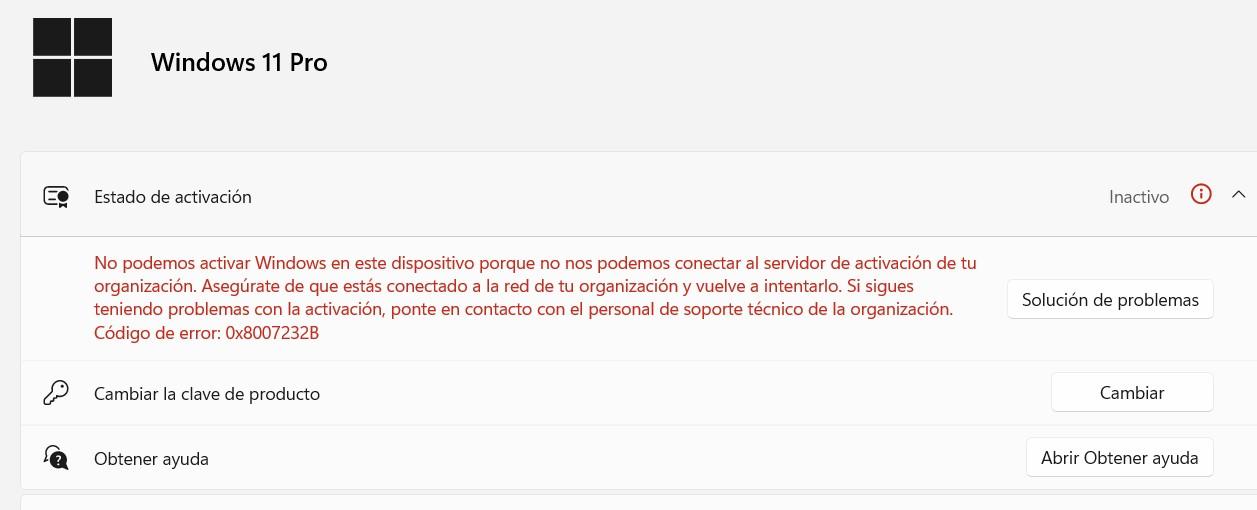
The Windows network activation error 0x8007232B is one of those warnings that can appear out of nowhere, even on computers that have been working flawlessly for years. Suddenly, Windows shows that it's not activated and displays a message mentioning your organization's activation servers or that the DNS name doesn't exist. If this has happened to you and your PC is for home use, it's understandable that you'd be completely baffled.
There are usually two main reasons behind this error: either Windows was activated using volume licenses like KMS (designed for businesses and organizations), or there are network/DNS problems preventing access to Microsoft servers. In addition, many cases involve fraudulent activations using cracks like KMSAuto Net or KMSpico, malware, potentially unwanted programs, or bundled installations that perform unauthorized actions. Let's take a detailed look at what this code means, why it appears, and everything you can do to get your system clean and properly activated.
What does the Windows network activation error 0x8007232B mean?
The error code 0x8007232B in Windows is associated with the message "the DNS name does not exist" or texts like "we cannot connect to your organization's activation server." This indicates that the system is configured to activate via a KMS (Key Management Service) server , which is the method companies use to activate many machines centrally.
Under normal circumstances, a volume-licensed computer queries the organization's DNS server to find the KMS host (_vlmcs._tcp) and, via TCP port 1688, completes activation. When this DNS lookup fails because there is no KMS server or because the SRV record is unavailable, Windows displays error 0x8007232B and activation is not completed.
It's important to understand that these KMS licenses are intended only for large companies, educational institutions, or organizations , not for individual users. If you're using a home PC and seeing this error, it's almost certainly because Windows is using a volume license key that doesn't belong to you.
In other related cases, error 0x8007007B also appears , indicating that the filename, directory, or volume label is incorrect. Both problems fall under activation failures related to volume licensing and KMS or DNS configuration.
Common causes of error 0x8007232B in Windows 10 and 11
This code can appear in various scenarios, but the root of the problem is almost always clear : the system believes it should use KMS activation and, for one reason or another, cannot find the corresponding server. These are the most frequent causes.
On the one hand, it's very common for this error to be due to Windows being activated fraudulently . Many users have taken their PC to a technician or downloaded cracks like KMSAuto Net, KMSpico, or other tools that simulate a local KMS server. It's also possible that other malware or potentially unwanted programs included in bundled installers may have run these tools in the background without your knowledge.
In these cases, after a while the "trick" stops working, the service that acted as a fake KMS disappears or is detected by the antivirus, and then Windows tries to connect to a KMS server that does not exist , which triggers error 0x8007232B and disables the system.
Another possibility is that your PC is part of a corporate or educational network , or that it was installed with a corporate image. In this case, the computer is correctly configured to use KMS, but it is located outside the company network, the license server is inaccessible, or there are DNS problems preventing the _vlmcs._tcp host from being located in the corresponding DNS zone.
There are also scenarios where the error is related to network problems, damaged or misconfigured DNS , as well as interference from antivirus software or certain security suites that block the connection to Microsoft activation servers. Corrupted system files, broken update caches, or software distribution folders with faulty content can worsen the situation.
First steps: check if the equipment is for home or business use
Before changing product keys or tampering with the registry, it's advisable to clarify the type of environment the device belongs to . The error message itself often refers to "the organization" and "your company's network," which provides important clues.
If the computer is yours, you use it at home, and it's not joined to a domain or managed by IT, you most likely have an unauthorized copy of Windows activated with a volume key or a KMS crack. In this case, the solution is to clean the system of any traces of fraudulent activation and use a valid product key or purchase a new license.
Conversely, if the PC belongs to your workplace, educational institution, or government agency , or is managed by an IT department, you shouldn't attempt to force activation yourself. In that case, the wisest course of action is to contact your organization's technical support team directly so they can review the KMS server, DNS records, and the status of your license within the corporate infrastructure.
There are also intermediate cases: for example, second-hand computers that come with Windows installations from enterprise images . If you're unsure, it's a good idea to check the type of product key the system uses and how the operating system was originally installed.
How to clear fraudulent KMS activations from the Command Prompt
When all indications point to an illegal or incorrect activation using KMS on a home computer, it's advisable to remove the associated license keys and data before attempting a legitimate activation. This is done using several commands from the Windows licensing script.
First, search for "cmd" in the Start menu, right-click on Command Prompt , and select "Run as administrator." Once the Command Prompt window is open with elevated privileges, enter the following commands one by one, pressing ENTER after each line and waiting for it to finish:
slmgr.vbs / upk
slmgr.vbs / cpky
slmgr.vbs / rearm
The `/upk` command uninstalls the currently installed product key, `/cpky` removes the key data from the registry to eliminate any trace, and `/rearm` resets Windows activation status by restarting the evaluation counters. This is a delicate process, so it's best not to close the window until each command confirms it has executed successfully.
Once this sequence is complete, it is essential to restart your computer for the changes to take effect. After restarting, you can proceed with obtaining or entering a valid product key, either extracted from the BIOS/UEFI or acquired through official channels.
How to obtain the original key from the BIOS/UEFI (OA3xOriginalProductKey)
Many computers that came from the factory with Windows pre-installed have the product key stored in the BIOS/UEFI's ACPI table, so the system detects it automatically during installation. If the activation process has been tampered with or a different image has been installed, it can be useful to recover that OEM key.
To read the key stored in the firmware, you need to reopen the command prompt as administrator and run this command:
wmic path softwarelicensingservice get OA3xOriginalProductKey
After a few seconds, a string consisting of five blocks of characters separated by hyphens will appear on the screen. This is the original product key associated with the device. It is important to copy it carefully to avoid typos, as every character counts.
The next step is to go to Settings > Update & Security > Activation , use the "Change product key" option, and enter the key you obtained. This will allow Windows to attempt to activate against Microsoft servers using a legitimate channel, without resorting to KMS.
If the key is valid and corresponds to the installed edition (for example, Windows 10 Home vs. Pro), activation should complete successfully . If another error appears, or if it indicates that the key is not valid for this edition, you will need to check if the installed edition matches the OEM license.
What to do if the OEM key doesn't work or doesn't exist
There are cases where the WMIC command doesn't return a key , which usually indicates that the computer didn't come with Windows pre-installed or that it's a custom build without an OEM license associated with the hardware. It's also possible that the extracted key isn't valid for the current edition or that Microsoft is rejecting the activation for other reasons.
If the key you entered doesn't work, the most direct option is to access the Microsoft Store from the Activation section and purchase a new license. This way, you ensure you have a legitimate key, linked to your Microsoft account, without relying on suspicious intermediaries or gray markets.
If you don't want to or can't spend money on a new license and you're convinced that your copy should be valid (for example, because the computer was sold as legal or because you acquired a key through a supposedly authorized channel), it's advisable to contact official Microsoft technical support in your country.
Microsoft's support page lists phone numbers and contact options for each region. You can provide them with information about your license status, error messages , and, if you find it helpful, even send them documentation or links that describe the problem, such as Microsoft's own Answers pages that detail error 0x8007232B and its possible causes.
If, after all these checks, you still can't activate Windows with a valid key, it's a good idea to make sure your system is fully updated . Sometimes certain activation fixes or license channel changes only take effect after installing pending updates from Windows Update and restarting your computer.
Scan the system for malware, cracks, and PUPs
Since this error is often linked to the previous use of activation cracks or malware infections , a thorough system cleanup is highly recommended. Simply removing the visible executable is insufficient; many such tools leave behind hidden services, scheduled tasks, or modifications.
A good approach is to use several complementary security solutions, starting with Malwarebytes to detect and remove malware, adware, and potentially unwanted programs (PUPs). Afterward, you can run AdwCleaner , which specializes in adware and other annoying remnants in browsers and system settings.
It's also advisable to run Microsoft Safety Scanner , Microsoft's dedicated tool that helps identify infections that may have gone unnoticed. For a more comprehensive scan, you can use solutions like HitmanPro (registration required for download) or ESET Online Scanner , which offer a second opinion on complex threats.
It's important to remember that these sites and tools belong to third parties unrelated to Microsoft , even though they provide reliable information and useful utilities. Be wary of banners or ads that display dubious products, miracle VPNs, vague "optimizers," or solutions that seem too good to be true. Thoroughly research any program before installing it.
After trying these solutions, it's best to let Windows Defender (Microsoft Defender) take over. From "Virus & threat protection," you can access "Protection updates" and click "Check for updates" to download the latest signature database.
Use Microsoft Defender offline for a deep clean
With updated signatures, a powerful option is to run an offline scan with Microsoft Defender . This mode restarts your computer in a special environment where the normal operating system isn't running, reducing the ability of even the most persistent malware to hide or protect itself.
To use it, go to "Virus & threat protection" and select "Scan options, " then choose "Microsoft Defender Offline scan ." Next, click "Scan now," and your computer will ask for confirmation before restarting.
During the restart, the PC will boot into a scanning environment where Defender will perform a thorough examination of drives, critical sectors, and sensitive areas . This process may take some time, so please be patient and allow the scan to complete.
It's essential that, before running this type of intensive scan or manipulating activation keys, you back up all your important files and close all programs . Nothing serious should happen, but it's always better to be safe than sorry.
Once the cleanup is complete, if the source of the error was a crack or some malware that affected the licensing system, additional errors may disappear and activation may return to a consistent state, although you will still need a legitimate product key.
Business scenarios: KMS, DNS, and advanced configuration
When error 0x8007232B appears in a corporate or volume licensing environment , the approach is different. In these cases, the systems are designed to activate in response to an internal KMS server and rely on the organization's network and DNS infrastructure.
In these types of deployments , volume licensing media is used to install systems such as Windows 7, Windows 8, Windows 10, Windows 11, or versions of Windows Server (2008, 2008 R2, 2012, etc.). The installation wizard typically uses a generic volume key and, when attempting to activate, automatically queries the DNS to locate a KMS host.
The query looks for an SRV record named _vlmcs._tcp in the DNS zone corresponding to the computer's domain suffix. If this record does not exist, if the DNS server does not support dynamic updates, or if the KMS host is not properly registered, error messages will appear stating that the DNS name does not exist or that the activation server cannot be contacted.
In these scenarios, Microsoft itself recommends two paths: if KMS activation is not going to be used, the product key must be changed to a valid MAK (Multiple Activation Key); if KMS is going to be used, the DNS and KMS host configuration must be corrected so that clients can locate it correctly.
A key step is to check the DisableDnsPublishing subkey in the KMS host registry . If it's present and set to 1, the service won't register its SRV records with DNS. Changing it to 0 (or creating it with that value if it doesn't exist) and restarting the licensing service will cause the KMS host to automatically publish the _vlmcs._tcp record every 24 hours, provided the DNS server accepts dynamic updates.
Manual SRV KMS registration and connectivity check
When the DNS infrastructure does not support dynamic updates or a BIND server is used, it is sometimes necessary to manually create the KMS SRV record. On a Microsoft DNS server, this is done from the DNS Manager , within the forward lookup zones of the corresponding domain.
In the appropriate area, a new Service Location (SRV) record must be added with the following parameters: Service = _VLMCS, Protocol = _TCP, Port = 1688, and hostname equal to the FQDN of the KMS server (for example, kms-server.domain.com). On BIND 9.x servers, an SRV record is created with the name _vlmcs._tcp, priority 0, weight 0, port 1688, and the hostname of the KMS host.
Once the record has been created or published, you can check from a KMS client whether it is resolving correctly using nslookup . Microsoft recommends generating a file (for example, kms.txt) containing entries like _vlmcs._tcp.contoso.com SRV service location: priority = 0 weight = 0 port = 1688 svr hostname = kms-server.contoso.com. If this information is correct, the problem is usually with the client.
The next logical step is to check basic IP connectivity to the DNS server and KMS host, using commands like ping to verify that there are no fundamental network outages. If pinging to DNS fails, TCP/IP issues must be resolved before proceeding with activation.
It's also important to verify that the primary DNS suffix and the client's lookup list include the domain where the KMS SRV is registered. On domain-joined computers, automatic resolution is based on Active Directory domain membership; on workgroup computers, it depends on what DHCP assigns (option 15) or the manually configured suffix.
Manually specify the KMS host and debug caches
In some cases, even with properly configured SRV records, clients may still fail to activate due to a temporary name resolution issue or cached values. To resolve this, you can manually specify the KMS host on the client.
From an elevated command prompt, you can use the following command:
cscript \windows\system32\slmgr.vbs -skms :
with the IP address or NETBIOS/FQDN name of the KMS host and the port (usually 1688). This forces the client to use that server instead of relying on automatic discovery via DNS.
If activation works after this, it's clear the original problem was with the SRV record or auto-detection . At this point, you can work on permanently correcting the DNS to avoid relying on manual configuration.
When cached KMS data is suspected of causing problems, Microsoft suggests running specific commands to clear KMS hostnames stored on the client and force a new discovery. Additionally, it is crucial to verify that TCP port 1688 is not blocked by firewalls, network filters, or perimeter devices.
Manually update, repair Windows Update, and reinstallation options
On some computers, error 0x8007232B appears alongside Windows Update failures or a general inability to apply patches. In these cases, cleaning the Software Distribution folder and completely resetting the update service may help.
To do this, you typically disable your internet connection, restart your system, and open Command Prompt again as administrator. Then, stop the services related to updates using commands like `net stop cryptSvc` , `net stop bits` , and `net stop msiserver` , and rename or delete the folders C:\Windows\SoftwareDistribution (for example, to SoftwareDistribution.old), as well as its subfolders DataStore and Download. This cleanup and repair process is explained in guides such as " Cleaning the Software Distribution Folder ."
After this, restart your computer and allow Windows Update to rebuild its caches and databases from scratch . If cleaning alone doesn't work, you can go a step further and manually reset the update services, also renaming the catroot2 folder and ensuring that wuauserv, bits, and cryptsvc start correctly.
If all of this fails to resolve either the update or activation issues, one option is to perform a manual update using the Media Creation Tool or an official Windows 10/11 ISO file. This method allows you to reinstall the system over itself, keeping your personal files but replacing any corrupted components.
When your device is capable of running Windows 11 (you can check this with the PC Health Check app), a recommended option is to purchase a Windows 11 license, create a full backup on external storage, and perform a clean installation from an installation USB drive . To do this, you'll need to prepare a USB flash drive of at least 8 GB, download the media creation tool on another computer, select "USB flash drive," and choose the drive letter.
BIOS/UEFI settings and important warnings
When performing a clean install of Windows 11 (or Windows 10) on a modern computer, you need to pay attention to certain BIOS/UEFI settings that affect storage. Many motherboards have RAID mode enabled by default or technologies like Intel Rapid Storage or AMD StoreMI, which may require specific drivers that aren't always compatible with the latest version of Windows.
It is generally recommended to configure the SATA controller mode to AHCI , even if no SATA drives are installed, disable NVMe RAID mode if it is not being used, and turn off any non-essential features such as Intel RST or AMD StoreMI. This will allow the Windows installer to recognize the drives without problems and create the usual partitions (EFI, MSR, primary, and recovery).
During installation, a common practice for a truly clean installation is to delete all system disk partitions (including recovery, EFI, and reserved partitions) and leave the space as "unallocated." The installer will then recreate the correct structure when you click "Next." If an error occurs during the SAFE_OS phase of the installation, there are practical guides available on how to resolve it.
It's crucial to understand that this operation erases all data from the disk, so before touching anything in the BIOS or reformatting, you must have a recent backup of documents, photos, videos, and any other content you don't want to lose. Microsoft emphasizes that these steps should only be taken when all other troubleshooting methods have been exhausted.
Modifying BIOS/UEFI and performing clean installations carries risks, so if you don't have much experience, it's a good idea to seek help from a qualified technician or strictly follow Microsoft's official guides. Whenever you manipulate partitions or low-level settings, do so carefully and with a clear understanding of what you're doing.
The Windows network activation error 0x8007232B is often just the tip of the iceberg of deeper issues related to volume licensing, legacy KMS configurations, misconfigured DNS, or even fraudulent activations that have left the system unstable. Identifying whether your computer is for home or business use, removing any traces of cracks or malware, recovering or acquiring a legitimate product key, reviewing the network infrastructure in business environments, and, if necessary, resorting to reinstallation or Microsoft technical support are the most reliable ways to get your Windows system properly activated and running smoothly.


Passionate writer about the world of bytes and technology in general. I love sharing my knowledge through writing, and that's what I'll do on this blog, show you all the most interesting things about gadgets, software, hardware, tech trends, and more. My goal is to help you navigate the digital world in a simple and entertaining way.